Note
Access to this page requires authorization. You can try signing in or changing directories.
Access to this page requires authorization. You can try changing directories.
Microsoft Defender for Cloud Apps lets you govern discovered apps by approving safe apps (Sanctioned) or prohibiting unwanted apps (Unsanctioned). Sanctioned apps are marked as approved for use, while unsanctioned apps can be monitored or blocked. This article covers how to sanction or unsanction apps, block apps by using built-in streams or block scripts, and resolve governance conflicts.
Prerequisites
Before you block discovered cloud apps, make sure you meet these requirements:
- Configure Cloud Protection in Microsoft Defender for Endpoint
- Turn on Network Protection in Microsoft Defender for Endpoint
- Install the Microsoft Defender Browser Protection add-on in all non-Microsoft browsers in your organization.
Sanctioning/unsanctioning an app
You can mark a specific risky app as unsanctioned by clicking the three dots at the end of the row. Then select Unsanctioned. Unsanctioning an app doesn't block use, but enables you to more easily monitor its use with the cloud discovery filters. You can then notify users of the unsanctioned app and suggest an alternative safe app for their use, or generate a block script using the Defender for Cloud Apps APIs to block all unsanctioned apps.

Note
An app that is onboarded to inline proxy or connected via app connector, all such applications would be auto sanctioned state in Cloud Discovery.
Blocking apps with built-in streams
If your organization's Microsoft 365 tenant uses Microsoft Defender for Endpoint, apps you mark as unsanctioned are blocked automatically. You can also scope blocking to specific device groups, monitor apps, and use the warn and educate users when accessing risky apps features. For more information, see Govern discovered apps using Microsoft Defender for Endpoint.
If your tenant uses Zscaler NSS, iboss, Corrata, Menlo, or Open Systems, unsanctioned apps are also blocked. However, you can't scope blocking by device groups or use the warn and educate users when accessing risky apps features. For more information, see Integrate with Zscaler, Integrate with iboss, Integrate with Corrata, Integrate with Menlo, and Integrate with Open Systems.
Block apps by exporting a block script
Defender for Cloud Apps enables you to block access to unsanctioned apps by using your existing on-premises security appliances. You can generate a dedicated block script and import it to your appliance. Using a block script doesn't require redirection of all of the organization's web traffic to a proxy.
Before you begin, make sure you have a supported on-premises security appliance configured and available to import the block script.
In the cloud discovery dashboard, tag any apps you want to block as Unsanctioned.

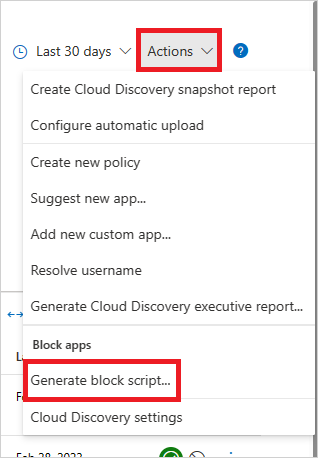
In the title bar, select Actions and then select Generate block script....
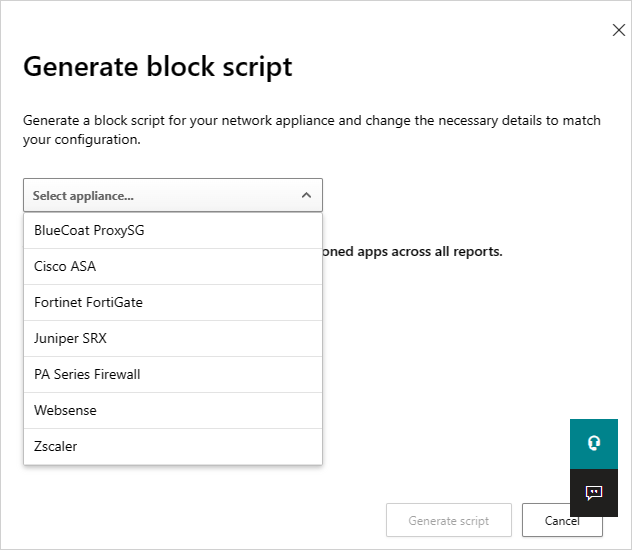
In Generate block script, select the appliance you want to generate the block script for.
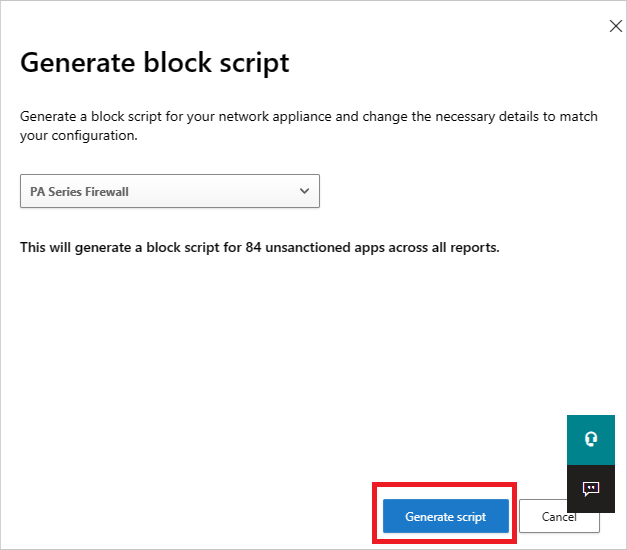
Then select the Generate script button to create a block script for all your unsanctioned apps. By default, the file is named with the date on which it was exported and the appliance type you selected. 2017-02-19_CAS_Fortigate_block_script.txt would be an example file name.
Import the file created to your appliance.
Blocking unsupported streams
If your tenant doesn't use Microsoft Defender for Endpoint, Zscaler NSS, iboss, Corrata, Menlo, or Open Systems, you can export all domains for unsanctioned apps. Then configure your third-party appliance to block those domains.
In the Discovered apps page, filter all Unsanctioned apps and then use the export capability to export all the domains.
Nonblockable applications
Some services are critical to business operations. To prevent downtime, you can't block these services in Defender for Cloud Apps, whether through the UI or policies:
- Microsoft Defender for Cloud Apps
- Microsoft Defender Security Center
- Microsoft 365 Security Center
- Microsoft Defender for Identity
- Microsoft Purview
- Microsoft Entra Permissions Management
- Microsoft Conditional Access Application Control
- Microsoft Secure Score
- Microsoft Purview
- Microsoft Intune
- Microsoft Support
- Microsoft AD FS Help
- Microsoft Support
- Microsoft Online Services
Resolve governance conflicts between manual actions and policies
If there's a conflict between a manual sanction or unsanction action and a governance action set by a cloud discovery policy, the last operation applied takes precedence.
Next steps
If you run into any problems, we're here to help. To get assistance or support for your product issue, please open a support ticket.