Note
Access to this page requires authorization. You can try signing in or changing directories.
Access to this page requires authorization. You can try changing directories.
Use this guide to deploy Microsoft Defender for Endpoint Plan 1. Review the requirements, choose a deployment method, onboard devices, and configure the protection features included in Plan 1.
The setup and configuration process

The general setup and configuration process for Defender for Endpoint Plan 1 is as follows:
| Step | Description | |
|---|---|---|
| 1 | Review the requirements | Verify licensing, operating system, hardware, network, and data storage requirements. |
| 2 | Plan your deployment | Choose an architecture and deployment method. |
| 3 | Set up your environment | Prepare your organization for deployment. |
| 4 | Assign roles and permissions | Give your security team the permissions they need. |
| 5 | Onboard to Defender for Endpoint | Choose an onboarding method for each operating system. |
| 6 | Configure next-generation protection | Configure Microsoft Defender Antivirus settings in Microsoft Intune. |
| 7 | Configure attack surface reduction capabilities | Configure the attack surface reduction capabilities included in Plan 1. |
Review the requirements
Before deployment, verify the licensing, supported operating systems and browsers, hardware, network connectivity, and data storage requirements. For the current requirements, see Minimum requirements for Microsoft Defender for Endpoint.
Defender for Endpoint Plan 1 and Plan 2 don't include server licenses. For server licensing and onboarding requirements, see Onboard Windows Server.
Plan your deployment
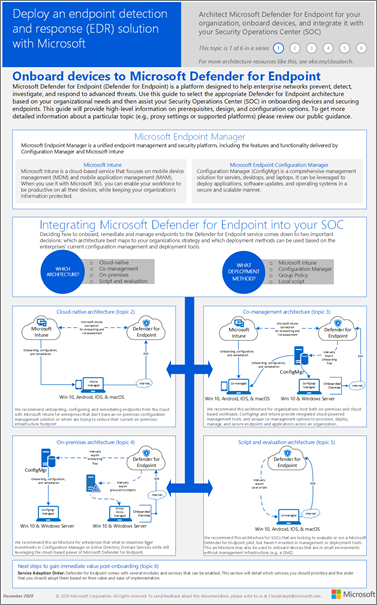
Choose an architecture and deployment method based on your existing device-management tools and environment. Deployment architectures include cloud-native, co-management, on-premises, and evaluation or local onboarding.
Microsoft Intune is the recommended tool for configuring and distributing Defender for Endpoint features to devices. However, Intune is a separate product that isn't part of Defender for Endpoint, and it isn't included in all subscriptions. To use Intune, you need a subscription that includes it, or you can buy it separately as a standalone subscription or add-on. If you don't have Intune, you can use any of the other methods in this article. For more information, see Microsoft Intune licensing.
For guidance about choosing an architecture and deployment method, see Identify your architecture and select a deployment method for Defender for Endpoint.
The following deployment poster provides a visual summary of the available options:
Set up your environment
Prepare your environment for Defender for Endpoint by completing the following tasks:
- Verify your licenses.
- Configure your organization.
- Configure proxy settings, if needed.
- Verify that sensors work correctly and report data to Defender for Endpoint.
For detailed setup guidance, see Set up Defender for Endpoint.
Assign roles and permissions
Assign roles that give your security team the permissions they need to access the Microsoft Defender portal, configure Defender for Endpoint, and respond to detected threats. Use roles with the fewest permissions needed for each task.
Defender for Endpoint supports Microsoft Entra roles and role-based access control (RBAC). For current permissions guidance, see Assign roles and permissions.
Important
After February 2025, new Defender for Endpoint customers use Microsoft Defender unified RBAC. Existing customers keep their current roles and permissions. For more information, see Microsoft Defender unified RBAC.
Onboard to Defender for Endpoint
Choose an onboarding method for each operating system and management environment. For the current list of deployment tools, see Select your deployment method.
After you onboard your devices, configure next-generation protection and attack surface reduction capabilities.
Configure next-generation protection
We recommend using Microsoft Intune to manage your organization's devices and security settings:
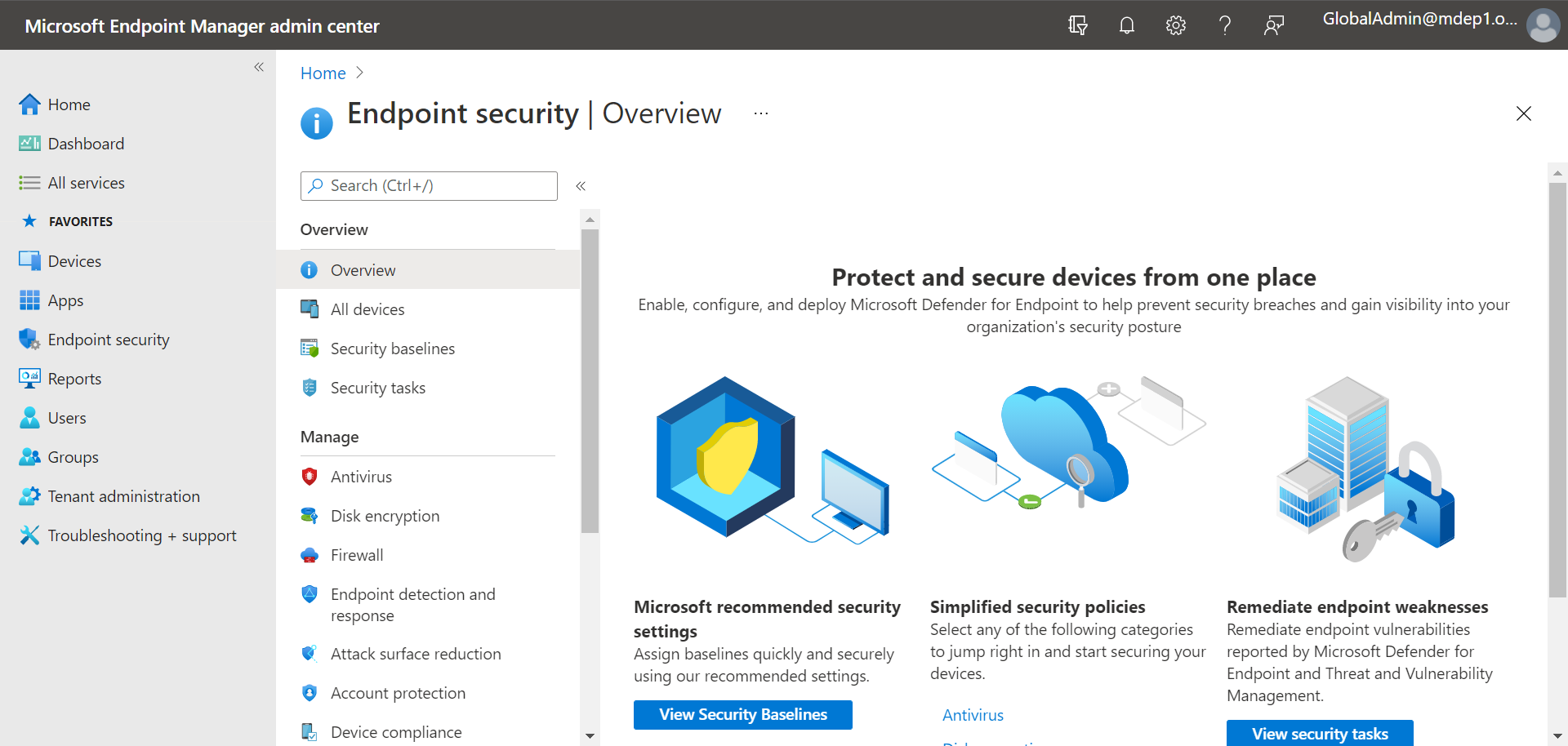
To configure next-generation protection in Intune, use an endpoint security Antivirus policy. For detailed instructions, see Create endpoint security policies.
When you create the policy, use these specific settings:
- Policy type: Go to Manage > Antivirus on the Endpoint security | Overview page at https://intune.microsoft.com/#view/Microsoft_Intune_Workflows/SecurityManagementMenu/~/overview, and then select
 Create policy.
 - Platform: Select Windows.
- Profile: Select Microsoft Defender Antivirus.
On the Configuration settings tab, configure the antivirus settings for your organization. For descriptions of the available settings, see Windows Antivirus policy settings for Microsoft Defender Antivirus.
For iOS configuration options, see Configure Microsoft Defender for Endpoint on iOS features.
Configure your attack surface reduction capabilities
Attack surface reduction reduces the places where your organization is vulnerable to attack. Defender for Endpoint Plan 1 includes the following attack surface reduction capabilities:
| Feature/capability | Description |
|---|---|
| Attack surface reduction (ASR) rules | ASR rules target risky software behavior on Windows devices that attackers commonly exploit through malware (for example, launching scripts that download files, running obfuscated scripts, and injecting code into other processes). |
| Ransomware mitigation | Set up ransomware mitigation by configuring controlled folder access (CFA), which helps protect your organization's valuable data from malicious apps and threats, such as ransomware. |
| Device control | Configure device control settings for your organization to allow or block removable devices (such as USB drives). |
| Network protection | Set up network protection to prevent people in your organization from using applications that access dangerous domains or malicious content on the Internet. |
| Web protection | Set up web threat protection to protect your organization's devices from phishing sites, exploit sites, and other untrusted or low-reputation sites. Set up web content filtering to track and regulate access to websites based on their content categories (such as Leisure, High bandwidth, Adult content, or Legal liability). |
| Network firewall | Configure your network firewall with rules that determine which network traffic is permitted to come into or go out from your organization's devices. |
| Application control | Configure application control rules if you want to allow only trusted applications and processes to run on your Windows devices. |
Attack surface reduction (ASR) rules
Attack surface reduction (ASR) rules are available in Microsoft Defender Antivirus on Windows devices. For the available deployment methods, see Deployment and configuration methods for ASR rules.
Typically, you can enable the standard protection rules in Block or Warn mode without testing. You should test other ASR rules in Audit mode before you switch them to Block or Warn mode. For more information, see the ASR rules deployment guide.
Ransomware mitigation
You get ransomware mitigation through controlled folder access, which allows only trusted apps to access protected folders on your endpoints.
To configure controlled folder access in Intune, see Configure ASR rules and exclusions in Intune using endpoint security policies. Use the Enable controlled folder access, Controlled folder access protected folders, and Controlled folder access allowed applications settings in the policy.
For more information, see Controlled folder access (CFA) overview.
Device control
You can configure Defender for Endpoint to block or allow removable devices and files on removable devices. In Intune, use an endpoint security Attack surface reduction policy. For detailed instructions, see Create endpoint security policies.
Note
Device control isn't supported on Windows Server.
When you create the policy, use these specific settings:
- Policy type: Go to Manage > Attack surface reduction on the Endpoint security | Overview page at https://intune.microsoft.com/#view/Microsoft_Intune_Workflows/SecurityManagementMenu/~/overview, and then select
Create policy.
- Platform: Select Windows.
- Profile: Select Device Control.
For configuration settings, reusable groups, assignments, and deployment guidance, see Configure device control with Microsoft Intune.
Network protection
Network protection helps prevent apps from connecting to dangerous domains that might host phishing scams, exploits, and other malicious content on the internet. In Intune, use an endpoint security Antivirus policy. For detailed instructions, see Create endpoint security policies.
When you create the policy, use these specific settings:
- Policy type: Go to Manage > Antivirus on the Endpoint security | Overview page at https://intune.microsoft.com/#view/Microsoft_Intune_Workflows/SecurityManagementMenu/~/overview, and then select
Create policy.
- Platform: Select Windows.
- Profile: Select Microsoft Defender Antivirus.
On the Configuration settings tab, in the Defender section, set Enable network protection to Enabled (block mode). To evaluate network protection without blocking connections, select Enabled (audit mode).
Tip
For other configuration methods and detailed requirements, see Configure network protection.
Web protection
Web protection helps protect your organization's devices from web threats and unwanted content. It includes web threat protection and web content filtering.
Configure web threat protection
The legacy Intune Web protection policy is deprecated. Configure web threat protection by enabling network protection and Microsoft Defender SmartScreen on your devices. For requirements and configuration guidance, see Protect your organization against web threats.
Configure web content filtering
To enable web content filtering and create a policy, see Turn on web content filtering.
Network firewall
Network firewall helps reduce the risk of network security threats. Your security team can set rules that determine which traffic is permitted to flow to or from your organization's devices. We recommend using Microsoft Intune to configure your network firewall.
To configure Windows Firewall in Intune, use an endpoint security Firewall policy. For detailed instructions, see Create endpoint security policies.
When you create the policy, use these specific settings:
- Policy type: Go to Manage > Firewall on the Endpoint security | Overview page at https://intune.microsoft.com/#view/Microsoft_Intune_Workflows/SecurityManagementMenu/~/overview, and then select
Create policy.
- Platform: Select Windows.
- Profile: Select Windows Firewall.
On the Configuration settings tab, set each of the following settings to True (Default):
- Enable Domain Network Firewall
- Enable Private Network Firewall
- Enable Public Network Firewall
For more information about firewall profiles in Intune, see Manage firewall settings with endpoint security policies in Microsoft Intune.
Tip
Firewall settings are detailed and can seem complex. Refer to Best practices for configuring Windows Defender Firewall.
Application control
App Control for Business helps protect Windows devices by restricting the apps users can run and the code that runs in the system core. App Control complements antivirus protection and isn't a replacement for antivirus.
To plan your App Control deployment, see the following resources:
- Application Control for Windows
- App Control for Business policy design decisions
- Common App Control for Business use cases
Next step
After you finish setup and configuration, get started with Defender for Endpoint Plan 1.