Note
Access to this page requires authorization. You can try signing in or changing directories.
Access to this page requires authorization. You can try changing directories.
Use Microsoft Intune to onboard a test group of Windows devices to Microsoft Defender for Endpoint. Then configure Microsoft Defender Antivirus, network protection, and attack surface reduction (ASR) rules, and validate each policy.
This article continues the deployment process described in Identify Defender for Endpoint architecture and deployment method and covers the cloud-native architecture that uses Microsoft Intune.

Cloud-native architecture.
Prerequisites
- A Microsoft Intune subscription. Intune is a separate product that isn't part of Defender for Endpoint, and it isn't included in all subscriptions. You need a subscription that includes Intune, or you can buy it separately as a standalone subscription or add-on. For licensing details, see Microsoft Intune licensing.
- Windows devices enrolled in Intune. For more information, see Device enrollment in Microsoft Intune.
- An account with the Intune Endpoint Security Manager role or equivalent permissions.
- A connection between Intune and Defender for Endpoint. For instructions and required permissions, see Configure Microsoft Defender for Endpoint with Intune and onboard devices.
- Access to the Microsoft Intune admin center and the Microsoft Defender portal.
This procedure uses targeted endpoint security policies instead of Intune security baselines. For an overview of Intune, see What is Microsoft Intune?. For information about Configuration Manager, see Microsoft Configuration Manager.
If you don't have Intune, review the other architectures and onboarding methods in Identify Defender for Endpoint architecture and deployment method and Onboarding overview.
Step 1: Create a test device group
Create a Microsoft Entra device group that contains the Windows devices where you want to evaluate the Defender for Endpoint configurations. For instructions to create the group and add members, see Add groups to organize users and devices.
Step 2: Create and assign Defender for Endpoint policies
Create and assign separate endpoint security policies for endpoint detection and response (EDR), next-generation protection, and ASR rules.
Endpoint detection and response
Create an endpoint detection and response (EDR) policy to onboard the devices. For detailed instructions, see Onboard Windows devices to Microsoft Defender for Endpoint by using Microsoft Intune.
When you create the policy, use these specific settings:
- Platform: Select Windows.
- Profile: Select Endpoint detection and response.
On the Assignments page, include the test group that you created in Create a test device group.
Next-generation protection
Create an endpoint security Antivirus policy to configure Microsoft Defender Antivirus. For detailed instructions and descriptions of the available settings, see Configure Microsoft Defender Antivirus using Microsoft Intune.
For this evaluation, use these specific settings:
- Platform: Select Windows.
- Profile: Select Microsoft Defender Antivirus.
- Configuration settings: Configure the cloud protection, exclusions, real-time protection, and remediation settings required by your organization. Set Turn on cloud-delivered protection and Allow Real-Time Monitoring to Allowed.
In the same policy, configure Enable network protection as Enabled (audit mode). Microsoft recommends using audit mode in a test environment before enabling block mode. For detailed instructions, see Configure network protection in Intune using endpoint security policies.
On the Assignments page, include the test group that you created in Create a test device group.
Attack surface reduction rules
Create an endpoint security Attack surface reduction policy. For detailed instructions, see Configure ASR rules and exclusions in Intune using endpoint security policies.
For this evaluation, use Audit mode for rules that require testing before enforcement. You can enable the standard protection rules in Block or Warn mode without testing. For information about the available rules and modes, see Attack surface reduction rules reference.
On the Assignments page, include the test group that you created in Create a test device group.
Step 3: Validate the configuration
Confirm policy assignment status
After you assign a policy, devices receive it the next time they check in with Intune. For information about policy refresh intervals, see Common questions and answers about device policies and profiles in Microsoft Intune.
For each policy, use the policy reports in the Intune admin center to review the Device and user check-in status, Device assignment status, and Per setting status. Confirm that the test devices have a Succeeded status. For detailed instructions, see View details on a policy.
Use Per setting status to identify settings that conflict with another policy.
Confirm endpoint detection and response
On a test device that isn't already onboarded to Defender for Endpoint, run the following PowerShell command to check the service status:
Get-Service "Sense" | Format-List Status,Name,DisplayNameThe Microsoft Defender for Endpoint service shouldn't be running, as shown in the following output:
Status      : Stopped
Name        : Sense
DisplayName : Windows Defender Advanced Threat Protection Service
After Intune reports that the EDR policy was applied successfully, run the same PowerShell command on the device:
Get-Service "Sense" | Format-List Status,Name,DisplayNameThe Microsoft Defender for Endpoint service should be running, as shown in the following output:
Status      : Running
Name        : Sense
DisplayName : Windows Defender Advanced Threat Protection Service
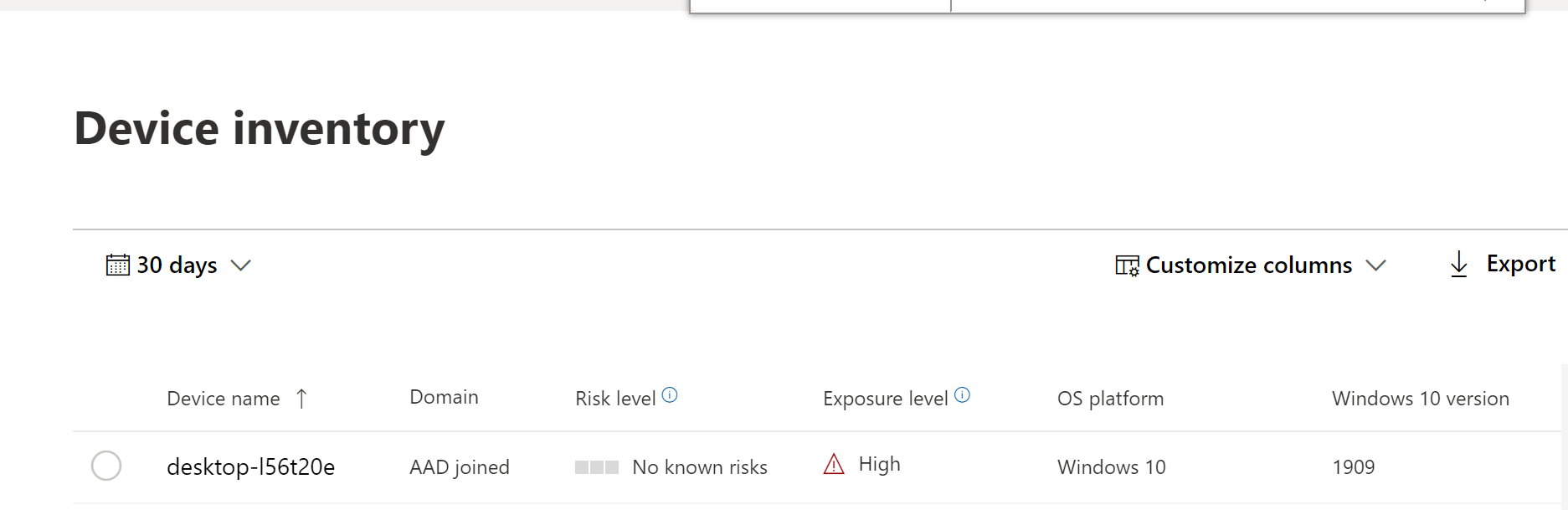
On the Device inventory page in the Microsoft Defender portal at https://security.microsoft.com/machines, verify that the device appears. A newly onboarded device typically appears within 15 to 30 minutes.
Confirm next-generation protection
Before applying the policy on a test device, verify that you can manually manage cloud-delivered protection and real-time protection:

After the policy is applied, verify that Turn on cloud-delivered protection and Turn on real-time protection are turned on and unavailable for local changes:


Confirm attack surface reduction rules
On a test device without existing ASR rule settings, run the following command in an elevated PowerShell session to view the ASR configuration:
Get-MpPreference | Select-Object AttackSurfaceReduction*The result should show empty values for the ASR rule properties:
AttackSurfaceReductionOnlyExclusions                  :
AttackSurfaceReductionRules_Actions                   :
AttackSurfaceReductionRules_Ids                       :
AttackSurfaceReductionRules_RuleSpecificExclusions    :
AttackSurfaceReductionRules_RuleSpecificExclusions_Id :
After Intune reports that the ASR policy was applied successfully, run the following command in an elevated PowerShell session to view all configured ASR rule values:
$FormatEnumerationLimit = -1; Get-MpPreference | Format-List AttackSurfaceReduction*The output should list the configured rule IDs and their corresponding action values. The exact values depend on the rules and modes that you configured. The following output is an example:
AttackSurfaceReductionOnlyExclusions                  :
AttackSurfaceReductionRules_Actions                   : {1, 1, 1, 1, 1, 1, 1, 1, 1, 5, 1, 1, 1, 1, 1, 1}
AttackSurfaceReductionRules_Ids                       : {26190899-1602-49e8-8b27-eb1d0a1ce869,
                                                        33ddedf1-c6e0-47cb-833e-de6133960387,
                                                        3B576869-A4EC-4529-8536-B80A7769E899,
                                                        56a863a9-875e-4185-98a7-b882c64b5ce5,
                                                        5BEB7EFE-FD9A-4556-801D-275E5FFC04CC,
                                                        75668C1F-73B5-4CF0-BB93-3ECF5CB7CC84,
                                                        7674ba52-37eb-4a4f-a9a1-f0f9a1619a2c,
                                                        92E97FA1-2EDF-4476-BDD6-9DD0B4DDDC7B,
                                                        9e6c4e1f-7d60-472f-ba1a-a39ef669e4b2,
                                                        a8f5898e-1dc8-49a9-9878-85004b8a61e6,
                                                        b2b3f03d-6a65-4f7b-a9c7-1c7ef74a9ba4,
                                                        BE9BA2D9-53EA-4CDC-84E5-9B1EEEE46550,
                                                        c1db55ab-c21a-4637-bb3f-a12568109d35,
                                                        D3E037E1-3EB8-44C8-A917-57927947596D,
                                                        D4F940AB-401B-4EFC-AADC-AD5F3C50688A,
                                                        e6db77e5-3df2-4cf1-b95a-636979351e5b}
AttackSurfaceReductionRules_RuleSpecificExclusions    :
AttackSurfaceReductionRules_RuleSpecificExclusions_Id :
Confirm network protection
On a test device where network protection isn't already configured, run the following PowerShell command to view its status:
(Get-MpPreference).EnableNetworkProtectionThe result should be the value
0, which indicates that network protection is off.After Intune reports that the Antivirus policy was applied successfully, run the same PowerShell command:
(Get-MpPreference).EnableNetworkProtectionThe result should be the value
2, which indicates that network protection is on in audit mode.