Note
Access to this page requires authorization. You can try signing in or changing directories.
Access to this page requires authorization. You can try changing directories.
Business Central offers two ways to manage cloud migration: Business Central web client or cloud migration API. The web client provides a user-friendly interface for managing migration runs and services through the Cloud Migration Management page. The API offers more advanced and automated capabilities. Both options let you set up, move data, track progress, and manage migration services.
The following section provides an overview of the Cloud Migration Management page. For more information about the cloud management API, go to Cloud Migration APIs Overview.
Cloud Migration Management page
The Cloud Migration Management page in the web client is a central hub for managing cloud data migration. This page provides the necessary actions and information to manage your migration services and track data migration runs.
The Migration Log gives you the status of all migration runs, including the time they ran and their current progress.
Above the Migration Log, fields show the number of successfully migrated tables. Select a field to view more details and guidance on how to fix any errors.
The Migration Information tiles show the number of migrated tables and the number of tables that didn't migrate due to warnings or errors. Select a tile to view more details and guidance to fix any errors. There's also a tile that shows tables that aren't migrated due to data problems. For example, tables with permissions aren't migrated from on-premises solutions because permissions work differently online.
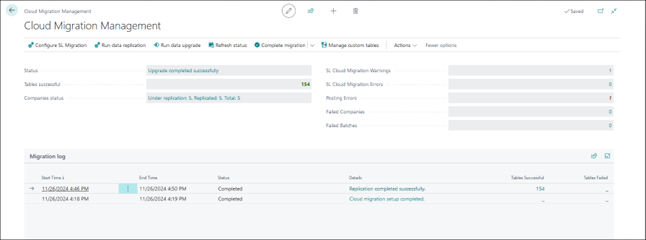
Available actions
Note
Some actions aren't available until after you set up cloud migration, and others aren't active for Dynamics SL migration.
| Action | Description |
|---|---|
| Configure SL Migration | Set up migration settings for migrating company data in Dynamics SL. Learn more in Configure Dynamics SL company migration |
| Run data replication | Select this action to start the data migration manually. The migration can also be used for subsequent runs after the initial migration. On subsequent runs, the migration tool only migrates changes that happened since the previous migration. Change tracking is used to identify what data should be moved in those tables. |
| Run Data Upgrade Now | Select this action to upgrade data. Learn more in Upgrade data. |
| Refresh Status | If a migration run is in progress, select this action to refresh status to update the page. If the run is complete, the status updates using the refresh status action without having to close the window and reopen it. |
| Complete migration menu - Complete migration | Completes cloud migration setup. |
| Pause migration | Pauses cloud migration. Use this action to continue cloud migration in the future. |
| Abandon migration | Abandons cloud migration. Use this action to restart the cloud migration in the future. |
| Manage custom tables | Open the Migration Table Mapping page to view the source table name from Dynamics SL and the Business Central table name. |
| Actions | The Actions menu gives you access to action options related to the Dynamics SL Migration process. |
Next steps
- Prepare and plan for cloud migration
- Run cloud migration setup
- Run data migration
- Run data upgrade
- Complete cloud migration
Related information
Dynamics SL migration to Business Central online: End-to-end overview
FAQ about migrating to Business Central online from on-premises solutions