Note
Access to this page requires authorization. You can try signing in or changing directories.
Access to this page requires authorization. You can try changing directories.
A report layout controls the content and format of a report. It determines which fields from the report dataset appear, how they're arranged, and which text styles and images the report uses. In Business Central, you can select the layout that a report uses, create a new layout, or modify an existing layout.
Note
In Business Central, the term "report" also covers externally facing documents, such as sales invoices and order confirmations that you send to customers as PDF files.
You can also use report layouts to add content to email messages. For example, report layouts can save time and help ensure consistency by reusing the same content when you communicate with your customers. To use custom report layouts with email, the file type for the layout must be Word. You can't use the RDLC file type. Learn more in Set up reusable email texts and layouts.
Introduction
A report layout sets up the following things:
- The label and data fields to include from the dataset of the Business Central report.
- The text format, such as font type, size, and color.
- The company logo and its position.
- General page settings, such as margins and background images.
For composite Word layouts, a reusable theme supplies the text format, and a reusable header/footer supplies the company logo and page settings. Learn more about combining reusable parts in Composite Word layouts.
You can set up multiple layouts for a report, and then switch between them to suit different reporting needs.
There are three important aspects of report layouts that influence how you work with them:
- The Layout Type indicates the kind of file that the layout is based on.
- The Layout Source indicates the origin of the layout.
- For Word layouts, the Subtype indicates the layout's role—either Default or Body. When you create a report-specific layout, you can select Default for a stand-alone layout or Body for a composite layout. Create and manage reusable themes and header/footer layouts separately.
Layout types
There are four types of layouts that you can use for reports:
- Word
- RDLC
- Excel
- External
Word
Word layouts are based on Word documents (.docx file type). Word layouts enable you to design report layouts by using Microsoft Word. A Word layout determines the report's content - controlling how that content elements are arranged and how they look. A Word layout document typically uses tables to arrange content, where the cells can contain data fields, text, or pictures.
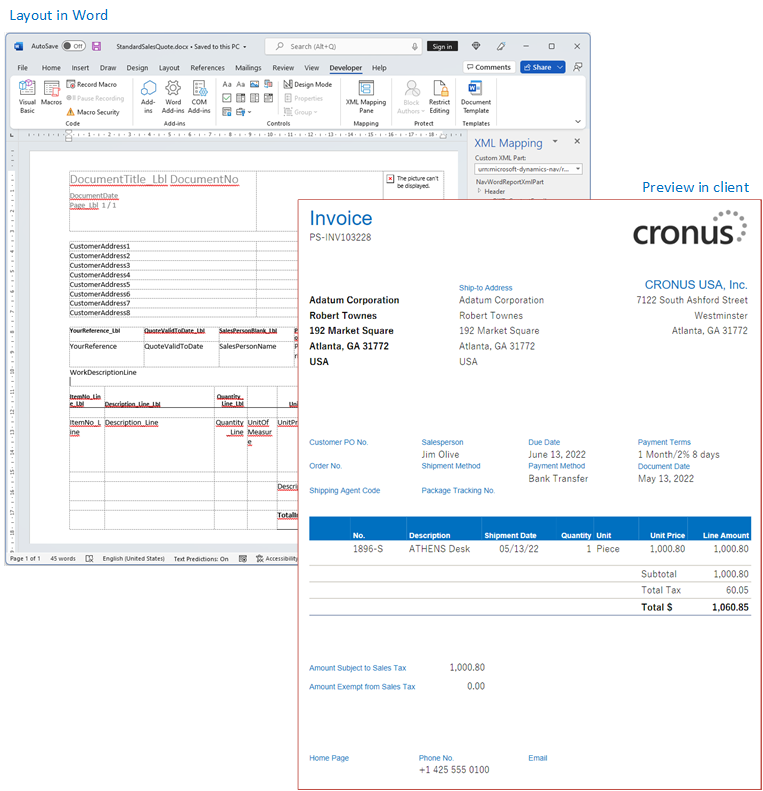
Learn more in Map data fields with the XML Mapping Pane.
Composite Word layouts
A composite layout separates a report's Word layout into reusable parts. A Body layout contains the report-specific content. A Theme supplies design settings, such as fonts and colors. A Header/Footer layout supplies reusable page headers and footers. Business Central combines the parts when the report runs.
Administrators can apply a theme and header/footer to all reports, then override either part for a company, a report, or one body layout. The parts resolve independently. For example, a report can use its own header/footer and inherit the company theme.
Only Word layouts with the Body subtype can use reusable themes and header/footer layouts. Learn how to create and assign the parts in Set up reusable themes and header/footer layouts.
Excel
Excel layouts are based on Microsoft Excel workbooks (.xlsx file type). They let you create reports by using familiar Excel features for summarizing, analyzing, and presenting data with tools like formulas, PivotTables, PivotCharts, and more.
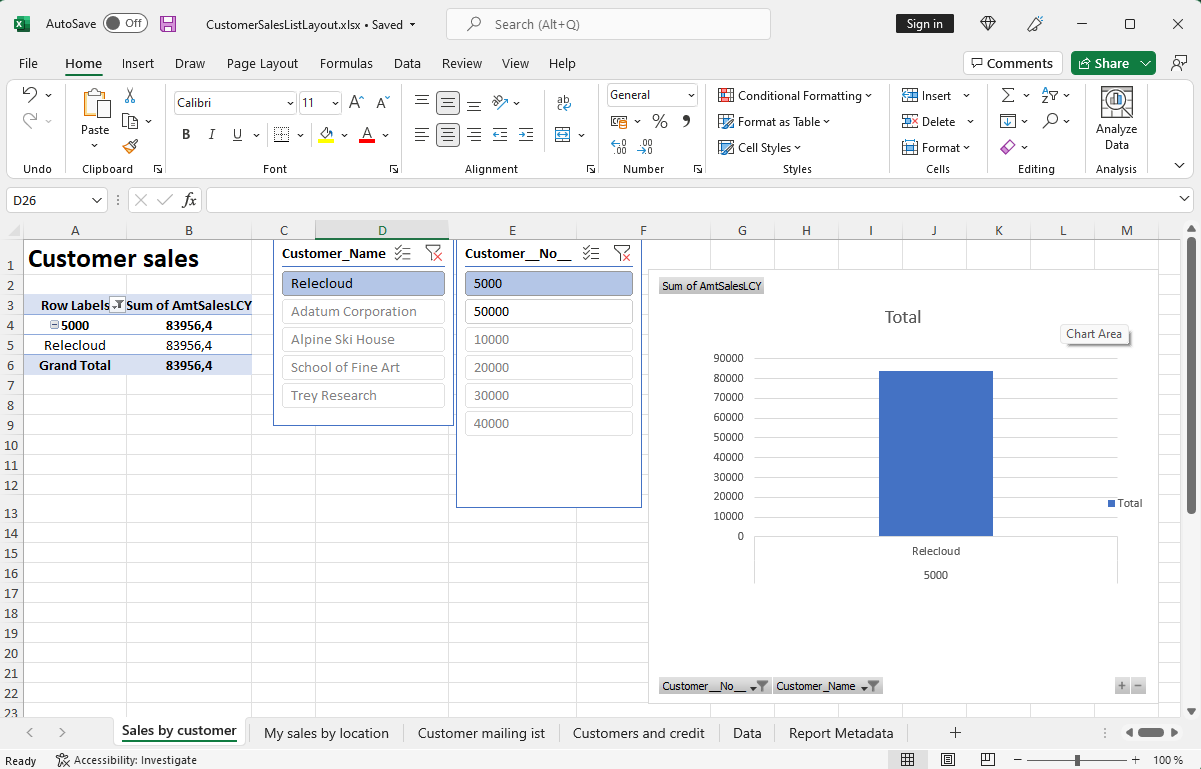
Learn more in Work with Excel Layouts.
RDLC
RDLC layouts are based on client report definition layout files (.rdl or .rdlc file types). These layouts are created and modified by using SQL Server Report Builder or Microsoft RDLC Report Designer. The design concept for RDLC layouts is similar to Word layouts, where the layout determines what fields to show and how they're arranged. However, designing RDLC layouts is more advanced than Word layouts.
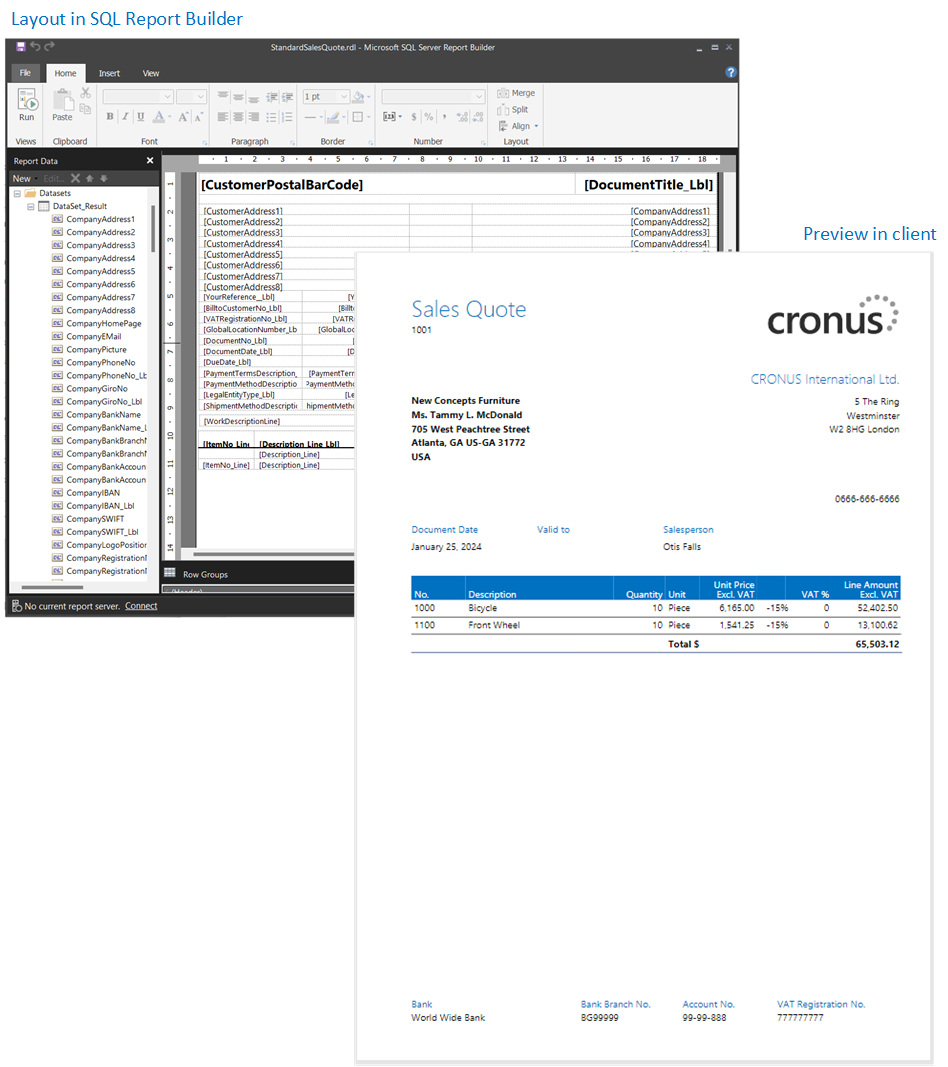
Learn more in Work with RDLC Layouts.
External
An external layout type is a specialized layout designed for specific reports and rendered by a custom report renderer. Partners, not Microsoft, typically provide these reports and layouts. The layout's file type varies depending on the provider.
Learn more in Developing a custom report render.
Layout sources
In addition to the type, layouts are further divided into three categories, based on their source or origin.
Extension layouts
Extension layouts are layouts that are part of an extension installed in a Business Central environment. These layouts are typically standard layouts provided by Microsoft, for example, in the base application. Or, they could be layouts that are included in extensions from other software providers. You can identify extension layouts on the Report Layouts page because the Extension column shows the extension name and publisher.
User-defined layouts
The other source of layouts is the people who use Business Central. People with the right permissions can add new layouts in various ways. For example, you could start from an existing extension layout or a user-defined layout. You can identify user-defined layouts on the Report Layouts page because the Extension column is blank.
Learn more in Get started creating report layouts.
Custom layouts (obsolete)
Custom layouts are also layouts that users create. The difference is that these layouts are created from the now obsolete Custom Report Layouts page, and they can only be Word and RDLC type. Although you can still create custom layouts, they're being phased out in favor of user-defined layouts.
Learn more in (Obsolete) Create and modify custom report layouts.
Learn more about which type is best for you in Decide what type of layout you want.
Important
One important thing to remember is that you can't modify extension layouts from the Business Central client. For example, you can't change the layout name or type, or upload and replace it with another version. If you try, an error message displays. You can create a user-defined or custom layout based on the extension layout instead.
View report layout lifecycle telemetry
You can set up Business Central to send data to an Application Insights resource in Microsoft Azure about the actions users take on report layouts, like adding, modifying, deleting, and more. Then, using Azure Monitor, you create reports and set up alerts on the gathered data. Learn more in the following articles of the Developer and IT Pro help:
Related information
Set up reusable themes and header/footer layouts
Update custom report layouts
Create and modify custom report layouts
Import and export custom report layouts
Define document layouts for customers and vendors
Send documents by email
Run and print reports in Business Central
Work with Business Central