Note
Access to this page requires authorization. You can try signing in or changing directories.
Access to this page requires authorization. You can try changing directories.
The schedule board provides dispatchers with an overview of resource availability and bookings. Use it to schedule, reassign, and manage bookings for work orders and other requirements.
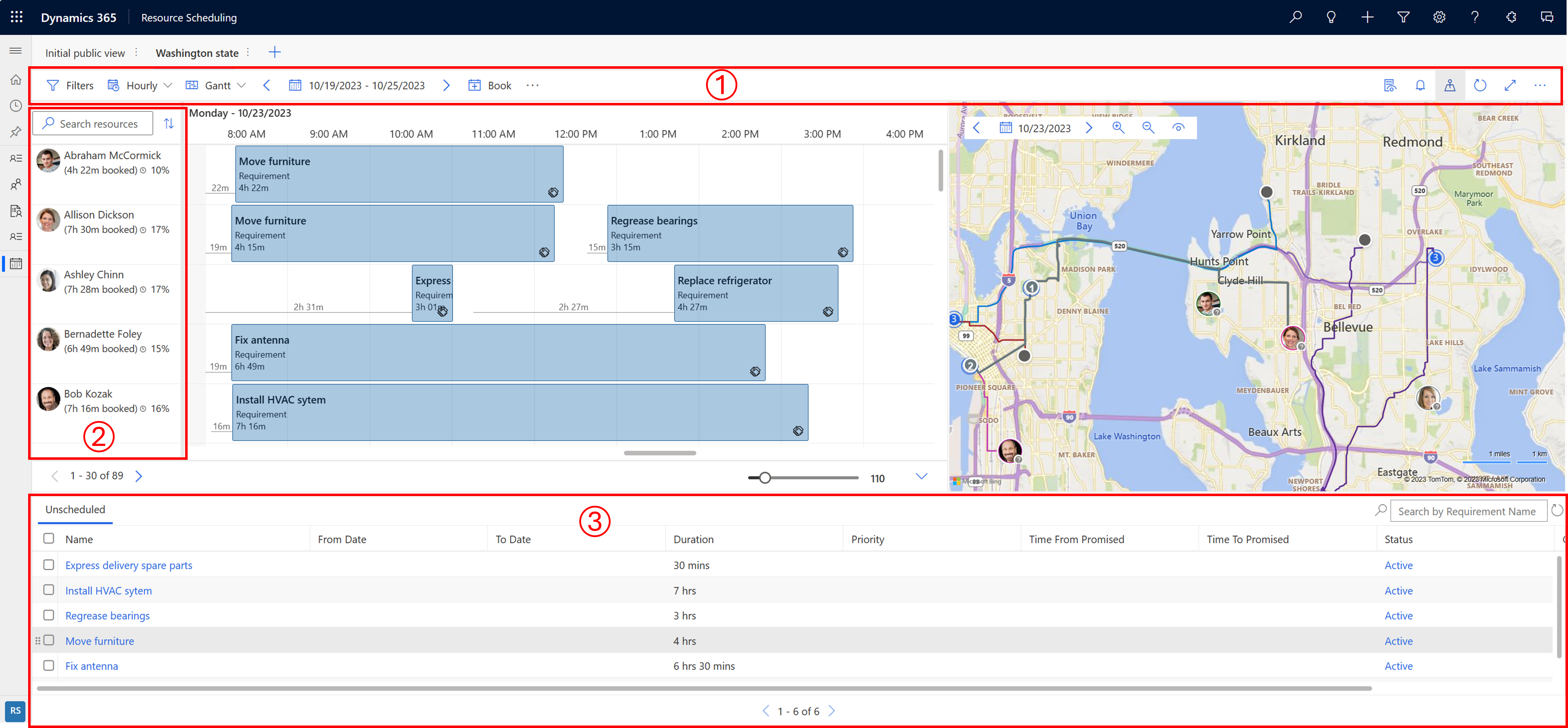
| Number | Area |
|---|---|
| 1 | Actions area |
| 2 | Resource list |
| 3 | Requirement pane |
Actions area
The actions area at the top of the schedule board provides tools for scheduling and board management:
Filters - Apply filters to define which resources show on the board. Learn more in Filter resources and requirements.
Time scale - Switch between hourly, daily, weekly, and monthly views. The weekly view always considers Sunday as the start of the week regardless of day visibility settings.
View type - Choose Gantt (bar chart showing activities over time), List (expandable resource list with time granularity), or Map (large format map of resources, requirements, and routes for a single day).
Note
In Gantt view, when you reschedule a task, the board may scroll to the first resource in the list instead of keeping the selected resource centered. Use the resource search or filter to navigate back.
Date range - Set the time frame that shows on the board. Use the arrows to move between time frames. When enabled in your Dynamics 365 personalization settings, week numbers appear in the schedule board's date pickers and weekly view. Your regional calendar settings determine how weeks are numbered.
Book - Manually create a booking. Learn more in Manual scheduling.
Move bookings - Select … > Move bookings to move bookings to a different day. Learn more in Drag and drop scheduling.
Print - Select … > Print schedule board to configure and print the schedule.
Details panel - Select the Details panel icon to see more details about the selected booking, resource, or requirement. In aggregate views (daily, weekly, monthly), you can also adjust hours or delete portions of a multi-day booking.
Note
Custom booking tooltip views apply to the hourly view only. In daily, weekly, and monthly views, the schedule board displays a simplified tooltip that doesn't reflect custom view columns.
Booking alerts - Select the bell icon to see active alerts or create new ones. Learn more in Manage booking alerts.
Map view - Select the Map view icon to see resources and requirements on a map. Learn more in Filter resources and requirements.
Refresh - Manually refresh the board. If automatic refresh is enabled, the board also refreshes on a set interval when a booking changes within the date range shown on the board, for a resource shown on the board or an unassigned booking.
Tip
Availabilities in the schedule assistant don't refresh when the schedule board gets refreshed. Search for availabilities again or refresh the browser to have the latest updates reflected in the schedule assistant.
Focus mode - Select the Focus mode icon to hide navigation and go full screen.
Legend - Select … > Legend to view color codes and icons for status, priority, timeline, and travel time.
Scheduler settings - Select … > Scheduler settings to open board view settings. Learn more in Configure schedule board settings.
Resource list
To show more options, right-click a resource's name:
- Choose View resource card to see the resource's skills and roles. You can also initiate a message, email, or phone call.
- Choose Get driving directions to get the driving directions for a work day.
Requirement pane
The requirement pane shows unscheduled requirements. Select a requirement and select Find availability to launch the schedule assistant, which lists available and matching resources.
Note
Filtering isn't supported on the Owner column on the Unscheduled Work Orders tab.
Learn more in Filter resources and requirements.
Create a new schedule board tab
To create a new schedule board tab, select New schedule board tab (+) in the tab list on the schedule board.
Enter the relevant details about your new schedule board and select Add.
Copy the link to a schedule board
The simplest way to share a schedule board URL is to configure the board as you prefer, select More options (…), and choose Copy link. The generated link includes the parameters currently configured on your board.

For more information about how to construct the URL, go to Open the schedule board from a URL.
Cached settings
To facilitate workflows, the system caches some parameters so you can quickly continue where you left off:
- Last accessed tab
- View type: Gantt, list, or map view (cached per tab)
- Map panel: Open or closed (cached separately from the view type)
- View mode: Hourly, daily, or weekly
- Board start date: Cached per tab for 15 minutes
- Column width: Zoom level
- Requirement panel filters