Σημείωμα
Η πρόσβαση σε αυτήν τη σελίδα απαιτεί εξουσιοδότηση. Μπορείτε να δοκιμάσετε να εισέλθετε ή να αλλάξετε καταλόγους.
Η πρόσβαση σε αυτήν τη σελίδα απαιτεί εξουσιοδότηση. Μπορείτε να δοκιμάσετε να αλλάξετε καταλόγους.
Your Databricks apps can integrate with various Azure Databricks platform features, such as Databricks SQL for querying data, Lakeflow Jobs for data ingestion and processing, Model Serving to access AI models, and Azure Databricks secrets for managing sensitive information. In the context of apps, these platform features are referred to as resources.
Why use resources?
To keep apps portable and secure, avoid hardcoding resource IDs. For example, instead of embedding a fixed SQL warehouse ID in your app code, configure the SQL warehouse as a resource through the Databricks Apps UI.
Using Databricks Apps resources instead of direct API calls has several benefits:
- Automatically manages credentials and permissions, which eliminates manual token handling in your code.
- Handles resource paths, endpoints, and connection details automatically.
- Provides secure, managed access instead of requiring self-managed credentials for direct API calls.
- Keeps apps portable between environments without code changes.
Supported resource types
The following table lists all resource types that you can add to your Databricks app:
| Resource type | Description | Default resource key | Available permissions |
|---|---|---|---|
| Databricks app | App-to-app communication and invocation | app |
|
| Genie Agent | AI-powered analytics interface for natural language queries | genie-space |
|
| Lakebase database | PostgreSQL database for data storage and querying | postgres (Lakebase Autoscaling), database (Lakebase Provisioned) |
|
| Lakeflow job | Data ingestion and processing workflows | job |
|
| MLflow experiments | AI application observability, evaluation, and experiment tracking | experiment |
|
| Model serving endpoint (Model) | Machine learning model deployment for inference requests | model |
|
| Unity Gateway model service (Model) | Governed AI model inference through Unity Gateway with Unity Catalog access control | model |
|
| Secret | Secure storage for sensitive values like API keys and tokens | secret |
|
| SQL warehouse | Compute resources for running SQL queries | sql-warehouse |
|
| Unity Catalog connection | Managed connections to external data sources | connection |
|
| Unity Catalog table | Structured data storage with fine-grained access control | table |
|
| User-defined function | Registered SQL and Python functions in Unity Catalog | function |
|
| Unity Catalog volume | File storage in Unity Catalog for app artifacts and data | volume |
|
| AI Search index | Semantic search and similarity-based retrieval from vector embeddings | vector-search-index |
|
Prerequisites
To add a resource to an app, the following conditions must be met:
- The resource must exist.
- The user adding the resource must have the
Can managepermission on the resource and the app.
Apps run with least privilege and rely on existing resources within the Azure Databricks platform. When deployed, the app’s service principal accesses these resources and must have the necessary permissions, such as table-level access for SQL queries or read access to secrets. See Configure authorization in a Databricks app.
Configure resources for your app
Resources allow your app to securely connect to services that it depends on, without hardcoding sensitive or environment-specific values.
Add resources in the Databricks Apps UI when you create or edit an app, or with the Databricks CLI.
UI
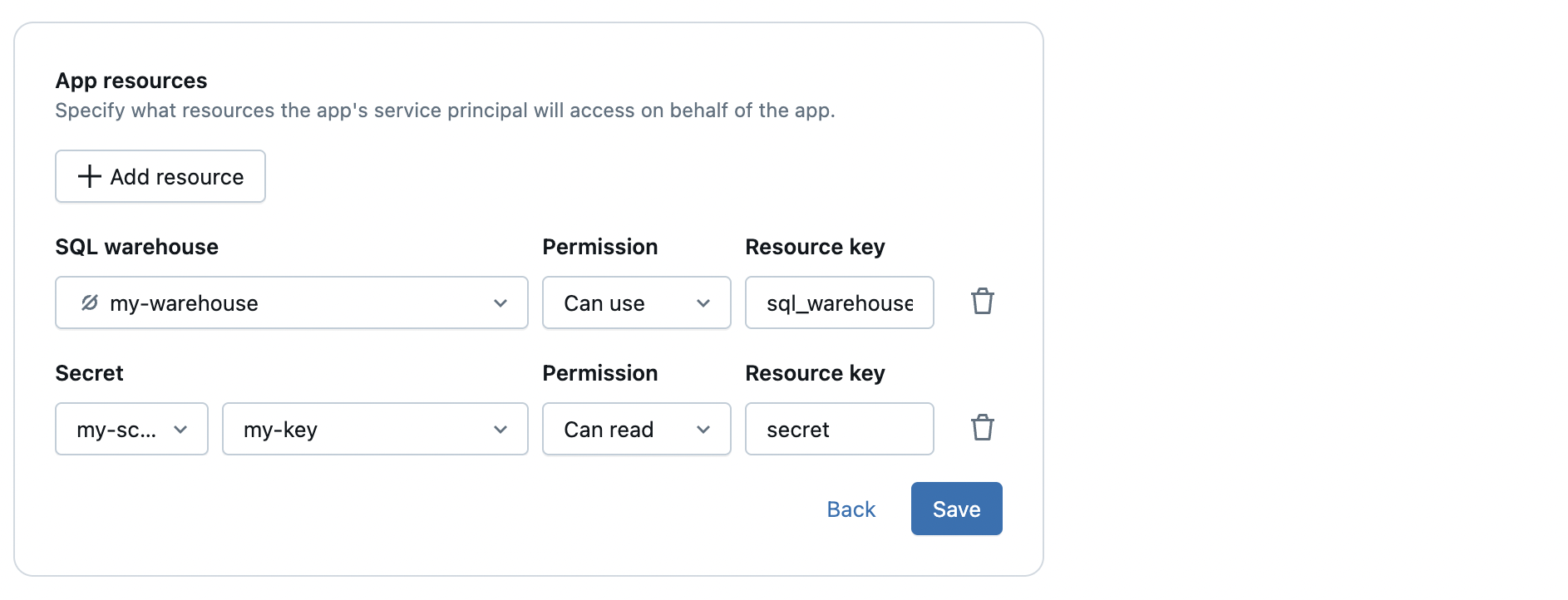
- In the App resources section when you create an app, or in Settings > Resources when you edit an app, click + Add resource.
- Select the resource type you want to add.
- Set the permissions for the app service principal on the resource.
- Assign a key to the resource, and reference that key in your
app.yamlfile.
CLI
To add resources with the Databricks CLI, run databricks apps create-update with a resources array. Each resource has a name, which is the key you reference in app.yaml, and one resource-type field.
The update replaces the app's full list of resources. Include every resource the app needs, not only the one you're adding. To see the current list, run databricks apps get my-app.
databricks apps create-update my-app --json '{
  "update_mask": "resources",
  "app": {
    "resources": [
      {
        "name": "sql-warehouse",
        "sql_warehouse": {"id": "<warehouse-id>", "permission": "CAN_USE"}
      },
      {
        "name": "table",
        "uc_securable": {
          "securable_full_name": "main.sales.orders",
          "securable_type": "TABLE",
          "permission": "SELECT"
        }
      }
    ]
  }
}'
The following table lists the field and permission values for each resource type:
| Resource type | Field | Required properties | Permission values |
|---|---|---|---|
| SQL warehouse | sql_warehouse |
id |
CAN_USE, CAN_MANAGE, IS_OWNER |
| Secret | secret |
scope, key |
READ, WRITE, MANAGE |
| Job | job |
id |
CAN_VIEW, CAN_MANAGE_RUN, CAN_MANAGE, IS_OWNER |
| Serving endpoint | serving_endpoint |
name |
CAN_VIEW, CAN_QUERY, CAN_MANAGE |
| Unity Catalog volume | uc_securable with securable_type set to VOLUME |
securable_full_name |
READ_VOLUME, WRITE_VOLUME |
| Unity Catalog table | uc_securable with securable_type set to TABLE |
securable_full_name |
SELECT, MODIFY |
| Unity Catalog function | uc_securable with securable_type set to FUNCTION |
securable_full_name |
EXECUTE |
| Unity Catalog connection | uc_securable with securable_type set to CONNECTION |
securable_full_name |
USE_CONNECTION |
| Genie Agent | genie_space |
name, space_id |
CAN_VIEW, CAN_RUN, CAN_EDIT, CAN_MANAGE |
| MLflow experiment | experiment |
experiment_id |
CAN_READ, CAN_EDIT, CAN_MANAGE |
| Databricks app | app |
name |
CAN_USE |
| Unity Gateway model service | uc_securable with securable_type set to MODEL_SERVICE |
securable_full_name |
EXECUTE |
| AI Search index | uc_securable with securable_type set to TABLE |
securable_full_name |
SELECT |
| Lakebase database (Lakebase Autoscaling) | postgres |
branch, database |
CAN_CONNECT_AND_CREATE |
| Lakebase database (Lakebase Provisioned) | database |
instance_name, database_name |
CAN_CONNECT_AND_CREATE |
Note
If you define your app using Declarative Automation Bundles, you specify resources in YAML as part of your bundle configuration instead of using the UI. See app.resources.
Manage app access to resources
Each app has a dedicated service principal. Follow these best practices to manage access securely.
- Use the app's service principal for authentication. Never hardcode personal access tokens (PATs) in your code. Access credentials are automatically injected as environment variables:
DATABRICKS_CLIENT_IDDATABRICKS_CLIENT_SECRET
- Don't share service principal credentials between apps or across users. Each app should use its own dedicated credentials for isolation and security.
- Apply least privilege access. Grant only the minimum required permissions to the app's service principal. For example:
- Grant
CAN USEon a SQL warehouse if the app only needs to run queries. - Grant
CAN QUERYon a serving endpoint if the app only sends inference requests. - Grant
SELECTorMODIFYon Unity Catalog tables based on the app’s data access needs.
- Grant
Next steps
After you add resources to your app, reference these resources in the env section of your app configuration using the valueFrom field. For instructions, see Define environment variables in a Databricks app. For a reference that shows the value that valueFrom resolves to for each resource type, see valueFrom reference.