Σημείωμα
Η πρόσβαση σε αυτήν τη σελίδα απαιτεί εξουσιοδότηση. Μπορείτε να δοκιμάσετε να εισέλθετε ή να αλλάξετε καταλόγους.
Η πρόσβαση σε αυτήν τη σελίδα απαιτεί εξουσιοδότηση. Μπορείτε να δοκιμάσετε να αλλάξετε καταλόγους.
Note
An account admin must first enable the Role-based access control (RBAC) setting on the account Previews page. The same setting then becomes available on the workspace Previews page, where a workspace admin enables it for each workspace.
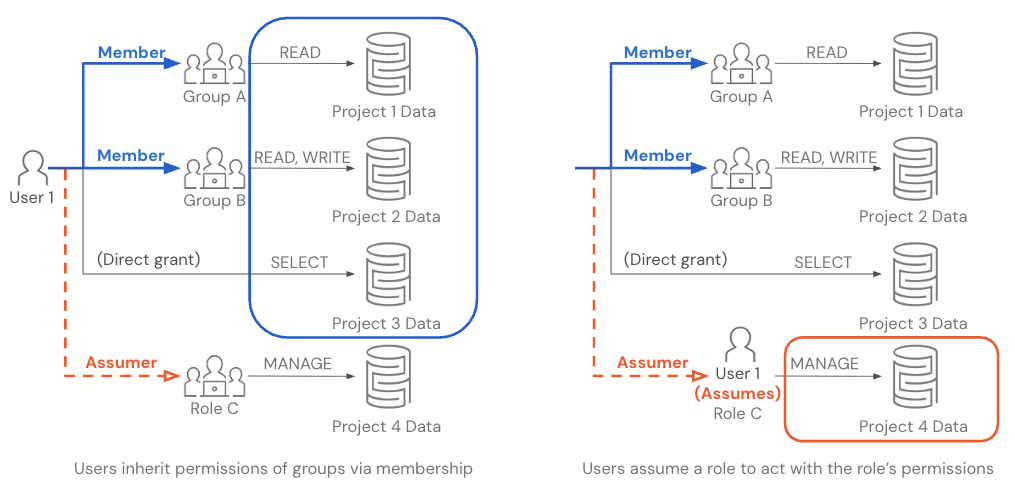
Role-based access control (RBAC) lets users assume a role in Azure Databricks, using only that role's permissions for the duration of the session. RBAC enables exclusive access: users must assume a role to access sensitive data, which prevents them from accessing that data when acting as their user identity and from mixing data across use cases, clinical trials, projects, or clients.
In Azure Databricks, a role is implemented as a group. You grant users, service principals, or other groups the Assume permission on a group, which when assumed behaves as a role. All members of a group automatically have Assume permission on that group. Non-members can also be granted Assume directly. Users can assume the role through several methods, including the role switcher in the Workspace UI, dedicated access mode clusters assigned to a group, the CLI, the API, and third-party BI tools. See Switch roles.
How it works
By default, an identity's permissions are the permissions granted to it directly plus the permissions it inherits from every group it is a member of. Someone in several groups can access everything those groups can access — their permissions accumulate as an ambient set that follows them everywhere. Assuming a role replaces that inherited set with only the assumed role's permissions for the session, which is what enables exclusive access. This applies to service principals and other identities, not just interactive users.
When a user assumes a role:
- The assumed role's permissions replace (not combine with) the user's own permissions. While acting as the role, the user cannot access data or assets through their user identity.
- A user can only act as one role at a time.
- To act as a different role or return to their user identity, they must switch again.
- All groups assigned to a workspace inherit permissions from the workspace's
userssystem group. This means users acting as a role can still see catalogs, Unity Catalog entities, compute, and workspace assets shared with all workspace users, in addition to what the role has been granted directly. - All actions taken as the role are attributed to the role. Audit logs record both
identity_metadata.run_by(the user who assumed the role) andidentity_metadata.run_as(the role). - The role owns any Unity Catalog and workspace assets created while acting as the role (notebooks, SQL queries, SQL warehouses, jobs).
Manage the Assume permission
The Assume permission lets users, service principals, or groups assume a role. Because a role is implemented as a group in Azure Databricks, you grant Assume on the underlying group. All members of a group automatically have Assume permission on that group, so you only need to grant Assume to users, service principals, or groups that are not members.
To grant or revoke Assume on a group using the account console, the workspace admin settings UI, or the Access Control API, see Manage permissions on a group.
In this section
| Topic | Description |
|---|---|
| Switch roles | Assume a role using the role switcher, dedicated access mode clusters, the CLI, the API, or third-party BI tools. |
| Use RBAC with ABAC | How RBAC and Unity Catalog ABAC interact, identity-function behavior when assuming a role, and combined-use patterns. |
| Model exclusive access | Use case: patterns for setting up exclusive access using either a Azure Databricks account-local group or a group synced from Microsoft Entra ID. Includes Workspace asset sharing controls as a sub-topic. |
| Role-based access control (RBAC) limitations | Features that are not supported or only partially supported when assuming a role, plus other constraints. |
Next steps
- Manage groups: Create, edit, and assign groups to workspaces. See Manage groups.
- Groups overview: Understand how account groups, groups synced from Microsoft Entra ID, and workspace-local groups fit together. See Groups.
- Assign dedicated compute to a group: Run workloads on compute that is reserved for a group. See Dedicated compute group access.