Σημείωμα
Η πρόσβαση σε αυτήν τη σελίδα απαιτεί εξουσιοδότηση. Μπορείτε να δοκιμάσετε να εισέλθετε ή να αλλάξετε καταλόγους.
Η πρόσβαση σε αυτήν τη σελίδα απαιτεί εξουσιοδότηση. Μπορείτε να δοκιμάσετε να αλλάξετε καταλόγους.
This article explains how to view, manage, and update Defender for Identity sensors in the Microsoft Defender portal.
View sensor settings and status
- In the Microsoft Defender portal, go to Settings > Identities.
- In the left sidebar, under Deployment, select On-premises.
- Select the Sensors tab.
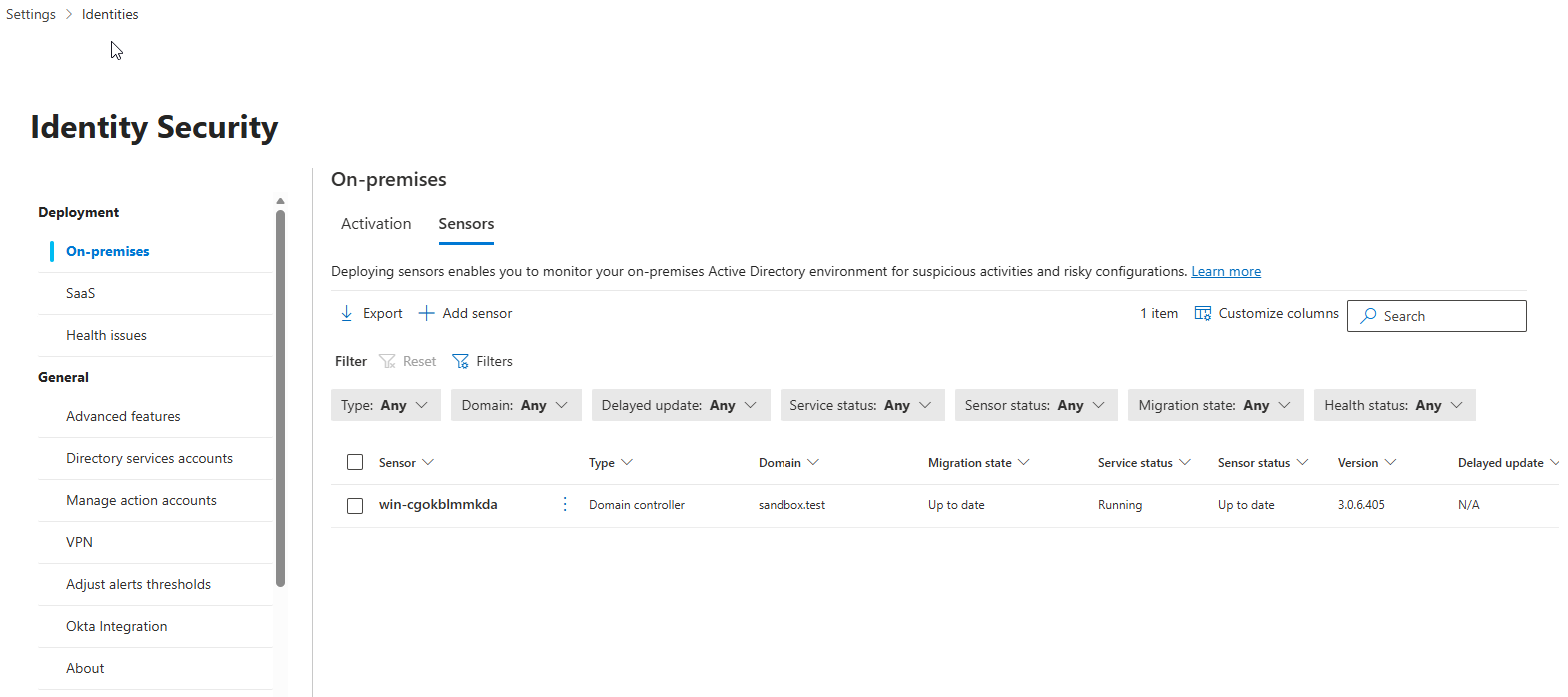
The Sensors tab shows all Defender for Identity sensors deployed in your environment. From this tab you can:
- Filter sensors by type, domain, delayed update, service status, sensor status, migration state, or health status.
- Export the sensor list to a .csv file.
- Onboard a sensor using the + Add sensor option.
- Customize columns to show or hide specific fields.
- Search for a specific sensor by name.
Select a sensor row to open a details pane with information about the sensor and its health status. From the details pane, you can select Manage sensor to update sensor configuration, or select a health issue to see more details and reopen closed issues.
Sensor details
The Sensors tab shows the following columns. For columns with multiple possible values, see the tables below.
- Sensor: The sensor's NetBIOS computer name.
- Type: The sensor type. For possible values, see Type.
- Domain: The fully qualified domain name of the Active Directory domain where the sensor is installed.
- Migration state: Indicates if sensors are eligible for migration from v2.x to v3.x. For possible values, see Migration state.
- Service status: The current state of the sensor service on the server. For possible values, see Service status.
- Sensor status: The current update and configuration state of the sensor software. For possible values, see Sensor status.
- Version: The sensor version installed.
- Delayed update: Whether delayed updates are enabled or disabled. Delayed updates are supported by version 2 of the sensor. For more information, see Delayed sensor update.
- Health issues: The count of open health issues on the sensor.
- Health status: The overall health of the sensor based on the highest severity open health issue. For possible values, see Health status.
- Created: The date the sensor was installed.
Type
The type column indicates the sensor type based on the server role where the sensor is installed. If a sensor is installed on a domain controller that also runs Entra Connect or AD CS, the type shows as Domain controller sensor.
| Type | Description |
|---|---|
| Domain controller sensor | Installed on an Active Directory domain controller. |
| AD FS sensor | Installed on an Active Directory Federation Services (AD FS) server. |
| Standalone sensor | Installed on a dedicated server that monitors domain controller traffic via port mirroring. |
| Entra Connect sensor | Installed on a Microsoft Entra Connect server. |
| ADCS sensor | Installed on an Active Directory Certificate Services (AD CS) server. |
Migration state
The migration state column shows if the sensor is eligible for migration from v2.x to v3.x.
For a server to be eligible for migration, it must be:
- A domain controller, without additional identity roles running
- Running a Defender for Identity sensor v2.x.
- Running Windows Server 2019 or later.
- Includes the March 2026 or later cumulative update.
- Have Microsoft Defender for Endpoint deployed.
For the full list of v3.x requirements, see Defender for Identity sensor v3.x prerequisites.
| State | Description |
|---|---|
| Ready for migration | The server meets all prerequisites and can be migrated. |
| Not ready for migration | The server doesn't meet one or more prerequisites. |
| Migrating | The migration is in progress. |
| Up to date | The migration completed successfully. The server is running sensor v3.x. |
| Migration failed | The migration encountered an error. You can retry the migration. |
Service status
The service status column indicates the current operational state of the sensor service on the server.
| Status | Description |
|---|---|
| Running | The sensor service is running. |
| Starting | The sensor service is starting. |
| Disabled | The sensor service is disabled. |
| Stopped | The sensor service is stopped. |
| Unknown | The sensor is disconnected or unreachable. |
Sensor status
The sensor status column indicates the current update and configuration state of the sensor software.
| Status | Description |
|---|---|
| Up to date | The sensor is running the current version. |
| Outdated | The sensor is running a version that is at least three versions behind the current version. |
| Updating | The sensor software is being updated. |
| Update failed | The sensor failed to update to a new version. |
| Not Configured | The sensor requires more configuration before it's fully operational. This applies to sensors on AD FS, AD CS, or standalone servers. |
| Start failed | The sensor didn't pull configuration for more than 30 minutes. |
| Syncing | The sensor has configuration updates pending but didn't yet pull the new configuration. |
| Disconnected | No communication from this sensor in 10 minutes. |
| Unreachable | The domain controller was deleted from Active Directory, but the sensor wasn't uninstalled before decommissioning. You can safely delete this entry. |
Health status
The health status column indicates the overall health of the sensor based on the severity of any open health issues.
| Status | Description |
|---|---|
| Healthy (green icon) | No open health issues. |
| Not healthy (yellow icon) | The highest severity open health issue is low. |
| Not healthy (orange icon) | The highest severity open health issue is medium. |
| Not healthy (red icon) | The highest severity open health issue is high. |
Update sensors
Defender for Identity sensor v3.x is delivered as a component of Microsoft Defender for Endpoint and is updated automatically through Windows Updates. No manual sensor update process is required for v3.x sensors.
The rest of this section applies only to Defender for Identity sensor v2.x.
Defender for Identity sensor v2.x update types
The Defender for Identity service is typically updated a few times a month with new detections, features, and performance improvements. These updates usually include a corresponding minor update to the sensors.
Defender for Identity sensors v2.x support two kinds of updates:
Minor version updates:
- Frequent
- Requires no MSI install, and no registry changes
- Restarted: Defender for Identity sensor services
Major version updates:
- Rare
- Contains significant changes
- Restarted: Defender for Identity sensor services
Note
Defender for Identity sensors v2.x always reserve at least 15% of the available memory and CPU on the domain controller where the sensor is installed. If the service consumes too much memory, it's automatically stopped and restarted by the sensor updater service.
Delayed update for sensor v2.x
You can define a subset of your sensors as a delayed update ring. Sensors not in the delayed ring are updated automatically each time the service is updated. Sensors set to Delayed update are updated 72 hours later, giving you time to confirm that the automatically updated sensors are working correctly.
Note
If an error occurs and a sensor does not update, open a support ticket. To further harden your proxy to only communicate with your workspace, see Proxy configuration.
Authentication between your sensors and the Azure cloud service uses certificate-based mutual authentication. A self-signed client certificate is created during sensor installation and is valid for 2 years. The sensor updater service generates a new certificate before the existing one expires, using a 2-phase validation process to avoid authentication disruptions during the rollover.
To set a sensor to delayed update:
- In the Sensors page, select the sensor you want to set for delayed updates.
- Select the Enabled delayed update button.
- In the confirmation window, select Enable.
To disable delayed updates, select the sensor and then select the Disabled delayed update button.
Sensor v2.x update process
Every few minutes, v2.x sensors check whether a newer version is available. When the cloud service is updated, sensors start the update process:
The cloud service updates to the latest version.
The sensor updater service detects the new version.
Sensors that aren't set to Delayed update start the update process one at a time:
- The sensor updater service pulls the updated version from the cloud service (in .cab file format).
- The sensor updater validates the file signature.
- The sensor updater extracts the cab file to a new folder in the sensor's installation folder. By default it's extracted to C:\Program Files\Azure Advanced Threat Protection Sensor<version number>
- The sensor service points to the new files extracted from the cab file.
- The sensor updater restarts the sensor service.
Note
Minor sensor updates install no MSI, change no registry values or any system files. A pending restart does not affect a sensor update.
- The sensor runs the newly updated version.
- The sensor receives clearance from the cloud service. You can verify sensor status on the Sensors tab.
- The next sensor starts the update process.
Sensors selected for Delayed update start their update process 72 hours after the Defender for Identity cloud service is updated. These sensors will then use the same update process as automatically updated sensors.
For any sensor that fails to complete the update process, a relevant health alert is triggered, and is sent as a notification.
Silently update the Defender for Identity v2.x sensor
Use the following command to silently update the Defender for Identity v2.x sensor:
Syntax:
"Azure ATP sensor Setup.exe" [/quiet] [/Help] [NetFrameworkCommandLineArguments="/q"]
Installation options:
| Name | Syntax | Mandatory for silent installation? | Description |
|---|---|---|---|
| Quiet | /quiet | Yes | Runs the installer displaying no UI and no prompts. |
| Help | /help | No | Provides help and quick reference. Displays the correct use of the setup command including a list of all options and behaviors. |
| NetFrameworkCommandLineArguments="/q" | NetFrameworkCommandLineArguments="/q" | Yes | Specifies the parameters for the .Net Framework installation. Must be set to enforce the silent installation of .Net Framework. |
Examples:
To update the Defender for Identity sensor silently:
"Azure ATP sensor Setup.exe" /quiet NetFrameworkCommandLineArguments="/q"
Configure proxy settings
We recommend that you configure initial proxy settings during silent installation using command line switches. If you need to update your proxy settings later on, use either the CLI or PowerShell.
If you'd previously configured your proxy settings via either WinINet or a registry key and need to update them, you'll need to use the same method you used originally.
For more information, see Configure endpoint proxy and internet connectivity settings.