Σημείωμα
Η πρόσβαση σε αυτήν τη σελίδα απαιτεί εξουσιοδότηση. Μπορείτε να δοκιμάσετε να εισέλθετε ή να αλλάξετε καταλόγους.
Η πρόσβαση σε αυτήν τη σελίδα απαιτεί εξουσιοδότηση. Μπορείτε να δοκιμάσετε να αλλάξετε καταλόγους.
PowerToys Advanced Paste converts clipboard content into the format you need. You can paste as plain text, Markdown, JSON, or files such as .txt, .html, and .png by using either the Advanced Paste window or direct keyboard shortcuts. Advanced Paste can also extract text from images by using local OCR and transcode audio or video to .mp3 or .mp4.
Non-AI paste actions run locally on your device. Paste with AI is optional and can use either an online provider or a local provider such as Foundry Local, Ollama, or Phi Silica.
Get started with Advanced Paste
Get familiar with the features and capabilities of Advanced Paste.
Enable Advanced Paste
To start using Advanced Paste, enable it in the PowerToys Settings.
Activate the Advanced Paste window
Open the Advanced Paste window with the activation shortcut (default: Win+Shift+V). For more information on customizing the activation shortcut and additional shortcut actions, see the Settings section.
Settings
From the Settings menu, configure the following options.
Paste with AI
| Setting | Description |
|---|---|
| Paste with AI | Turn on AI-powered transforms in the Advanced Paste window. This setting is off by default. |
| Model providers | Add and manage the online and local providers that Paste with AI can use. Use Add model to add a provider, then use the provider menu to set it as the default, edit it, or remove it. |
| Show the AI paste input box | Show or hide the AI prompt box in the Advanced Paste window. This setting is on by default. Turn it off if you want to keep AI available only through saved actions or shortcuts. |
Activation & behavior
| Setting | Description |
|---|---|
| Open Advanced Paste window | Set the shortcut that opens the Advanced Paste window. The default shortcut is Win+Shift+V. |
| Show a preview of the current clipboard content | Show the current clipboard contents at the top of the Advanced Paste window. This setting is on by default. |
| Access Clipboard History | Show and select previously copied items from the Advanced Paste window. |
| Automatically close the window after it loses focus | Close the Advanced Paste window when you switch away from it. This setting is off by default. |
| Custom format preview | Preview the output of AI formats and Image to text before you paste. This setting is on by default. |
| Use selected text for all hotkeys | Try to copy the current text selection before running any Advanced Paste shortcut. If nothing is selected, Advanced Paste uses the current clipboard contents. This setting is off by default. |
Actions
| Setting | Description |
|---|---|
| Paste as plain text directly | Paste plain text without opening the Advanced Paste window. The default shortcut is Ctrl+Win+Alt+V. |
| Paste as Markdown directly | Paste as Markdown without opening the Advanced Paste window. This shortcut is available but unset by default. |
| Paste as JSON directly | Paste as JSON without opening the Advanced Paste window. This shortcut is available but unset by default. |
| Image to text | Turn the Image to text action on or off and optionally assign a shortcut. |
| Fix spelling and grammar | Turn the action on or off, assign a shortcut, and optionally choose a different AI model, prompt, and system prompt just for this action. You can also enable Coaching mode to preview an explanation of the corrections. Coaching mode supports its own shortcut, AI model, prompt, and system prompt. |
| Paste as file | Turn the Paste as .txt file, Paste as .png file, and Paste as .html file actions on or off and optionally assign shortcuts. |
| Transcode audio / video | Turn transcoding actions on or off. |
| Transcode to .mp3 | Optionally assign a shortcut that transcodes audio or video on the clipboard to .mp3 without opening the Advanced Paste window. |
| Transcode to .mp4 (H.264/AAC) | Optionally assign a shortcut that transcodes video on the clipboard to .mp4 without opening the Advanced Paste window. |
Custom actions
When Paste with AI is enabled, the Custom actions section lets you save prompts that you use often. For each custom action, you can set:
- A name, description, and prompt.
- An optional AI model override. If you leave the model unset, the action uses the current default provider.
- An optional shortcut.
- Whether the action appears in the Advanced Paste window.
Important
You can set Ctrl+V as an activation shortcut. This choice isn't recommended, as overriding this shortcut might have unintended consequences.
Adding a model provider
To add a model provider for use with Paste with AI, follow these steps:
- In PowerToys Settings, go to the Advanced Paste section.
- Under Model providers, select Add model.
- In the Paste with AI provider configuration window, select the model provider you want.
- Fill in the required fields for that provider.
- Online providers can use fields such as Model name, Endpoint URL, API key, Deployment name, API version, and System prompt, depending on the provider.
- Local providers show the local model options that apply to that provider.
- Select Save to add the model provider.
The new model provider appears in the Model providers list. You can set one provider as the default and then override that choice for individual actions such as Fix spelling and grammar or your saved custom actions.
The following model providers are supported:
| Model Provider | Type | Description |
|---|---|---|
| OpenAI | Online | Provides access to various AI models through an API. You need an API key and might pay for usage based on the model and how much you use it. For more information, see OpenAI's pricing page. |
| Azure OpenAI | Online | Offers access to OpenAI models hosted on Microsoft Azure. You need an API key and endpoint URL and might pay for usage based on the model and how much you use it. For more information, see Azure OpenAI pricing page. |
| Mistral | Online | Offers access to Mistral AI models through an API. You need an API key and might pay for usage based on the model and how much you use it. For more information, see Mistral pricing page. |
| Online | Offers access to Google's AI models through an API. You need an API key and might pay for usage based on the model and how much you use it. For more information, see Google Cloud AI pricing page. | |
| Azure AI Inference | Online | Offers access to various AI models hosted on Microsoft Azure. You need an API key and endpoint URL and might pay for usage based on the model and how much you use it. For more information, see Azure AI pricing page. |
| Foundry Local | Local | Lets you run local models through Foundry Local. After you install the Foundry Local CLI, restart PowerToys. If no models are available yet, run Foundry Local to download or add a model, start the Foundry Local service, and then refresh the model list in PowerToys. For more information, see the Foundry Local documentation. |
| Ollama | Local | Allows you to run AI models on your own machine by using Ollama. You need to install and configure the Ollama application. For more information, see the Ollama documentation. |
| Phi Silica | Local | Uses the on-device Phi Silica model on supported Copilot+ PCs with an NPU. PowerToys checks whether the model is ready when you add this provider. If the model isn't ready yet, select Download model and then check Windows Update for the AI model download progress. |
Advanced text paste
Advanced Paste includes several text-based paste options. You find these options in the Advanced Paste window. Open the window by using the activation shortcut. You can also use customizable keyboard commands to directly invoke a paste action with quick keys.
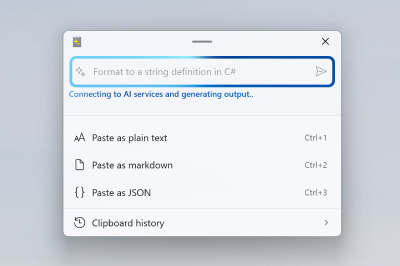
Paste as Plain Text
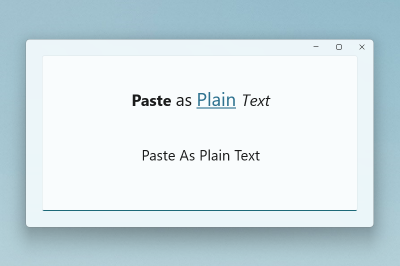
Paste as Plain Text enables you to paste text stored in your clipboard, excluding any text-formatting, by using a quick key shortcut. The feature replaces any formatting included with the clipboard text with an unformatted version of the text.
Note
Paste as Plain Text is a feature that runs locally and doesn't use AI.
Paste as JSON
Paste as JSON enables you to paste text stored in your clipboard, updating any text-formatting to JSON, by using a quick key shortcut. The feature replaces any formatting included with the clipboard text with a JSON formatted version of the text.
Sample input:
<note>
    <to>Mr. Smith</to>
    <from>Ms. Nguyen</from>
    <body>Do you like PowerToys?</body>
</note>
JSON output:
{
    "note": {
        "to": "Mr. Smith",
        "from": "Ms. Nguyen",
        "body": "Do you like PowerToys?"
    }
}
Note
Paste as JSON is a feature that runs locally and doesn't use AI.
Paste as Markdown
Paste as Markdown enables you to paste text stored in your clipboard, updating any text formatting to markdown by using a quick key shortcut. The feature replaces any formatting included with the clipboard text with a markdown formatted version of the text.
Sample input:
<b>Paste</b> <i>as</i> <a href="https://en.wikipedia.org/wiki/Markdown">Markdown</a>
Markdown output:
**Paste** *as* [Markdown](https://en.wikipedia.org/wiki/Markdown)
Note
Paste as Markdown is a feature that runs locally and doesn't use AI.
Paste as .txt file
Paste as .txt file enables you to paste text stored in your clipboard as a .txt file with an auto-generated file name. You can optionally set a quick key shortcut in settings.
Sample input:
Hello World!
If the application that you're using accepts pasting files (for example, File Explorer), the paste as .txt file action takes the input text and pastes a .txt file.
Note
Paste as .txt file is a feature that runs locally and doesn't use AI.
Paste as .html file
Paste as .html file enables you to paste HTML data stored in your clipboard as a .html file with an auto-generated file name. This feature is especially useful for saving a part of a webpage from a browser - including links, formatted text, and images. You can optionally set a quick key shortcut in settings.
If the application you're using accepts pasting files (for example, File Explorer), the paste as .html file action takes the input data and pastes a .html file.
Note
Paste as .html file is a feature that runs locally and doesn't use AI.
Paste text with AI
When you paste text with AI, Advanced Paste sends your clipboard text and prompt to the provider that you selected. To use this feature, configure at least one AI provider in PowerToys settings. For online providers, you must also have available credits in your account.
Note
If you use this feature and see an error API key quota exceeded, you don't have credits in your selected online AI account and need to purchase them.
Some examples of how you can use this feature include:
- Summarize text: Take long text from the clipboard and ask the AI to summarize it.
- Translate text: Take the text from the clipboard in one language and ask the AI to translate it to another language.
- Generate code: Take a description of a function from the clipboard and ask the AI to generate the code for it.
- Transform text: Take text from the clipboard and ask the AI to rewrite it in a specific style, such as a professional email or a casual message.
- Stylize text: Take text from the clipboard and ask the AI to rewrite it in the style of a well-known author, book, or speaker.
You could ask the AI to paste the text as if it were written by Mark Twain or Shakespeare, for example, or to summarize a long case study. The possibilities are endless.
Sample input:
The new Advanced Paste feature in PowerToys is now available. You can use it to save time and improve your writing.
AI output when prompting to "Format the text as if it were written by Mark Twain":
Say, have you heard the news? The newfangled Advanced Paste feature in PowerToys is finally here! It's a nifty tool that's sure to save you time and spruce up your writing. If you're in the market for a bit of writing wizardry, this here Advanced Paste just might be the ticket for ya.
Note
As with any AI tool, the quality of the output depends on the quality of the input. The more context you provide, the better the AI can understand and respond to your request. Be sure to carefully review the output before using it. For more info on AI usage in this feature, review the terms of service and privacy policy pages for your selected model provider.
Fix spelling and grammar
Fix spelling and grammar is a built-in AI action that you can run from the Advanced Paste window or from its own shortcut. In Settings, you can:
- Turn the action on or off.
- Assign a shortcut for the main action.
- Choose a specific AI model for this action, or leave it on the default provider.
- Override the action's prompt and system prompt.
You can also turn on Coaching mode. When coaching mode is enabled, Advanced Paste shows a preview that explains what changed and why. Coaching mode has its own optional shortcut, coaching AI model, coaching prompt, and coaching system prompt.
Custom actions
Custom actions let you save prompts for recurring AI transforms such as summarizing meeting notes, translating text, or rewriting text into a specific style. Saved custom actions appear in the Advanced Paste window, and you can also run them from their own shortcuts. Each custom action can use the default provider or a different provider that you choose for that action.
Advanced AI paste scenarios with OpenAI
If you use an OpenAI online model provider, the Paste with AI feature can use Semantic Kernel to allow you to define a chain of actions to perform. By using custom prompts, you can:
- Work with non-text input such as images.
- Produce non-text output like files.
- Chain multiple actions together and execute them in sequence. For example, Image to text --> Text to JSON text --> JSON text to .txt file.
- Produce meaningful AI-generated error messages.
For these example commands, assume there's an image in the clipboard that contains some text that you want to save to a text file in another language. You can phrase multiple steps explicitly:
Convert this image to text using OCR, translate the text to French, and then save the text as a .txt file.
Or you can phrase the steps to be more implicit:
Translate to French and save as a .txt file.
Note
Currently, Semantic Kernel functionality is only available when using OpenAI as the model provider.
Advanced image paste
Advanced Paste includes several image-based paste options. You can find these options in the Advanced Paste window. Open the window by using the activation shortcut. You can also set a quick key shortcut in settings.
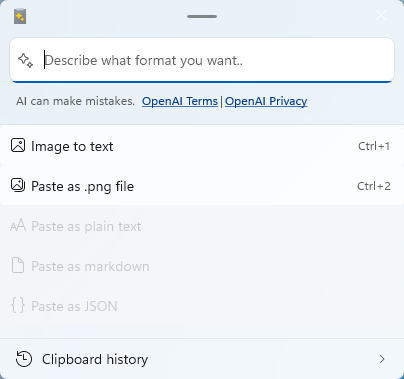
Paste Image to text
Paste image to text enables you to extract the text from an image in your clipboard and quickly paste the extracted text by using a quick key shortcut.
Note
Paste as Image to text is a feature that runs locally by using local OCR.
Paste as .png file
Paste as .png file enables you to quickly paste an image format, like a bitmap, to a .png file. You can optionally create a quick key shortcut to invoke this paste action.
Note
Paste as .png file is a feature that runs locally and doesn't use AI.
Transcode to audio or video
The Advanced Paste window offers two paste options that work with media files. You can open the Advanced Paste window by using the activation shortcut. You can also use customizable keyboard commands to directly invoke a paste action with quick keys. To the extent possible, the feature maintains quality settings (such as video dimensions and audio bitrate) from the source file, as well as any container metadata (such as title and album).
You can cancel paste actions by selecting the cancel (X) button:
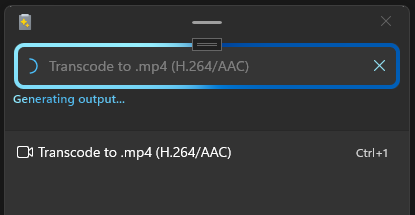
This cancel option is useful for media transcoding but also for other potentially long-running actions, such as the Paste with AI operations.
Paste actions for transcoding display their fractional progress through a progress ring. This feature might be useful for other paste actions in the future, but for now, only media transcoding uses it.
The feature uses the Windows.Media.Transcoding APIs to transcode audio and video files. You can find the list of supported codecs here.
Note
The Transcode to audio and video features run locally and don't use AI.
Transcode to .mp3
The Transcode to .mp3 feature works with both audio and video files. It extracts the audio channel from the media on the clipboard and saves it as an .mp3 file.
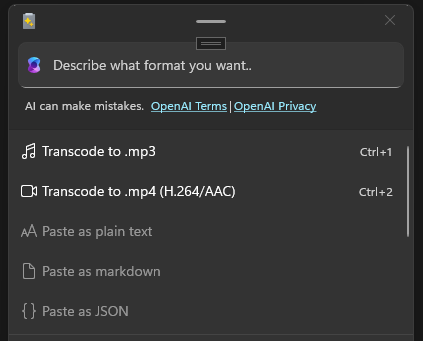
Use this feature to extract audio from combined audio and video files to save disk space and to work with audio-only apps and devices.
Transcode to .mp4 (H.264/AAC)
The Transcode to .mp4 (H.264/AAC) feature transcodes video files to use the H.264 video codec and AAC audio codec (if audio is present) and saves the streams to an .mp4 file. Use this feature to transcode existing video files to a more widely supported format.
Install PowerToys
This utility is part of the Microsoft PowerToys utilities for power users. It provides a set of useful utilities to tune and streamline your Windows experience for greater productivity. To install PowerToys, see Installing PowerToys.
Συνεργαστείτε μαζί μας στο GitHub
Μπορείτε να βρείτε την πηγή για αυτό το περιεχόμενο στο GitHub, όπου μπορείτε επίσης να δημιουργήσετε και να εξετάσετε ζητήματα και αιτήματα έλξης. Για περισσότερες πληροφορίες, ανατρέξτε στον οδηγό συνεργατών.

Windows developer