Note
Access to this page requires authorization. You can try signing in or changing directories.
Access to this page requires authorization. You can try changing directories.
This article is for IT pros and Teams Administrators who want to report on the calls handled by Teams Phone Agents, Auto Attendants, and Call Queues.
Planning and licensing review
Planning
- Overview of Teams Phone Agent, Auto Attendant, and Call Queue
- Authorized users
- Nesting call flows
- Reporting considerations
Licensing
V3.3.1 published on July 20
What's new in this release:
- Reporting for Teams Phone Agent now supported (preview).
- Desktop version of reports can be configured to show agent name instead of username.
- Support for Government Community Cloud High (GCCH) and Department of Defence (DoD) tenants.
Overview
The Teams Phone Agent, Auto Attendant & Call Queue Historical Report Power BI template provides four reports that allow organizations to report on the number of calls processed by Teams Phone Agents, Auto Attendants, and Call Queues. It also provides representative (agent) performance insights.
The Teams Auto Attendant & Call Queue Historical Report Power BI template contains the following four reports:
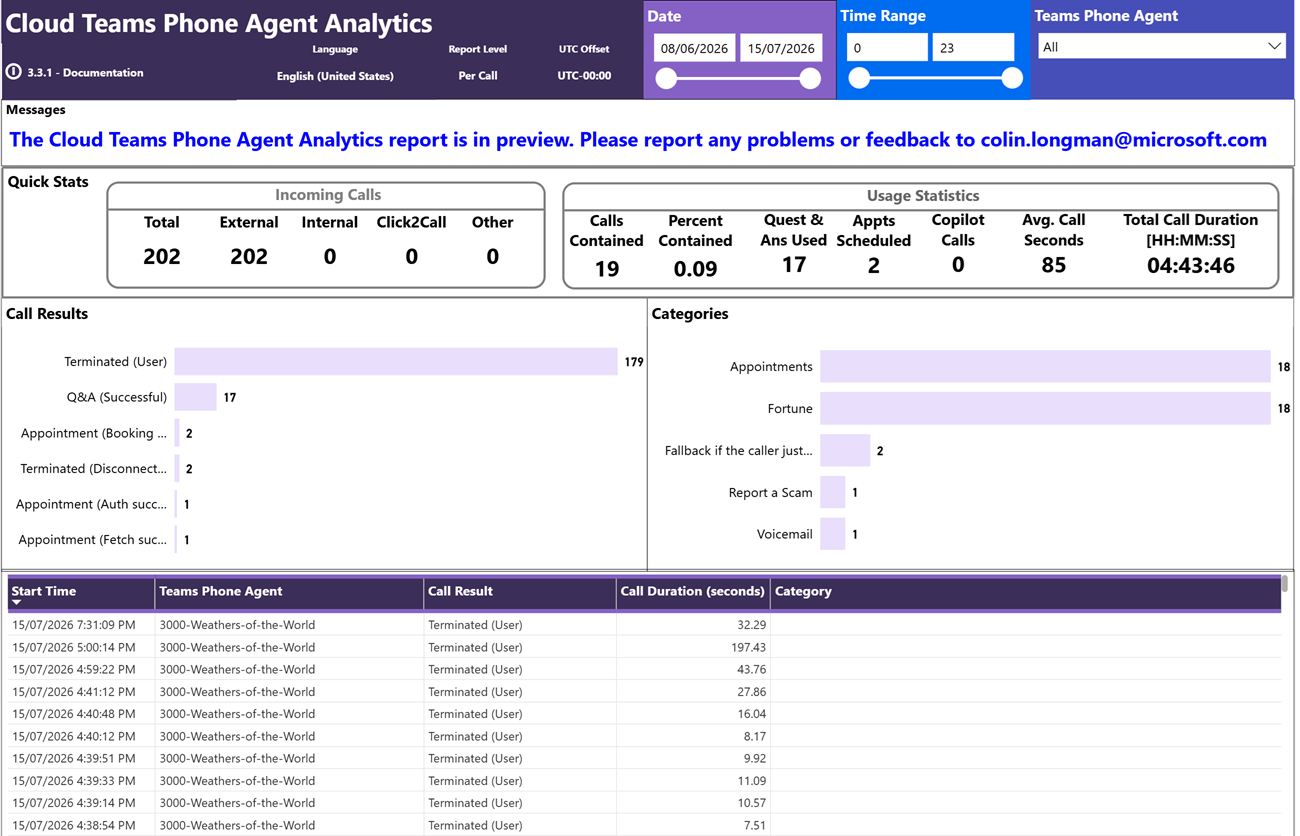
Cloud Teams Phone Agent Analytics (expand to see sample report)
The Cloud Teams Phone Agent Analytics report shows analytics for calls coming into your Teams Phone Agents.
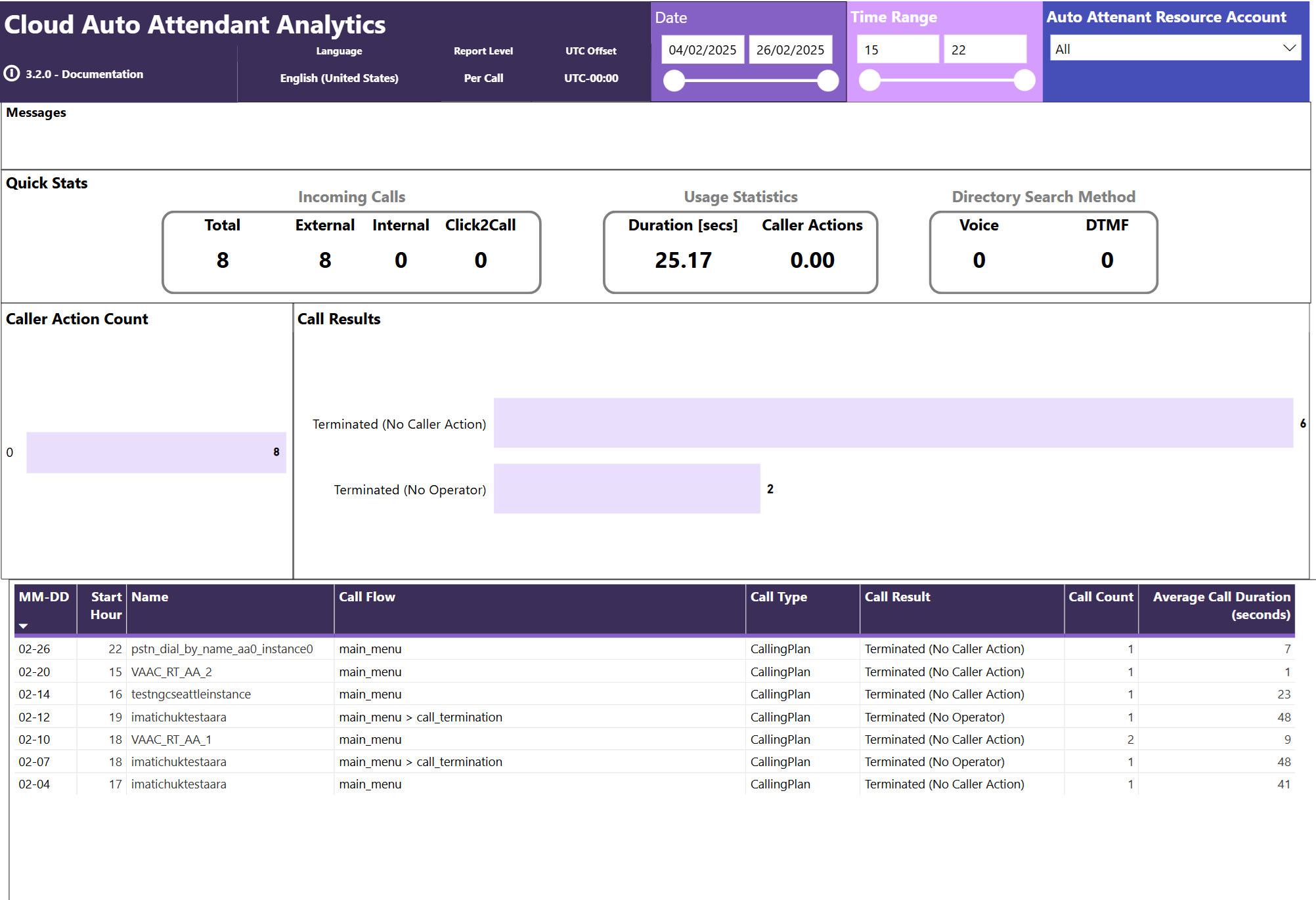
Cloud Auto Attendant Analytics(expand to see sample report)
The Cloud Auto Attendant Analytics report shows analytics for calls coming into your Auto Attendants.
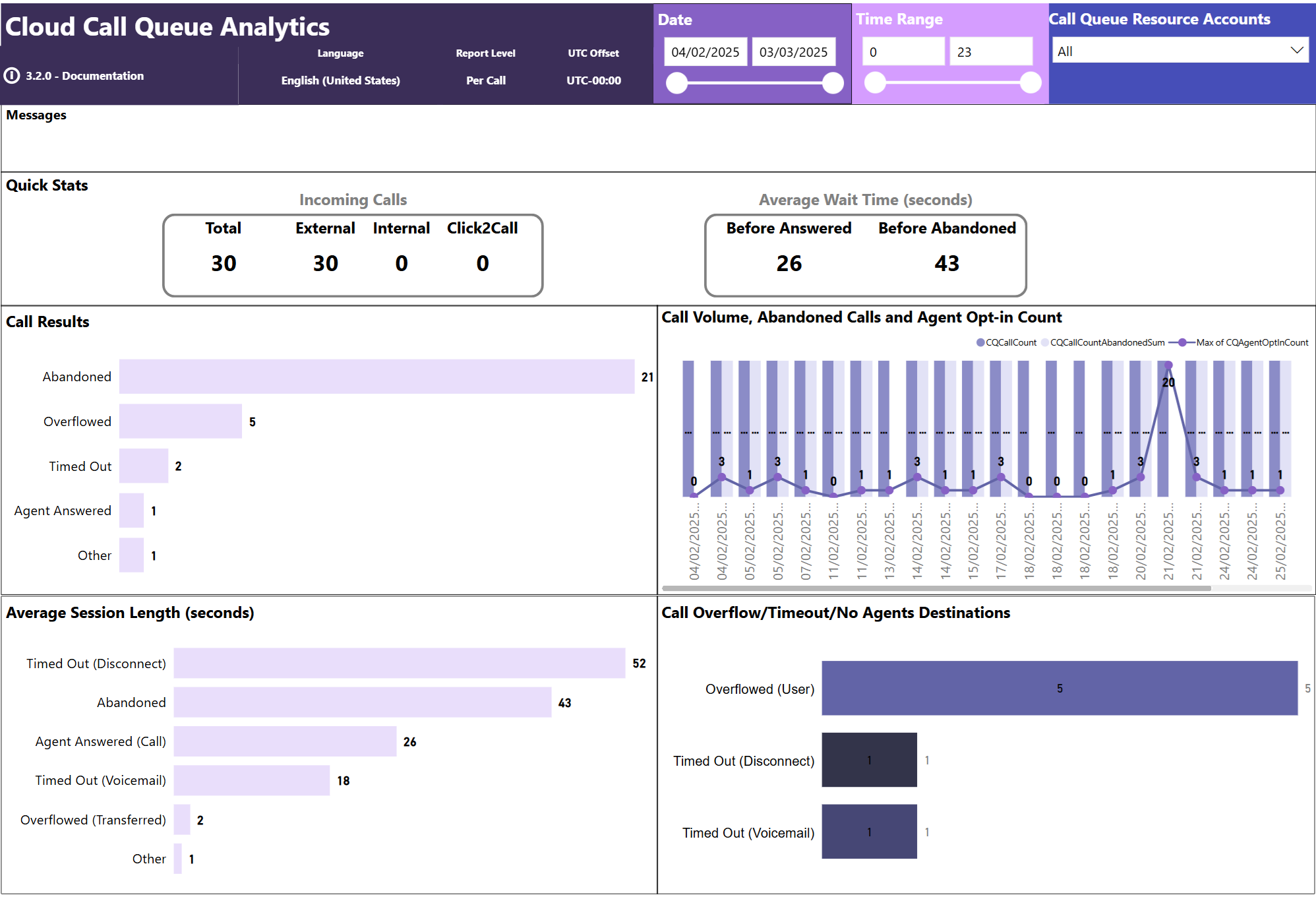
Cloud Call Queue Analytics (expand to see sample report)
The Cloud Call Queue Analytics report shows analytics for calls coming into your Call Queues.
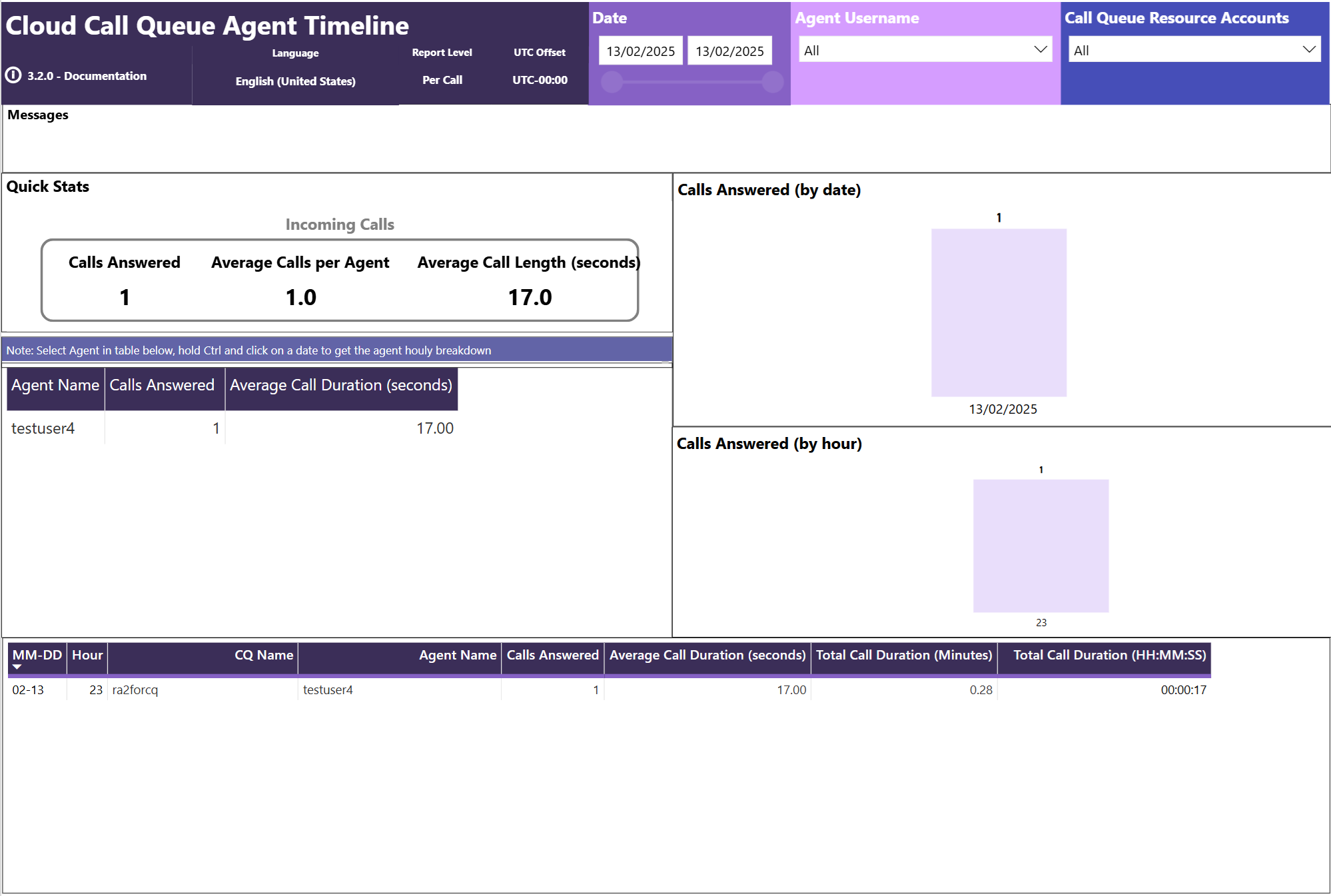
Cloud Agent Timeline Analytics (expand to see sample report)
The Cloud Agent Timeline Analytics report shows a timeline view of representatives (agents) being active in Call Queue calls.
These reports use data from the Voice Applications Analytics Collector (VAAC) service.
V3.x.x prerequisites
Power BI Desktop
You need to have Power BI Desktop installed. You can install and use the free version from the Microsoft Windows Store.
Important
Power BI Desktop is updated and released on a monthly basis, incorporating customer feedback, and new features. Only the most recent version of Power BI Desktop is supported. Customers who contact support for Power BI Desktop are asked to upgrade to the most recent version. You can get the most recent version of Power BI Desktop from the Windows Store, or as a single executable containing all supported languages that you download and install on your computer.
Access permissions
Use one of the following methods to control access to the historical reports:
Voice applications policy
To let users run reports on Auto attendants, Call queues, and Representatives (Agents) without giving them access to the Teams admin center, assign them a voice applications policy that allows historical reporting. Then assign the user as an authorized user for the relevant Auto attendants and Call queues. Admins can create this policy in Teams admin center or with PowerShell.
For more information about creating a voice applications policy, see Manage voice applications policies in Microsoft Teams.
Tip
We recommend using the voice applications policy to control access to historical reports. With a voice applications policy and Authorized users, it's possible to control which Auto attendants, Call queues, and Representatives (Agents) a user can report on. If necessary, the policy still allows a user to report on all Auto Attendants, Call Queues, and Representatives (Agents) without providing access to Teams Admin Center.
Call Quality Dashboard (CQD) pipeline [legacy]
If you want the user to report on all the Auto Attendants, Call Queues, and Representatives (Agents) in the tenant and you want to grant the user access to Teams Admin Center to run other Usage reports, assign the user a CQD access role with both View Reports and View EUII fields set to Yes.
For more information, see CQD access role.
Note
If a user is assigned to a CQD access role and a voice applications policy, the CQD role takes precedence and the user can see all the Auto Attendants, Call Queues, and Representatives (Agents) in the tenant.
V3.x.x desktop installation
Expand to see the desktop installation steps
Important
The following steps assume that:
- Power BI Desktop is installed
- Your Teams account is either:
- Set up as an Authorized user.
- Assigned a CQD access role.
Perform the following steps:
Download and save the Teams Auto Attendant & Call Queue Historical Reports V3.3.1.pbit file on your computer.
Open the
Teams Auto Attendant & Call Queue Historical Reports V3.3.1.pbittemplate file. Power BI Desktop should launch.Select the Tenant Location, Language, and UTC Offset.
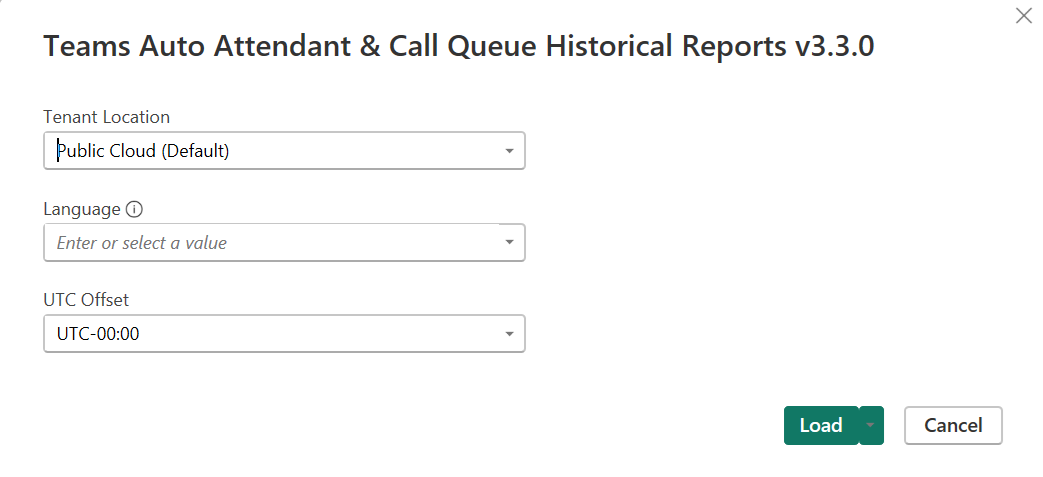
- Tenant Location: Select the tenant cloud location.
- Public Cloud includes Government Community Cloud (GCC) tenants.
- Language: Select the language and report level.
- Select
Per Callto retrieve all the individual call records. - Select
Per Dayto retrieve an aggregated total for each day.
- Select
- UTC Offset: Select the UTC offset that represents the time zone the reports are presented in. Only valid when the Report Level is
Per Call
Important
Teams Phone Agent customers see Teams Phone Agent Analytics Known Issues
Per Day vs Per Call
Per Call reporting retrieves the individual call records for each Auto Attendant, Call Queue, and Representative (Agent) the user is authorized for and makes them available in the Power BI client. Per Call reporting also allows call records to be displayed in the local time zone selected by the user. For some customers, especially those using the CQD access role to control access, Per Call reporting might result in hitting the 150,000 default per query record limit. See Data Limits.
Per Day reporting retrieves one daily summary record for each Auto Attendant, Call Queue, and Representative (Agent). This reporting results in fewer records being returned to the client, reducing the possibility of hitting the 150,000 default per query record limit. Per Day reporting is based on a UTC-00:00 day (00:00:00-23:59:59 UTC) only and any UTC offset supplied by the user is ignored.
- Tenant Location: Select the tenant cloud location.
Steps 4-7 are only performed once, the first time the template is loaded.
Configure the data sources authentication.
- Select File, then Options and settings, and then Data source settings.
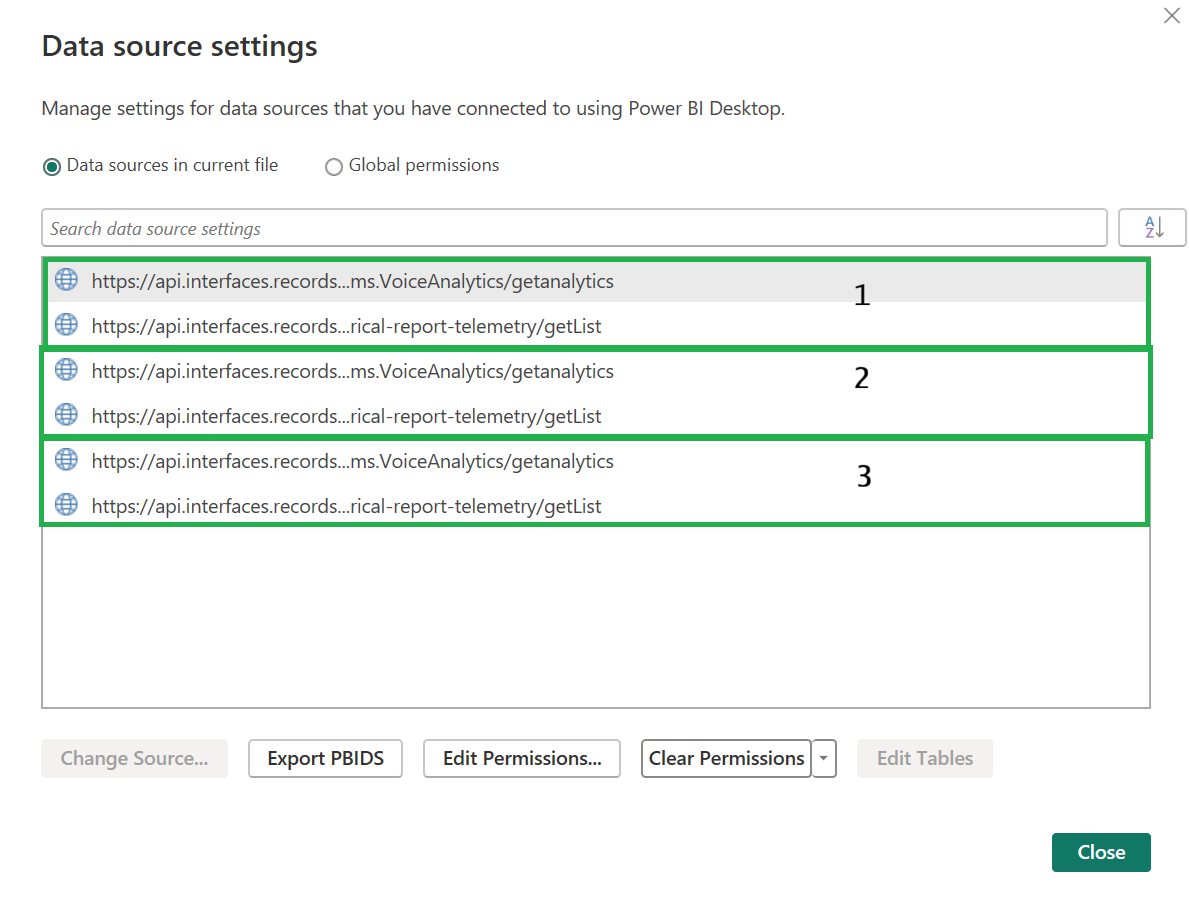
Do the following steps for each of the two data sources shown in the group based on your tenant location:
- Group 1: Department of Defence (DoD)
- Group 2: Government Community Cloud High (GCCH)
- Group 3: Public Cloud (including Government Community Cloud (GCC) tenants)
Select the data source.
Select Edit Permissions, and then Edit.
Select Organizational account and then Sign in (or Sign in as different user).
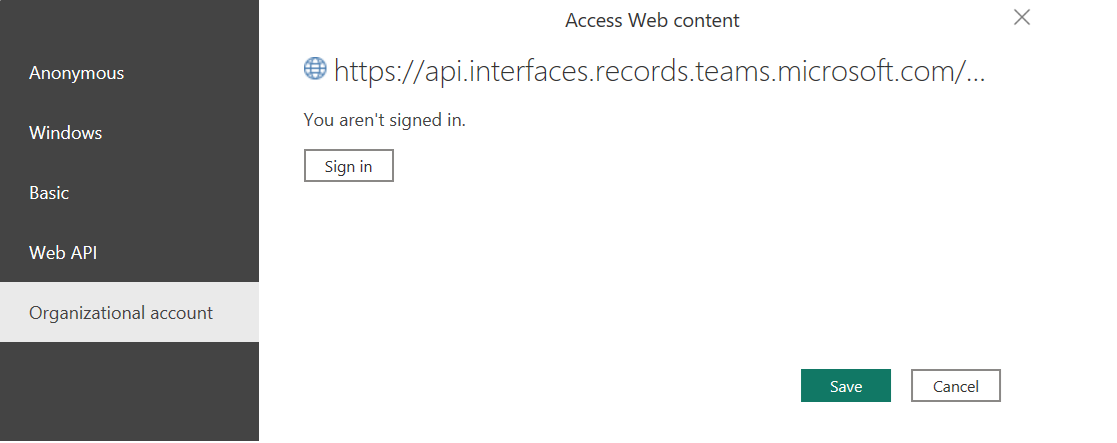
Sign in with your Teams account.
Select Save, then OK, and then Close.
Select Refresh in the ribbon bar and the data refreshes.
Depending on your Power BI Desktop settings, the following pop-up may also appear:
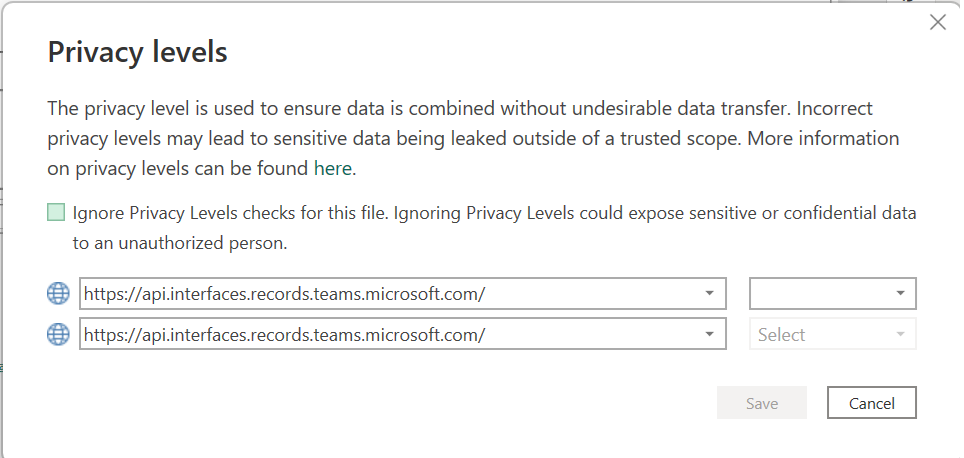
Enable the Ignore Privacy Levels checkbox. All the data is coming from the historical report database and there's no undesirable data transfer taking place.
V3.x.x Power BI Service installation
Expand to see the Power BI Service installation steps
Important
The report must be installed and working in the Power BI Desktop before it can be published to the Power BI service.
Once published, perform the following steps in the Power BI Service:
Go to the dataset Settings.
Expand the Data source credentials section.
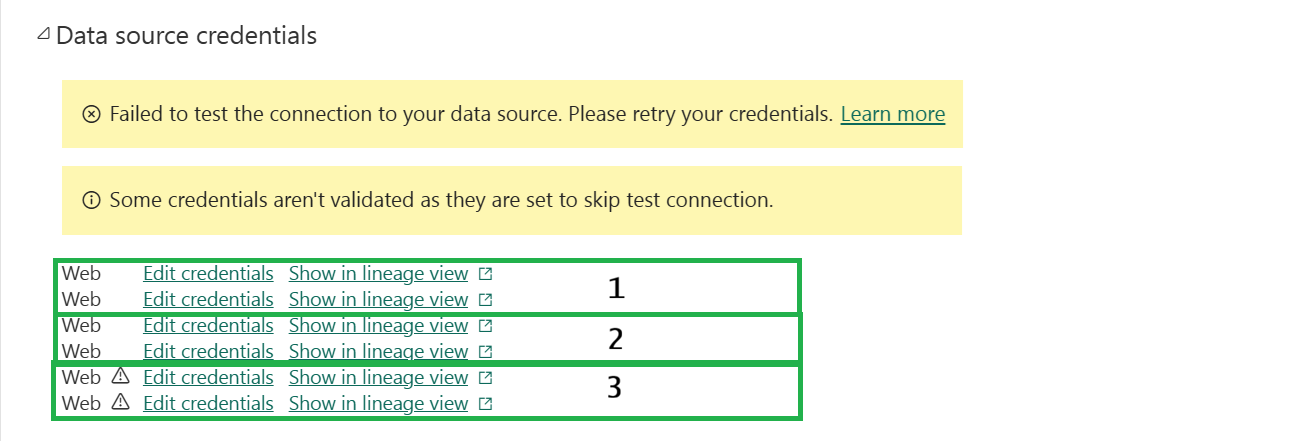
- Group 1: Public Cloud (including Government Community Cloud (GCC) tenants)
- Group 2: Government Community Cloud High (GCCH)
- Group 3: Department of Defence (DoD)
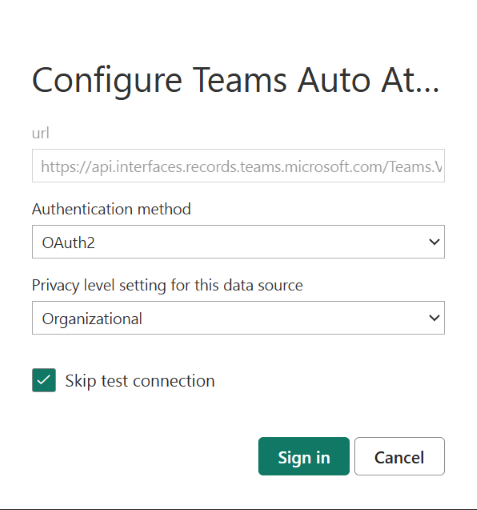
Do the following steps for the two data sources in the group based on your tenant location:
- Select Edit credentials.
- Set the Authentication method to
OAuth2. - Set the Privacy level setting for this data source to
Organizational. - Ensure Skip test connection is enabled.
- Select Sign in and provide your credentials.
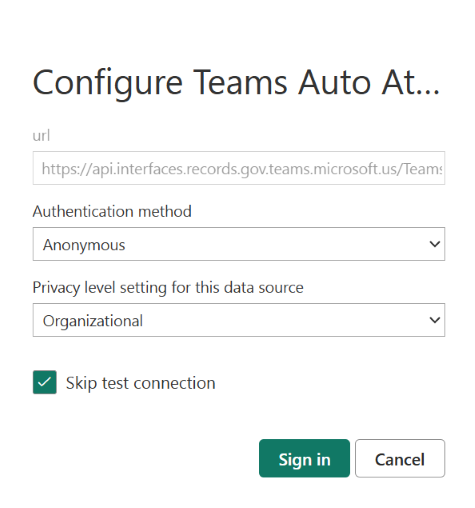
Do the following steps for the data sources in the other two groups:
- Select Edit credentials.
- Set the Authentication method to
Anonymous. - Set the Privacy level setting for this data source to
Organizational. - Ensure Skip test connection is enabled.
- Select Sign in.
When completed, you're able to configure a scheduled refresh of the dataset.
Data latency
The historical data is typically available within 30 minutes of the call being completed, but there are cases where it can take several hours for the data to appear.
You have to refresh the report to see any new data.
The reports are based on diagnostic telemetry. The information shown in these reports is only as complete as the telemetry data receive from clients participating in a call. There are several reasons why complete telemetry may not be received such as network outages, or firewall or proxy misconfigurations. There's ongoing work to improve the reliability and resiliency with which Teams clients deliver telemetry to the service.
With that in mind, using these reports for auditing, compliance, or payroll related reporting scenarios isn't supported.
Interpreting the reports, notes, and known issues
Cloud Teams Phone Agent Analytics
Expand to see how to interpret the Cloud Teams Phone Agent Analytics report, for notes and known issues
Note
This report is currently in preview.
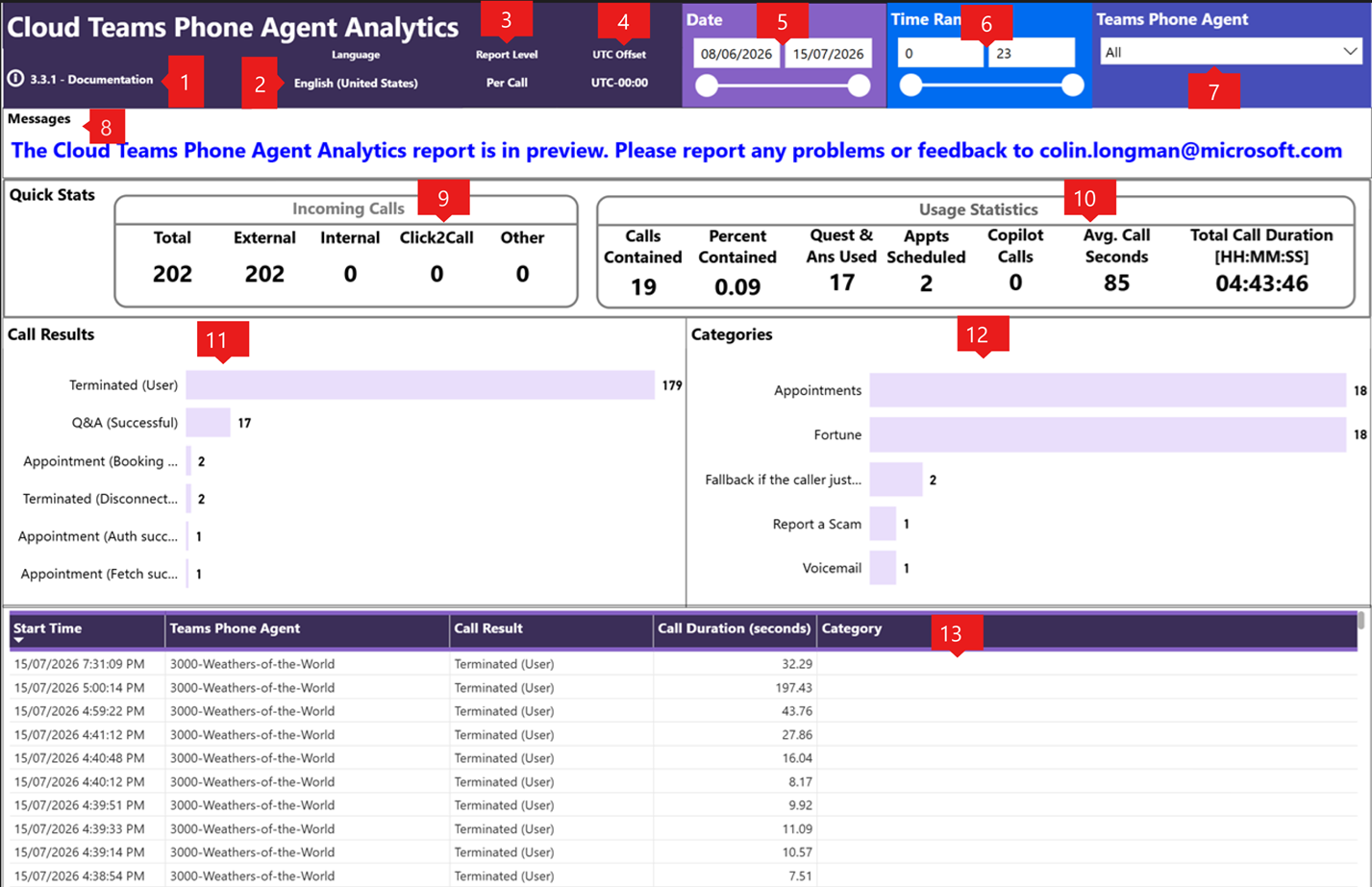
| Callout | Title | Description |
|---|---|---|
| 1 | Version | The report version and link to this documentation. |
| 2 | Language | The selected language and locale.See Known Issue 2 |
| 3 | Report Level | The selected report level.See Known Issue 3 |
| 4 | UTC Offset | The selected UTC offset. |
| 5 | Date | The start and end date of the report. Use this slider to select the date range to report on.See Known Issue 1 |
| 6 | Time Range | The start and end hour of the report. The report spans all dates/times from start date/start hour to the end date/end hour. Use this slider to select the time range to report on. |
| 7 | Teams Phone Agent Resource Account Teams Phone Agent |
Admins: The Resource Accounts to report on.See Note 1 Admins or Auth Users: The Teams Phone Agent to report on.See Note 2 Default: All |
| 8 | Messages | Informational messages |
| 9 | Quick Stats -> Incoming Calls | The breakdown shows the total number of calls received between the start date/start hour and end date/end hour. Incoming Calls Definitions:
TIP: Hover over any metric in this section to display a tooltip with the individual calls that make up the total. |
| 10 | Quick Stats -> Usage Statistics | The breakdown shows how the Teams Phone Agent was used.
|
| 11 | Call Results | The breakdown shows the call treatment received by callers. Call Results Legend Definitions:
|
| 12 | Categories | Categories are the Voice Commands configured on the Teams Phone Agent menu |
| 13 | The breakdown shows the date and time of each Teams Phone Agent call, including the final call result. Column definitions:
|
Teams Phone Agent Analytics Notes
1. Admins without a Voice Applications policy or Admins with a Voice Applications policy where the Auto attendant historical reporting permissions are set to None or Only authorized auto attendants: ↩
- Reporting is by the Resource Account name.
- Nested Auto attendants that receive calls through a
Voice Apptransfer report those calls under the Auto attendant GUID. - To see the calls for a specific Teams Phone Agent, select the resource accounts assigned to that Teams Phone Agent.
- For example: If the full Resource Account name is tpa_test@microsoft.com, then this value is: tpa_test.
2. Admins with a Voice Applications policy where the Auto attendant historical reporting permissions are set to All or Authorized users: ↩
Reporting is by Teams Phone Agent name.
Queues App users:
- This report is not currently available for Queues App users.
Teams Phone Agent Analytics Known issues
1. The Date selector sometimes shows dates outside the range of available data resulting in a blank report. Change the dates to be within the supported date range to resolve the issue. ↩
2. The report is only supported in the following languages / locales: ↩
- English (Australia)
- English (United Kingdom)
- English (United States)
If a language / locale other than these is selected, English (United States) will be defaulted.
3. The report only supports Per Call level reporting. If Per Day is selected, the report will default to Per Call. ↩
Cloud Auto Attendant Analytics
Expand to see how to interpret the Cloud Auto Attendant Analytics report, for notes and known issues
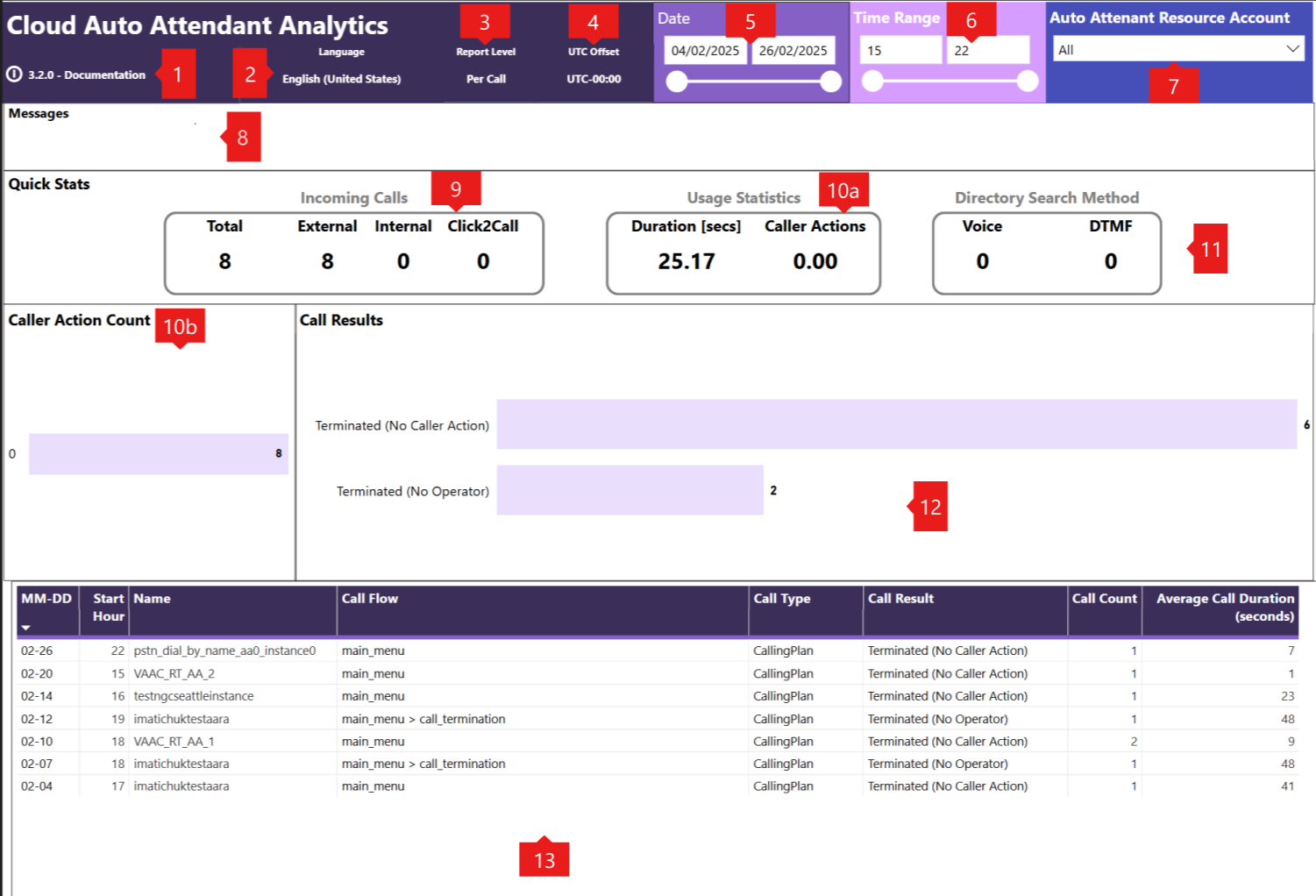
| Callout | Title | Description |
|---|---|---|
| 1 | Version | The report version and link to this documentation. |
| 2 | Language | The selected language and locale. |
| 3 | Report Level | The selected report level. |
| 4 | UTC Offset | The selected UTC offset. |
| 5 | Date | The start and end date of the report. Use this slider to select the date range to report on.See Known Issues 1 |
| 6 | Time Range | The start and end hour of the report. The report spans all dates/times from start date/start hour to the end date/end hour. Use this slider to select the time range to report on. |
| 7 | Auto Attendant Resource Account Auto Attendant |
Admins: The Resource Accounts to report on.See Note 1 Admins or Auth Users: The Auto Attendant to report on.See Note 2 Default: All |
| 8 | Messages | Informational messages |
| 9 | Quick Stats -> Incoming Calls | The breakdown shows the total number of calls received between the start date/start hour and end date/end hour. Incoming Calls Definitions:
TIP: Hover over any metric in this section to display a tooltip with the individual calls that make up the total. |
| 10a | Quick Stats -> Usage Statistics | The breakdown shows the average call duration in the Auto Attendant and the average number of caller actions. |
| 10b | Caller Action Count | The breakdown on the number of caller actions (key presses, voice commands) |
| 11 | Quick Stats -> Directory Search Method | The breakdown shows how the Directory Search option was used by callers. This section of the report is blank if the Auto Attendant isn't configured for this service or if callers don't use it. Directory Search Method Legend Definitions:
Localized |
| 12 | Call Results | The breakdown shows the call treatment received by callers. Call Results Legend Definitions:
Localized TIP: Hover over any metric in this section to display a tooltip with the individual calls that make up the total. |
| 13 | The breakdown shows the caller paths through the auto attendant and the final call result. Column definitions:
Localized TIP: Hover over any metric in this section to display a tooltip with the individual calls that make up the total. |
Auto Attendant Analytics Notes
1. Admins without a Voice Applications policy or Admins with a Voice Applications policy where the Auto attendant historical reporting permissions are set to None or Only authorized auto attendants: ↩
- Reporting is by the Resource Account name.
- Nested Auto attendants that receive calls through a
Voice Apptransfer report those calls under the Auto attendant GUID. - To see the calls for a specific Auto attendant, select the resource accounts assigned to that Auto attendant.- For example: If the full Resource Account name is aa_test@microsoft.com, then this value is: aa_test.
2. Admins with a Voice Applications policy where the Auto attendant historical reporting permissions are set to All or Authorized users: ↩
Reporting is by Auto Attendant name.
Queues App users:
- Reporting is by the Resource Account name.
- Reports are in UTC.
Auto Attendant Analytics Known issues
1. The Date selector sometimes shows dates outside the range of available data resulting in a blank report. Change the dates to be within the supported date range to resolve the issue. ↩
Cloud Call Queue Analytics
Expand to see how to interpret the Cloud Call Queue Analytics report, for notes and known issues
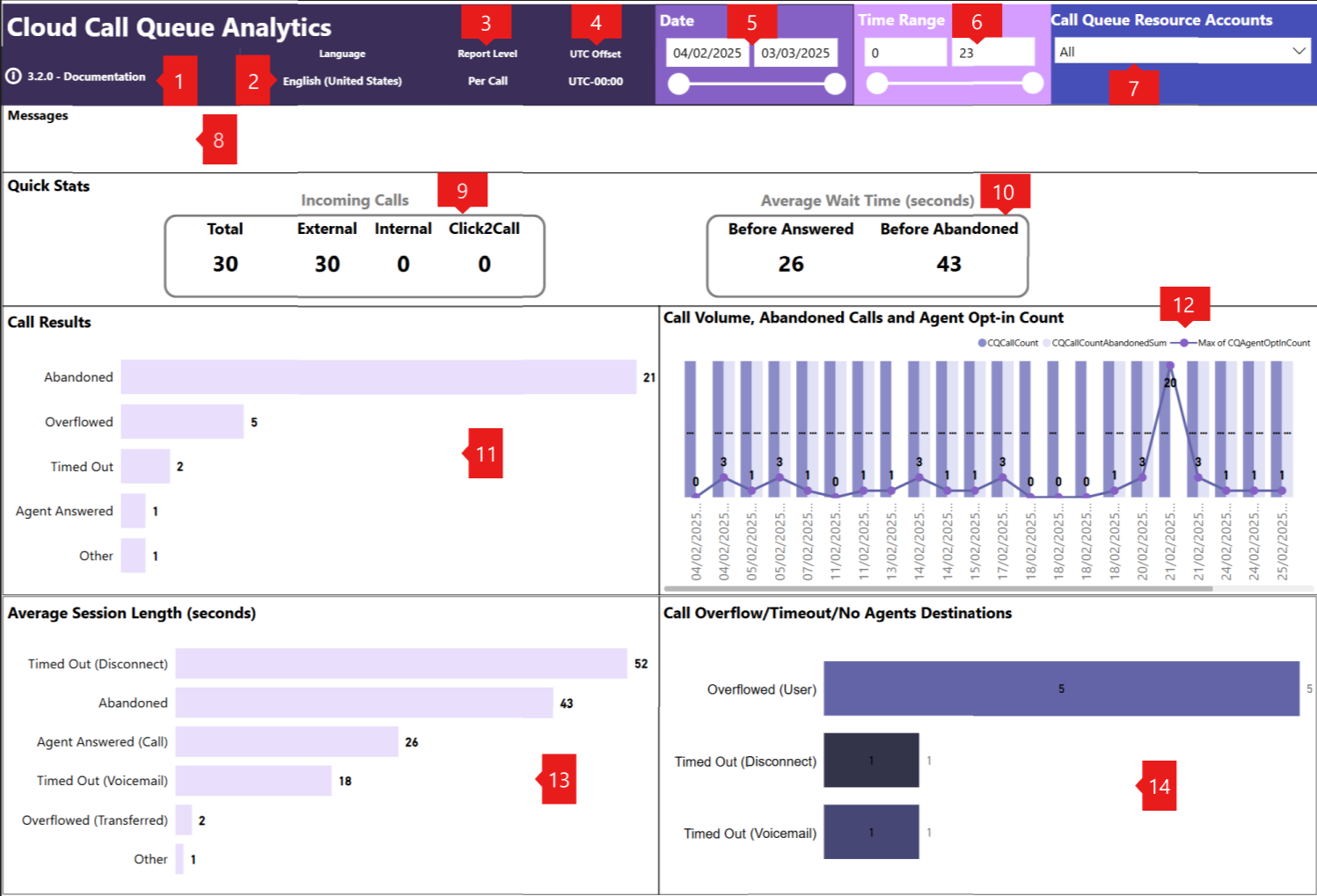
| Callout | Title | Description |
|---|---|---|
| 1 | Version | The report version and link to this documentation. |
| 2 | Language | The selected language and locale. |
| 3 | Report Level | The selected report level. |
| 4 | UTC Offset | The selected UTC offset. |
| 5 | Date | The start and end date of the report. Use this slider to select the date range to report on.See Known Issue 1 |
| 6 | Time Range | The start and end hour of the report. The report spans all dates/times from start date/start hour to the end date/end hour. Use this slider to select the time range to report on. |
| 7 | Call Queue Resource Account Call Queue |
Admins: The Resource Accounts to report on.See Note 1 Admins or Auth Users: The Call Queue to report on.See Note 2 Default: All |
| 8 | Messages | Informational messages |
| 9 | Quick Stats -> Incoming Calls | The breakdown shows the total number of calls received between the start date/start hour and end date/end hour. Incoming Calls Definitions:
TIP: Hover over any metric in this section to display a tooltip with the individual calls that make up the total. |
| 10 | Quick Stats -> Average Wait Time (seconds) | The breakdown shows the average call duration in the Call Queue before a caller is answered or they abandon. |
| 11 | Call Results | The breakdown shows the call treatment received by callers. Call Results Legend Definitions:
Localized TIP: Hover over any metric in this section to display a tooltip with the individual calls that make up the total. |
| 12 | Call Volume, Abandoned Calls, Agent Opt-in Count | The breakdown shows the number of calls received and abandoned per hour and the maximum number of representatives (agents) that were opted into the call queue at that time |
| 13 | Average Session Length (seconds) | The breakdown shows how long calls waited before each call result.
Localized |
| 14 | Call Overflow/Timeout/No Agents Destinations | The breakdown shows where the calls that received the Call Overflow, Call Timeout or No Agents exception handling treatment were sent.
Localized |
Call Queue Analytics Notes
1. Admins without a Voice Applications policy or Admins with a Voice Applications policy where the Call queue historical reporting permissions are set to None or Only authorized auto attendants: ↩
- Reporting is by the Resource Account name.
- Nested Call queues that receive calls through a
Voice Apptransfer report those calls under the Resource Account username that performs the transfer. - To see the calls for a specific Call queue, select the resource accounts assigned to that Call queue or, if nesting, the resource accounts that perform the transfers.
- For example: If the full Resource Account name is aa_test@microsoft.com, then this value is: aa_test.
2. Admins with a Voice Applications policy where the Call queue historical reporting permissions are set to All or Authorized users: ↩
Reporting is by Call queue name.
Queues App users:
- Reporting is by the Resource Account name.
- Reports are in UTC.
Call Queue Analytics Known issues
1. The Date selector sometimes shows dates outside the range of available data resulting in a blank report. Change the dates to be within the supported date range to resolve the issue. ↩
Cloud Call Queue Agent Timeline
Expand to see how to interpret the Cloud Call Queue Agent Timeline report, for notes and known issues
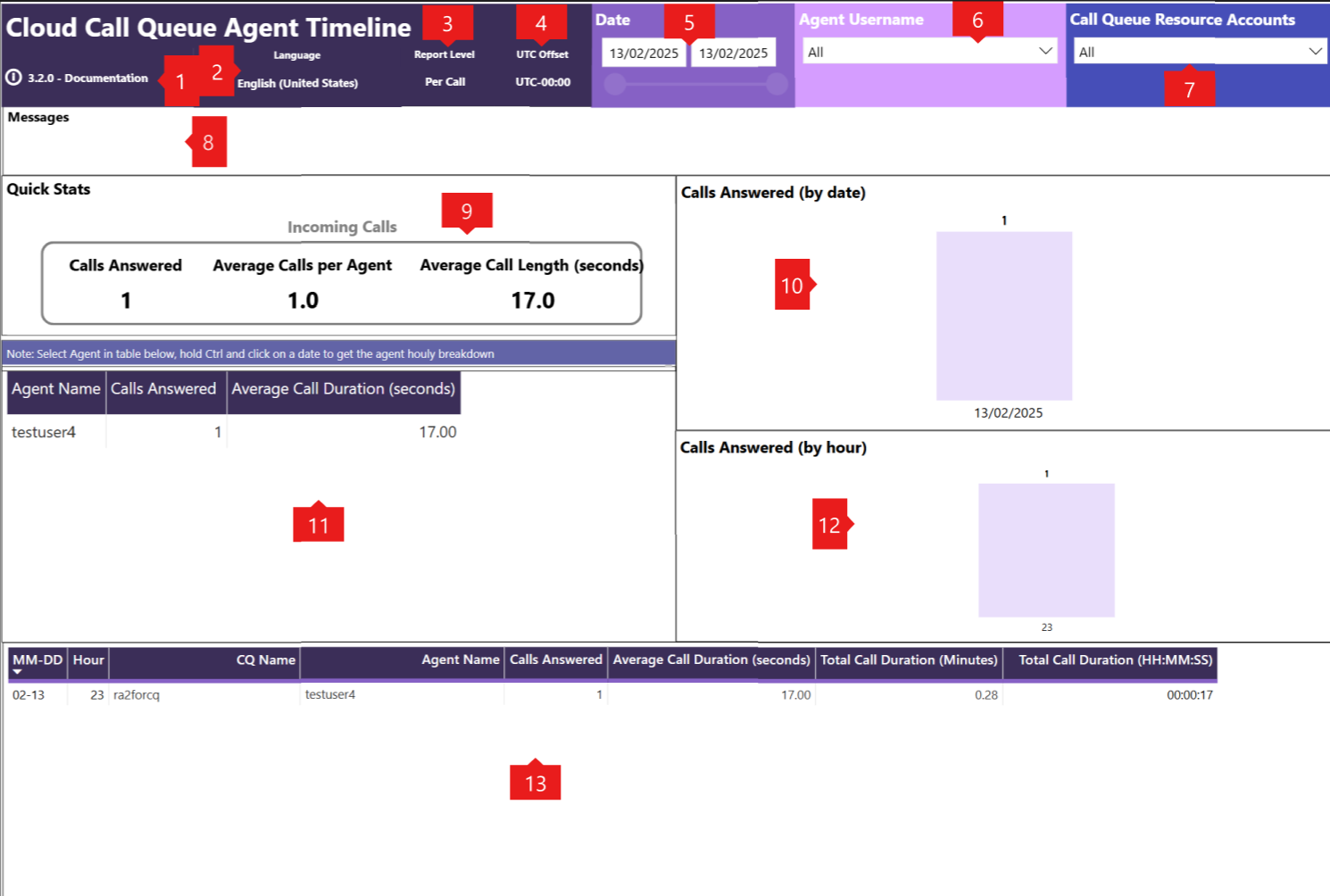
| Callout | Title | Description |
|---|---|---|
| 1 | Version | The report version and link to this documentation. |
| 2 | Language | The selected language and locale. |
| 3 | Report Level | The selected report level. |
| 4 | UTC Offset | The selected UTC offset. |
| 5 | Date | The start and end date of the report. Use this slider to select the date range to report on.See Known Issues 1 |
| 6 | Agent Username | The representatives (agents) to report on. If the full username is user@microsoft.com, then this value is: user Default: All |
| 7 | Call Queue Resource Account Call Queue |
Admins: The Resource Accounts to report on.See Note 1 Admins or Auth Users: The Call Queue to report on.See Note 2 Default: All |
| 8 | Messages | Informational messages |
| 9 | Quick Stats -> Incoming Calls | The breakdown shows the total number of calls answered, the average number of calls answered per representative (agent) and the average call length of answered calls handled.See Known Issue 2 TIP: Hover over any metric in this section to display a tooltip with the individual calls that make up the total. |
| 10 | Calls Answered (by date) | The breakdown shows the number of agent-answered calls by date |
| 11 | The breakdown shows how many calls each representative (agent) in the queue answered and the average call duration for those calls. | |
| 12 | Calls Answered (by hour) | The breakdown shows the number of agent-answered calls by hour |
| 13 | The breakdown shows the number of calls answered by a representative (agent), by Call Queue. Column definitions:
Localized |
Agent Timeline Analytics Notes
1. Admins without a Voice Applications policy or Admins with a Voice Applications policy where the Call queue historical reporting permissions are set to None or Only authorized auto attendants: ↩
- Reporting is by the Resource Account name.
- Nested Call queues that receive calls through a
Voice Apptransfer report those calls under the Resource Account username that performs the transfer. - To see the calls for a specific Call queue, select the resource accounts assigned to that Call queue or, if nesting, the resource accounts that perform the transfers.
- For example: If the full Resource Account name is aa_test@microsoft.com, then this value is: aa_test.
2. Admins with a Voice Applications policy where the Call queue historical reporting permissions are set to All or Authorized users: ↩
Reporting is by Call queue name.
Queues App users:
- Reporting is by the Resource Account name.
- Reports are in UTC.
Agent Timeline Analytics Known issues
1. The Date selector sometimes shows dates outside the range of available data resulting in a blank report. Change the dates to be within the supported date range to resolve the issue. ↩
2. The agent's UPN name instead of their name is shown. ↩
3. In some scenarios, the representative (agent) answered call count might be different than the number of calls shown in the Teams client call history. The Teams client call history is correct. Support is investigating, but there's no estimated time to repair available at this time.
4. If a representative (agent) answers a redirected call from another queue due to Call Overflow, the call counts towards the original queue where the overflow happened, not the queue where it was answered.
5. Callback calls handled by representatives (agents) aren’t tracked, so the Call Queue report and Agent Timeline report show different numbers of answered calls.
Reporting by representative's name vs UPN
Caution
This is only supported when the reports are running on the Power BI desktop.
Publishing a report with this modification aadfafsd
This customization will result in the Agent Timeline report showing representative's (agent's) names instead of their username.
This customization requires registering an Entra ID application.
Expand to see customization steps
These instructions assume that you have the AA/CQ Historical Reports templates installed and working on your desktop.
Register an Entra ID application
In the Azure portal:
- Go to Microsoft Entra ID → App registrations.
- Select New registration.
- Copy:
- Tenant ID
- Client ID
- Create a Client Secret
- make sure to copy this client secret immediately after creating it as there is no way to retrieve it once you leave the creation page.
- Grant Microsoft Graph permissions such as:
- User.Read.All
- Group.Read.All
- Grant admin consent.
Setting up the Power BI Report
- Open the reports
- Select Transform data
- Under Queries
- select TenantID and paste in the value from step 3 above
- select ClientID and paste in the value from step 3 above
- select ClientSecret and in the value from step 4 above
- Select TeamsUsers
- Select Advanced Editor
- Delete all the text that shows
- Copy the text below
- Paste it into the Power BI editor
let
    TeamsUserInvalidConfig = if Text.Length(TenantID) = 0 or Text.Length(ClientID) = 0 or Text.Length(ClientSecret) = 0 then true else false,

    GetAllPagesURL = if #"Tenant Location" = "Department of Defence (DoD)" then
                "https://dod-graph.microsoft.us/v1.0/users?$select=displayName,userPrincipalName,id"
            else if #"Tenant Location" = "Government Community Cloud High (GCCH)" then
                "https://graph.microsoft.us/v1.0/users?$select=displayName,userPrincipalName,id"
            else  // Public Cloud
                "https://graph.microsoft.com/v1.0/users?$select=displayName,userPrincipalName,id",

    TokenResponse = if TeamsUserInvalidConfig then
            null
        else
            if #"Tenant Location" = "Department of Defence (DoD)" then
                Json.Document(
                    Web.Contents(
                        "https://login.microsoftonline.us",
                        [
                            RelativePath = TenantID & "/oauth2/v2.0/token",
                            Headers = [
                                #"Content-Type" = "application/x-www-form-urlencoded"
                            ],
                            Content =
                                Text.ToBinary(
                                    Uri.BuildQueryString([
                                        client_id = ClientID,
                                        scope = "https://graph.microsoft.com/.default",
                                        client_secret = ClientSecret,
                                        grant_type = "client_credentials"
                                    ])
                                )
                        ]
                    )
                )
            else if #"Tenant Location" = "Government Community Cloud High (GCCH)" then
                 Json.Document(
                    Web.Contents(
                        "https://login.microsoftonline.us",
                        [
                            RelativePath = TenantID & "/oauth2/v2.0/token",
                            Headers = [
                                #"Content-Type" = "application/x-www-form-urlencoded"
                            ],
                            Content =
                                Text.ToBinary(
                                    Uri.BuildQueryString([
                                        client_id = ClientID,
                                        scope = "https://graph.microsoft.com/.default",
                                        client_secret = ClientSecret,
                                        grant_type = "client_credentials"
                                    ])
                                )
                        ]
                    )
                )
            else // Public Cloud
                Json.Document(
                    Web.Contents(
                        "https://login.microsoftonline.com",
                        [
                            RelativePath = TenantID & "/oauth2/v2.0/token",
                            Headers = [
                                #"Content-Type" = "application/x-www-form-urlencoded"
                            ],
                            Content =
                                Text.ToBinary(
                                    Uri.BuildQueryString([
                                        client_id = ClientID,
                                        scope = "https://graph.microsoft.com/.default",
                                        client_secret = ClientSecret,
                                        grant_type = "client_credentials"
                                    ])
                                )
                        ]
                    )
                ),

    AccessToken = if TeamsUserInvalidConfig then
            null
        else
            TokenResponse[access_token],

    GetPage = if TeamsUserInvalidConfig then
            null
        else
            (url as text) =>
            let
                Source = Json.Document(
                    Web.Contents(
                        url,
                        [
                            Headers = [
                                Authorization = "Bearer " & AccessToken
                            ]
                        ]
                    )
                )
            in
                Source,

    GetAllPages = if TeamsUserInvalidConfig then
            null
        else
            (url as text) =>
            let
                Pages =
                    List.Generate(
                        () => GetPage(url),
                        each _ <> null,
                        each
                            if Record.HasFields(_, "@odata.nextLink")
                            then GetPage(_[#"@odata.nextLink"])
                            else null,
                        each _[value]
                    ),

                Combined = List.Combine(Pages)
            in
                Combined,

    Result = if TeamsUserInvalidConfig then
            Table.FromRows(
                {
                    { "", "", "" }
                },
                { "displayName", "userPrincipalName", "id"}
            )
        else
            GetAllPages(GetAllPagesURL),

    UsersTable = if TeamsUserInvalidConfig then
            Result
        else
            Table.FromRecords(Result),

    // converting to lower case as AgentTimeline is all lower case
    LowerCaseColumn = Table.TransformColumns(
        UsersTable,
        {{"userPrincipalName", Text.Lower, type text}}
    )

in
    LowerCaseColumn
Localization
Expand to see how to the list of supported locales and known localization issues
Supported locales
| Languages (Locales) | Languages (Locales) |
|---|---|
| Arabic (Saudi Arabia) | Italian (Italy) |
| Bulgarian (Bulgaria) | Japanese (Japan) |
| Catalan (Catalan) | Korean (Korea) |
| Chinese (Simplified, Hong Kong SAR) | Latvian (Latvia) |
| Chinese (Traditional, Taiwan) | Lithuanian (Lithuania) |
| Croatian (Croatia) | Norwegian Bokmål (Norway) |
| Czech (Czechia) | Norwegian Nynorsk (Norway) |
| Danish (Denmark) | Polish (Poland) |
| Dutch (Netherlands) | Portuguese (Brazil) |
| English (Australia) | Portuguese (Portugal) |
| English (United Kingdom) | Romanian (Romania) |
| English (United States) | Russian (Russia) |
| Estonian (Estonia) | Serbian (Latin, Serbia) |
| Finnish (Finland) | Slovak (Slovakia) |
| French (Canada) | Slovenian (Slovenia) |
| French (France) | Spanish (Mexico) |
| German (Germany) | Spanish (Spain, International Sort) |
| Greek (Greece) | Swedish (Sweden) |
| Hebrew (Israel) | Thai (Thailand) |
| Hindi (India) | Turkish (Türkiye) |
| Hungarian (Hungary) | Ukrainian (Ukraine) |
| Icelandic (Iceland) | Vietnamese (Vietnam) |
| Indonesian (Indonesia) | Welsh (United Kingdom) |
Localization known issues
The selected language applies to the reports only and not the Power BI components or tooltips. Power BI defaults to the same language as the Windows desktop.
To change the Power BI language, select:
- File
- Options and Settings
- Options
- Regional Settings
- Application Language
- Default set to "Use Windows default display language."
- Select the desired language from the drop-down.
Note
The list of languages shown here may be different than languages available for the report template.
The name of the zip file and the actual report template files are in English only.
The splash screen shows the filename (see #2) and the words "Tenant Location," "Language" and "UTC Offset" in English only.
The refresh screen shows the table names in English only.
The report tab names are in English only.
The documentation link uses the language set in your browser, which may be different than the language selected for the report.
Customer provided information such as Auto attendant and Call queue names isn't localized.
The legend on the Call Queue - Call Volume, Abandoned Calls and Agent Opt-in Count visual is in English only.
The word
TeamsPhoneMobilein the Call Type column on the call details table at the bottom of the Auto Attendant and Call Queue reports isn't localized.Issues 2-6 are limitations of file naming conventions, screen in Power BI, and how browsers work. These issues won't be addressed.
Data Limits
Each report tab retrieves data for all Teams Phone Agents, Auto Attendants, Call Queues, or agents the user is authorized for in the tenant for the selected date range. This data retrieval occurs regardless of the selections on the report. Filtering to show only the requested information occurs locally.
Each report tab is restricted to retrieving 150,000 rows.
If there's a large number of calls being processed each day, it's possible that the report doesn't show all calls for all days within the selected date range. There's no notification when this exclusion occurs. Try shortening the date range to avoid this issue.
If shortening the date range isn't sufficient, it's possible to increase the number of rows that can be retrieved by modifying the report as follows:
- Select Transform data in the ribbon bar to open the Power Query Editor.
- Select ReportRowCountLimit on the left-hand side.
- Change the value in the field to the right to a larger number.
- Close the Power Query Editor window.
- Select Yes when prompted to apply the changes now. The report should automatically refresh.
- Save your report.
There's no limit to the number of rows that can be retrieved. However, increasing the row count may lead to longer execution and response times, which can impact desktop performance.
Report Execution Time Limits
Increasing the maximum number of rows that can be returned results in longer execution and response times meaning the report might time out before the data can be returned. The report execution time can be increased by modifying the report as follows:
- Select on Transform data in the ribbon bar to open the Power Query Editor.
- Select on ReportExecutionMinutes on the left-hand side.
- Change the value in the field to the right to a larger number.
- Close the Power Query Editor window.
- Select Yes when prompted to apply the changes now. The report should automatically refresh.
- Save your report.
Customization
You can customize certain visualization aspects of the reports, such as adding or removing fields to be shown in the various visualizations, changing chart type, and more.
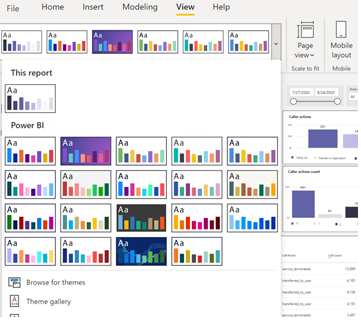
Change color scheme
The following steps assume you already completed the installation steps.
Perform the following steps:
Select View tab on the ribbon.
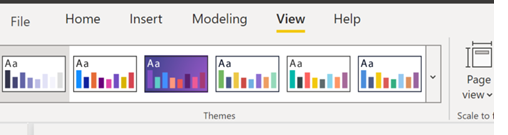
Select the color schema from the drop-down list.
Version 3.x.x history and support status
Refer to Teams Auto Attendant & Call Queue Historical Reports - Change Log.docx in the downloaded zip file for a detailed list of changes.
| Version | Date Published | Supported | Filename | Description |
|---|---|---|---|---|
| 3.3.1 | July 20, 2026 | Yes | Teams Auto Attendant & Call Queue Historical Reports V3.3.1 | Support for Teams Phone Agent, Power BI desktop users can report by agent name instead of username, bug fixes. |
| 3.3.0 | July 6, 2026 | Yes | Teams Auto Attendant & Call Queue Historical Reports V3.3.0 | Support for Government Community Cloud High (GCCH) and Department of Defence (DoD) tenants. |
| 3.2.6 | March 5, 2026 | No | Teams Auto Attendant & Call Queue Historical Reports V3.2.6 | Corrected a problem that prevented scheduling on the Power BI Service, Accessibility improvements. |
| 3.2.5 | February 4, 2026 | No | Teams Auto Attendant & Call Queue Historical Reports V3.2.5 | Corrected a problem that prevented the Auto Attendant and Call Queue templates from loading when a TeamsPhoneMobile service phone number was used. |
| 3.2.4 | February 2, 2026 | No | Teams Auto Attendant & Call Queue Historical Reports V3.2.4 | Corrected a problem that prevented scheduling on the Power BI Service, Accessibility improvements. |
| 3.2.3 | January 12, 2026 | No | Teams Auto Attendant & Call Queue Historical Reports V3.2.3 | Introduced Tenant Location drop-down selection in preparation for more cloud locations, sequential loading of queries, code rewrite. |
| 3.2.2 | August 25, 2025 | No | Teams Auto Attendant & Call Queue Historical Reports V3.2.2 | Bug fixes, increased default row limit and execution time. |
| 3.2.1 | June 23, 2025 | No | Teams Auto Attendant & Call Queue Historical Reports V3.2.1 | Bug fixes. |
| 3.2.0 | March 21, 2025 | No | Teams Auto Attendant & Call Queue Historical Reports V3.2.0 | Localization in 45 languages, reporting by Auto Attendant and Call Queue name for authorized users. |
| 3.1.8 | August 12, 2024 | No | Teams Auto Attendant & Call Queue Historical Reports V3.1.8 | Bug fix for Date slicer on Call Queue tab. |
| 3.1.7 | July 15, 2024 | No | Teams Auto Attendant & Call Queue Historical Reports V3.1.7 | Improved support for authorized users, removed original reporting templates. |
| 3.1.6 | April 15, 2024 | No | Teams Auto Attendant & Call Queue Historical Reports V3.1.6 | Support click2call, callback, authorized users, and some visuals changed due to deprecation. |
| 3.1.5 | January 29, 2024 | No | Teams Auto Attendant & Call Queue Historical Reports V3.1.5 | Corrected an error with the Per Day query logic for fAgentTimelineAnalytics and fAgentTimelineAnalyticsSummary. |
| 3.1.4 | January 24, 2024 | No | Teams Auto Attendant & Call Queue Historical Reports V3.1.4 | Per day reporting for large volume customers, accessibility improvements for screen readers. |
Related articles
- [Auto attendant and call queue report - table field definitions](aa-cq-report-historical-table-field-definitions.md]
- [Auto attendant and call queue - custom reporting](aa-cq-report-historical-custom.md]
- Auto attendant and Call queue real-time metrics
- Plan for authorized users
- Manage the Queues app