Note
Access to this page requires authorization. You can try signing in or changing directories.
Access to this page requires authorization. You can try changing directories.
Note
The information in this article applies to Azure Site Recovery - Modernized.
You need to create and deploy an on-premises Azure Site Recovery replication appliance when you use Azure Site Recovery for disaster recovery of VMware VMs and physical servers to Azure. For detailed information about replication appliance, see the architecture. You can create and use multiple replication appliances based on the capacity requirements of your organization.
This article provides information about how you can switch between replication appliances.
Appliance resiliency
Modernized application resilience introduces a better way to make your appliances more resilient. If your replication appliance burns down or you need to balance the machines running on an appliance, just spin up another replication appliance and switch all your machines to the new appliance.
Considerations for switching replication appliance
Appliance-switch eligibility depends on the health and compatibility of the appliances, their required components, and the protected machines. A compatible version number alone doesn't guarantee that a switch can proceed.
- Switch from an unavailable appliance: All components on the current appliance must have no heartbeat. If any component still has a heartbeat, the switch is blocked. The target appliance must be in a healthy or warning state, and you must select credentials for the machines being switched.
- Switch from a live appliance: For load balancing or planned maintenance, the current and target appliances and their required components must be in a healthy or warning state. A missing component heartbeat blocks the switch. Credentials are selected automatically.
- Only machines replicating from on-premises to Azure can be selected.
- Switching isn't supported if a protected machine moved to a different vCenter Server.
Switch a replication appliance
As an example, here's the scenario where replication appliance 1 (RA1) has become critical and you want to move the protected workloads to replication appliance 2 (RA2), which is in healthy state. Or, you want to switch the workloads under RA1 to RA2 for any load balancing or organization level changes.
Follow these steps to switch an appliance:
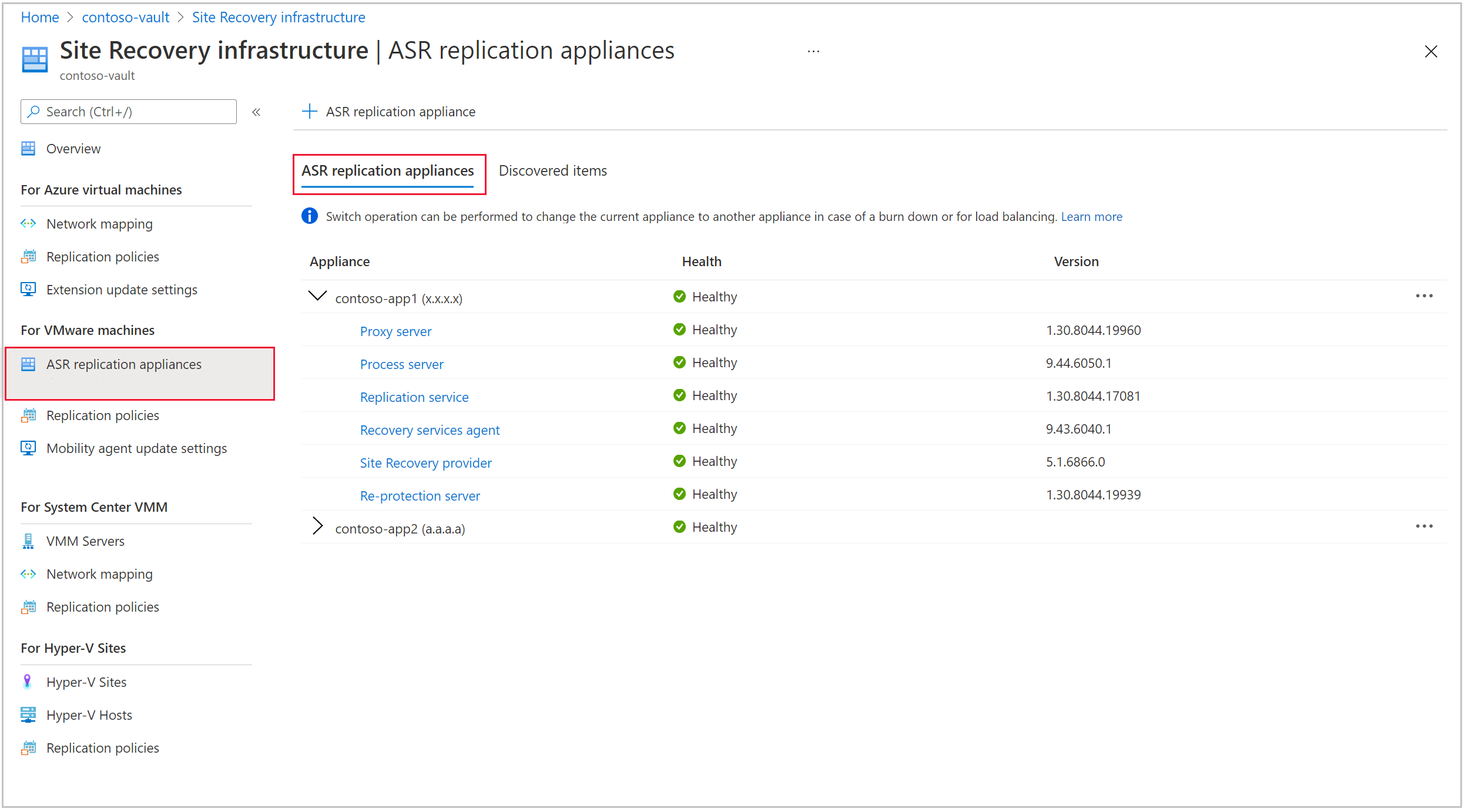
Go to Site Recovery infrastructure section and select ASR replication appliance.
The list of available appliances and their health is displayed. For example, RA2 is healthy here.
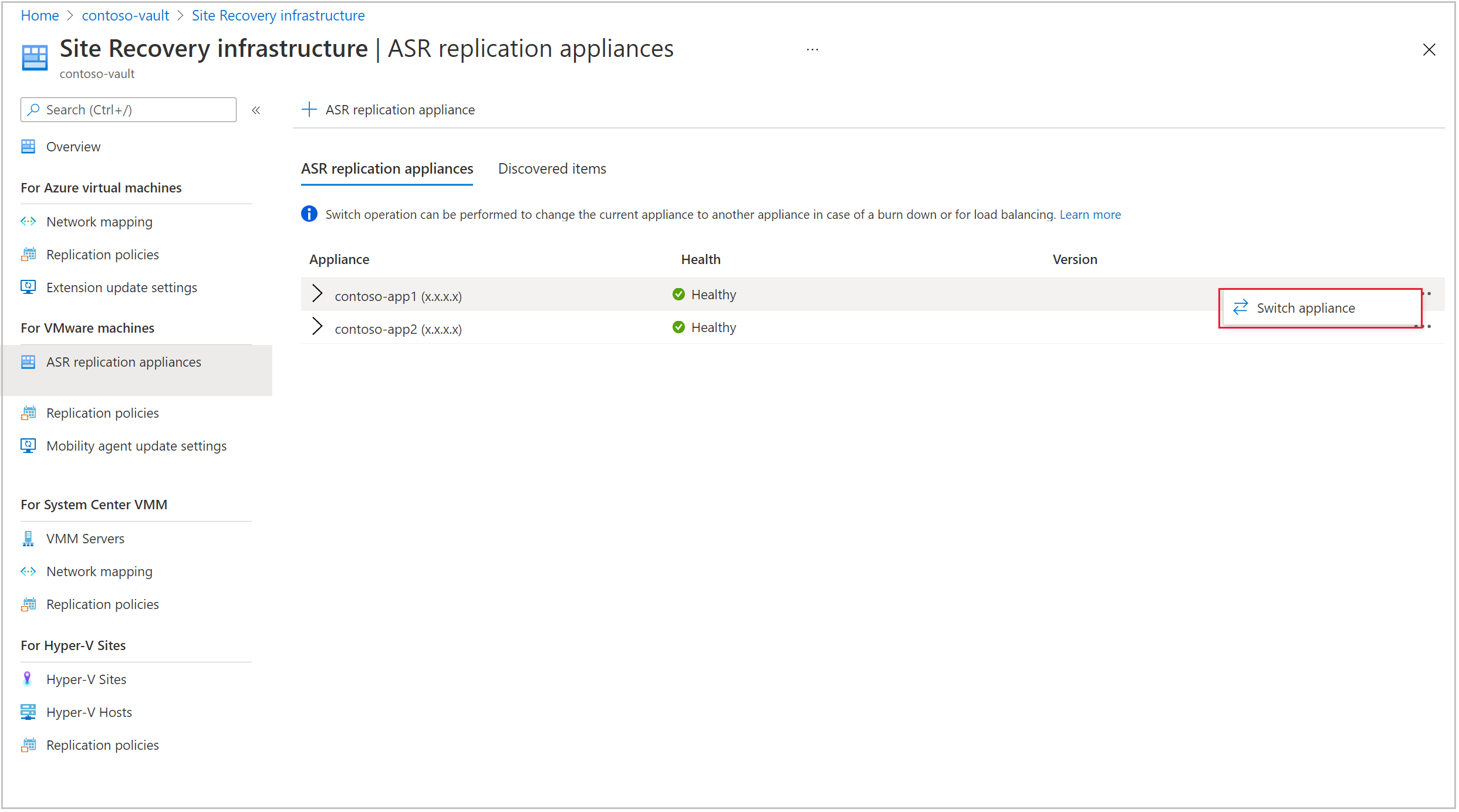
Select the replication appliance (RA1) and select Switch appliance.
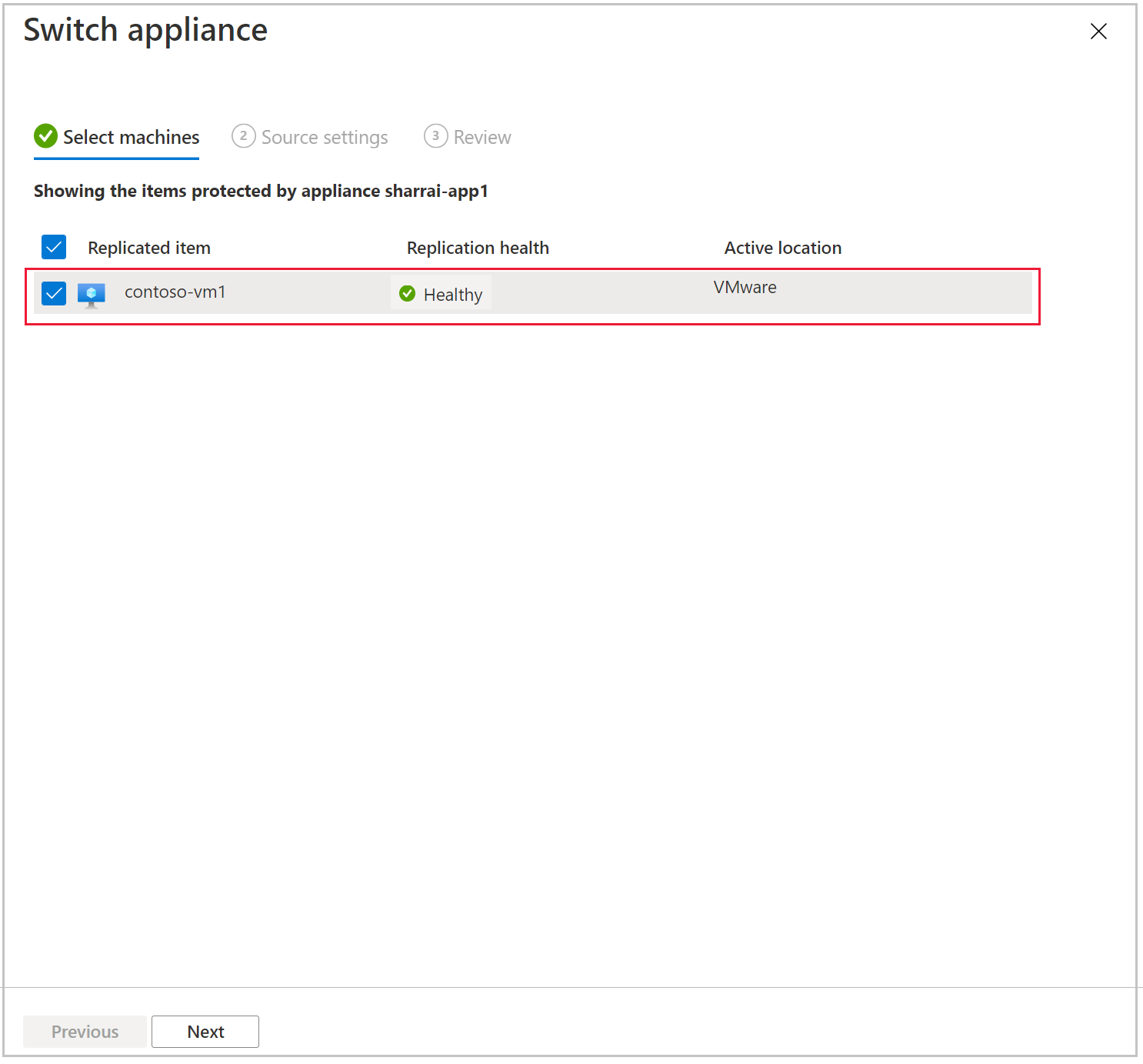
Under Select machines, select the machines that you want to failover to another replication appliance (RA2). Select Next.
Note
Only those machine which have been protected by the current appliance will be visible in the list. Failed over machines will not be present here
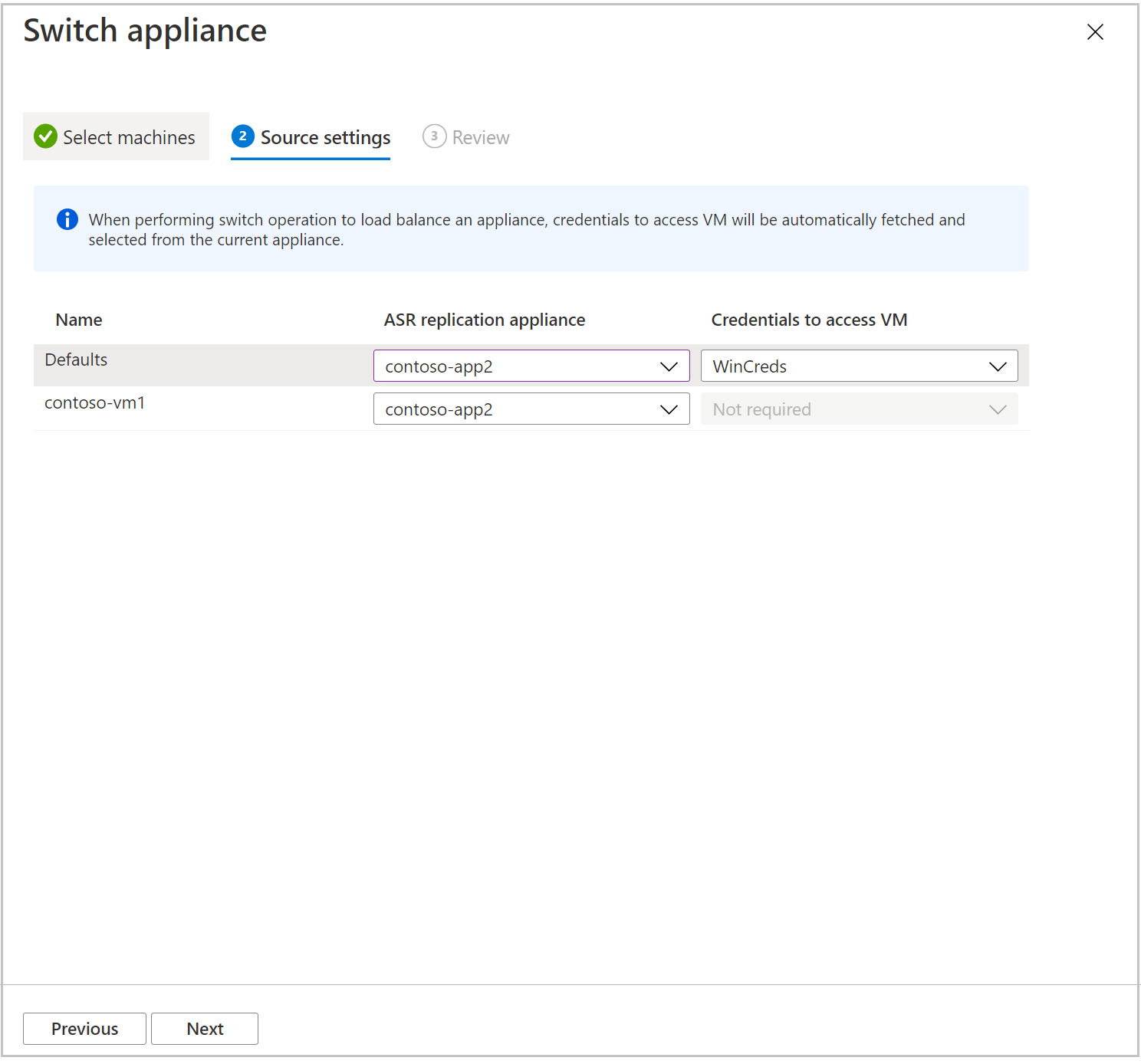
Under Source settings page, for each of the selected machines, select a different replication appliance.
Note
If your current appliance has burnt down, then you will be required to select the credentials to access the machines. Otherwise, the field will be disabled.
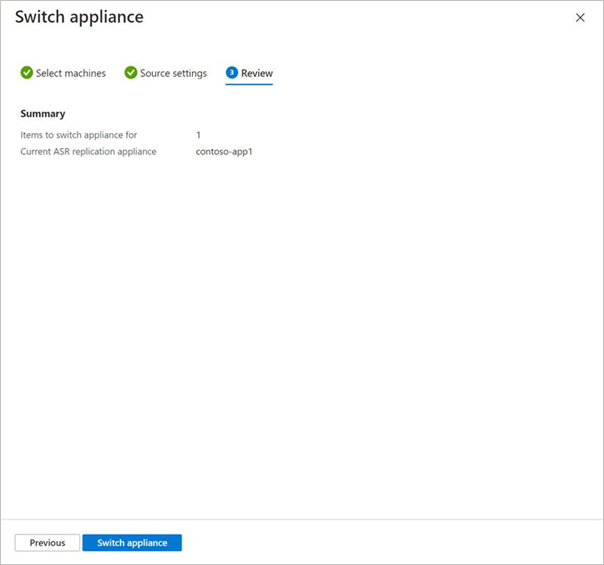
Review the selection and then select Switch appliance.
Once the resync is complete, the replication status turns healthy for the VMs that are moved to a new appliance.
Next steps
Set up disaster recovery of VMware VMs to Azure.