Note
Access to this page requires authorization. You can try signing in or changing directories.
Access to this page requires authorization. You can try changing directories.
Important
Teams Phone Agent is now generally available.
Interested in learning more? Submit a brief Teams Phone & Voice AI Customer Opportunity intake form to explore Teams Phone Agent capabilities, assess organizational fit, and receive guidance on deployment, setup, and configuration.
We want your feedback
Help us improve Teams Phone Agent. Share your feedback on our planning and setup documentation, the Teams admin center experience, Teams Phone Agent features, or tell us about features and improvements you’d like to see.
Caution
Daylight Savings Time changes – Manual changes to auto attendant time zones required by some customers.
On November 1, 2026, Daylight Savings Time will end in North America.
In Canada, the provinces of Alberta, British Columbia, and Manitoba will remain on Daylight Savings Time and will not move the clocks back one hour.
Customers with Teams Phone Agents serving these provinces that have time zone configurations that reference (UTC-7:00) Mountain Time (US & Canada), (UTC-8:00) Pacific Time (US & Canada), or (UTC-05:00) Eastern Time (US & Canada) must be updated as follows:
Alberta: Permanently moves to UTC-6:00.
- Change the auto attendant time zone selection from (UTC-7:00) Mountain Time (US & Canada) to (UTC-6:00) Saskatchewan as DST is not observed in Saskatchewan.
British Columbia: Permanently moves to UTC-7:00.
- Change the auto attendant time zone selection from (UTC-8:00) Pacific Time (US & Canada) to (UTC-7:00) Arizona as DST is not observed in Arizona.
Manitoba: Permanently moves to UTC-5:00.
- Change the auto attendant time zone selection from (UTC-05:00) Eastern Time (US & Canada) to (UTC-05:00) Bogota, Lima, Quito, Rio Branco or (UTC-05:00) Chetumal as DST is not observed in these areas.
In Ontario, the following communities and areas will not turn clocks back and will remain on Central Daylight Time year‑round:
- Kenora
- Dryden
- Fort Frances
- Sioux Lookout
- Red Lake
- Rainy River
- Other communities west of the 90th meridian that currently follow Central Time and change clocks seasonally
Customers with Teams Phone Agents serving these areas that have time zone configurations that reference (UTC-05:00) Eastern Time (US & Canada) should change the time zone selection to (UTC-05:00) Bogota, Lima, Quito, Rio Branco or (UTC-05:00) Chetumal as DST is not observed in these areas.
Caution
Daylight Savings Time changes – Manual changes to auto attendant time zones required by some customers.
On November 1, 2026, Daylight Savings Time will end in North America.
In Canada, the provinces of Alberta, British Columbia, and Manitoba will remain on Daylight Savings Time and will not move the clocks back one hour.
Customers with auto attendants serving these provinces that have time zone configurations that reference (UTC-7:00) Mountain Time (US & Canada), (UTC-8:00) Pacific Time (US & Canada), or (UTC-05:00) Eastern Time (US & Canada) must be updated as follows:
Alberta: Permanently moves to UTC-6:00.
- Change the auto attendant time zone selection from (UTC-7:00) Mountain Time (US & Canada) to (UTC-6:00) Saskatchewan as DST is not observed in Saskatchewan.
British Columbia: Permanently moves to UTC-7:00.
- Change the auto attendant time zone selection from (UTC-8:00) Pacific Time (US & Canada) to (UTC-7:00) Arizona as DST is not observed in Arizona.
Manitoba: Permanently moves to UTC-5:00.
- Change the auto attendant time zone selection from (UTC-05:00) Eastern Time (US & Canada) to (UTC-05:00) Bogota, Lima, Quito, Rio Branco or (UTC-05:00) Chetumal as DST is not observed in these areas.
In Ontario, the following communities and areas will not turn clocks back and will remain on Central Daylight Time year‑round:
- Kenora
- Dryden
- Fort Frances
- Sioux Lookout
- Red Lake
- Rainy River
- Other communities west of the 90th meridian that currently follow Central Time and change clocks seasonally
Customers with auto attendants serving these areas that have time zone configurations that reference (UTC-05:00) Eastern Time (US & Canada) should change the time zone selection to (UTC-05:00) Bogota, Lima, Quito, Rio Branco or (UTC-05:00) Chetumal as DST is not observed in these areas.
This article is for IT pros and Teams administrators who want to create holiday schedules and routing for use with Teams Phone Agent and Auto Attendant.
Planning and licensing review
Planning
Licensing
Known issues
None.
Steps to create Holidays
In the Teams admin center, expand Voice, select Holidays, and then select Add.
Select New holiday.
Enter a name for the holiday.
Select Add new date.
Under Start time, select the calendar icon and choose the date when you'd like the holiday to begin.
Use the dropdown list to select a start time for the holiday.
Under End time, select the calendar icon and choose the date when you'd like the holiday to end.
Use the dropdown list to select an end time for the holiday. The End time must be after the Start time.
Note
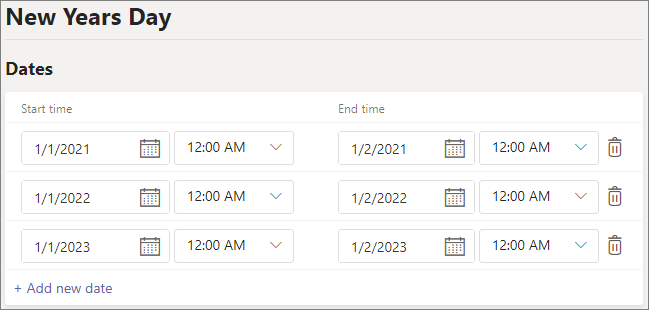
If the holiday is for one full day (that is, a 24-hour period), the End time should be set to the next day and the time to 12:00 AM. For example, if your organization is closed on January 1 for New Year's Day, set the Start time to January 1 at 12:00 AM and the End time to January 2 at 12:00 AM.
Optionally, add more dates for recurring holidays. Up to 50 separate date ranges can be added to a single holiday.
Select Save.
Change a holiday
To change a holiday:
- In the Teams admin center, expand Voice, and then select Holidays.
- Select the holiday from the list.
- Under Start time, select the calendar icon and choose the date when you'd like the holiday to begin.
- Use the dropdown list to select a start time for the holiday.
- Under End time, select the calendar icon and choose the date when you'd like the holiday to end.
- Use the dropdown list to select an end time for the holiday. The End time must be after the Start time.
- Select Save.
Related Teams Phone Agent and Auto Attendant setup and configuration articles
PowerShell
For instructions on setting up Holidays using PowerShell, see: