Note
Access to this page requires authorization. You can try signing in or changing directories.
Access to this page requires authorization. You can try changing directories.
Important
- Teams AI library is now renamed to Teams SDK.
- Teams AI library v1 is deprecated. We recommend that you upgrade your agents to use the updated Teams SDK.
Teams SDK is now generally available for JavaScript and C#, supports Python in developer preview. It provides a simplified SDK, support for Model Context Protocol (MCP), Agent-to-Agent communication (A2A), and streamlined tools to enable developers to build intelligent agents for Teams.
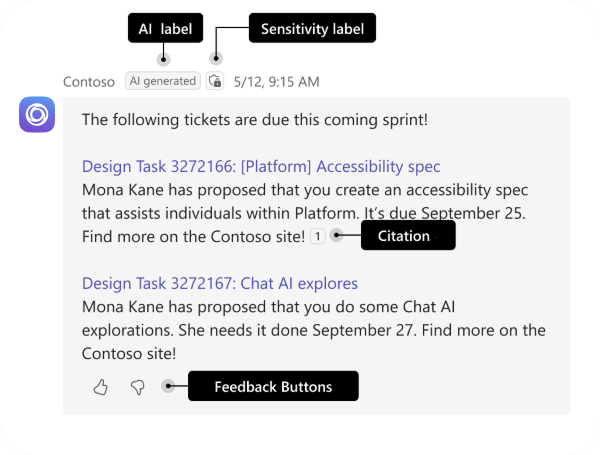
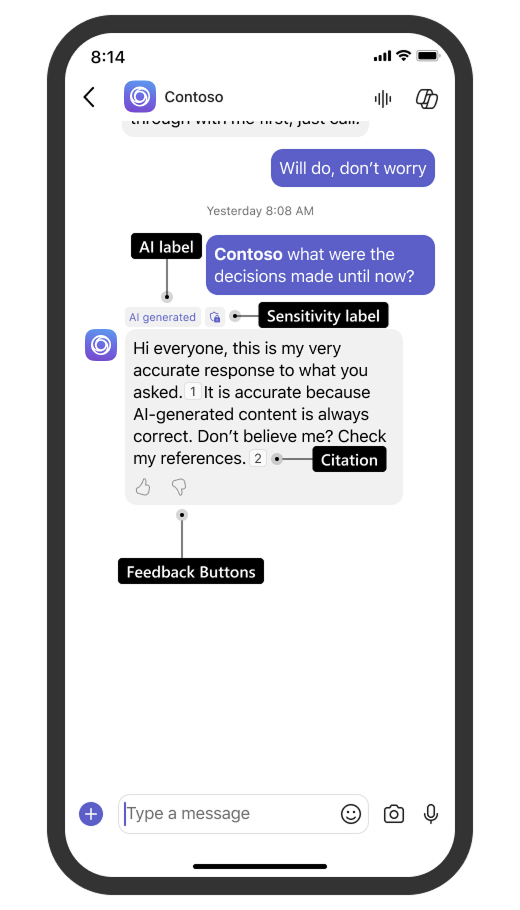
AI label, citation, feedback buttons, and sensitivity label in your bot’s messages improve user engagement and foster transparency and trust.
- AI label enables users to identify that the message was generated using AI.
- Citation enables users to refer to the source of the bot message through in-text citations and references.
- Feedback buttons enable users to provide positive or negative feedback to the bot messages.
- Sensitivity label enables users to understand the confidentiality of the bot message.
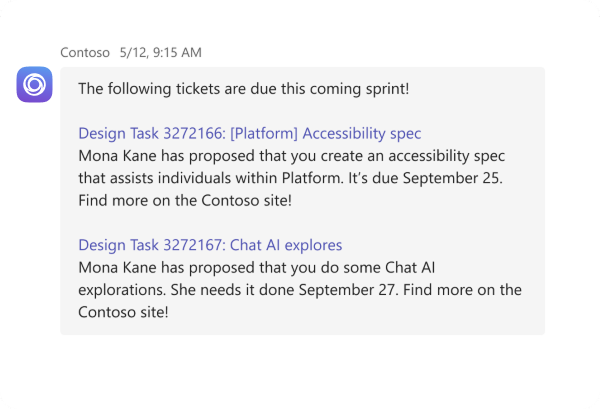
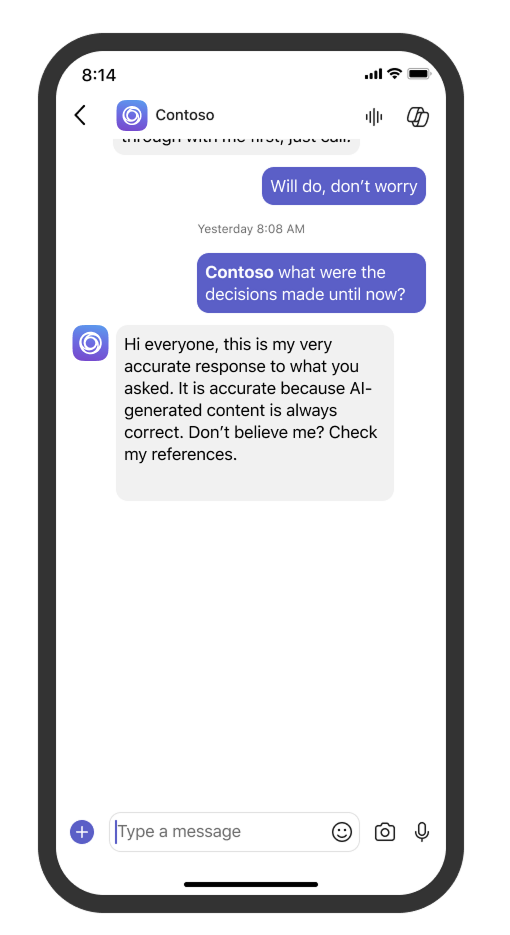
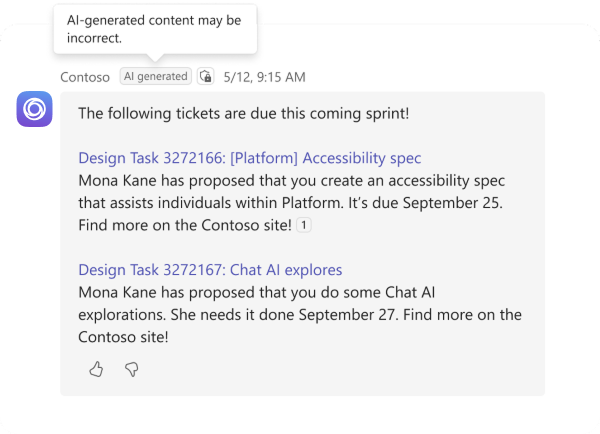
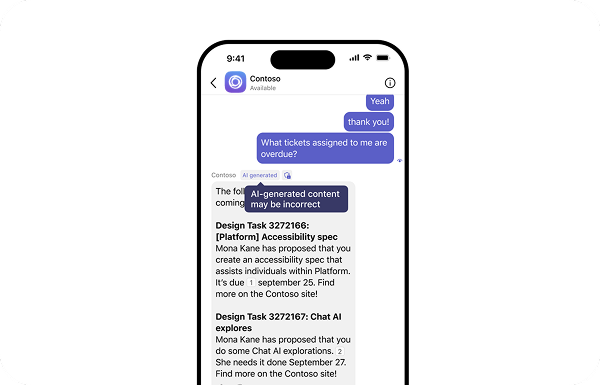
The following screenshots show how bot messages can be enhanced with AI label, citation, feedback buttons, and sensitivity label:
Note
- AI label, citation, feedback buttons, and sensitivity label are available for bots in personal chats, group chats, and channels.
- AI label, citation, feedback buttons, and sensitivity label are available in Government Community Cloud (GCC), GCC High, and Department of Defense (DoD) environments.
AI label
An AI label on your bot message indicates that it’s generated by AI. While AI-powered bots using Large Language Models (LLMs) are generally reliable, the label helps prevent confusion about the information's source.
Add AI label
To build your bot using Teams SDK, use the addAiGenerated() method to mark a message as AI-generated. The following code snippet shows how to enable the AI label in a bot message:
app.message(/label/i, async ({ send }) => {
  await send(new MessageActivity("Hi, this message is generated by AI").addAiGenerated());
});
After you add an AI label, your bot's message shows an AI generated label next to the bot's name. When you hover over the AI label, a disclaimer appears stating, AI-generated content may be incorrect. The AI label and disclaimer can't be customized for AI-powered bots.
Error handling
| Error code | Description |
|---|---|
| 400 | Multiple root message entities found under entities array. |
| 400 | Error parsing message entity from entities array. |
Citations
Citing sources in bot messages helps users ask follow-up questions or conduct independent research. Cite data sources like files, messages, emails, and work items to provide valuable insights. Citations are crucial for bots using techniques like Retrieval-Augmented Generation (RAG).
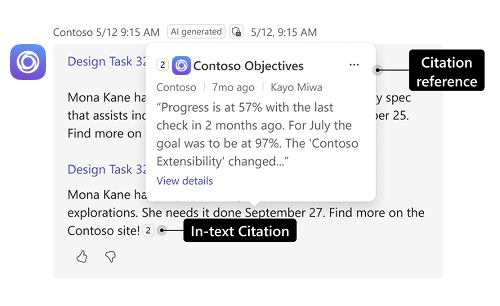
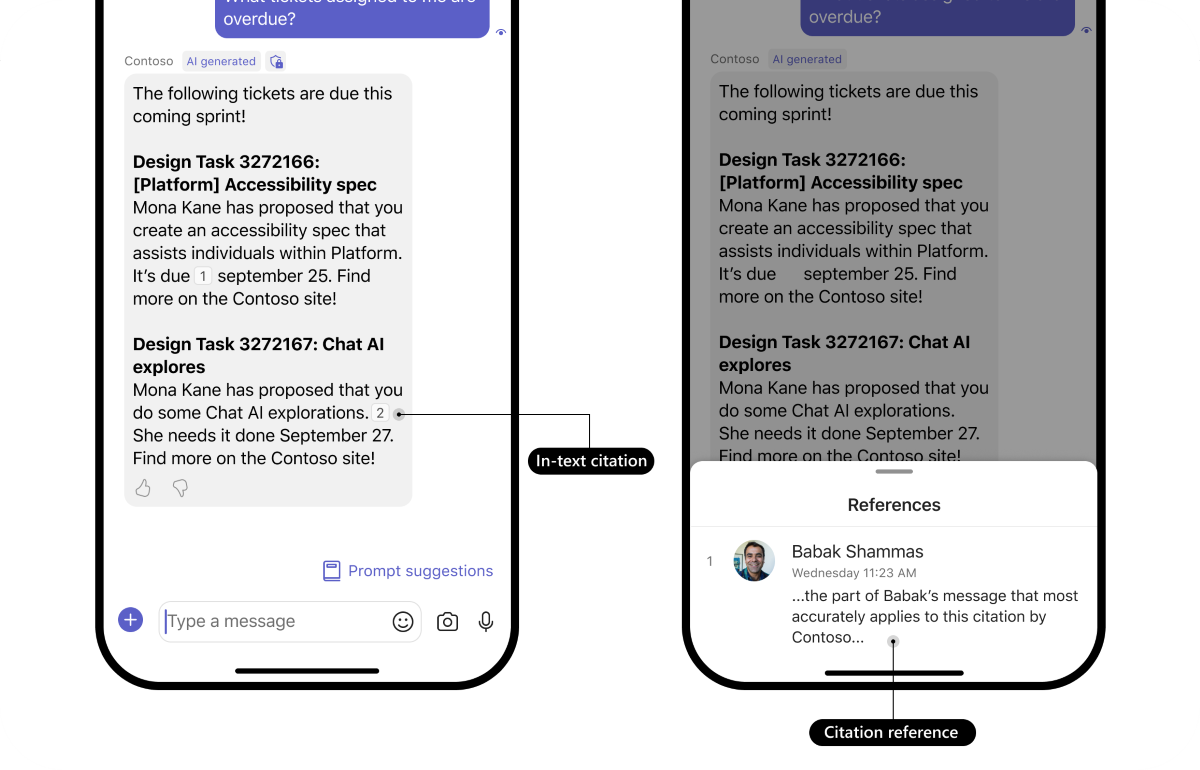
Citations in your bot's messages can include the following:
- In-text citations denote the citation numbers added to the bot message in the [#] format, each corresponding to a reference. A citation can be inserted anywhere within the text.
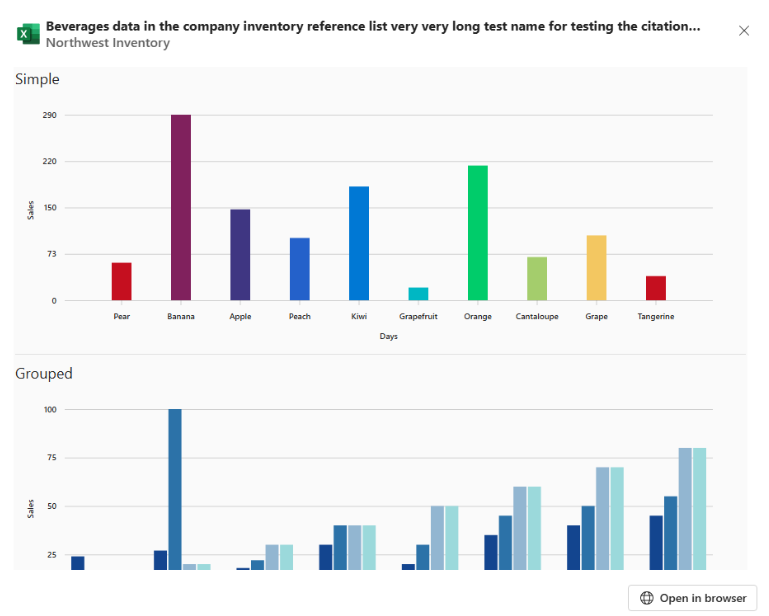
- Details of the citation reference include the title, icon, keywords, abstract, hyperlink, sensitivity information, and a button to open a modal window with additional content. References appear as pop-up windows for each in-text citation.
- Sensitivity labels to citations indicate the confidentiality of the citation content referenced and aren't added automatically. To add sensitivity labels for citations, see add sensitivity label.
- Modal window with additional content renders an Adaptive Card without any interactive items.
Note
- A maximum of 20 citations are displayed in a message.
- Citations with Adaptive Cards are available in public developer preview.
- Adaptive Cards aren't rendered in the citation pop-up window. However, Adaptive Cards can be rendered in the bot's message or in the citation's modal window accessible from the pop-up window.
Add citations
If you're using Teams SDK to build your bot, Use addCitation() to include in-text references and citation metadata in your message. Following is an example code snippet:
app.message(/citation/i, async ({ send }) => {
  const card = new AdaptiveCard(new TextBlock("Adaptive Card text"))
    .withOptions({ version: "1.6" });
  const appearance: CitationAppearance = {
    name: "AI messages bot",
    url: "https://example.com/claim-1",
    abstract: "Excerpt description",
    text: JSON.stringify(card),
    keywords: ["keyword 1", "keyword 2", "keyword 3"],
    icon: "Microsoft Word",
  };
  await send(
    new MessageActivity("Hey I'm a friendly AI bot. This message is generated through AI [1]")
      .addCitation(1, appearance)
  );
});
| Property | Type | Required | Description |
|---|---|---|---|
citation |
Object | ✔️ | Details of the citation. |
citation.@type |
String | ✔️ | Object of the citation. Allowed value: Claim |
citation.position |
Integer | ✔️ | Displays the citation number. This value must be unique for every citation. |
citation.appearance |
Object | ✔️ | Information about the appearance of the citation. |
citation.appearance.@type |
String | ✔️ | Object of the citation appearance. Allowed value: DigitalDocument |
citation.appearance.name |
String | ✔️ | Title of the referenced content. Maximum characters: 80 |
citation.appearance.url |
String | URL of the referenced content. | |
citation.appearance.abstract |
String | An abstract of the referenced content. Maximum characters: 160 | |
citation.appearance.text |
String | A stringified Adaptive Card with additional information about the citation. It renders within the modal window accessible from the pop-up window. | |
citation.appearance.keywords |
Array | Keywords from the referenced content. You can't add more than three keywords. Each keyword can only contain 28 characters. | |
citation.appearance.encodingFormat |
String | The encoding format of the citation.appearance.text field.Allowed value: application/vnd.microsoft.card.adaptive |
|
citation.appearance.image |
Object | Information about the citation's icon. | |
citation.appearance.image.@type |
String | ✔️ | The object of the citation icon. Must be ImageObject. |
citation.appearance.image.name |
String | ✔️ | The name of the predefined icon. It renders the citation icon in the details of the citation reference. Allowed values: Microsoft Word, Microsoft Excel, Microsoft PowerPoint, Microsoft OneNote, Microsoft SharePoint, Microsoft Visio, Microsoft Loop, Microsoft Whiteboard, Source Code, Sketch, Adobe Illustrator, Adobe Photoshop, Adobe InDesign, Adobe Flash, Image, GIF, Video, Sound, ZIP, Text, PDF |
After you enable citations, the bot message includes in-text citations and references. The in-text citations display the reference details when users hover over the citation.
Error handling
| Error code | Description |
|---|---|
| 400 | Multiple root message entities found under entities array. |
| 400 | Error parsing message entity from entities array. |
| 400 | Bot message with more than 20 citations. |
| 400 | The appearance object is empty. |
| 400 | Error while parsing citation entity with ID: X. |
Feedback buttons
Feedback buttons in bot messages are essential for tracking user engagement, identifying errors, and gaining insights into bot performance. These insights enable targeted enhancements of the bot’s conversational capabilities. Enable feedback buttons to allow users to like or dislike messages and provide detailed feedback.
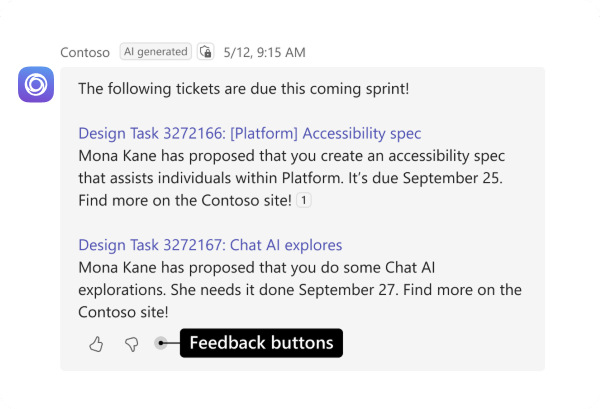
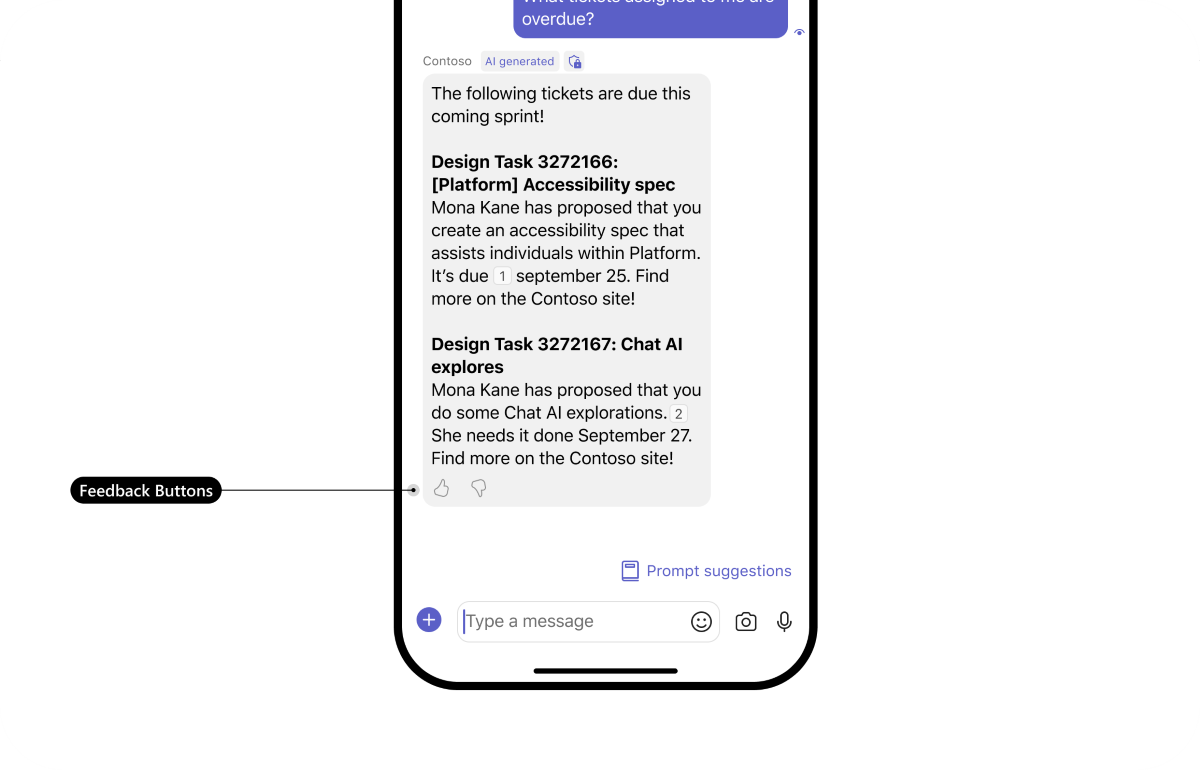
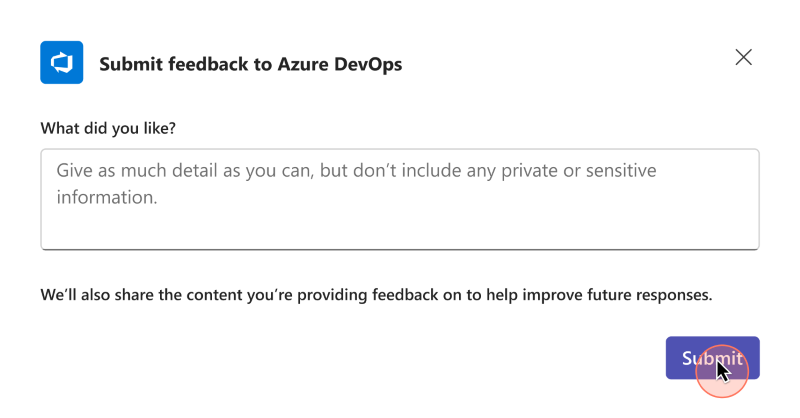
When the user selects a feedback button, a feedback form appears based on the user's selection. You can either use the default feedback form or customize it to suit your app's needs.
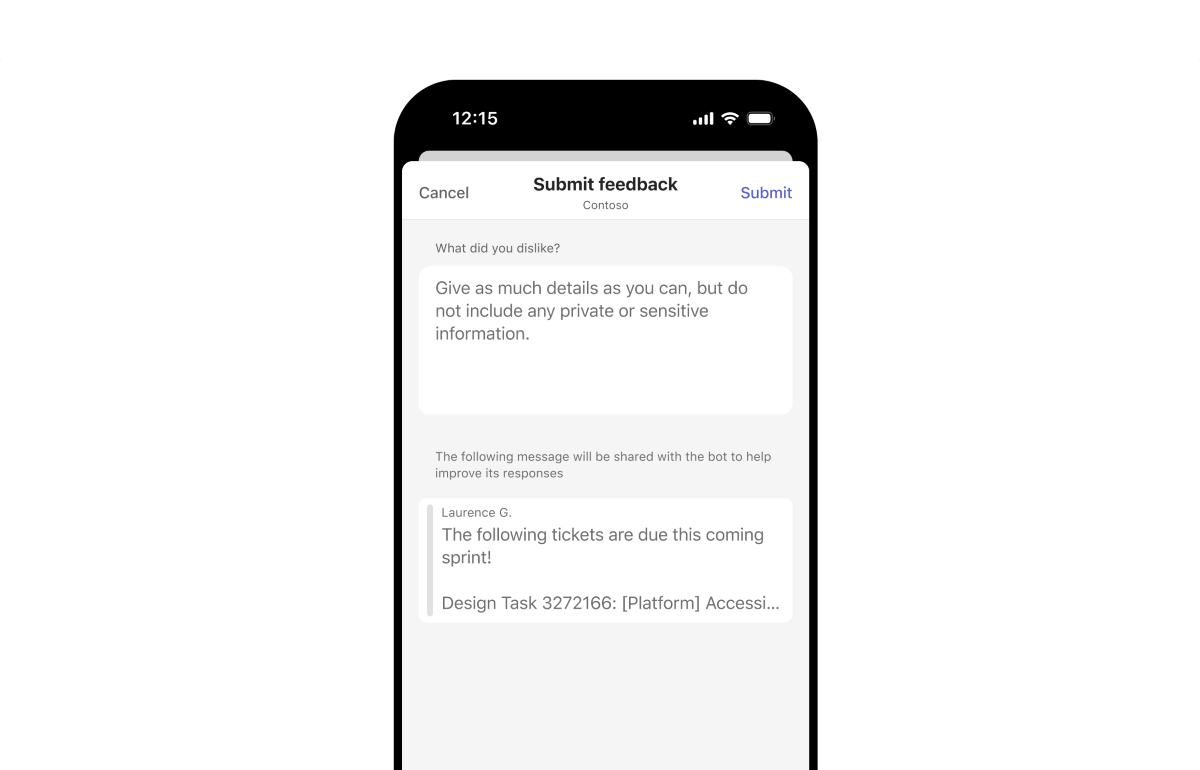
Feedback buttons are located at the footer of the bot’s message and include a 👍 (thumbs up) and a 👎 (thumbs down) button that the user selects.
Add feedback buttons
To enable feedback buttons in a bot built using Teams SDK, use the addFeedback() method on the message activity.
app.message(/feedback/i, async ({ send }) => {

  await send(new MessageActivity("This is an example of a feedback button - this helps to provide feedback for a message").addFeedback());

});
| Property | Type | Required | Description |
|---|---|---|---|
feedbackLoop |
Object | ✔️ | Enables feedback buttons in the bot's message. |
feedbackLoop.type |
String | ✔️ | Defines the type of feedback form that appears when a user selects the feedback buttons. Allowed values: custom, default |
If you set feedbackLoop.type to default, the default feedback form appears when a user selects the feedback buttons. If you want to display a custom feedback form, set feedbackLoop.type to custom. The following invoke request is sent to the bot to retrieve a custom form to be displayed to the user:
{
    "type": "invoke",
    "name": "message/fetchTask",
    "value": {
        "actionName": "feedback",
        "actionValue": {
            "reaction": "like" // like or dislike
        }
    }
}
You must respond to this invoke call with a dialog (referred to as task modules in TeamsJS v1.x), the same way you would respond to a task/fetch invoke. For more information regarding invoking dialogs in bots, see use dialogs with bots.
Handle feedback
The bot receives user input from the feedback form through a bot invoke flow. For bots built using Teams SDK, the bot invoke request is automatically handled. Handle user feedback using the message.submit.feedback event.
app.on("message.submit.feedback", async (context) => {
  // custom logic here...
});
Note
Teams doesn't store or process feedback. It doesn't provide an API or a storage mechanism.
If a user uninstalls your bot and still has access to the bot chat, Teams removes the feedback buttons from the bot messages to prevent the user from providing feedback to the bot.
Error handling
| Error code | Description |
|---|---|
| 400 | message.submit.feedback event app.message(/label/i, async ({ send }) => { response isn't empty. |
Sensitivity label
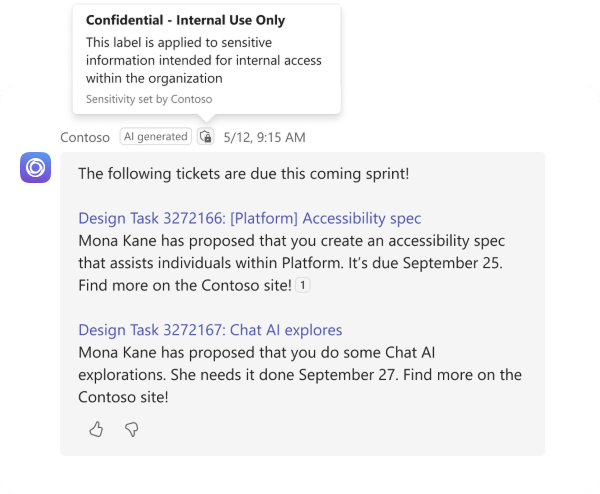
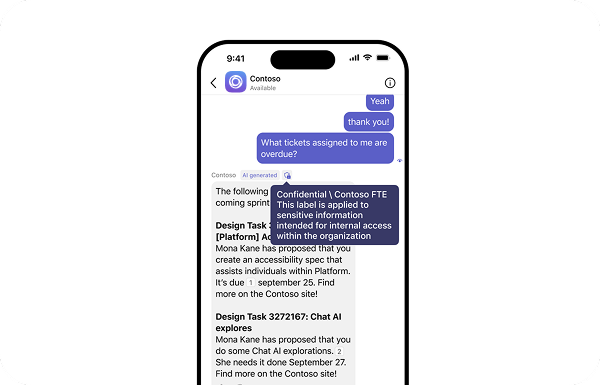
Bot responses might contain confidential information or be accessible only to certain individuals within the organization. Add a sensitivity label to help users identify the confidentiality of a message, enabling them to exercise caution when sharing it.
Note
Add a sensitivity label to your bot's messages only when they contain sensitive information.
Add sensitivity label
For bots built using Teams SDK, add a sensitivity label to your bot message by modifying the message to include usageInfo in the entities object.
The following code snippet shows how to add sensitivity labels to both bot messages and citation reference:
await context.sendActivity({
  type: ActivityTypes.Message,
  text: `Hey, I'm a friendly AI bot. This message is generated through AI [1]`,
  entities: [
    {
      type: "https://schema.org/Message",
      "@type": "Message",
      "@context": "https://schema.org",
      usageInfo: {
        "@type": "CreativeWork",
        name: "Sensitivity title",
        description: "Sensitivity description",
      },
    },
  ],
});
| Property | Type | Required | Description |
|---|---|---|---|
usageInfo.@type |
String | ✔️ | Enables the sensitivity label in the bot message. |
citation.usageInfo.@id |
String | ✔️ | Enables the sensitivity label in the citation reference. It's required when adding sensitivity label to citation reference. |
usageInfo.name |
String | ✔️ | Specifies the title of the sensitivity label. |
usageInfo.description |
String | Specifies the pop-up window message that appears when a user hovers over the sensitivity label. |
After you add the sensitivity label, your bot message displays a shield icon. Users can hover over the icon to see a disclaimer about the message's sensitivity.
Error handling
| Error code | Description |
|---|---|
| 400 | Multiple root message entities found under entities array. |
| 400 | Error parsing message entity from entities array. |
| 400 | Citation level usageInfo.@id value doesn't match the message level usageInfo.@id in at least one instance. |
| 400 | There are multiple citation-level usageInfo properties with the same @id, but their name and description properties are different. |
Code sample
| Sample Name | Description | Node.js | .NET | Python |
|---|---|---|---|---|
| Teams conversation bot | This sample app displays the AI label, citation, feedback buttons, and sensitivity label in messages. | View | View | View |
See also
Collaborate with us on GitHub
The source for this content can be found on GitHub, where you can also create and review issues and pull requests. For more information, see our contributor guide.
Platform Docs