Note
Access to this page requires authorization. You can try signing in or changing directories.
Access to this page requires authorization. You can try changing directories.
Learn how to configure your report server for Kerberos authentication to data sources used within your Power BI reports for a distributed environment.
Power BI Report Server can host Power BI reports that connect to data sources like SQL Server Analysis Services. This article focuses on Analysis Services, but you can apply the same concepts to other data sources such as SQL Server.
When Power BI Report Server, SQL Server, and Analysis Services are all installed on a single machine, you don't need extra authentication configuration. However, when you install these services on separate machines (a distributed environment), you need Kerberos authentication.
Specifically, you need to configure Kerberos constrained delegation. Even if Kerberos is already configured in your environment, constrained delegation might not be enabled.
Kerberos authentication error when running a Power BI report
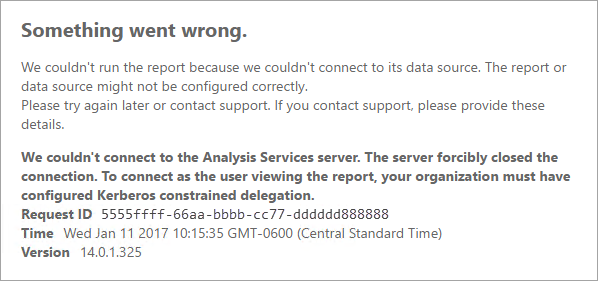
If you don't configure your report server properly for Kerberos, you might receive the following error.
Something went wrong.

We couldn't run the report because we couldn't connect to its data source. The report or data source might not be configured correctly.
Within Technical details, you see the following message.
We couldn't connect to the Analysis Services server. The server forcibly closed the connection. To connect as the user viewing the report, your organization must have configured Kerberos constrained delegation.
Configure Kerberos constrained delegation
You need to configure several items for Kerberos constrained delegation to work, including Service Principal Names (SPNs) and delegation settings on service accounts.
Note
To configure SPNs and delegation settings, you need to be a domain administrator.
Configure or validate the following items:
- Authentication type within Report Server config.
- SPNs for the report server service account.
- SPNs for the Analysis Services service.
- SPNs for the SQL Browser service on the Analysis Services machine (required for named instances only).
- Delegation settings on the report server service account.
Configure the authentication type in Report Server
Configure the authentication type for the report server to allow Kerberos constrained delegation. Edit the rsreportserver.config file, which is located by default at C:\Program Files\Microsoft Power BI Report Server\PBIRS\ReportServer.
In the rsreportserver.config file, find the Authentication/AuthenticationTypes section.
Make sure that RSWindowsNegotiate is the first entry in the authentication types. It should look similar to the following.
<AuthenticationTypes>
    <RSWindowsNegotiate/>
    <RSWindowsNTLM/>
</AuthenticationTypes>
If you changed the configuration file, restart the report server to make sure the changes take effect.
For more information, see Configure Windows Authentication on the Report Server.
SPNs for the report server service account
Next, make sure that the report server has valid SPNs available. The required configuration depends on the service account type configured for the report server.
Virtual Service Account or Network Service
If you configure your report server for the Virtual Service Account or Network Service account, you don't need to add any extra SPN configurations. These accounts run in the context of the machine account, which has HOST SPNs by default that cover the HTTP service used by the report server.
If you use a virtual server name, the default HOST entries don't cover the virtual name, and you need to manually add SPNs for the virtual server host name.
Domain user account
If you configure your report server to use a domain user account, you must manually create HTTP SPNs on that account. Use the SetSPN tool that comes with Windows.
Note
You need domain admin rights to create the SPN.
Create two SPNs: one with the NetBIOS name and the other with the fully qualified domain name (FQDN). The SPN uses the following format.
<Service>/<Host>:<port>
Power BI Report Server uses HTTP as the service type. For HTTP SPNs, you don't specify a port. The host portion of the SPN is the name you use in the URL, which is typically the machine name. If the report server is behind a load balancer, the host might be a virtual name.
Note
You can verify the URL by either looking at what you enter into the address bar of the browser, or you can look in the Report Server Configuration Manager on the Web Portal URL tab.
If your machine name is ContosoRS, your SPNs are the following.
| SPN Type | SPN |
|---|---|
| Fully Qualified Domain Name (FQDN) | HTTP/ContosoRS.contoso.com |
| NetBIOS | HTTP/ContosoRS |
Where to place the report server SPN
Place the SPN on the account that the report server service runs under:
- Virtual Service Account or Network Service: Place the SPN on the machine account (for example,
ContosoRS). You only need to add SPNs manually when using a virtual URL. - Domain user account: Place the SPN on the domain user account (for example,
RSService).
Use SetSPN to add the report server SPN
Use the SetSPN tool to add the SPN. The following examples show both the machine account and domain user account scenarios.
To place the SPN on a machine account for a virtual URL of contosoreports, run the following commands.
Setspn -a HTTP/contosoreports.contoso.com ContosoRS
Setspn -a HTTP/contosoreports ContosoRS
To place the SPN on a domain user account using the machine name as the host, run the following commands.
Setspn -S HTTP/ContosoRS.contoso.com RSService
Setspn -S HTTP/ContosoRS RSService
SPNs for the Analysis Services service
The SPNs for Analysis Services follow a similar pattern to the Power BI Report Server SPNs, but use a different service type and format.
For Analysis Services, the service type is MSOLAPSvc.3. For named instances, specify the instance name in the port location of the SPN. The host portion of the SPN is either the machine name or the cluster virtual name.
An example of an Analysis Services SPN would look like the following.
| Type | Format |
|---|---|
| Default instance | MSOLAPSvc.3/ContosoAS.contoso.com, MSOLAPSvc.3/ContosoAS |
| Named instance | MSOLAPSvc.3/ContosoAS.contoso.com:INSTANCENAME, MSOLAPSvc.3/ContosoAS:INSTANCENAME |
Place the Analysis Services SPN on the account that the service runs under. If Analysis Services runs as Local System or Network Service, place the SPN on the machine account. If Analysis Services runs under a domain user account, place the SPN on that domain user account.
Use SetSPN to add the Analysis Services SPN
Use the SetSPN tool to add the SPN. For this example, the machine name is ContosoAS.
To place the SPN on a machine account, run the following commands.
Setspn -S MSOLAPSvc.3/ContosoAS.contoso.com ContosoAS
Setspn -S MSOLAPSvc.3/ContosoAS ContosoAS
To place the SPN on a domain user account, run the following commands.
Setspn -S MSOLAPSvc.3/ContosoAS.contoso.com OLAPService
Setspn -S MSOLAPSvc.3/ContosoAS OLAPService
SPNs for the SQL Browser service
If you have an Analysis Services named instance, you also need an SPN for the SQL Browser service. This requirement is unique to Analysis Services.
For SQL Browser, the service type is MSOLAPDisco.3. The host portion of the SPN is either the machine name or the cluster virtual name. You don't specify an instance name or port for the SQL Browser SPN.
An example of a SQL Browser SPN would look like the following.
MSOLAPDisco.3/ContosoAS.contoso.com
MSOLAPDisco.3/ContosoAS
SQL Browser always runs under the Local System account, so the SPNs always go on the machine account.
Use SetSPN to add the SQL Browser SPN
Use the SetSPN tool to add the SPN. For this example, the machine name is ContosoAS.
To place the SPN on the machine account, run the following commands.
Setspn -S MSOLAPDisco.3/ContosoAS.contoso.com ContosoAS
Setspn -S MSOLAPDisco.3/ContosoAS ContosoAS
For more information, see An SPN for the SQL Server Browser service is required.
Configure delegation settings on the report server service account
The last step is to configure the delegation settings on the report server service account by using Active Directory Users and Computers.
Open the properties of the report server service account in Active Directory Users and Computers. This account is either the machine account (if you use Virtual Service Account or Network Service) or a domain user account.
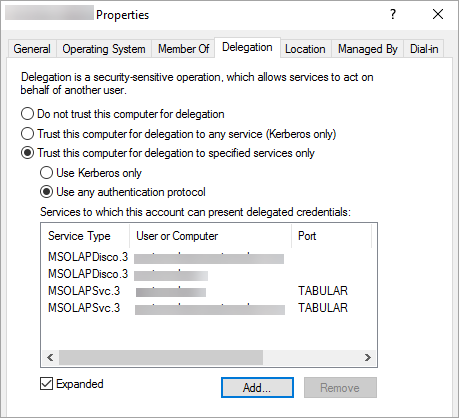
Configure constrained delegation with protocol transition. By using constrained delegation, you need to be explicit about which services to delegate to. Add both the Analysis Services service SPN and the SQL Browser SPN to the list that Power BI Report Server can delegate to.
Right-click the report server service account and select Properties.
Select the Delegation tab.
Select Trust this computer for delegation to specified services only.
Select Use any authentication protocol.
Under the Services to which this account can present delegated credentials section, select Add.
In the new dialog, select Users or Computers.
Enter the service account for the Analysis Services service and select OK.
Select the SPN that you created. It begins with
MSOLAPSvc.3. If you added both the FQDN and the NetBIOS SPN, it selects both. You might only see one.Select OK. You should see the SPN in the list now.
Optionally, you can select Expanded to show both the FQDN and NetBIOS SPN in the list.
Select Add again. Add the SQL Browser SPN now.
In the new dialog, select Users or Computers.
Enter the machine name for the machine the SQL Browser service is on and select OK.
Select the SPN that you created. It begins with
MSOLAPDisco.3. If you added both the FQDN and the NetBIOS SPN, it selects both. You might only see one.Select OK. The dialog should look similar to the following if you checked Expanded.
Select OK.
Restart the Power BI Report Server.
Verify the configuration by running a Power BI report
After you apply all of the preceding configuration, your report should display properly.
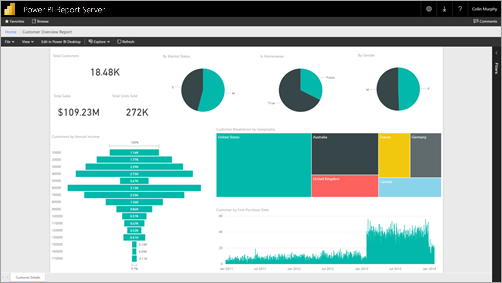
While this configuration works in most cases, Kerberos environments can vary. If the report still doesn't load, contact your domain administrator to investigate further, or contact support.