Note
Access to this page requires authorization. You can try signing in or changing directories.
Access to this page requires authorization. You can try changing directories.
Note
This article applies to the preview version of Copilot in SharePoint (previously referred to as AI in SharePoint).
Copilot in SharePoint enables you to set up automations in your document library by describing what you want to happen using natural language. You don't need to know technical terms or navigate complex menus. Simply describe your intent and an appropriate workflow rule is suggested and configured.
Launch the quick action
In the lower-right corner of your document library, select the Copilot in SharePoint icon.
From the quick actions menu, select Set up rules.
The chat panel opens and displays a list of suggested actions related to the creation of rules.
Note
If this is the first time using Copilot in SharePoint in the library, the system automatically generates up to three suggested columns based on the available files. These columns are auto-populated with metadata and can be useful when creating rules.
Use a suggested prompt
From the chat panel, select an action. For this example, use Send notification.
In the chat box, review the instruction provided. If needed, modify the text to better suit your intent. When ready, select Send (
 ) to submit your action.
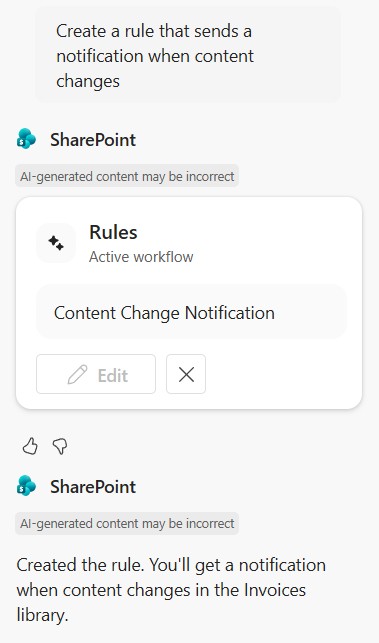
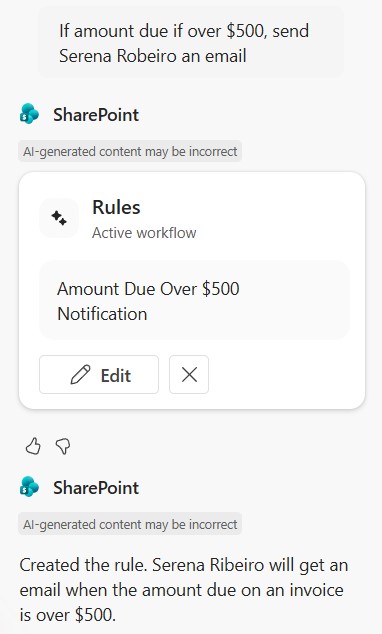
Based on your prompt, the system generates a rule. Review the rule and select Create to set up the rule.
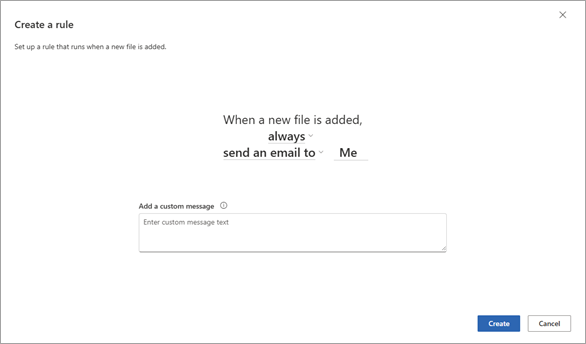
The chat panel summarizes the rule conditions.
Enter a custom prompt
In the chat panel's text box, enter your own automation instruction. When requesting a rule, specify the condition in which it should run and the action that should happen. This condition ensures the rule meets your needs.
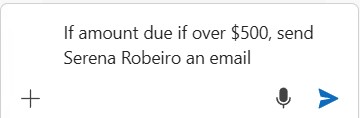
Tip
You can use Copilot in SharePoint to perform four actions: email, move, copy, and set value. Here are some sample prompts:
- Send an email (for example, "Email me when a contract is approved" or "Notify me when new files are added and the release date is in 2025")
- Move a file (for example, "Move reviewed invoices to the Verified Expenses folder")
- Copy a file (for example, "Copy all Northwind Traders invoices to the Northwind folder")
Select Send (
) to submit your prompt.Based on your prompt, a rule is generated. Review the rule created and select Create to set up the rule.
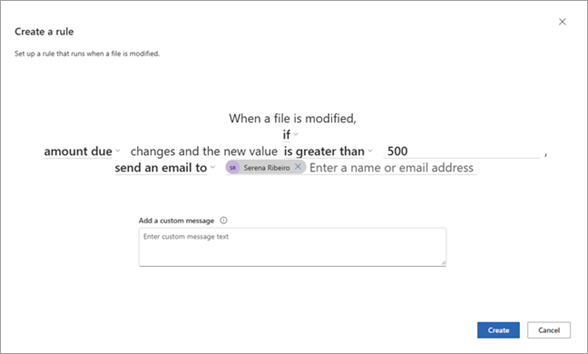
The chat panel summarizes the rule conditions.
Save your changes
When you're ready to save the rule you created and any other changes you made, select Save changes.
On Save changes to library?, confirm the changes and then select Apply changes.
You're returned to the updated library, and the rule runs automatically whenever the defined conditions are met.
Tip
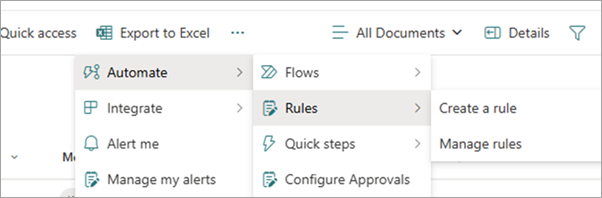
If you want to see all of the rules in your document library, from the header select Automate > Rules > Manage rules.
Requirements and limitations
Supported rule triggers: A new item is created, an item is modified, or an item is deleted.
Supported rule actions: Email, move, copy, and set value.
Supported languages: All languages supported through Microsoft 365 Copilot for text-based prompts and responses, but it can only process files in English.
Limitations:
Encrypted files can't be analyzed to run rules.
The "date approaches" trigger for rules isn't yet supported by Copilot in SharePoint.
The translate and delete rule actions aren't yet supported by Copilot in SharePoint. Organizations with pay-as-you-go billing set up can translate files using AI capabilities, but they incur costs on their pay-as-you-go meter.
Multi-step prompts to create new columns and configure a rule in one step don't yet work for the set value action.
You can create up to 15 rules per list or library.
You can't apply rules to multi-line text columns.
- Rules don't support email-enabled security groups for notifications.
Notifications: Copilot sends emails from no-reply@sharepointonline.com to specified individuals.