Note
Access to this page requires authorization. You can try signing in or changing directories.
Access to this page requires authorization. You can try changing directories.
VM insights is a feature of Azure Monitor that quickly gets you started monitoring your virtual machines. You can view trends of performance data, running processes on individual machines, and dependencies between machines. VM insights installs Azure Monitor Agent. It's required to collect the guest operating system and prepares you to configure more monitoring from your VMs according to your requirements.
In this tutorial, you learn how to:
- Enable VM insights for a virtual machine, which installs Azure Monitor Agent and begins data collection.
- Enable optional collection of detailed process and telemetry to enable the Map feature of VM insights.
- Inspect graphs analyzing performance data collected from the virtual machine.
- Inspect a map showing processes running on the virtual machine and dependencies with other systems.
Prerequisites
To complete this tutorial, you need an Azure virtual machine to monitor.
Note
If you selected the option to Enable virtual machine insights when you created your virtual machine, VM insights is already enabled. If the machine was previously enabled for VM insights by using the Log Analytics agent, see Enable VM insights in the Azure portal for upgrading to Azure Monitor Agent.
Enable VM insights
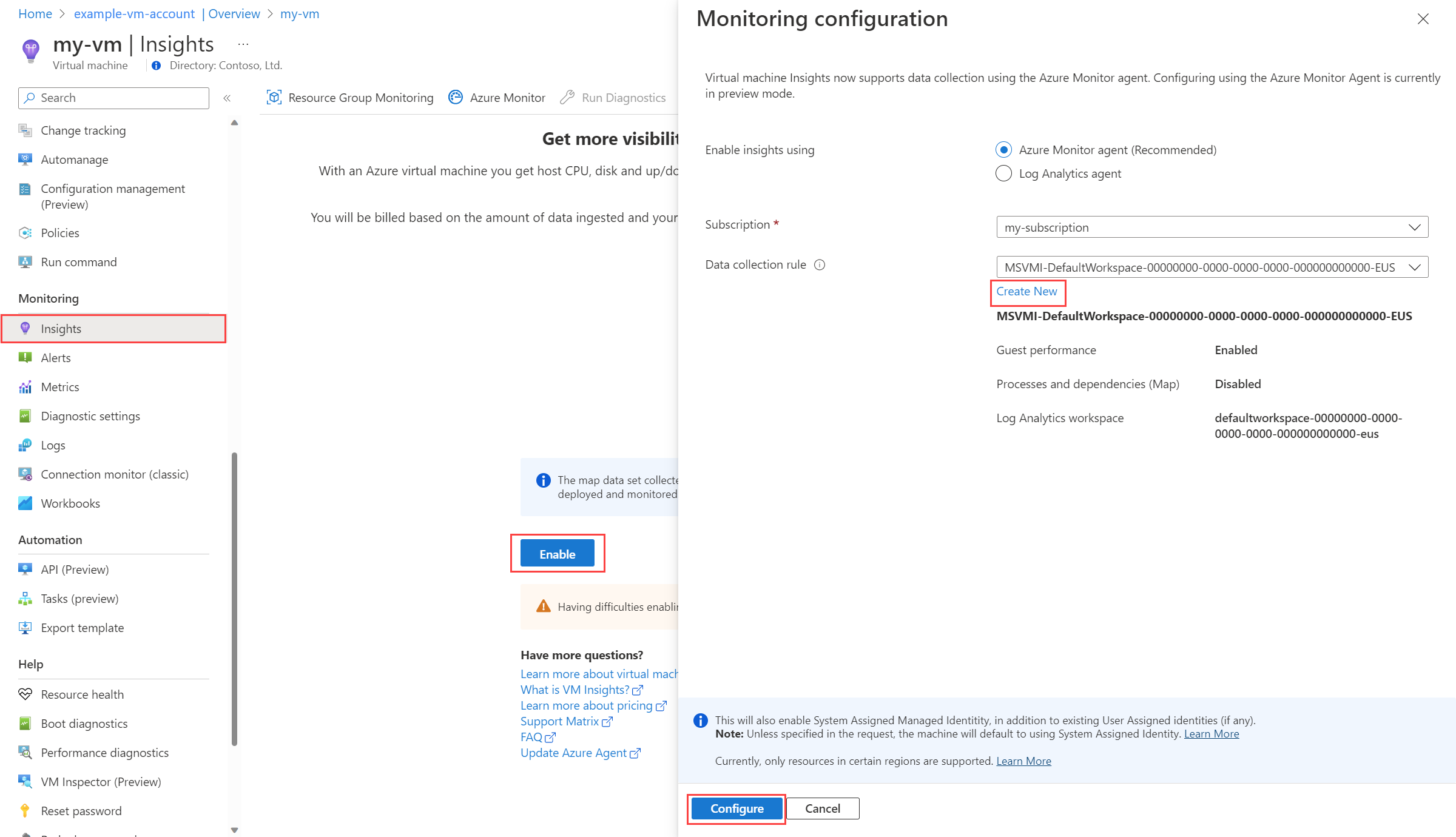
Select Insights from your virtual machine's menu in the Azure portal. If VM insights isn't enabled, you see a short description of it and an option to enable it. Select Enable to open the Monitoring configuration pane. Leave the default option of Azure Monitor agent.
To reduce cost for data collection, VM insights creates a default data collection rule that doesn't include collection of processes and dependencies. To enable this collection, select Create New to create a new data collection rule.
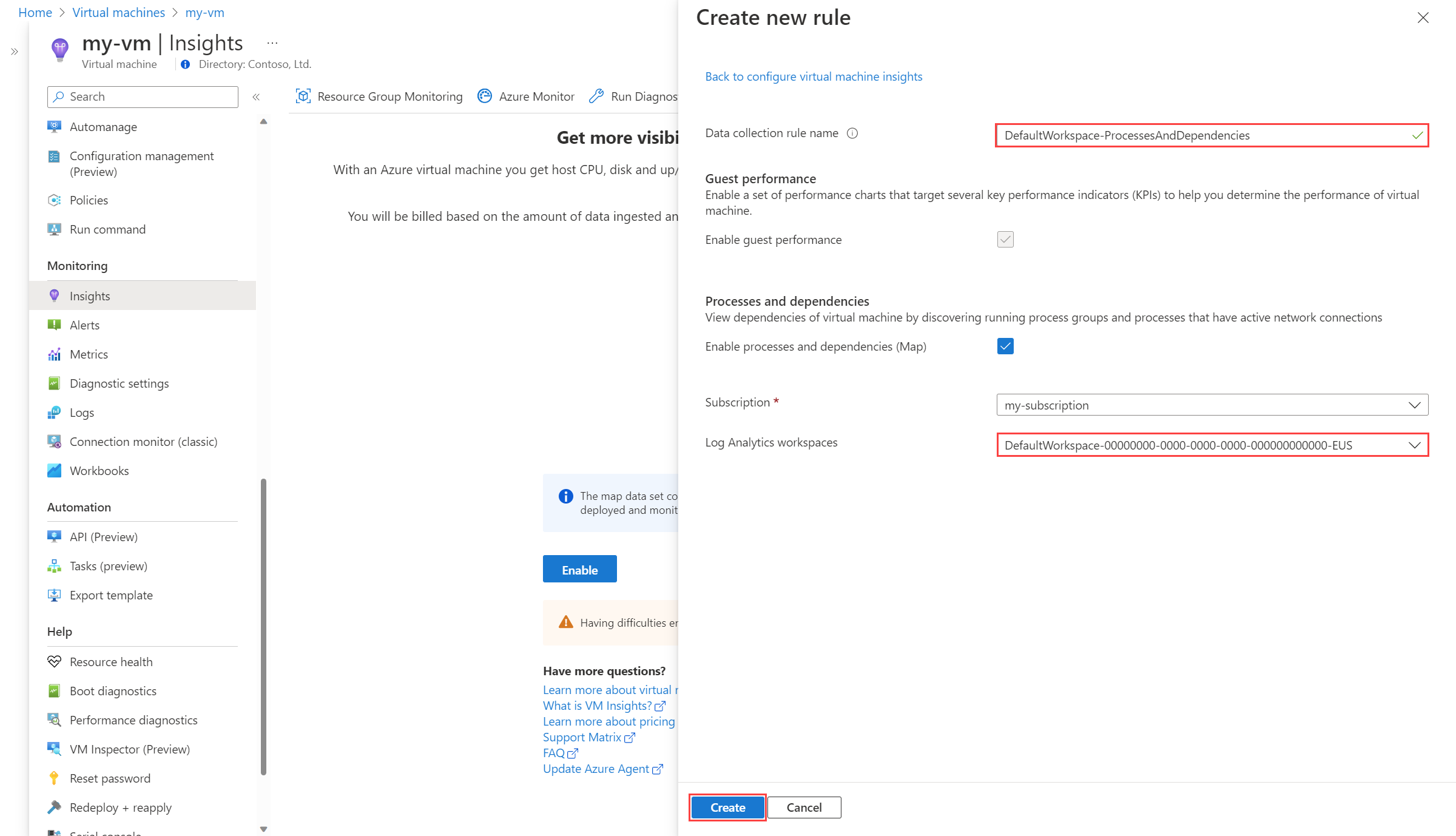
Provide a Data collection rule name and then select Enable processes and dependencies (Map). You can't disable collection of guest performance because it's required for VM insights.
Keep the default Log Analytics workspace for the subscription unless you have another workspace that you want to use. Select Create to create the new data collection rule. Select Configure to start VM insights configuration.
A message says that monitoring is being enabled. It might take several minutes for the agent to be installed and for data collection to begin.
View performance
When the deployment is finished, you see views on the Performance tab in VM insights with performance data for the machine. This data shows you the values of key guest metrics over time.

View processes and dependencies
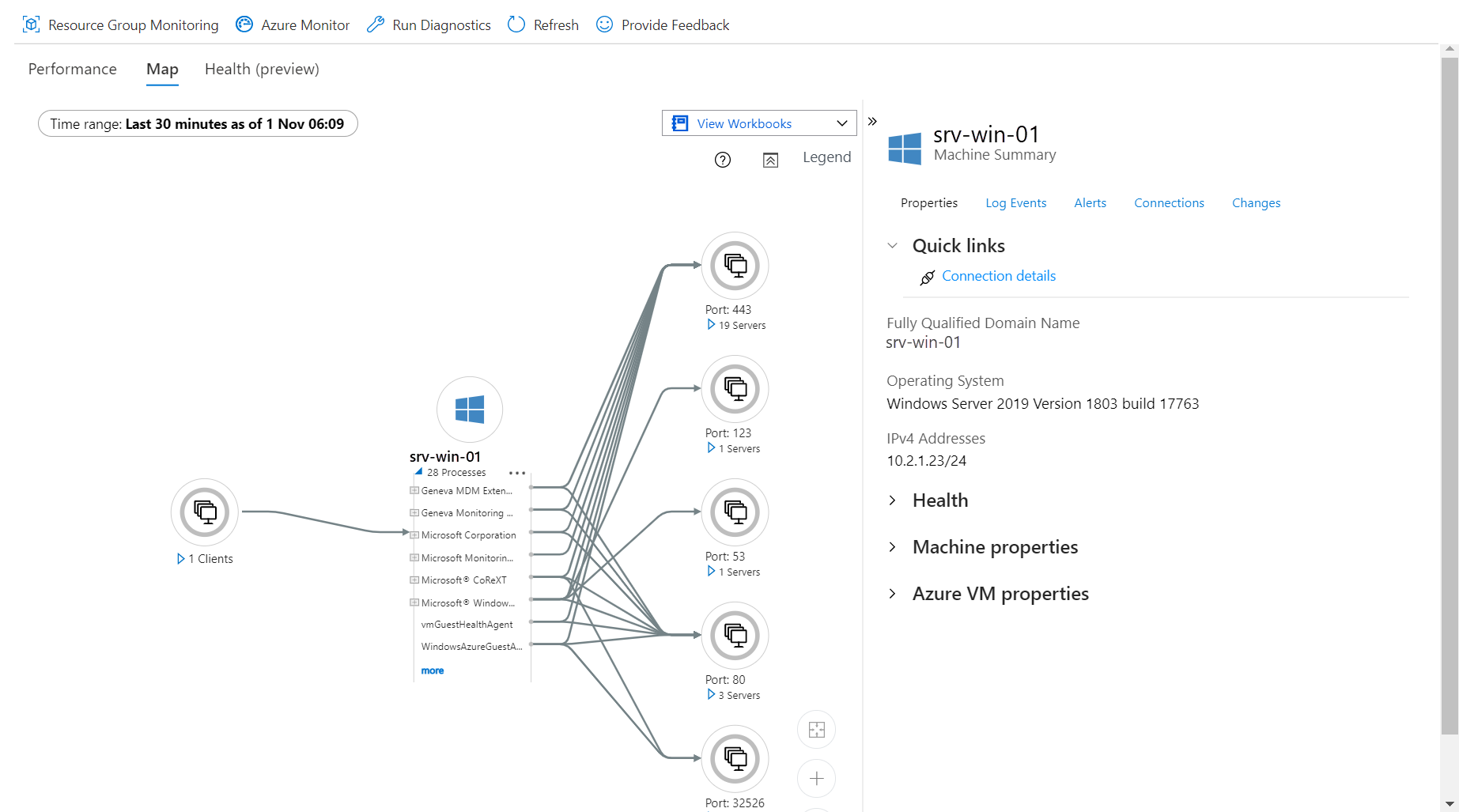
Select the Map tab to view processes and dependencies for the virtual machine. The current machine is at the center of the view. View the processes running on it by expanding Processes.
View machine details
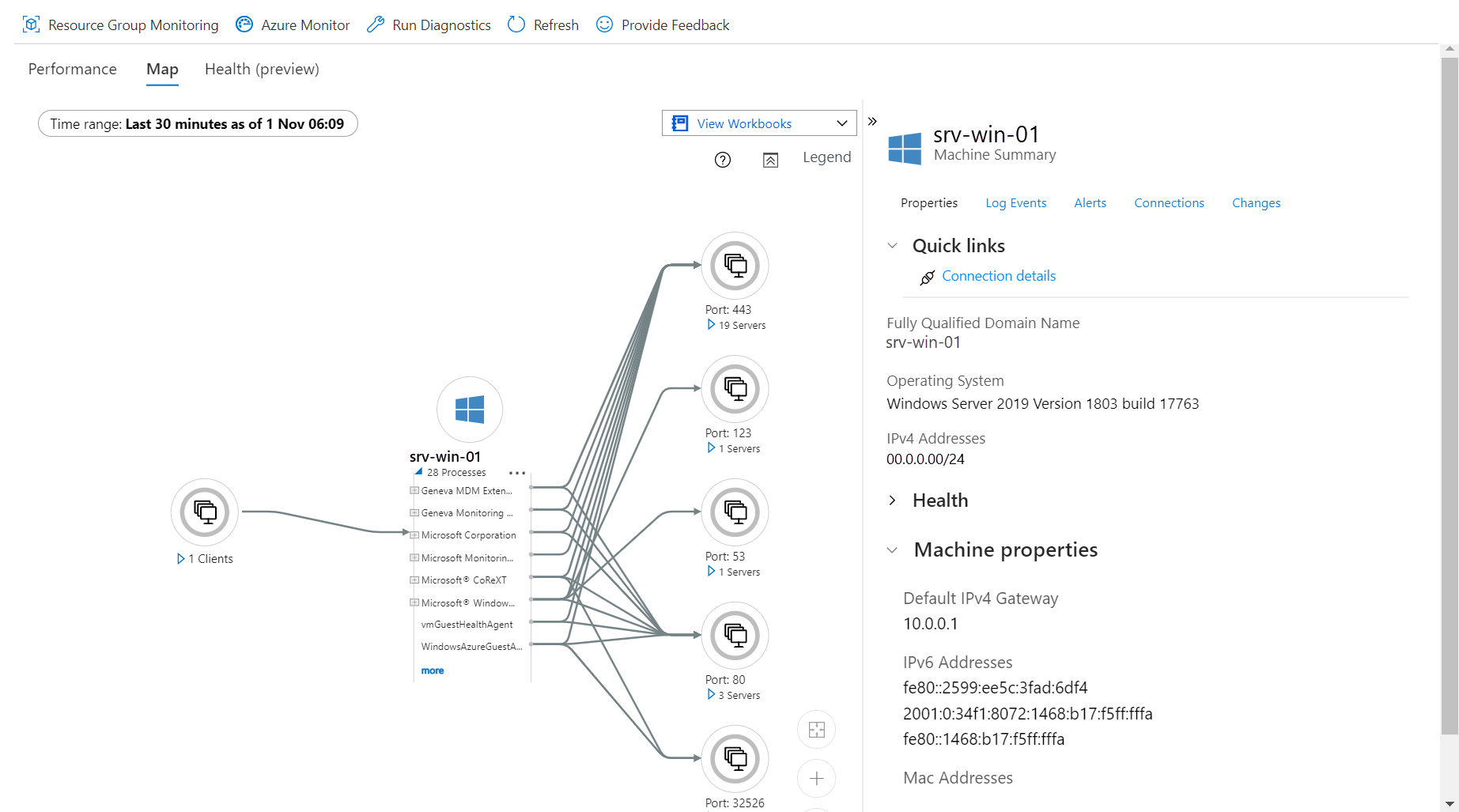
The Map view provides different tabs with information collected about the virtual machine. Select the tabs to see what's available.
Next steps
VM insights collects performance data from the VM guest operating system, but it doesn't collect log data such as Windows event log or Syslog. Now that you have the machine monitored with Azure Monitor Agent, you can create another data collection rule to perform this collection.