Note
Access to this page requires authorization. You can try signing in or changing directories.
Access to this page requires authorization. You can try changing directories.
Important
This feature is in Beta. Workspace admins can control access to this feature from the Previews page. See Manage Azure Databricks previews.
The FILE type stores a governed reference to an unstructured file, with metadata such as path and size. Use FILE columns in Unity Catalog to store documents, images, and audio alongside structured data.
With FILE MANAGED columns, Unity Catalog stores copies of the files and manages them with the table: deleting rows makes the referenced files eligible for garbage collection, so the table and its files stay in sync.
For the type reference, see FILE type.
The following diagram shows a FILE column named video that references driving clips alongside structured columns such as route, scene description, and hazard label:
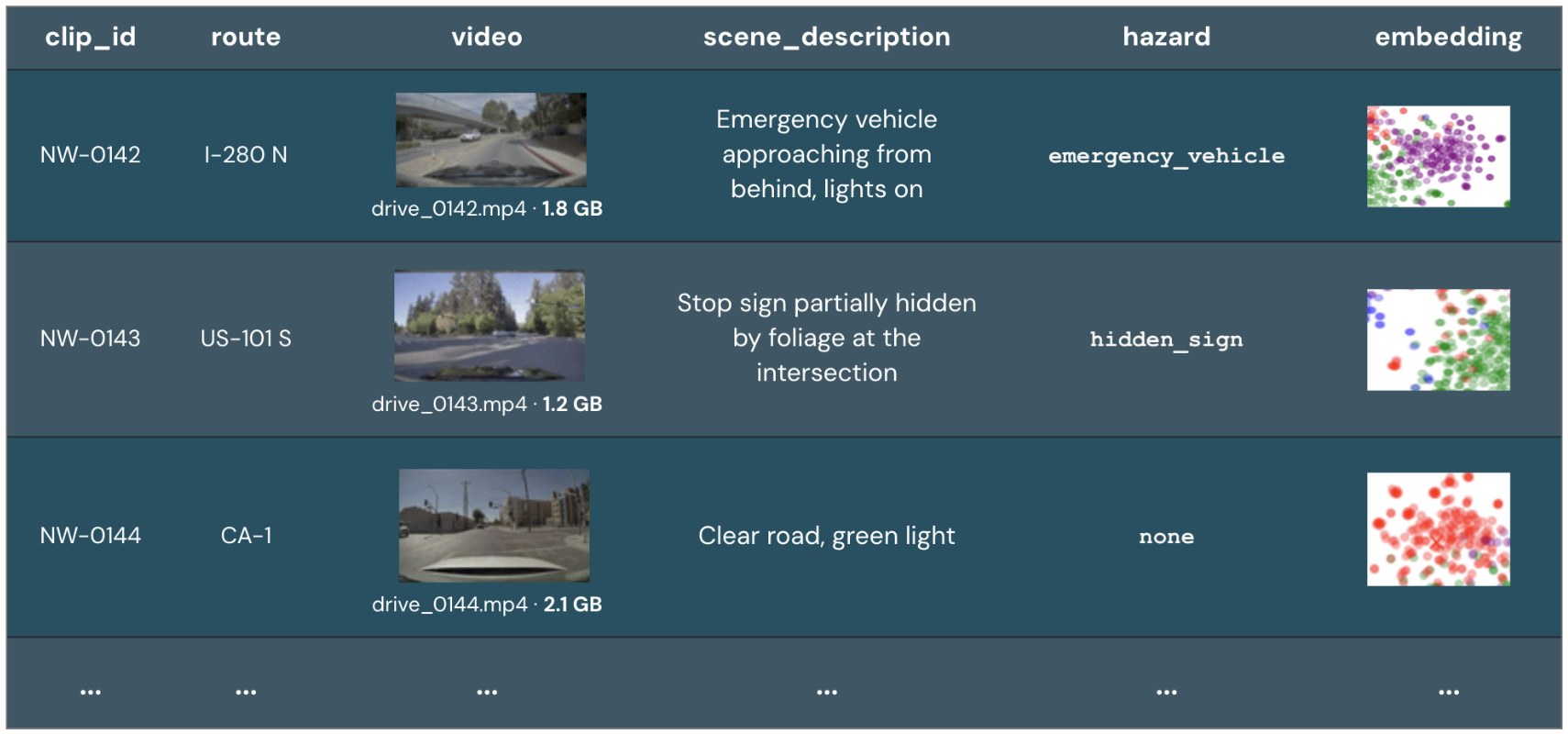
FILE metadata and storage
For each row, the FILE type stores metadata and a governed link to the file in storage. A FILE value includes uri, size, content_type, and checksum metadata fields. Metadata queries don't require full file reads, improving query performance.
You can pass FILE values to AI functions, such as ai_parse_document function, and to user-defined functions (UDFs).
The following diagram shows an example managed FILE column, containing path and size metadata and references to the files in storage:
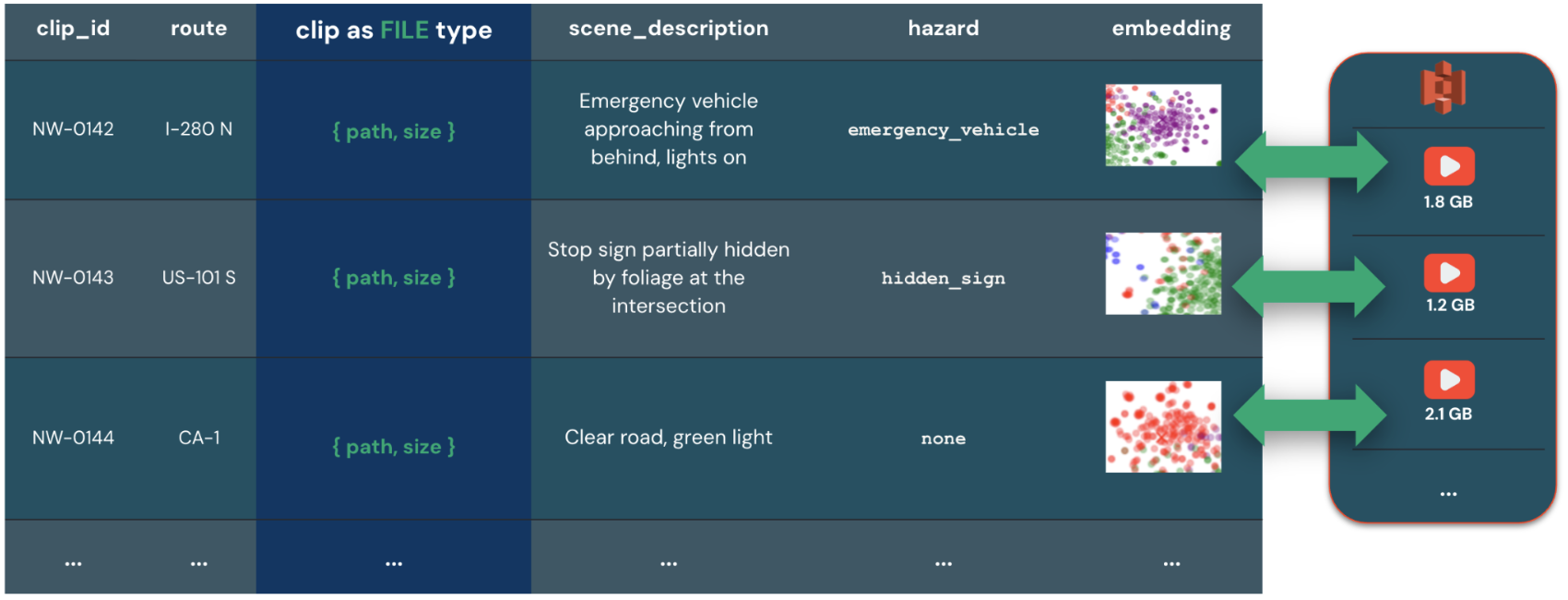
Why use FILE instead of BINARY or STRING
The following table details the challenges when handling large unstructured files with BINARY or STRING types:
| Column type | Description | Diagram |
|---|---|---|
BINARY |
Materializes the full object for every read, even when you only require metadata such as the file size or path. This results in unnecessary computation and slow queries. | 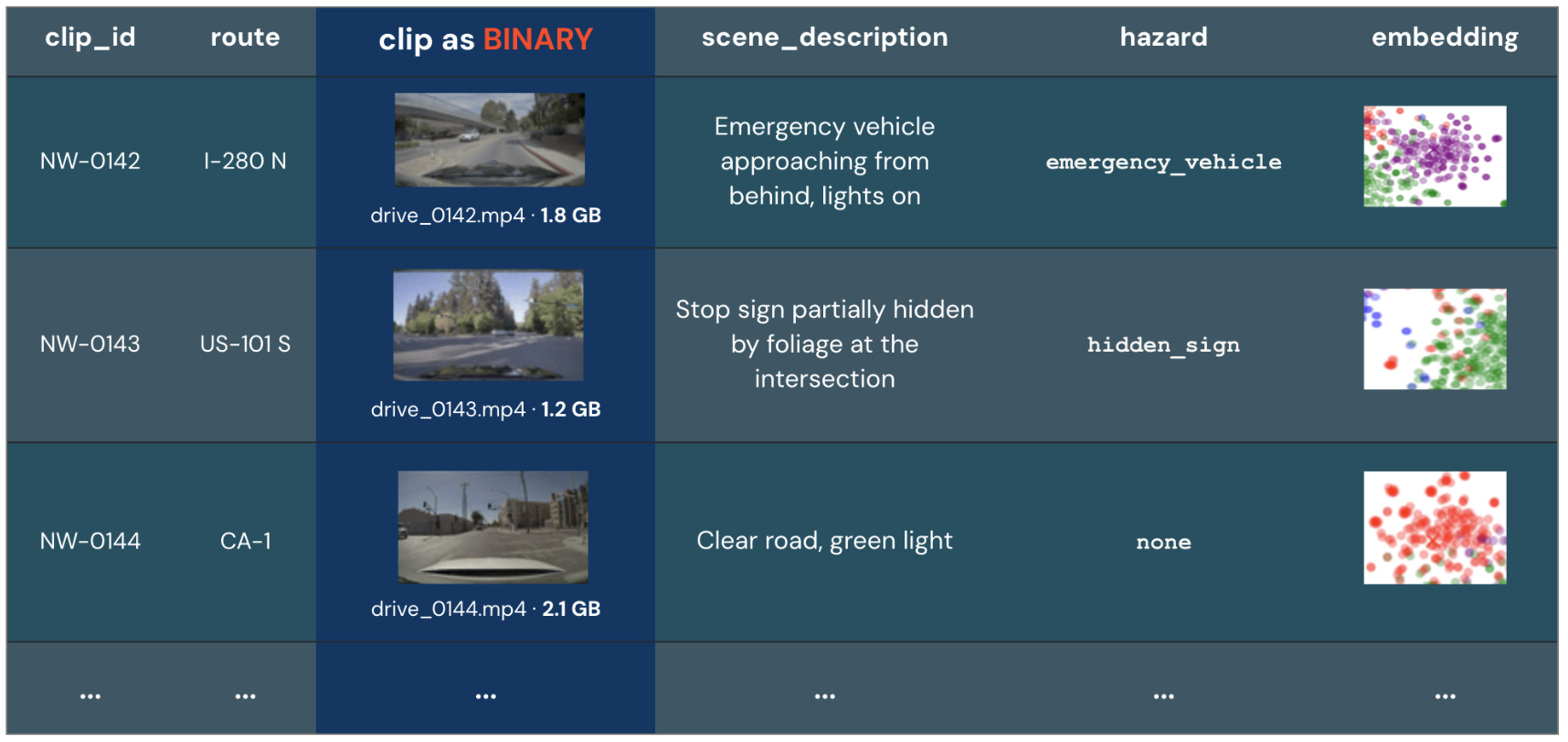 |
STRING |
Stores a file path with no metadata, such as size or version information, and no governed link between the table and the file. If another workload removes the file, the table has stale information. If you remove a table row, the referenced file remains in storage until you remove it manually. | 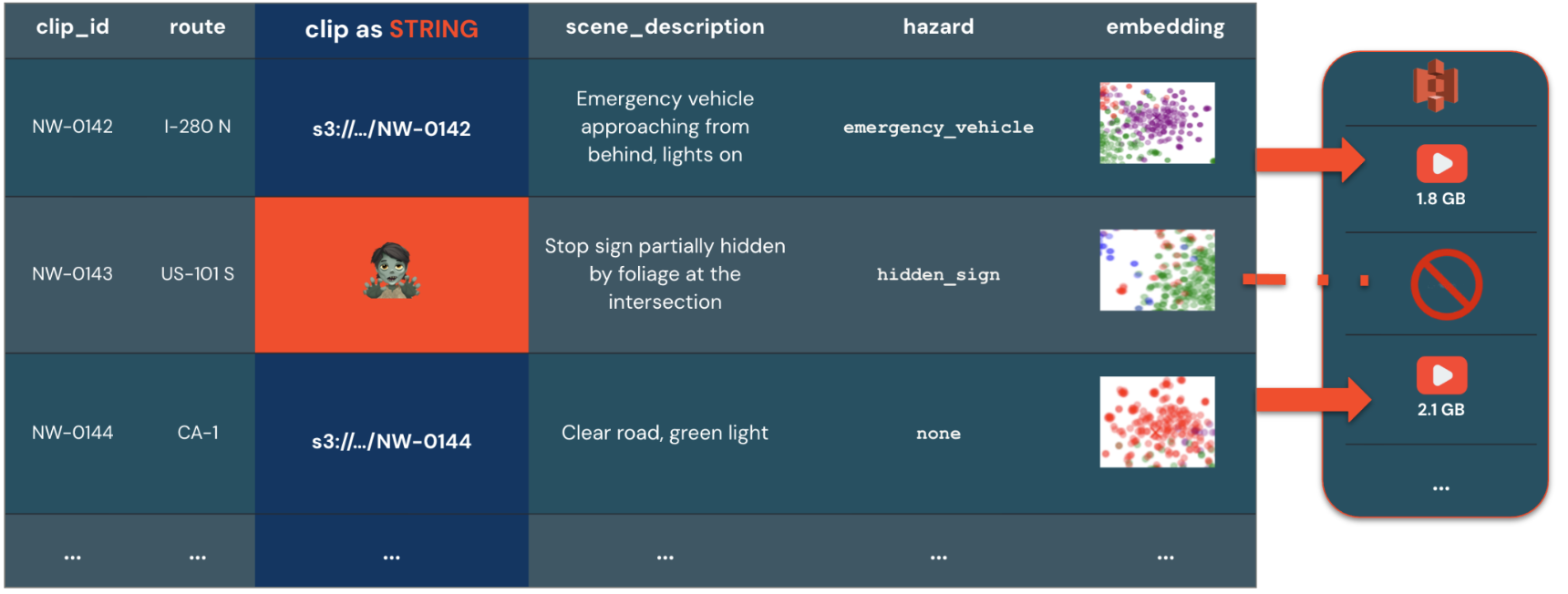 |
Checksums
The checksum field is an integrity token for the file's bytes, of the form <prefix>:<digest>. Use it to compare files or verify that a file hasn't changed. Readers ignore a checksum with an unrecognized prefix.
A checksum isn't always available. to_file function, create_file function, and copy_file function populate the checksum when the object store returns an ETAG. list_files table-valued function and read_files table-valued function don't populate the checksum.
The checksum field uses one of the following prefixes:
| Prefix | Digest encoding | Description |
|---|---|---|
ETAG |
Opaque | The object store's eTag for the whole file. Supplied verbatim by the store, used only for equality comparison, and not recomputable. |
MD5 |
Lowercase hex | An MD5 digest (RFC 1321), 32 hex characters. |
CRC32 |
Lowercase hex | A CRC32 checksum (RFC 2083), 8 hex characters. |
CRC32C |
Lowercase hex | A CRC32C checksum (RFC 3385), 8 hex characters. |
SHA-256 |
Lowercase hex | A SHA-256 digest (RFC 6234), 64 hex characters. |
For example, an MD5 checksum looks like MD5:d41d8cd98f00b204e9800998ecf8427e, and an object-store eTag looks like ETAG:"686897696a7c876b7e", including the surrounding double quotes returned by the object store.
Select between FILE and BINARY
The following table compares the options for working with unstructured files:
| Column type | Values | Use case |
|---|---|---|
FILE |
A governed reference to a file, plus metadata (uri, size, content_type, checksum). |
Use for managing and processing unstructured files alongside structured data, and passing files to built-in and AI functions. |
BINARY |
The raw bytes of a file, inline in a column. | Use for small objects (up to 64 KB by default) stored directly in the data file. This is useful when you need low metadata overhead and simplified file management. For example, use this to store thumbnails inline with row data. |
FILE MANAGED and FILE EXTERNAL
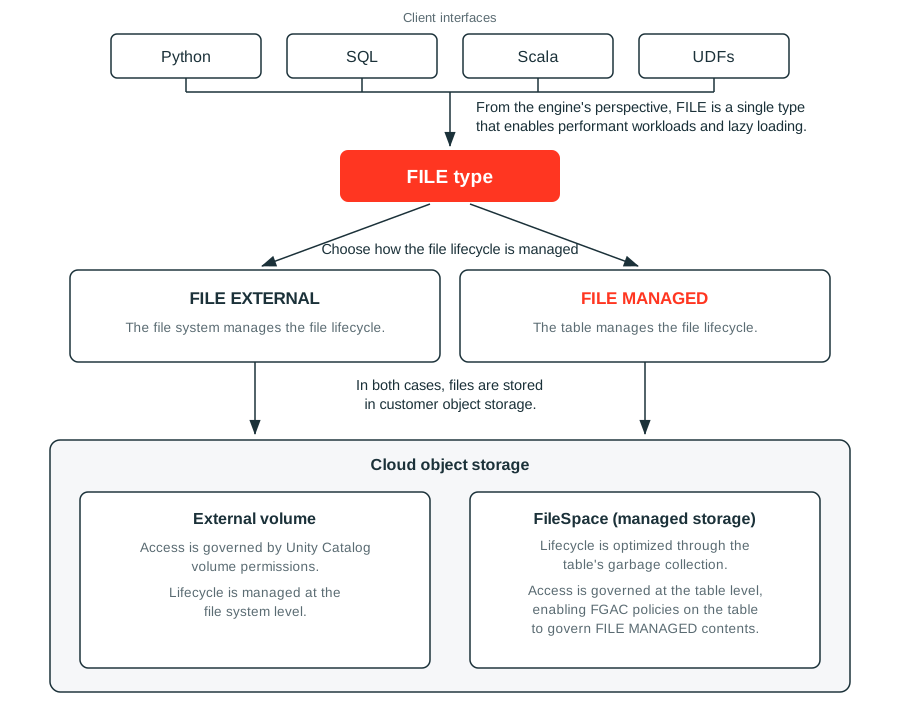
The FILE type supports two approaches for managing the files:
FILE MANAGEDcolumns copy files to managed storage. Permissions are simplified and managed through the table. When you delete rows, or update them to reference different files, the unreferenced files become eligible for garbage collection, so the table and its files stay in sync. Use this approach for workloads that access files through a table, such as ML training or retrieval-augmented generation (RAG), and for files ingested from external sources. For ingestion patterns, see Ingest files as the FILE type.FILE EXTERNALcolumns reference existing files in a Unity Catalog volume. The files are secured by Unity Catalog volume permissions, but their lifecycle isn't managed by Unity Catalog, and they aren't copied. Use this approach when you need to reference files without moving data or disrupting tools that read from an existing volume.
Azure Databricks recommends FILE MANAGED for workloads that benefit from file-level permissions and built-in compliance: access to each file is governed through the table that references it, and deleting rows makes the referenced files eligible for garbage collection. Use FILE EXTERNAL when files must stay at their existing volume paths for tools that read them outside the table.
For queries, there is no difference between managed and external files.
The following diagram shows how the FILE type connects your code to files in cloud object storage:
FILE MANAGED
FILE MANAGED columns store copies of files in a FileSpace, a Unity Catalog volume that you declare for the table to use as managed storage. Their lifecycle is tied to the tables that reference them: deleting rows makes the referenced files eligible for garbage collection, so the table and its files stay in sync.
The following behaviors apply to FILE MANAGED:
- Declaring the
FileSpacerequires thedatabricks.filespace-previewtable property. - Reading or writing a managed file requires access to both the table and the volume that backs the
FileSpace. - Automatic garbage collection of unreferenced files isn't supported in Beta.
Unstructured files stored in external sources such as SharePoint, Google Drive, OneDrive, and SFTP must be ingested as managed files before you can use them with functions like ai_parse_document function and user-defined functions (UDFs). For ingestion patterns, see Ingest files as the FILE type.
To use managed files, create a table with a FILE MANAGED column and declare a volume as the FileSpace by setting the databricks.filespace-preview table property to a volume path:
'databricks.filespace-preview' = '/Volumes/<catalog>/<schema>/<volume_name>/<optional_path>'
For complete examples, see the following FILE MANAGED examples.
FILE MANAGED examples
To create a table with a FILE MANAGED column:
CREATE TABLE reports (id BIGINT, file FILE MANAGED)
  TBLPROPERTIES ('databricks.filespace-preview' = '/Volumes/my_catalog/my_schema/my_managed_volume/');
To add a FILE MANAGED column to an existing table, set the databricks.filespace-preview table property before you add the column, as in the following code:
ALTER TABLE reports SET TBLPROPERTIES ('databricks.filespace-preview' = '/Volumes/my_catalog/my_schema/my_managed_volume/');

ALTER TABLE reports ADD COLUMN attachment FILE MANAGED;
Adding a FILE MANAGED column to a table that has no FileSpace fails.
Delete unreferenced managed files
Because automatic garbage collection isn't supported, delete unreferenced files yourself. The following notebook finds the files in a FileSpace that no table version references, and optionally deletes them:
FileType garbage collection notebook
FILE EXTERNAL
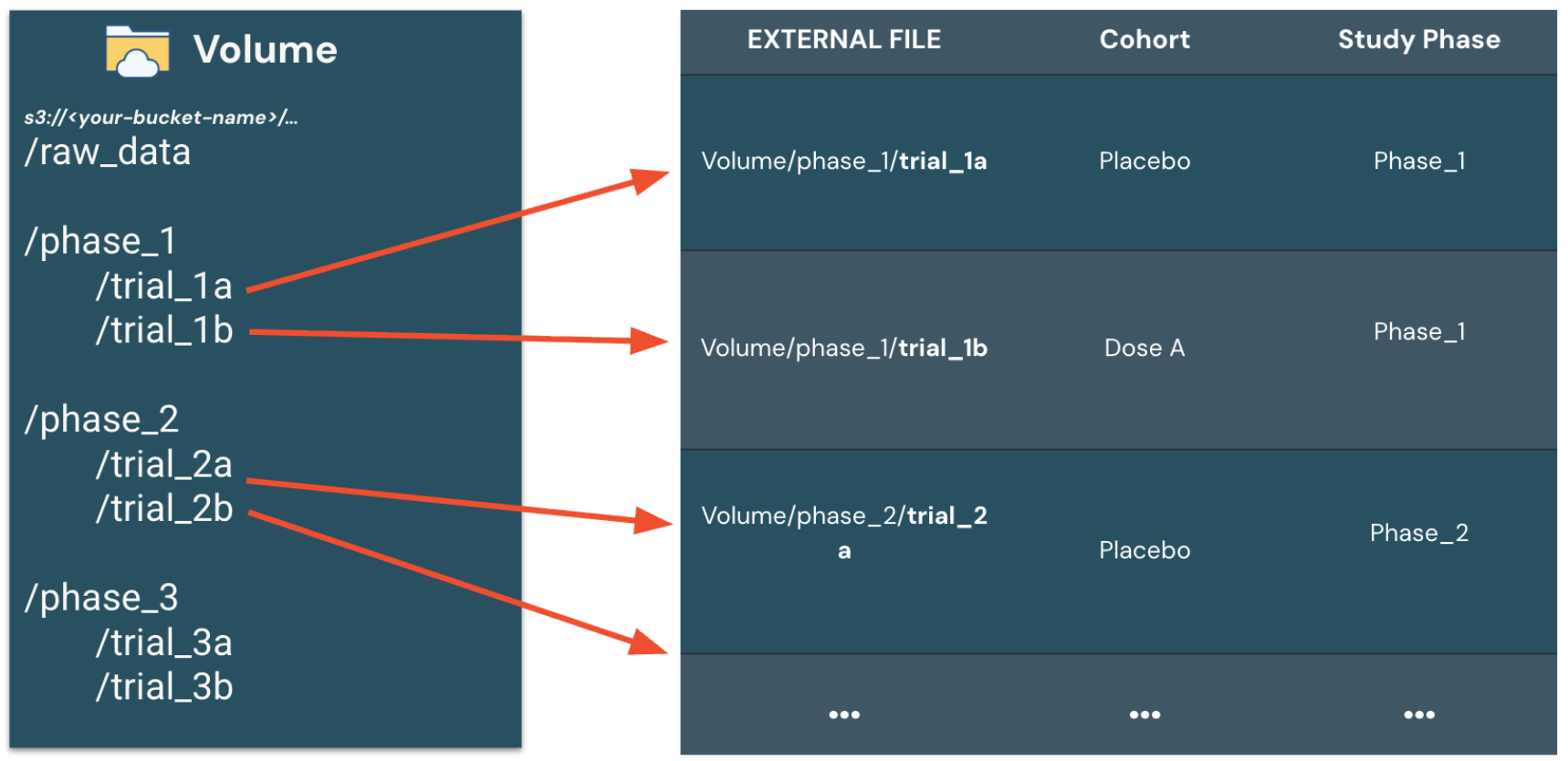
FILE EXTERNAL columns are references to files that already exist in a Unity Catalog volume.
If you have the required privileges on the volume, you can update or delete these files. Databricks recommends that you use immutable files. A table grant exposes the file metadata, but reading the file's bytes also requires the READ VOLUME privilege on the underlying volume.
An external file maps each table row to a file at its existing path in a Unity Catalog volume:
FILE EXTERNAL examples
To create a table with a FILE EXTERNAL column:
CREATE TABLE documents (id BIGINT, file FILE EXTERNAL);
To add a FILE EXTERNAL column to an existing table:
ALTER TABLE documents ADD COLUMN file FILE EXTERNAL;
To create and populate a table from a volume, assigning unique IDs to each file:
CREATE TABLE documents AS
  SELECT monotonically_increasing_id() AS id, file
  FROM list_files('/Volumes/samples/sec/contracts/');
Governance and lifecycle comparison
The following table compares how FILE MANAGED and FILE EXTERNAL govern file access and handle the file lifecycle:
| Column Type | FILE MANAGED |
FILE EXTERNAL |
|---|---|---|
| File access control | Governed by table and volume permissions, such as SELECT on the table and READ VOLUME on the volume. |
Governed by volume permissions, such as READ VOLUME. |
| Lifecycle and garbage collection | Files are tied to the rows that reference them. Deleting those rows makes the files eligible for garbage collection. Automatic garbage collection isn't supported. | You manage files yourself. Deleting a table row doesn't affect the underlying file in the volume. |
FILE type use cases
Both managed and external FILE types address the following challenges for use cases using unstructured data:
| Challenge | Supported FILE type |
Benefits |
|---|---|---|
Files too large to store inline as BINARY |
FILE MANAGED or FILE EXTERNAL |
A FILE column stores a reference, so a file is read only when an AI function or UDF processes it. This avoids materializing large objects inline in the table. |
| Disconnected lifecycle and governance between the file system and the table | FILE MANAGED |
Azure Databricks ties each file's lifecycle to the table, so deleting rows makes the files eligible for cleanup instead of leaving orphaned files in storage. |
| Concurrent workloads that require files to stay in the same location | FILE EXTERNAL |
Files stay at their existing volume paths, unaffected by the table lifecycle, so other tools that read the same files aren't disrupted. |