Note
Access to this page requires authorization. You can try signing in or changing directories.
Access to this page requires authorization. You can try changing directories.
Azure DevOps Services | Azure DevOps Server | Azure DevOps Server 2022
Visual Studio 2019 | Visual Studio 2022
Git Credential Manager simplifies authentication with your Azure Repos Git repositories. Credential managers let you use the same credentials that you use for the Azure DevOps web portal, supporting secure authentication through Microsoft account or Microsoft Entra ID with built-in multifactor authentication. Git Credential Manager also supports two-factor authentication with GitHub repositories.
Tip
You can use AI to help with this task later in this article, or see Enable AI assistance with Azure DevOps MCP Server to get started.
Authentication options
Git Credential Manager supports multiple authentication methods, with Microsoft Entra ID tokens being the recommended approach for enhanced security:
- Microsoft Entra ID tokens (recommended) - Provides enhanced security with shorter token lifespans and better integration with organizational policies.
- Microsoft account authentication - Personal Microsoft accounts with multifactor authentication support.
- Personal access tokens - Available as an alternative. Use Microsoft Entra ID tokens when possible.
IDE integration
Azure Repos provides IDE support for Microsoft account and Microsoft Entra authentication through the following clients:
If your environment doesn't have an integration available, you can configure your IDE with Microsoft Entra ID tokens (recommended), personal access tokens, or SSH to connect to your repositories.
Important
Consider using the more secure Microsoft Entra tokens over higher-risk personal access tokens. For more information, see Reduce PAT usage. Review the authentication guidance to choose the right authentication mechanism for your needs.
Install Git Credential Manager
Windows
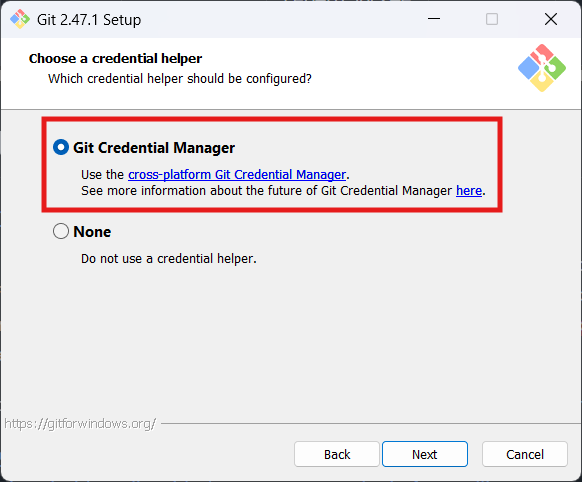
Download and run the latest Git for Windows installer, which includes Git Credential Manager. Make sure to enable the Git Credential Manager installation option.
macOS and Linux
You can use SSH keys to authenticate to Azure Repos, or use Git Credential Manager.
Installation instructions are included in the GitHub repository for GCM. On macOS, using Homebrew is recommended. On Linux, you can install from a .deb or a tarball.
Using the Git Credential Manager
When you connect to a Git repository from your Git client for the first time, the credential manager prompts for credentials. Provide your Microsoft account or Microsoft Entra credentials. If your account has multifactor authentication enabled, the credential manager prompts you to go through that process as well.
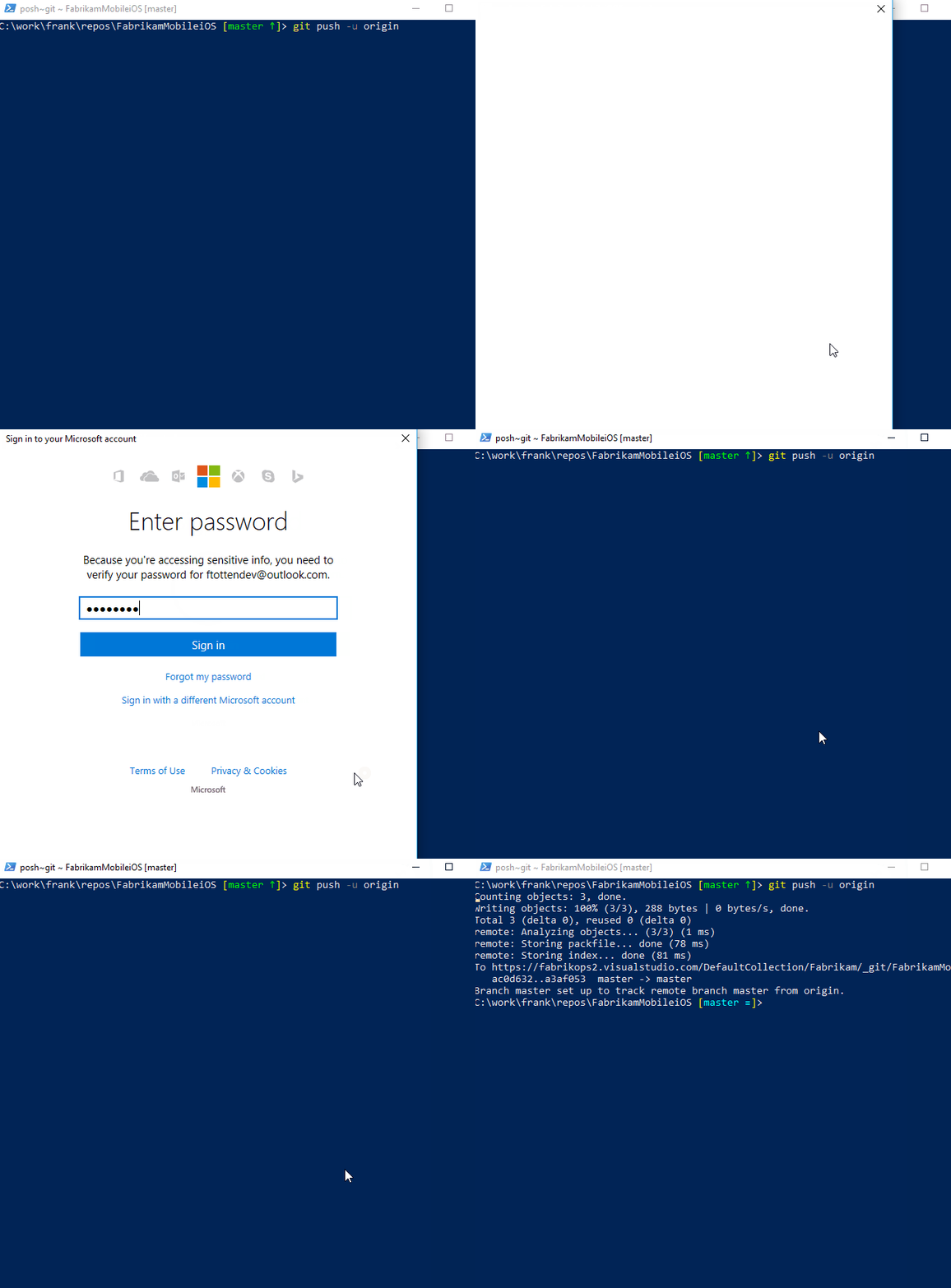
Once authenticated, the credential manager creates and caches a token for future connections to the repo. Git commands that connect to this account don't prompt for user credentials until the token expires. A token can be revoked through Azure Repos.
Configure Microsoft Entra ID authentication (recommended)
By default, GCM can request different types of authentication tokens from Azure Repos. You can configure the default Git authentication to use Microsoft Entra ID tokens, which provide enhanced security through OAuth protocols. This approach provides better security and integration with organizational policies. Learn more about using GCM with Azure Repos.
git config --global credential.azreposCredentialType oauth
Use service principal as authentication
You can also provide a service principal for authentication with GCM.
Specify the client and tenant IDs of a service principal in this format: {tenantId}/{clientId}.
git config --global credential.azreposServicePrincipal "11111111-1111-1111-1111-111111111111/22222222-2222-2222-2222-222222222222"
You must also set at least one authentication mechanism if you set this value:
- credential.azreposServicePrincipalSecret
- credential.azreposServicePrincipalCertificateThumbprint
- credential.azreposServicePrincipalCertificateSendX5C
Use AI to configure and manage credential manager authentication
The following example prompts for Copilot Chat help you understand authentication options, configure Git Credential Manager, validate your setup, and troubleshoot issues when needed. Copy and paste these prompts into Copilot Chat, and replace placeholders with your repository and organization details.
| Task | Example prompt |
|---|---|
| Choose the right auth method | For this team setup, compare Microsoft Entra ID tokens, Microsoft account sign-in, PAT, and service principal authentication in Git Credential Manager, and recommend the safest default. |
| Configure Microsoft Entra as default | Show me the exact Git Credential Manager commands to make Microsoft Entra ID token auth the default for Azure Repos on this machine. |
| Validate current authentication mode | Review this repository and tell me whether Git Credential Manager is currently using Microsoft Entra ID tokens, Microsoft account auth, or a PAT for Azure Repos. |
| Audit credential security posture | Check this Git authentication setup and point out any security risks, including PAT overuse, tenant mismatch risk, or missing credential hardening steps. |
| Validate service principal setup | Check this Git Credential Manager service principal configuration and explain what is missing for Azure Repos authentication to work. |
| Troubleshoot repeated sign-in prompts | I get prompted to sign in every time I run git fetch against Azure Repos. Help me troubleshoot Git Credential Manager token caching and credential store issues. |
Copilot is powered by AI, so surprises and mistakes are possible. For more information, see Copilot general use FAQs.
Get help
You can open and report issues with Git Credential Manager on the project GitHub.