Note
Access to this page requires authorization. You can try signing in or changing directories.
Access to this page requires authorization. You can try changing directories.
Azure Stream Analytics supports managed identity authentication for Azure Data Explorer output. Managed identity for Azure resources is a cross-Azure feature that enables you to create a secure identity associated with the deployment under which your application code runs. You can then associate that identity with access-control roles that grant custom permissions for accessing specific Azure resources that your application needs.
With managed identities, the Azure platform manages this runtime identity. You don't need to store and protect access keys in your application code or configuration, either for the identity itself, or for the resources you need to access. For more information on managed identities for Azure Stream Analytics, see Managed identities for Azure Stream Analytics.
This article shows you how to enable system-assigned or user-assigned managed identity for an Azure Data Explorer output of a Stream Analytics job through the Azure portal. Before you can enable managed identity, you must first have a Stream Analytics job and an Azure Data Explorer resource.
Important
- Azure Data Explorer supports only managed identities for authentication. You can't authenticate to your Azure Data Explorer clusters with connection strings or keys.
- Permissions are granted at the Azure Data Explorer database level, not at the cluster IAM level.
Create a managed identity
First, you create a managed identity for your Azure Stream Analytics job.
In the Azure portal, open your Azure Stream Analytics job.
From the left navigation menu, select Managed Identity located under Settings.
Choose Select identity on the toolbar.
In the Select identity pane, for Identity to use with job, select System assigned. Alternatively, you can enable User-assigned Managed Identity if you prefer a reusable identity across multiple jobs.
Select Save.
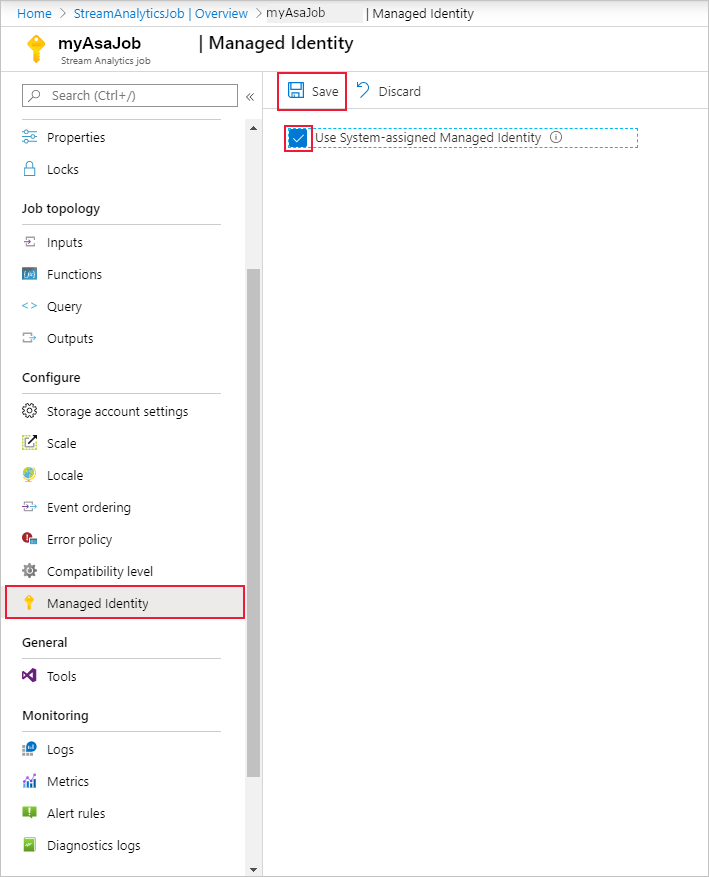
A service principal for the Stream Analytics job's identity is created in Microsoft Entra ID. The life cycle of the newly created identity is managed by Azure. When the Stream Analytics job is deleted, the associated identity (that is, the service principal) is automatically deleted by Azure.
Choose between system-assigned and user-assigned identity
| Identity type | When to use |
|---|---|
| System-assigned | Simpler setup; lifecycle is tied to the Stream Analytics job |
| User-assigned | Reusable across multiple jobs; useful for centralized access control |
For more information on user-assigned managed identities, see Use user-assigned managed identities for Azure Stream Analytics.
When you save the configuration, the Object ID (OID) of the service principal is listed as the Principal ID as shown below:
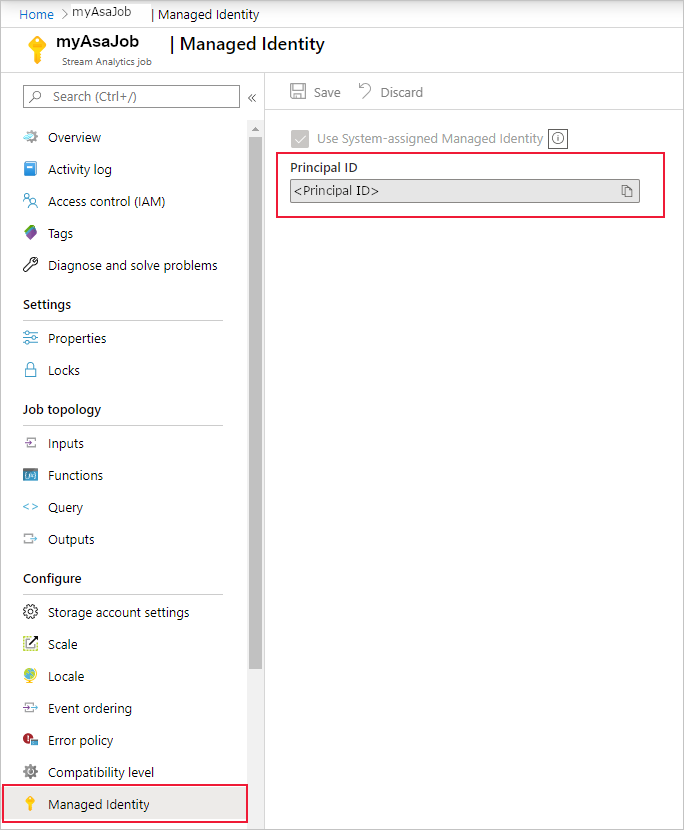
The service principal has the same name as the Stream Analytics job. For example, if the name of your job is MyASAJob, the name of the service principal is also MyASAJob.
Grant the Stream Analytics job permissions to access Azure Data Explorer
For the Stream Analytics job to access your Azure Data Explorer database using managed identity, the service principal you created must have special permissions to your Azure Data Explorer database. In this step, you assign roles to your Stream Analytics job's managed identity at the database level.
Azure Data Explorer provides the following built-in roles for database access. For Azure Stream Analytics, you need both of these roles:
| Role | Permissions |
|---|---|
| Ingestor | Can ingest data into all existing tables in the database, but can't query the data. |
| Monitor | Can execute .show commands in the context of the database and its child entities. |
For more information about roles supported by Azure Data Explorer, see Role-based access control in Azure Data Explorer.
Assign database permissions
In the Azure portal, open your Azure Data Explorer cluster.
Select Databases from the left navigation menu, then select your target database.
Select Permissions from the left navigation menu.
Select Add and choose Ingestor.
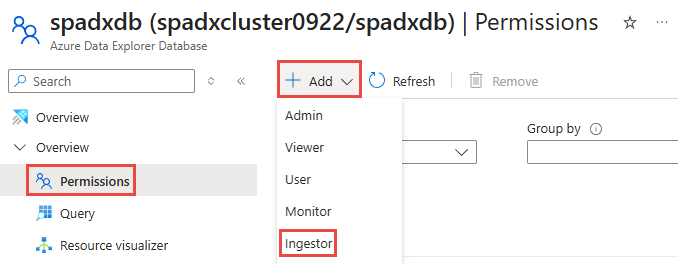
Search for and select your Stream Analytics job's managed identity (it has the same name as your Stream Analytics job).
Select Select to confirm.
Repeat steps 4-6 to add the Monitor role.
Note
Due to global replication or caching latency, there may be a delay when permissions are revoked or granted. Changes should be reflected within 8 minutes.
Add Azure Data Explorer as an output
Now that your managed identity is configured, you're ready to add the Azure Data Explorer resource as an output to your Stream Analytics job.
Go to your Stream Analytics job and navigate to the Outputs page under Job Topology.
Select Add > Azure Data Explorer.
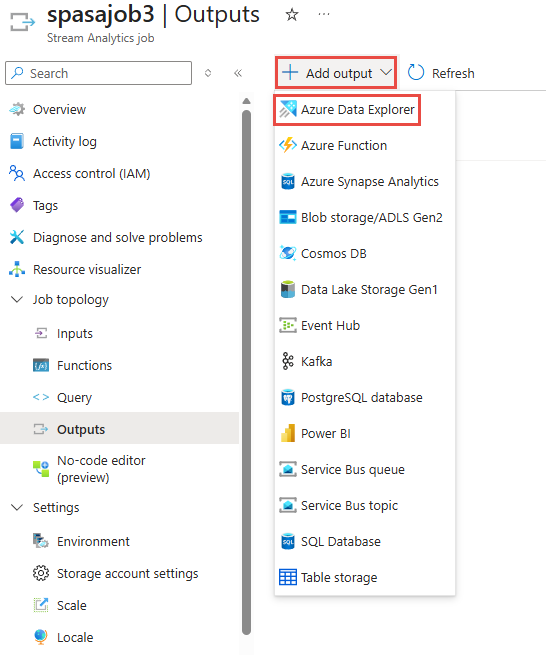
In the output properties window, search and select your Azure Data Explorer cluster or type in the URL of your cluster and select Managed Identity: System assigned from the Authentication mode drop-down menu.
Fill out the rest of the properties, including:
- Database name: The target database in your Azure Data Explorer cluster
- Table name: The target table where data will be ingested
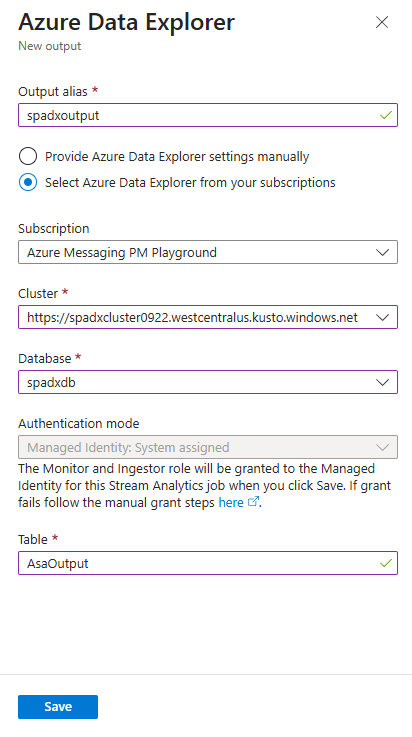
Select Save.
Ensure table schema compatibility
For ingestion to succeed, your Stream Analytics query output must match the Azure Data Explorer table schema:
- Column names must exactly match (case-sensitive)
- Data types must be compatible
- Column order should align with the table schema
Extra or mismatched columns cause ingestion failures. Stream Analytics sends data to Azure Data Explorer using CSV ingestion.
Tip
Use the .show table <TableName> schema as json command in Azure Data Explorer to verify your table schema matches your Stream Analytics query output.
Troubleshooting checklist
If you experience issues, verify the following:
- ✔️ Managed identity is enabled on the Stream Analytics job
- ✔️ Identity is added as Database Ingestor and Database Monitor at the database level (not cluster IAM)
- ✔️ Azure Data Explorer output is configured in the Stream Analytics job
- ✔️ Table schema matches the Stream Analytics query output exactly
- ✔️ Sufficient time has passed for permission propagation (up to 8 minutes)