Note
Access to this page requires authorization. You can try signing in or changing directories.
Access to this page requires authorization. You can try changing directories.
Azure Cosmos DB output in Azure Stream Analytics writes stream processing results as JSON documents into an Azure Cosmos DB container. It supports data archiving and low-latency queries on unstructured JSON data. Understanding how this output behaves helps you configure it for the throughput, consistency, and partitioning that your scenario requires.
Basics of Azure Cosmos DB as an output target
The Azure Cosmos DB output in Stream Analytics writes your stream processing results as JSON output into your Azure Cosmos DB containers. If you're unfamiliar with Azure Cosmos DB, see the Azure Cosmos DB documentation to get started.
Stream Analytics connects to Azure Cosmos DB only through the SQL API. Other Azure Cosmos DB APIs aren't yet supported. If you point Stream Analytics to Azure Cosmos DB accounts created with other APIs, the data might not be properly stored. When you use Azure Cosmos DB as output, set your job to compatibility level 1.2.
Stream Analytics doesn't create containers in your database. Instead, it requires you to create them beforehand. You can then control the billing costs of Azure Cosmos DB containers. You can also tune the performance, consistency, and capacity of your containers directly by using the Azure Cosmos DB APIs. The following sections detail some of the container options for Azure Cosmos DB.
Tuning consistency, availability, and latency
To match your application requirements, fine-tune the database and containers in Azure Cosmos DB and make trade-offs between consistency, availability, latency, and throughput.
Depending on what levels of read consistency your scenario needs against read and write latency, choose a consistency level on your database account. To improve throughput, scale up Request Units (RUs) on the container. Also by default, Azure Cosmos DB enables synchronous indexing on each CRUD operation to your container. This option is another useful way to control read and write performance in Azure Cosmos DB. For more information, review the Change your database and query consistency levels article.
Upserts from Stream Analytics
By using Stream Analytics integration with Azure Cosmos DB, you can insert or update records in your container based on a given Document ID column. This operation is also called an upsert. Stream Analytics uses an optimistic upsert approach. Updates happen only when an insert fails with a document ID conflict.
By using compatibility level 1.0, Stream Analytics performs this update as a PATCH operation, so it supports partial updates to the document. Stream Analytics adds new properties or replaces an existing property incrementally. However, changes in the values of array properties in your JSON document result in overwriting the entire array. That is, the array isn't merged.
By using compatibility level 1.2, the upsert behavior changes to insert or replace the document. The later section about compatibility level 1.2 further describes this behavior.
If the incoming JSON document has an existing ID field, Azure Cosmos DB automatically uses that field as the Document ID column. Stream Analytics handles any subsequent writes as such, leading to one of these situations:
- Unique IDs lead to insert.
- Duplicate IDs and Document ID set to ID lead to upsert.
- Duplicate IDs and Document ID not set lead to error, after the first document.
If you want to save all documents, including the ones that have a duplicate ID, rename the ID field in your query (by using the AS keyword). Let Azure Cosmos DB create the ID field or replace the ID with another column's value (by using the AS keyword or by using the Document ID setting).
Data partitioning in Azure Cosmos DB
Azure Cosmos DB automatically scales partitions based on your workload. Use unlimited containers to partition your data. When Stream Analytics writes to unlimited containers, it uses as many parallel writers as the previous query step or input partitioning scheme.
Note
Azure Stream Analytics supports only unlimited containers with partition keys at the top level. For example, /region is supported. Nested partition keys (for example, /region/name) aren't supported.
Depending on your choice of partition key, you might receive this warning:
CosmosDB Output contains multiple rows and just one row per partition key. If the output latency is higher than expected, consider choosing a partition key that contains at least several hundred records per partition key.
Choose a partition key property that has many distinct values and distributes your workload evenly across these values. As a natural artifact of partitioning, the maximum throughput of a single partition limits requests that involve the same partition key.
The storage size for documents that belong to the same partition key value is limited to 20 GB (the physical partition size limit is 50 GB). An ideal partition key is one that appears frequently as a filter in your queries and has sufficient cardinality to ensure that your solution is scalable.
Partition keys used for Stream Analytics queries and Azure Cosmos DB don't need to be identical. For fully parallel topologies, use Input Partition key, PartitionId, as the Stream Analytics query's partition key, but that choice might not be the recommended choice for an Azure Cosmos DB container's partition key.
A partition key is also the boundary for transactions in stored procedures and triggers for Azure Cosmos DB. Choose the partition key so that documents that occur together in transactions share the same partition key value. The article Partitioning in Azure Cosmos DB gives more details on choosing a partition key.
For fixed Azure Cosmos DB containers, Stream Analytics provides no way to scale up or out after they're full. They have an upper limit of 10 GB and 10,000 RU/s of throughput. To migrate the data from a fixed container to an unlimited container (for example, one with at least 1,000 RU/s and a partition key), use the data migration tool or the change feed library.
The ability to write to multiple fixed containers is being deprecated. Don't use it for scaling out your Stream Analytics job.
Improved throughput with compatibility level 1.2
By using compatibility level 1.2, Stream Analytics supports native integration to bulk write into Azure Cosmos DB. By using this integration, Stream Analytics writes effectively to Azure Cosmos DB while maximizing throughput and efficiently handling throttling requests.
The improved writing mechanism is available under a new compatibility level because of a difference in upsert behavior. By using levels before 1.2, the upsert behavior is to insert or merge the document. By using 1.2, the upsert behavior changes to insert or replace the document.
By using levels before 1.2, Stream Analytics uses a custom stored procedure to bulk upsert documents per partition key into Azure Cosmos DB. There, Stream Analytics writes a batch as a transaction. Even when a single record hits a transient error (throttling), Stream Analytics has to retry the whole batch. This behavior makes scenarios with even reasonable throttling slow.
The following example shows two identical Stream Analytics jobs reading from the same Azure Event Hubs input. Both Stream Analytics jobs are fully partitioned with a passthrough query and write to identical Azure Cosmos DB containers. Metrics on the left are from the job configured with compatibility level 1.0. Metrics on the right are from the job configured with 1.2. An Azure Cosmos DB container's partition key is a unique GUID that comes from the input event.
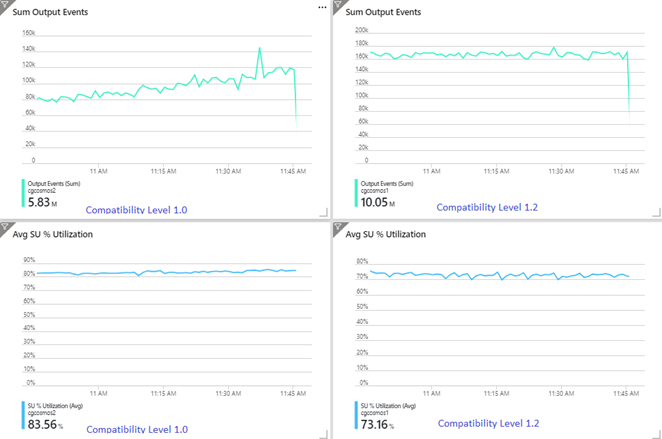
The incoming event rate in Event Hubs is two times higher than Azure Cosmos DB containers (20,000 RUs) are configured to take in, so you can expect throttling in Azure Cosmos DB. However, the job with 1.2 is consistently writing at a higher throughput (output events per minute) and with a lower average SU% utilization. In your environment, this difference depends on a few more factors. These factors include choice of event format, input event/message size, partition keys, and query.
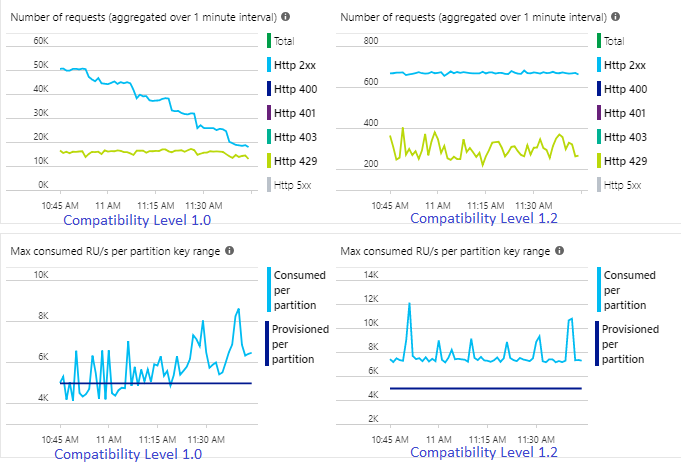
By using 1.2, Stream Analytics more intelligently uses 100 percent of the available throughput in Azure Cosmos DB, with few resubmissions from throttling or rate limiting. This behavior provides a better experience for other workloads like queries running on the container at the same time. If you want to see how Stream Analytics scales out with Azure Cosmos DB as a sink for 1,000 to 10,000 messages per second, try this Azure sample project.
Throughput of Azure Cosmos DB output is identical by using 1.0 and 1.1. We strongly recommend that you use compatibility level 1.2 in Stream Analytics with Azure Cosmos DB.
Azure Cosmos DB settings for JSON output
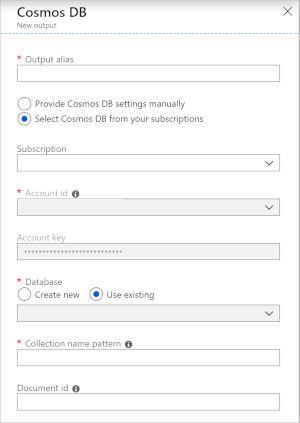
When you configure Azure Cosmos DB as an output in Stream Analytics, the following properties define the output.
| Field | Description |
|---|---|
| Output alias | An alias to refer to this output in your Stream Analytics query. |
| Subscription | The Azure subscription. |
| Account ID | The name or endpoint URI of the Azure Cosmos DB account. |
| Account key | The shared access key for the Azure Cosmos DB account. |
| Database | The Azure Cosmos DB database name. |
| Container name | The container name, such as MyContainer. One container named MyContainer must exist. |
| Document ID | Optional. The column name in output events that serves as the unique key for insert or update operations. If you leave it empty, Stream Analytics inserts all events with no update option. |
After you configure the Azure Cosmos DB output, you can use it in the query as the target of an INTO statement. When you're using an Azure Cosmos DB output that way, you must set a partition key explicitly.
The output record must contain a case-sensitive column named after the partition key in Azure Cosmos DB. To achieve greater parallelization, the statement might require a PARTITION BY clause that uses the same column.
Here's a sample query:
    SELECT TollBoothId, PartitionId
    INTO CosmosDBOutput
    FROM Input1 PARTITION BY PartitionId
Error handling and retries
If a transient failure, service unavailability, or throttling happens while Stream Analytics is sending events to Azure Cosmos DB, Stream Analytics retries indefinitely to finish the operation successfully. But it doesn't attempt retries for Unauthorized (HTTP error code 401), NotFound (HTTP error code 404), Forbidden (HTTP error code 403), or BadRequest (HTTP error code 400) failures.
Common issues that cause Azure Cosmos DB output to fail
Several conditions can cause the Azure Cosmos DB output to fail. The output data from Stream Analytics might violate a unique index constraint on the container, the PartitionKey column might not exist, or the Id column might not exist. For more information about unique index constraints, see Unique key constraints in Azure Cosmos DB.