Note
Access to this page requires authorization. You can try signing in or changing directories.
Access to this page requires authorization. You can try changing directories.
After you develop a page and before you make it available for users, you must consider discoverability for the page, meaning:
- How users can discover that the page exists?
- Ensure that users can find it.
- Ensure that users know how to use it.
Business Central comes with various features that you can use to make that happen, such as Tell me search, actions on role centers and pages, Role explorer, teaching tips, and context-specific help.
In this article, you can learn how to use all of them to maximize the user experience for your pages.
Adding pages to Tell me
The Business Central client includes the Tell me feature that lets users find objects by entering search terms. When you have added a page in your app/extension, you most likely want it to be discoverable to users in Tell me.
In AL, you make a page searchable from Tell me by setting the UsageCategory property in code. The UsageCategory setting makes the page searchable, and the value chosen for the setting further sub categorizes the item.
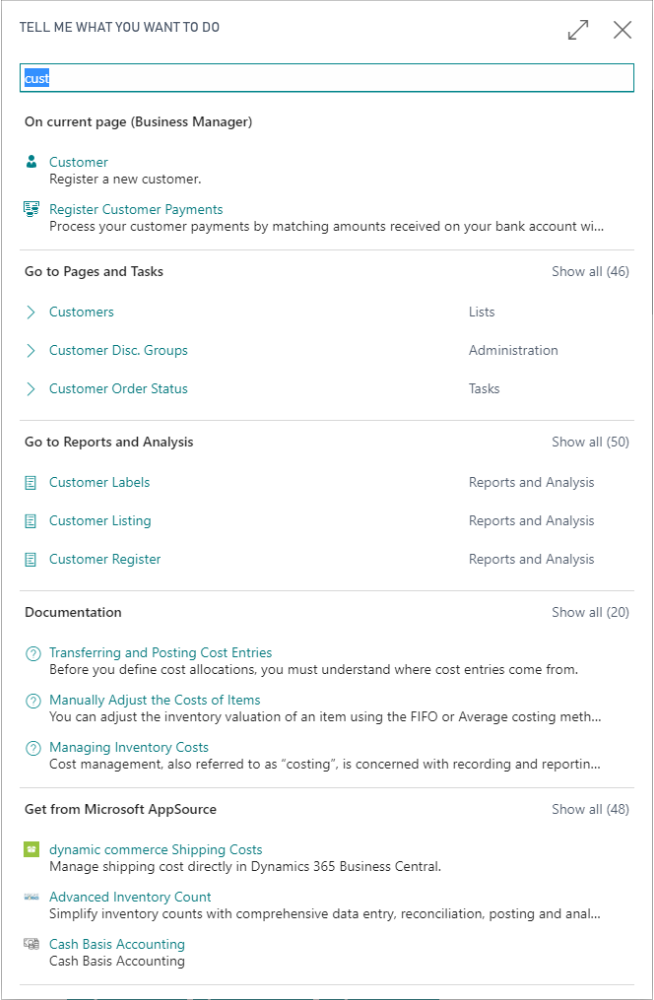
For more information, see Adding pages to Tell Me.
Adding pages to role centers
Role centers in Business Central have a navigation area that appears at the top of the window, and contains multiple sections that enable users to quickly navigate and perform actions. These actions display the most important or most often used tasks and operations required by users and typically contain links to pages, reports, and codeunits.
For more information, see Adding links to the navigation menu on the role center.
Adding pages to the Role explorer
When pages are added to role centers, they also become available in the Role explorer overviews (if the Role explorer feature is enabled for the roles).
To verify that the Role explorer feature is enabled for a role, open the Profile (Role) card and select the Show in Role Explorer check box. For more information about Role explorer visibility for a role, see Manage user profiles.
For more information about the Role explorer feature, see Finding Pages with the Role Explorer.
Adding links to pages
All pages in Business Central allow you to add actions that open a page. Before putting a page action on another page, you should think about the business processes that the page supports. Creating these actions can make it easier for the user to perform their daily tasks, such as getting a sales order overview or performing a business process.
To read more about how to add open page actions on pages in versions before version 2022 release wave 2, see Adding actions to a page.
With Business Central 2022 release wave 2, the way that you promote actions on pages or page extensions has changed. Promoting actions is defined in a specific section of the page definition and contains a reference to the action. For more information, see Promoted Actions.
Adding teaching tips to your pages
With teaching tips, you can help explain logic that's relevant to the page therefore allowing users to get on with their tasks right away without blocking them. After users dismiss a teaching tip, they can choose or hover over the page title. This action reopens the teaching tip.
For more information, see Adding teaching tips to your pages.
Adding help links to your pages
A key pillar of helping users help themselves is to give them access to help for the particular part of Business Central that they're working in. This also applies for pages.
For more information, see Adding help links to your pages.
Related information
Adding pages to Tell Me
Adding links to the navigation menu on the role center
Manage user profiles
Finding Pages with the Role Explorer
Adding actions to a page (versions before version 2022 release wave 2)
Promoted Actions
Adding teaching tips to your pages
Adding help links to your pages