Note
Access to this page requires authorization. You can try signing in or changing directories.
Access to this page requires authorization. You can try changing directories.
Note
The Retail Interest Group by Dynamics 365 Commerce has moved from Yammer to Viva Engage. If you don't have access to the new Viva Engage community, fill out this form (https://aka.ms/JoinD365commerceVivaEngageCommunity) to be added and stay engaged in the latest discussions.
This article describes how to mock a signed-in user in a Microsoft Dynamics 365 Commerce online local development environment.
When developing your e-commerce online site, you might need to develop and test scenarios for signed-in users. Instead of publishing these pages and testing against live pages, you can mock the signed-in state when running in developer mode.
Configure your identity provider tenant
Perform a one-time setup in your identity provider tenant to enable mocking the signed-in user status. You can use either Microsoft Entra External ID (EEID) or Microsoft Entra B2C. In the following sections, follow the configuration steps that match your tenant type. Before you begin, sign in as a user with tenant administrator privileges.
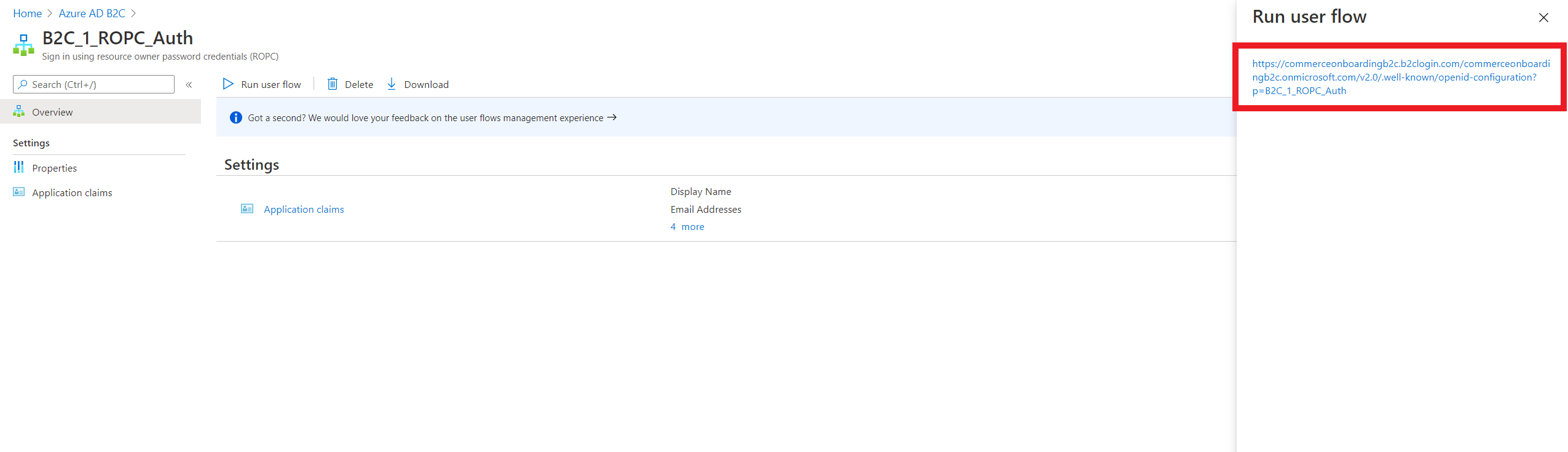
Create the sign-in user flow
For Microsoft Entra External ID, the sign-in user flow is created together with the native application. Continue to the next section.
Register the native application
Register a native application that represents the Node application running during local development.
- In the Microsoft Entra External ID tenant, go to Entra ID > App registrations, and then select New registration.
- Enter a name for the application. For example, "local_node_app."
- For Supported account types, select Single tenant only - < your-tenant >.
- For Redirect URIs, add a redirect URI by following the steps in Reply URLs.
- Select Register to complete the app registration.
- Select the newly created application. Copy and save the Application (client) ID value (used as
nativeApplicationId), and use the domain name of your Microsoft Entra External ID tenant forciamTenant. For example, if your tenant domain isContosoCustomers.onmicrosoft.com, useContosoCustomers. - In the left navigation pane under Manage, select Authentication.
- Under settings, under Implicit grant and hybrid flows select the ID token and Access token checkboxes. Also, enable public client and native authentication flows.
- Select Save.
- In the left navigation pane under Manage, select API permissions.
- Select Grant admin consent for < tenant-name >, and then select Yes.
| Property name | Example value |
|---|---|
| ciamTenant | commerceonboarding |
| nativeApplicationId | 00001111-aaaa-2222-bbbb-3333cccc4444 |
Create and link the sign-in user flow
Create a user flow and link it to the native application you registered:
- To create a new user flow, go to Manage > External Identities > User flows.
- Select New user flow.
- On the Create page, enter a name for the user flow (for example, "local_auth_user_flow").
- Under Identity providers, select the Email Accounts check box, and then select Email with password option.
- Under User attributes, select the Given Name, Surname, and Display Name attributes.
- Select Create to create the user flow.
- Open the user flow you created. In the left navigation pane, select Applications.
- Select Add application.
- From the list, select the application you created for local authentication in the previous steps. Then, select the Select button.
- Add your Microsoft Entra External ID app details in Commerce headquarters as explained in Update Commerce headquarters with the new Microsoft Entra External ID information.
Expose the user impersonation scope on the rendering application
- In the Microsoft Entra External ID settings, go to App registrations.
- Open the application that the e-commerce rendering application currently uses (not the "local_node_app" native application created for local development). In the Azure portal, this application is the one whose client ID is used in the Microsoft Entra External ID configuration for your site. If Microsoft Entra External ID is already configured, you can find the application ID used for your e-commerce site in Commerce headquarters at Commerce Shared Parameters > Identity Providers in the ClientId field under Relying Parties. You can also find the application ID in Commerce site builder at Tenant Settings > Site Authentication Setup as the Client GUID within the Microsoft Entra External ID application configuration used for your site.
- In the left navigation pane under Manage, select Expose an API, and verify that a user_impersonation scope exists. If it doesn't exist, select Add a scope to create one. When prompted for an Application ID URI, don't change the application ID URI. Add user_impersonation for the Scope name. Then, enter the values for Admin consent display name and Admin consent description.
- Copy and save the full scope value. Use this information as the
userImpersonationScopeURLproperty value in your credentials.json file.
Grant the native application permission to call the rendering application
- Return to the native application you created. In the left navigation pane under Manage, select API permissions.
- Select Add a permission, and then select the APIs my organization uses tab.
- Search for and select the e-commerce rendering application that you created. Then, add user_impersonation as a permission.
- Select Add permissions.
- Select Grant admin consent for < domain > and select Yes to apply the consent. You should now see a green checkmark under Status for user_impersonation.
These steps complete the Microsoft Entra setup. You should now have all of the following values:
| Property name | Example value |
|---|---|
| ciamTenant | commerceonboarding |
| nativeApplicationId | 00001111-aaaa-2222-bbbb-3333cccc4444 |
| userImpersonationScopeURL | api://b7ad3e87-d8b0-4c83-b08d-7c34c19f7933/user_impersonation |
Create the credentials.json file
The credentials file is located in the secrets/ directory in your Node application. Create a secrets/ directory in your application if it doesn't already exist, and then create a new file named credentials.json that's similar to the following example using the data you gathered previously.
{
    "ciamTenant": "commerceonboarding",
    "nativeApplicationId": "00001111-aaaa-2222-bbbb-3333cccc4444",
    "userImpersonationScopeURL": "api://b7ad3e87-d8b0-4c83-b08d-7c34c19f7933/user_impersonation",
    "defaultUser": {
        "name": "default",
        "email": "",
        "password": "",
        "customerAccountNumber": ""
    },
    "additionalUsers":[
        {
            "name": "test-user-1",
            "email": "test-user-1@example.com",
            "password": "password",
            "customerAccountNumber": ""
        }
    ]
}
Note
Add everything under the secrets/ directory to your .gitignore file to help prevent credentials from being leaked online.
After you use the information collected in the Azure setup steps to populate your credentials.json file, add test accounts that you want to use during local development. The accounts you define here should be valid accounts that are already created in Dynamics 365 Commerce headquarters.
- defaultUser: The default user to use when the mockUser query parameter is set to True. The name value should be default.
- additionalUsers: An array of user objects that you can use to configure more users for testing. Each entry in this array should be an object with a name, email address, password, and customer account number. To sign in as one of these users, use the query parameter
mockUser=\<name>.
Mock a signed-in B2B user
To mock a signed-in business-to-business (B2B) user, use the isB2bUser property for a user credential and set it to true, as shown in the following example.
{
    "ciamTenant": "commerceonboarding",
    "nativeApplicationId": "00001111-aaaa-2222-bbbb-3333cccc4444",
    "userImpersonationScopeURL": "api://b7ad3e87-d8b0-4c83-b08d-7c34c19f7933/user_impersonation",
    "defaultUser": {
        "name": "default",
        "email": "",
        "password": "",
        "customerAccountNumber": "",
        "isB2bUser": true
    },
    "additionalUsers":[
        {
            "name": "test-user-1",
            "email": "test-user-1@example.com",
            "password": "password",
            "customerAccountNumber": ""
        }
    ]
}
Mock sign-in status
After you complete the previous configuration steps, start your e-commerce Node application in local dev mode by using the yarn start command. The mockUser query parameter controls the sign-in status. It works to mock the signed-in state on mock pages and published pages. For example, you can use https://localhost:4000?mock=homepage&mockUser=true or https://localhost:4000?mockUser=true.
Use mockUser=<true/false/name> to control the signed-in behavior. The following table describes the behavior of each of the query parameter values:
| mockUser value | Example | Behavior | Description |
|---|---|---|---|
| true | mockUser=true | Sign in | Signs in as the default user. |
| name | mockUser=test-user-1 | Sign in | Signs in as the user specified in the query parameter. |
| false | mockUser=false | Sign out | Signs out the currently signed-in user. |
Use the mockUser query parameter to test pages as different users without signing out and signing back in again for each different user. For example, browsing https://localhost:4000?mock=homepage&mockUser=true and then https://localhost:4000?mock=homepage&mockUser=test-user-1 allows you to test the homepage mock as different signed-in users.
When you hit a page with mockUser turned on and successfully sign in, the signed-in state persists across pages until you either sign in with a different user or sign out.
You can also make use of the sign-in and sign out buttons on the webpage itself to mock signed-in user behavior. The sign-in button signs you in as the default user, and the sign out button signs out the currently signed-in user.
More resources
- Request properties object
- App settings
- Platform settings file
- Extend a module definition file
- Cookie API overview
- Interactive components overview
- Configure module properties to be shown based on context
- Globalize modules by using the CultureInfoFormatter class
- Set up Azure Key Vault for secure key management