Note
Access to this page requires authorization. You can try signing in or changing directories.
Access to this page requires authorization. You can try changing directories.
The unified data in Dynamics 365 Customer Insights - Data is a source for building machine learning models that can generate additional business insights. Customer Insights - Data integrates with Azure Machine Learning to use your own custom models.
Prerequisites
- Access to Customer Insights - Data
- Active Azure Enterprise subscription
- Unified customer profiles
- Table export to Azure Blob storage configured
Set up Azure Machine Learning workspace
See create an Azure Machine Learning workspace for different options to create the workspace. For best performance, create the workspace in an Azure region that is geographically closest to your Customer Insights environment.
Access your workspace through the Azure Machine Learning Studio. There are several ways to interact with your workspace.
Work with Azure Machine Learning designer
Azure Machine Learning designer provides a visual canvas where you can drag and drop datasets and modules. You can integrate a batch pipeline created from the designer into Customer Insights - Data if you configure it accordingly.
Working with Azure Machine Learning SDK
Data scientists and AI developers use the Azure Machine Learning SDK to build machine learning workflows. Currently, you can't integrate models trained by using the SDK directly. You need a batch inference pipeline that consumes that model for integration with Customer Insights - Data.
Batch pipeline requirements to integrate with Customer Insights - Data
Dataset configuration
Create datasets to use table data from Customer Insights for your batch inference pipeline. Register these datasets in the workspace. Currently, only tabular datasets in .csv format are supported. Parameterize the datasets that correspond to table data as a pipeline parameter.
Dataset parameters in Designer
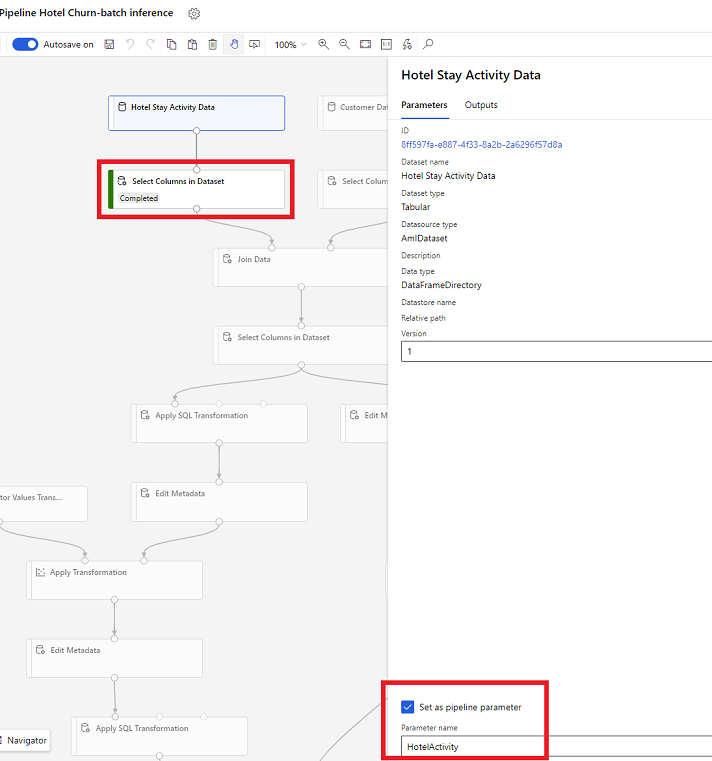
In the designer, open Select Columns in Dataset and select Set as pipeline parameter where you provide a name for the parameter.
Dataset parameter in SDK (Python)
HotelStayActivity_dataset = Dataset.get_by_name(ws, name='Hotel Stay Activity Data')
HotelStayActivity_pipeline_param = PipelineParameter(name="HotelStayActivity_pipeline_param", default_value=HotelStayActivity_dataset)
HotelStayActivity_ds_consumption = DatasetConsumptionConfig("HotelStayActivity_dataset", HotelStayActivity_pipeline_param)
Batch inference pipeline
In the designer, use a training pipeline to create or update an inference pipeline. Currently, only batch inference pipelines are supported.
Using the SDK, publish the pipeline to an endpoint. Currently, Customer Insights - Data integrates with the default pipeline in a batch pipeline endpoint in the Machine Learning workspace.
published_pipeline = pipeline.publish(name="ChurnInferencePipeline", description="Published Churn Inference pipeline")
pipeline_endpoint = PipelineEndpoint.get(workspace=ws, name="ChurnPipelineEndpoint")
pipeline_endpoint.add_default(pipeline=published_pipeline)
Import pipeline data
The designer provides the Export Data module that you can use to export the output of a pipeline to Azure storage. Currently, the module must use the datastore type Azure Blob Storage and parameterize the Datastore and relative Path. The system overrides both these parameters during pipeline execution with a datastore and path that the application can access.
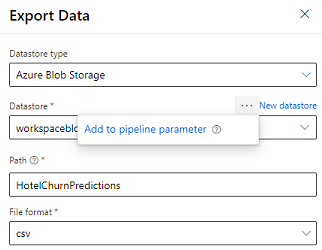
When you write the inference output by using code, upload the output to a path within a registered datastore in the workspace. If you parameterize the path and datastore in the pipeline, Customer Insights can read and import the inference output. Currently, a single tabular output in .csv format is supported. The path must include the directory and filename.
# In Pipeline setup script
    OutputPathParameter = PipelineParameter(name="output_path", default_value="HotelChurnOutput/HotelChurnOutput.csv")
    OutputDatastoreParameter = PipelineParameter(name="output_datastore", default_value="workspaceblobstore")
...
# In pipeline execution script
    run = Run.get_context()
    ws = run.experiment.workspace
    datastore = Datastore.get(ws, output_datastore) # output_datastore is parameterized
    directory_name =  os.path.dirname(output_path)  # output_path is parameterized.

    # Datastore.upload() or Dataset.File.upload_directory() are supported methods to uplaod the data
    # datastore.upload(src_dir=<<working directory>>, target_path=directory_name, overwrite=False, show_progress=True)
    output_dataset = Dataset.File.upload_directory(src_dir=<<working directory>>, target = (datastore, directory_name)) # Remove trailing "/" from directory_name