Note
Access to this page requires authorization. You can try signing in or changing directories.
Access to this page requires authorization. You can try changing directories.
Note
Community interest groups have now moved from Yammer to Microsoft Viva Engage. To join a Viva Engage community and take part in the latest discussions, fill out the Request access to Finance and Operations Viva Engage Community form and choose the community you want to join.
Supported versions
- Version 10.0.13 and later support compressing old data from versions that are earlier than 10.0.9.
- Version 10.0.14 and later support removing data.
Purpose
As the system runs, it produces more data, and the database size continues to increase. To free up space in the database, clean up old data. During cleanup, if you observe that the TaxDocumentJSON table is using too much space, follow the steps in this article to clean it up.
Before you begin
Before you begin the cleanup, complete the following tasks:
- Contact the customer's technical consultant or administrator, and confirm that no customization depends on the tax document object of the posted transaction.
- Ask the customer to work with its business department to determine a date that all transactions are closed before.
- Export and back up the data of the TaxDocumentJSON table.
Clean up the database
By default, the Cleanup options aren't available because it's a one-time task to compress old data from versions that are earlier than 10.0.9. If you want to use the Remove option, contact Microsoft to enable TaxRemoveDependenciesOnTaxDocumentJSONFlighting.
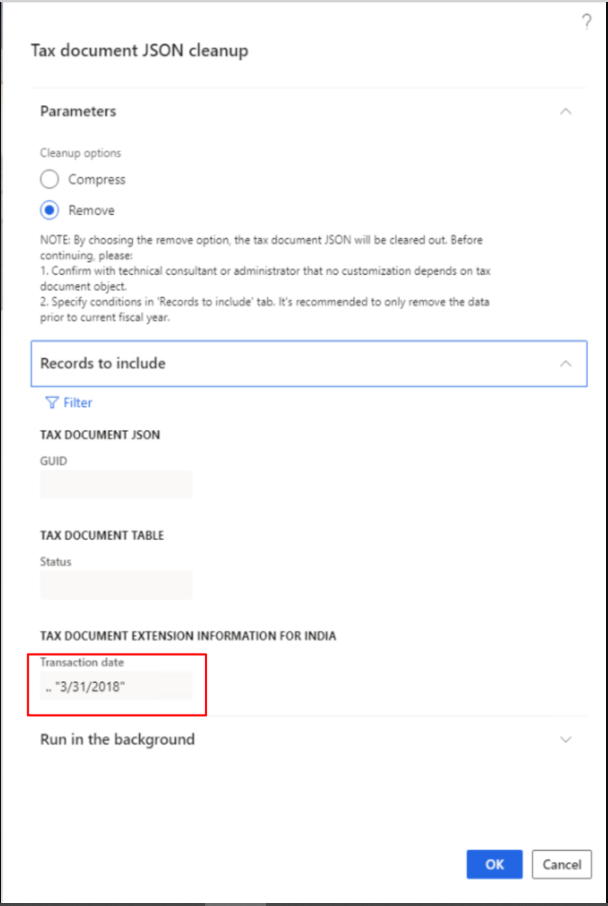
Go to Tax > Periodic tasks > Tax document JSON cleanup.
Select the Remove option.
Note
The Compress option compresses the tax document JavaScript Object Notation (JSON) from versions that are earlier than 10.0.9. This compression is a one-time optimization.
The following note appears. Be sure to verify that the customer understands the impact of the change.
By choosing the remove option, the tax document JSON is cleared out. Before continuing, please:
1. Confirm with technical consultant or administrator that no customization depends on tax document object.
1. Specify conditions in Records to include tab. It's recommended to only remove the data prior to current fiscal year.On the Records to include FastTab, specify the conditions that you confirmed with the customer's business department. For example, if you agree to remove the tax document JSON before March 31, 2018, in the Tax document extension information for India section, in the Transaction date field, specify .."31/3/2018". For more details about the query filter, see Advanced filtering and query syntax.
Select OK to start the cleanup.