Note
Access to this page requires authorization. You can try signing in or changing directories.
Access to this page requires authorization. You can try changing directories.
Microsoft Dataverse is a key component for any Power Pages website. It acts as both the metadata store for the website, storing all website configuration like webpages, content snippets, site settings, and user metadata, and the data store for business data. This article describes how the application server hosting the website connects to a Power Platform environment with Dataverse.
To start with one of the core principles to remember is that an end user of Power Pages website isn't a Dataverse user, and Dataverse role based access control concepts doesn't apply to the end user on the Power Pages website. All the users of Power Pages are stored in the Dataverse contact table and the data access of these users is controlled through web roles which is the role based access control layer for Power Pages users.
Server to Server Connection
Power Pages connects to Dataverse utilizing a server to server (S2S) connection. This S2S connection is established utilizing a Microsoft Entra application that is created in the customer's Microsoft Entra when a website is created.
Each website has its own application that follows following naming convention (Portals – {{portalid}}). Different naming conventions have been used previously and may still be reflected in your Microsoft Entra. The ID of this application can also be found in the Set up workspace for that website and can be used to find this application in Microsoft Entra (in the application registration tab).
Note
- Don't modify or delete this application. Modifying or deleting it can break the S2S connection between the website and Dataverse, which can affect website functionality.
- This application is also used for the default Microsoft Entra Login provider on the website.
During the website creation process, the portal automatically generates an authentication key (X509 certificate) or Microsoft-managed identity by using a Federated Identity Credential (FIC) and adds it to the Microsoft Entra application and application server. This key allows the application server to get the required access token to authenticate to Dataverse.
Note
This authentication key expires after two years. Update it every two years to ensure that the website can connect to Dataverse. To update the key, see Manage website authentication key.
The following diagram describes how the end-to-end connection happens between the website and Dataverse.
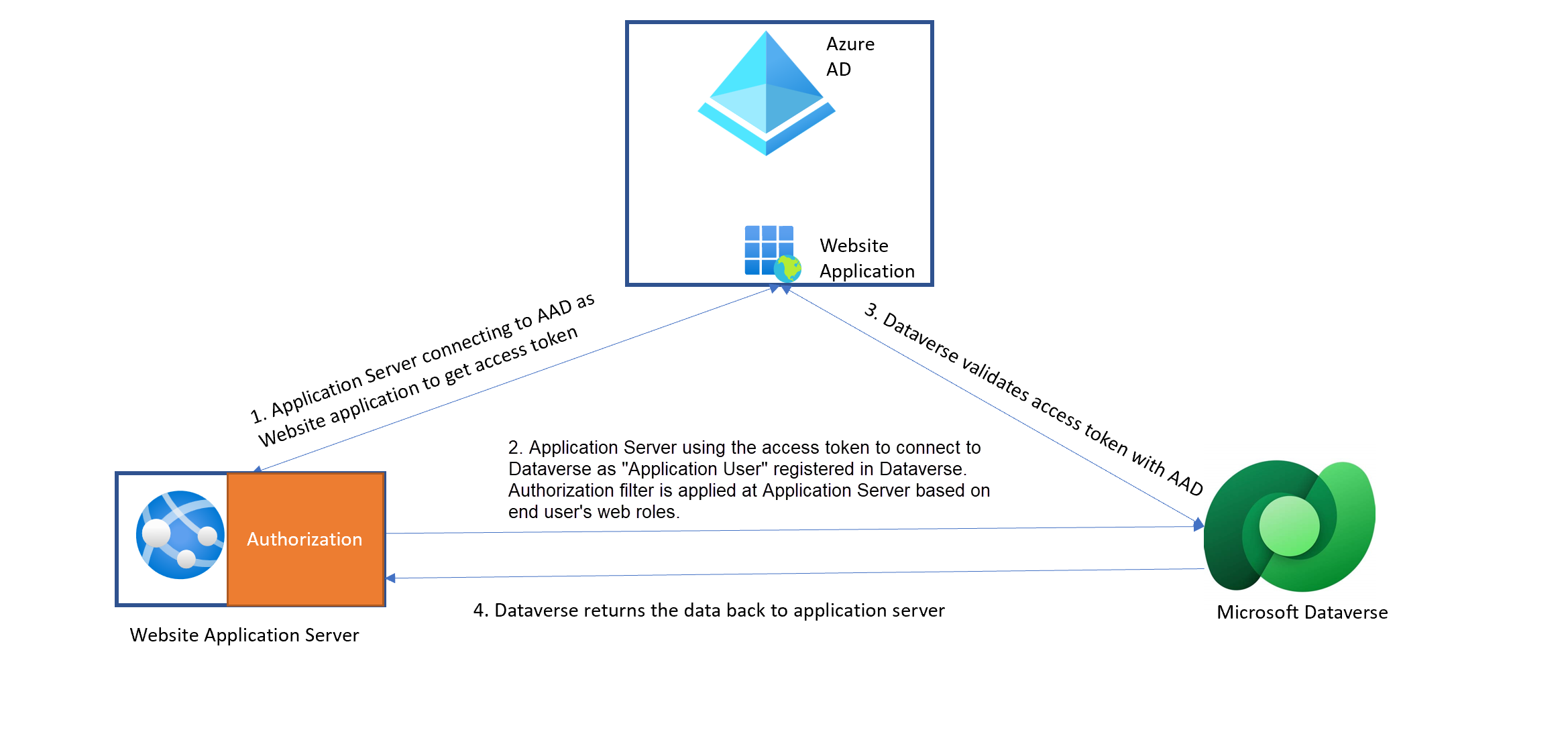
Integration with Dataverse
To establish the S2S connection, integrate the Microsoft Entra application created during site creation with the Dataverse organization.
Depending on when you created the site, you establish the connection by using the Dataverse SYSTEM user or a Dataverse application user.
For more information about the SYSTEM user, see System and application users. All the records that a website user creates, updates, or deletes appear as if the SYSTEM user in Dataverse performed these actions.
Going forward, sites use the Dataverse Application user to connect to Dataverse. You can view the application user by going to the Power Platform admin center, selecting the environment, and in the Access section, selecting the S2S apps. The application user is in the format # Portals-<<site name>>.
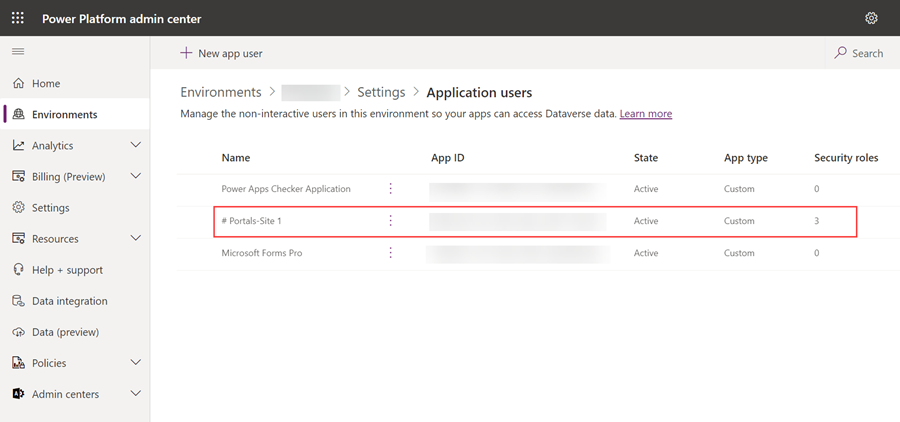
The application user is created during the creation of the website and has the following permissions:
Dataverse security roles
- Portal Application User
- Service Deleter
- Service Writer
Column Security profile
- System Administrator
Warning
Don't modify security roles and column security profiles. Modifying them can cause functional problems in your website.
Migration to application user
Migration from SYSTEM user to application user for existing websites is ongoing and continues in 2023. The Microsoft 365 message center and emails to the system admin of an organization notify customers about the specific migration window for their existing website.
To prepare for this migration, review your customizations and ensure they don't depend on the SYSTEM user.
While several types of these customizations can exist, the following types are most common:
Using the fetchxml Liquid tag in a website where a specific filter is added to filter records owned by the SYSTEM user.
- Rewrite this type of fetchxml to remove the filter by the SYSTEM user. Use proper table permissions and webroles to secure the records.
Dataverse processes such as Dataverse real-time workflows that the SYSTEM user owns. Modify the workflows to be owned by the application user.