Note
Access to this page requires authorization. You can try signing in or changing directories.
Access to this page requires authorization. You can try changing directories.
The SAP Requisition Management app is part of the SAP Procurement solution for Microsoft Power Platform. It makes several functions in SAP quicker and easier than using SAP GUI. You can search, view, and update an existing requisition, create a new requisition, and convert a requisition to a purchase order.
View requisition data
You have three options for viewing a requisition:
- Enter a known requisition number.
- Select a recent requisition that you interacted with.
- Search for a requisition based on vendor and date range.
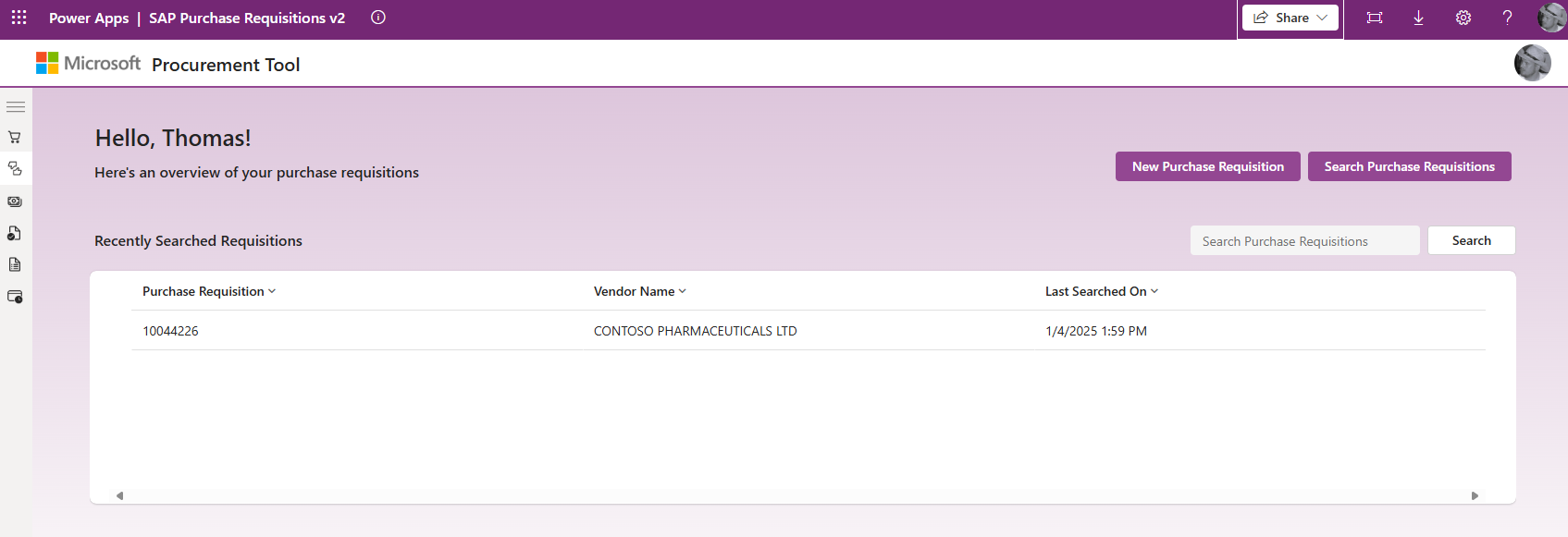
Enter a requisition number
If you know the requisition number of the document you want to view, type it in the Search Purchase Requisitions field and select Search.
Select a recent requisition
Select a recently viewed requisition from the Recently Searched Requisitions list. Select a requisition from the list to load onto your screen.
Search for requisition
If you didn't interact with the requisition and you don't know the exact number, search for a requisition.
Select Search Purchase Requisitions to open the Requisition search screen. On the screen, you can search by any individual field or a combination of Requisition Number, Vendor, and Date Range.
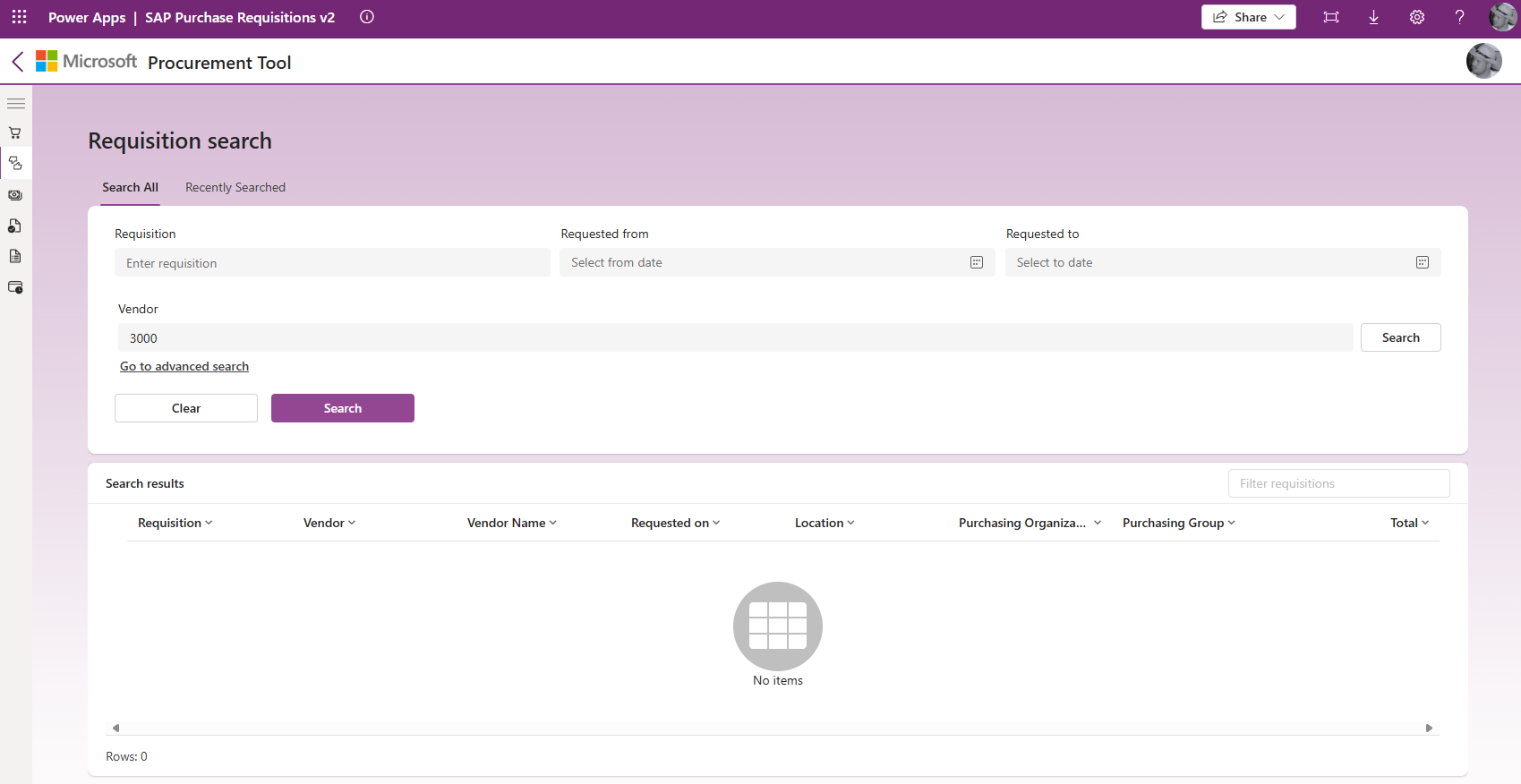
Enter your selection criteria in the fields.
Select Search and your results are displayed.
Select the requisition you want to display on the requisition overview screen.
Create a requisition
Create a new requisition:
Select New Purchase Requisition.
Enter a vendor number and select Search to see the vendor name.
Select the appropriate Purchasing Organization from the dropdown list.
Select the appropriate Purchasing Group from the dropdown list.
Select the appropriate Location from the dropdown list.
Select the appropriate Currency from the dropdown list.
Select Next.
Add line items to a requisition
Select the appropriate Location from the dropdown list.
If you know your material number, enter it and select Search to find it. Or, select Go to advanced search to find it. When you select a material, the Description and Unit fields are prepopulated.
Enter the quantity and the unit price.
View the total automatically calculated based on the quantity multiplied by the unit price.
Select Add Line Item to add this line item to the requisition.
Repeat the preceding steps until you add all line items.
Submit the requisition
After you add all line items, select Next.
On the Review Purchase Requisition page, review to make sure the information is correct, and then select Submit.
Additional functionalities
You can edit, sort, and filter requisition data.
Edit a requisition
When you load an existing requisition, you can edit it. You can also convert it to a purchase order.
Select Edit Requisition to edit a requisition. You can change values, add more line items, or delete unwanted line items. You can also copy an existing line by selecting it and then selecting Copy.
Sort requisition column headings
You can sort column headings in ascending or descending order. To sort, select Column Heading. An arrow appears to show you the sort order.
Note
The sort is done as a character string, so numbers might not be in numeric order.
Field mappings
The table provides requisition screen to function module field mappings.
BAPI_PR_CREATE mapping
| Area | Display name | Parameter | Field | Default |
|---|---|---|---|---|
| Header | Vendor | PRITEM | DES_VENDOR | |
| Header | Vendor Name | PRITEM | Not Sent | |
| Header | Purchasing Organization | PRITEM | PURCH_ORG | |
| Header | Purchasing Group | PRITEM | PUR_GROUP | |
| Line | Item | PRITEM | PREQ_ITEM | |
| Line | Location | PRITEM | PLANT | |
| Line | Material | PRITEM | MATERIAL | |
| Line | Description | PRITEM | SHORT_TEXT | |
| Line | Quantity | PRITEM | QUANTITY | |
| Line | Unit | PRITEM | UNIT | |
| Line | Unit Price | PRITEM | PREQ_PRICE | |
| Line (Default) | REL_DATE | PRITEM | REL_DATE | utcNow() Date |
| Header (Default) | Document Type | PRITEM | PR_TYPE | NB |
BAPI_PR_CHANGE mapping
| Area | Display name | Parameter | Field | Default |
|---|---|---|---|---|
| Header | Vendor | PRITEM | DES_VENDOR | |
| Header | Vendor Name | PRITEM | Not sent | |
| Header | Purchasing Organization | PRITEM | PURCH_ORG | |
| Header | Purchasing Group | PRITEM | PUR_GROUP | |
| Line | Item | PRITEM | PREQ_ITEM | |
| Line | Location | PRITEM | PLANT | |
| Line | Material | PRITEM | MATERIAL | |
| Line | Description | PRITEM | SHORT_TEXT | |
| Line | Quantity | PRITEM | QUANTITY | |
| Line | Unit | PRITEM | UNIT | |
| Line | Unit Price | PRITEM | PREQ_PRICE | |
| Line | DELETE_IND | PRITEM | DELETE_IND | CRUD = D (if row is deleted) |
| Line (Default) | REL_DATE | PRITEM | REL_DATE | utcNow() Date |
| Header (Default) | Document Type | PRHEADER | PR_TYPE | NB |