Note
Access to this page requires authorization. You can try signing in or changing directories.
Access to this page requires authorization. You can try changing directories.
This overview describes how to file a support request to contact Microsoft Genomics. This document can be helpful if you aren't able to troubleshoot your issue using the troubleshooting guide or the FAQ.
File a support ticket through the Azure portal
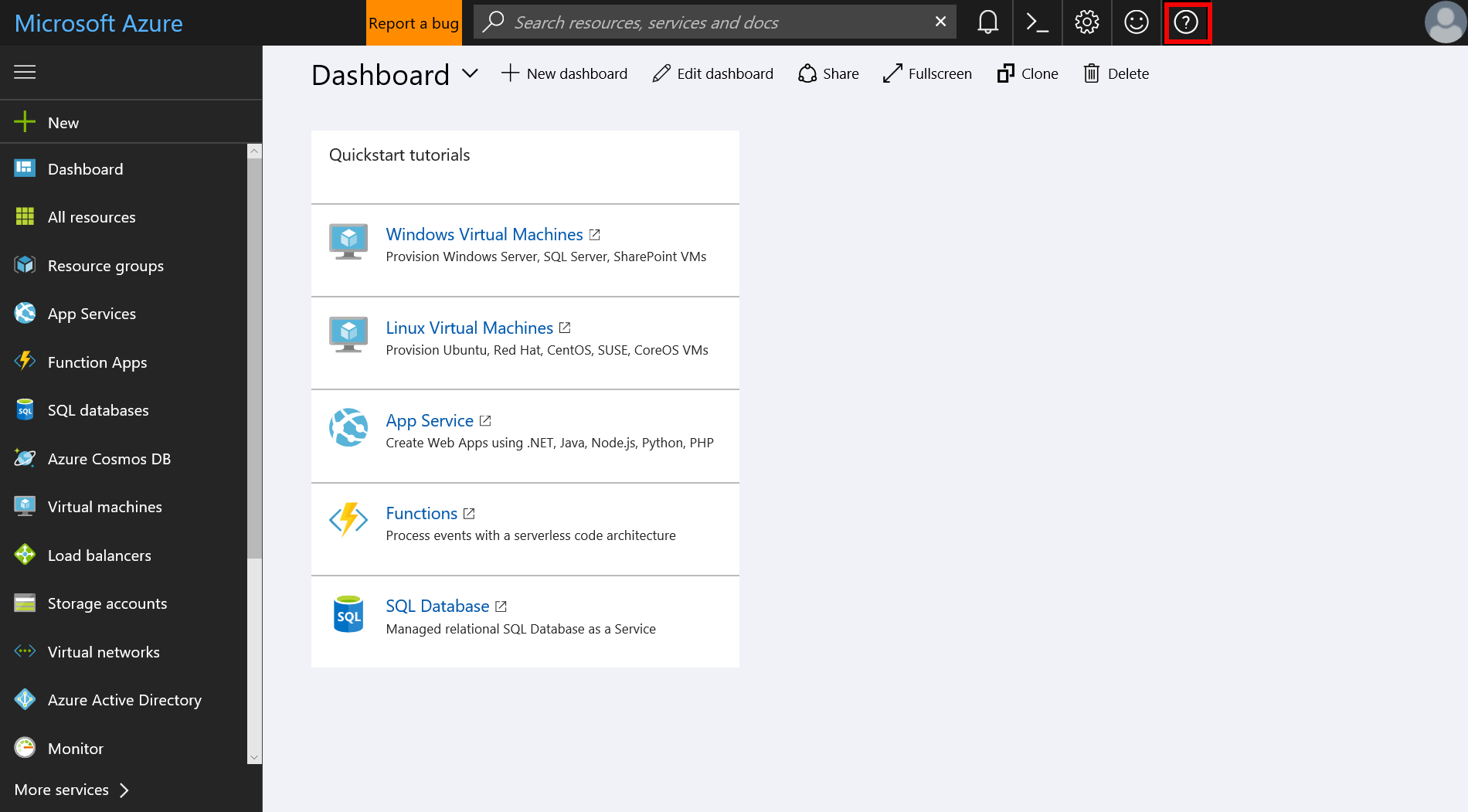
First, log in to your Azure account in the Azure portal. Click on the question mark on the top right corner and select Help + support.
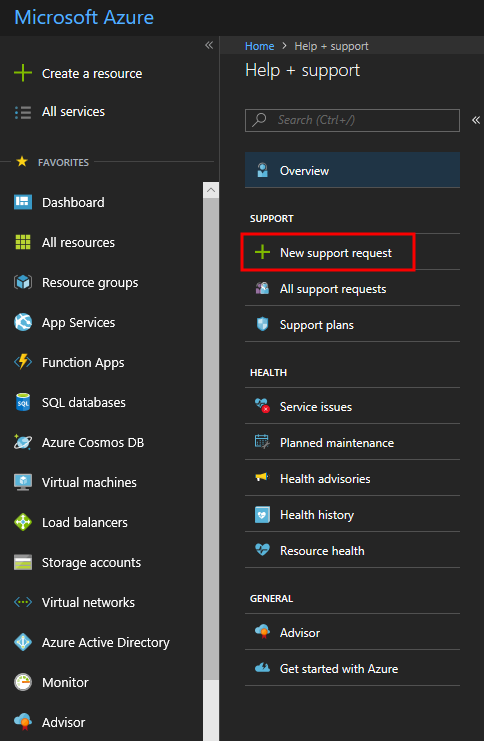
Then, select New support request.
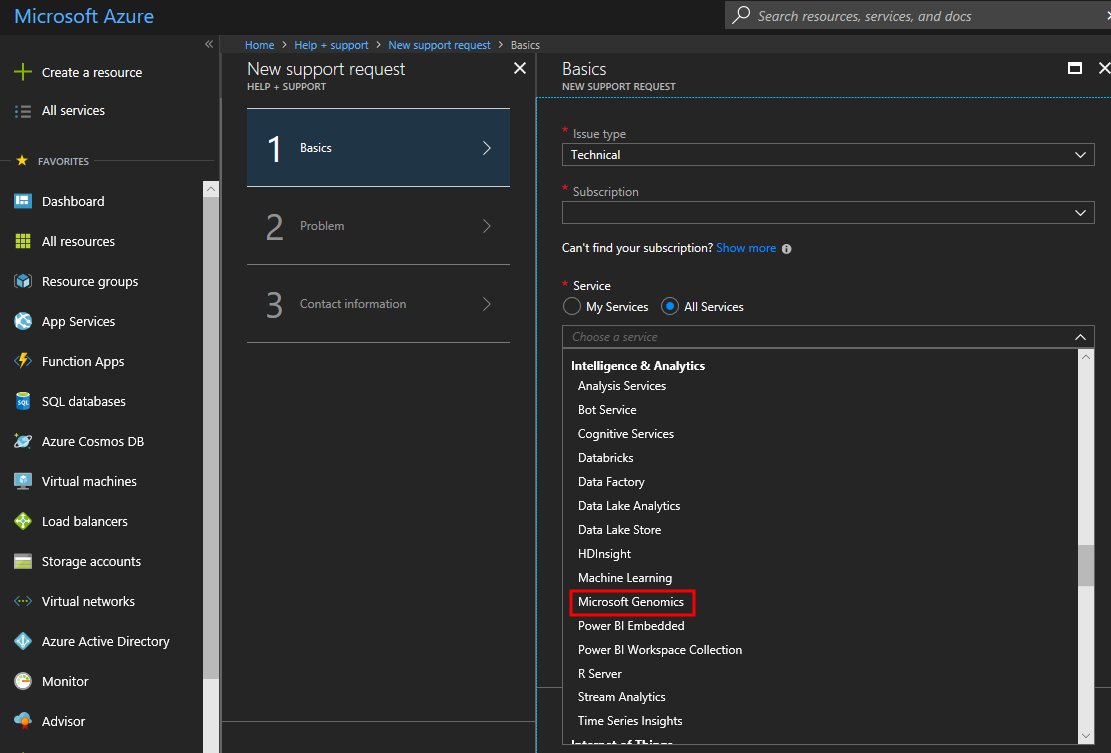
Fill out the Basics, including Issue type and your Subscription. Select the most relevant Issue type to your issue; as an example in the image, Technical has been selected. Be sure to select Microsoft Genomics as the relevant service. Microsoft Genomics is listed under the Intelligence and Analytics category. After selecting Microsoft Genomics, you'll also be asked to supply your Support plan type.
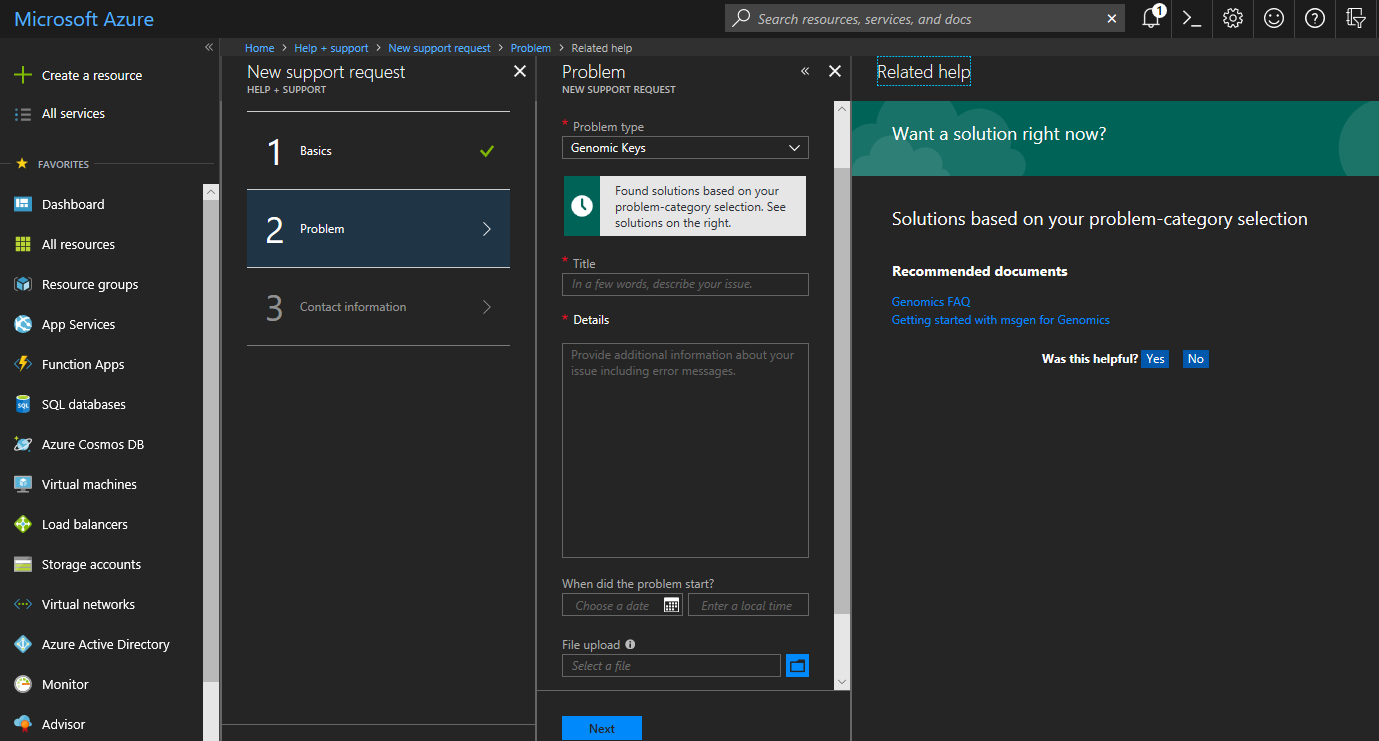
Next, add details about your issue. The request tool will also link to existing documentation that may be helpful to help you. In this example, the issue is related to Genomics keys, but several other options are also available.
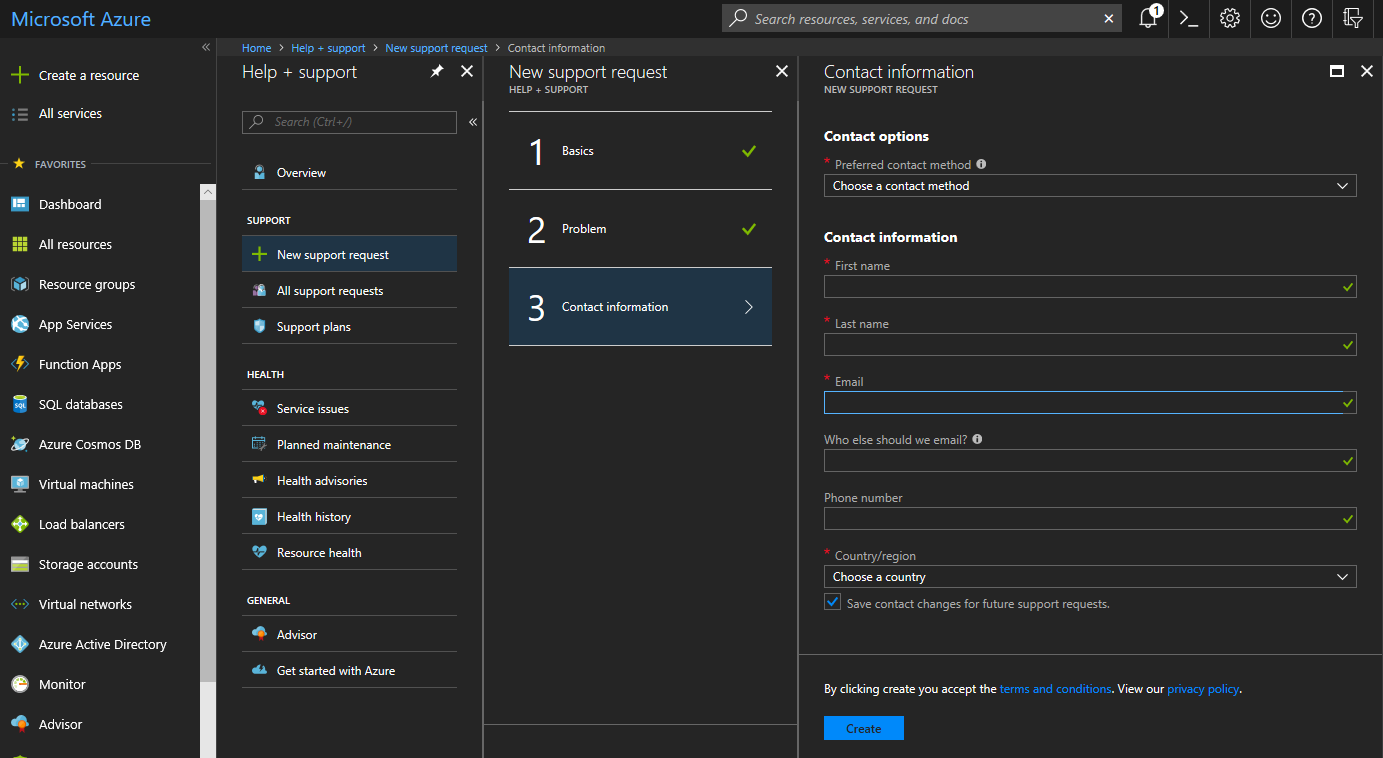
Last, add your contact information and select Create at the bottom of the screen in order to submit your support request.
Next steps
In this article, you learned how to submit a support request. You can also resolve common issues using our FAQ and our troubleshooting guide.