Introduction to Microsoft 365 Copilot
Microsoft 365 Copilot is a generative AI-powered assistant embedded directly into apps like Word, Excel, PowerPoint, Outlook, and Teams. Unlike consumer AI tools, Copilot operates inside your organization’s Microsoft 365 tenant, meaning it can only use data the signed-in user already has permission to access. Such data includes files, chats, emails, calendars, and other content connected through Microsoft Graph. By grounding responses in real organizational data, Copilot ensures its outputs are both intelligent and contextually relevant to each user.
Behind the scenes, Copilot combines three key components: Microsoft Graph for secure data connectivity, an orchestration service to manage prompts and rules, and large language models (LLMs) that generate natural language responses. These components make Copilot an incredibly powerful productivity tool while also raising important considerations for IT administrators around governance, security, and compliance. This training unit introduces the foundations of how Copilot works and the architectural elements that enable it to function within Microsoft 365.
Microsoft 365 Copilot architecture
To effectively manage Microsoft 365 Copilot, admins must first understand that it isn’t a single, standalone app but a collection of intelligent capabilities built directly into Microsoft 365 applications. These capabilities are powered by Microsoft Graph, an orchestration service, large language models (LLMs), and Work IQ—all working together to deliver context-aware assistance.
When a user submits a prompt such as “Summarize this email thread” or “Create a project plan based on last week’s meeting,” Copilot securely retrieves relevant content through Graph, enriches it with orchestration rules and Work IQ insights, and generates a response with the LLM. The accuracy and usefulness of these results depend heavily on an organization’s data governance, role-based permissions, and compliance settings. Well-structured data and clear policies not only enhance Copilot’s performance but also ensure it remains aligned with security and compliance requirements.
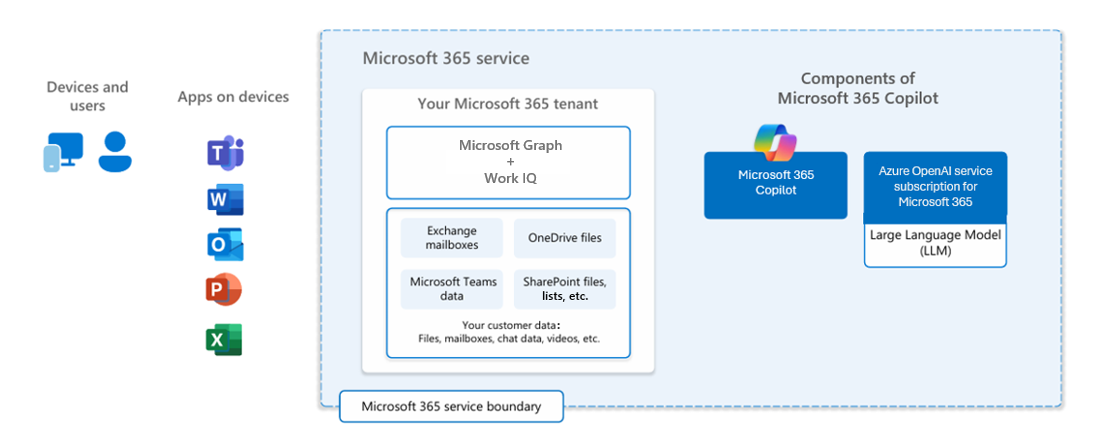
The following sections expand upon these key components of Microsoft 365 Copilot.
Microsoft Graph + Work IQ: Copilot’s intelligence foundation
Microsoft Graph is the backbone of Microsoft 365 Copilot’s intelligence. It acts as a unified data layer that connects information from across Microsoft 365 services—emails, files, meetings, chats, and more—into a single, secure framework. By linking data and user activity together, Graph allows Copilot to understand not only what information exists, but also how it relates to people, projects, and tasks.
Work IQ builds on this foundation, adding an extra layer of intelligence that helps Copilot understand how work actually happens across an organization. It enables Copilot to understand your work in context so that it doesn't just respond to one-off prompts. Rather than treating your files, emails, chats, meetings, and tasks as isolated pieces of data, Work IQ learns patterns, relationships, workflows, and preferences across everything you do. This information allows Copilot to deliver responses, suggestions, and actions that feel personalized, relevant, and aligned with how your organization actually works. Work IQ continuously analyzes your work signals (like who you collaborate with, what projects you’re on, and how information flows) and builds a “work memory” that helps Copilot give smarter insights, anticipate needs, and save you time without you having to explain context every time.
Microsoft Graph also benefits from advanced indexing that helps it understand the meaning of words and phrases rather than just keywords, ensuring more relevant results. Instead of only looking for exact word matches, Copilot recognizes related concepts. For example, it can connect a request for ‘Q2 financial progress’ with a document titled ‘Quarterly Revenue Analysis.’ This ability to match intent rather than exact phrasing makes search and responses feel more natural and useful. This contextual awareness transforms Copilot into more than a search tool; it enables meaningful, situational responses grounded in real organizational data.
Unlike traditional data access methods that rely on static queries or simple keyword matching, Microsoft Graph stands out for its dynamic adaptability. It understands how people, content, and activities are connected. For example, if a manager asks Copilot for ‘team updates,’ Graph knows who their direct reports are, checks what those individuals have been working on, and pulls together the most relevant files or conversations. This process goes beyond simple keyword matching—it’s about mapping relationships to deliver personalized, accurate insights within the user’s security and compliance boundaries.
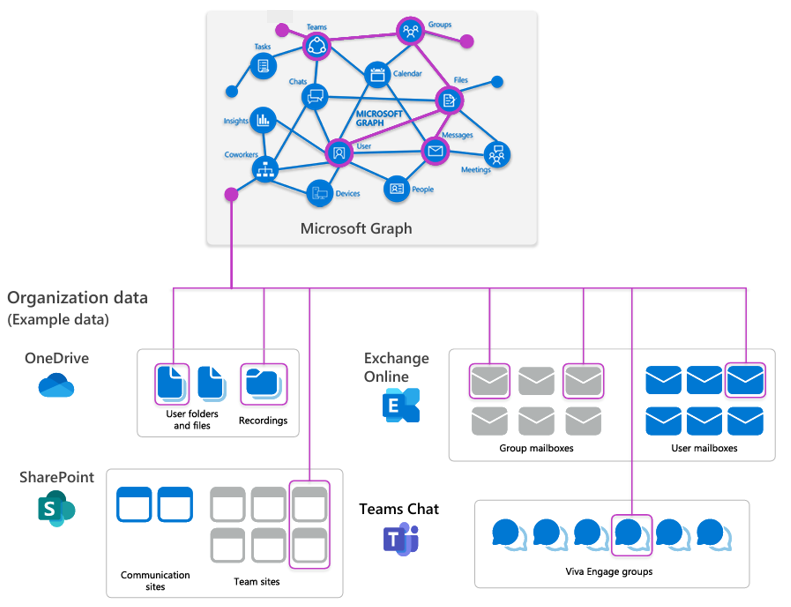
Here’s an overview of how Microsoft Graph works:
Data aggregation. Graph aggregates data across Microsoft 365 services such as Exchange Online, SharePoint, OneDrive, and Teams. By doing so, emails, calendars, documents, chat transcripts, and meeting notes are accessible through a single API layer. For example, if a user asks Copilot to draft a quarterly business review, Graph can pull emails from Exchange, financial spreadsheets from OneDrive, and status reports from Teams, giving the LLM a comprehensive dataset to work with.
Relationship mapping. Beyond simply storing data, Graph models the relationships between people, files, and activities. For example, Graph doesn’t just know that a document exists. It can also show that Alice and Bob coauthored it, that it was discussed in a Teams channel, and that it was linked to a calendar invite for a project review. This mapping enables Copilot to answer nuanced questions like, “Who contributed to the latest sales proposal and what feedback did leadership provide?”
Dynamic context. Graph provides live, dynamic context by filtering information based on what the user is currently doing and what they have permission to access. For example, when a manager types “Show me updates from my team,” Graph knows who their direct reports are and can surface recent emails, documents, or chats that are most relevant. Doing so prevents Copilot from generating generic responses and instead tailors output to the user’s immediate needs. Work IQ complements this functionality by continuously learning from these dynamic signals to anticipate what information or assistance might be most helpful next. Work IQ enables Copilot to go beyond reactive responses and deliver proactive, personalized insights aligned with each user’s working style and role.
Security and compliance. Microsoft Graph is designed with enterprise-grade security in mind. It enforces role-based access control, sensitivity labels, encryption, and conditional access policies. If a user doesn’t have permission to see a sensitive payroll file, Copilot can’t retrieve or expose that data. For example, if a finance intern asks for “all compensation data,” Copilot only provides information they’re authorized to access, respecting both security and compliance boundaries.
Large Language Models (LLMs)
Large language models (LLMs) are the reasoning engine behind Copilot. While Microsoft Graph provides the data and context, the LLM interprets prompts and generates natural, human-like responses. These models, which are hosted in Microsoft’s Azure OpenAI Service, are fine-tuned for enterprise use cases, ensuring they can handle tasks like drafting proposals, summarizing reports, or analyzing spreadsheets with accuracy and professionalism.
What makes Copilot’s LLMs unique is how they work with organizational safeguards. Prompts are “grounded” with data from Graph and filtered through system rules before reaching the LLM, ensuring outputs are context-aware and compliant. Because the models run in a tenant-isolated environment, sensitive data never leaks into public training sets. The result is a powerful balance of advanced AI reasoning with enterprise-grade security and trust.
Here’s an overview of how Microsoft 365 Copilot uses LLMs:
Grounded prompting. When a user submits a request, Copilot enriches it before sending it to the LLM. For example, if a user types “Draft a project proposal,” Copilot pulls relevant emails, documents, and meeting notes from Graph and adds system instructions such as “Format the output as a professional business document.” This process ensures the LLM has the context it needs to produce a meaningful result rather than a generic proposal.
Output generation. Once the grounded prompt is built, the LLM generates a response that balances user intent with enterprise guardrails. For instance, if the request is “Summarize the Q3 financials,” the LLM produces a concise report that highlights trends and variances without inventing data. The orchestration layer then ensures the response is formatted correctly for the application, whether it’s a Word document, Excel table, or PowerPoint slide.
LLMs include the following key features:
Isolation and security. LLMs in Copilot operate in an isolated environment that protects organizational data. None of the information fed into Copilot is used to retrain the public version of GPT (Generative Pretrained Transformer) models. The LLMs in Copilot are advanced AI models that are trained on vast amounts of publicly available data to understand and generate human-like language. While Copilot uses GPT to assist users, the data it processes remains private and isn't used to improve or update the public model. For example, if a law firm uses Copilot to summarize confidential case notes, that sensitive data remains within the tenant and doesn’t influence the broader model. This process ensures both compliance and peace of mind for organizations.
Fine-tuning for business. Although the LLMs' base language model is designed to handle a wide range of general topics, Microsoft customizes it for business use by adding enterprise-specific tuning and safety layers. These enhancements help the model understand organizational context—like roles, tools, and workflows. They also ensure the LLMs' responses align with company policies, privacy standards, and compliance requirements. As such, the LLMs are optimized for structured business tasks such as writing meeting recaps, analyzing spreadsheets, or drafting contracts. For example, in Excel, Copilot can explain what a complex formula does and suggest ways to simplify it—something a generic consumer LLM would struggle to handle reliably.
In addition, Work IQ enhances this tuning by supplying the LLM with richer organizational awareness—how people collaborate, what projects are active, and which content is most relevant. This synergy helps Copilot produce responses that not only sound natural but also reflect the way work truly gets done within the organization.
Scalability. Azure-hosted LLMs are designed to perform consistently even when used across large organizations. Whether 10 people or 10,000 people are issuing prompts simultaneously, the system is built to handle the load without sacrificing speed or accuracy. For example, during a company-wide quarterly review cycle, multiple departments might use Copilot to analyze reports at once, and the LLM infrastructure ensures responses remain fast and reliable.
Microsoft 365 apps
Copilot is embedded directly into Microsoft 365 apps like Word, Excel, PowerPoint, Outlook, and Teams. Instead of learning a new platform, users interact with Copilot through the tools they already know, allowing it to generate content, analyze data, or summarize communications seamlessly within each app. This native integration makes Copilot an intuitive, everyday assistant rather than an add-on.
Another key strength is cross-app orchestration. Copilot can bridge content across different applications, such as pulling numbers from Excel into a PowerPoint deck or summarizing a Word report for use in Teams. This flexibility reduces time-consuming manual work and ensures consistency across documents, presentations, and conversations.
Here’s an overview of how Microsoft 365 Copilot works within Microsoft 365 apps:
Native UI integration. Each Microsoft 365 app presents Copilot within the natural flow of its user interface. For example, in Word, Copilot might appear as a drafting and summarization pane, letting users generate new sections of text or condense lengthy passages. In Excel, Copilot can suggest formulas, run “what-if” analyses, or create charts with plain-language commands like “Show me a trend line of sales over the past five years.” In PowerPoint, Copilot can transform a written outline into a slide deck with visuals, while in Outlook, it can summarize long email threads or propose polished responses. In Teams, it can provide post-meeting summaries with action items highlighted for quick follow-up.
Cross-app orchestration. Copilot can draw from multiple apps at once, enabling complex workflows that normally require manual effort. For example, a user could tell Copilot in PowerPoint, “Build a presentation from last week’s Word report and the SharePoint project updates.” Copilot then pulls structured data, narrative text, and visual elements together into a cohesive deck. This orchestration saves time and ensures consistency across outputs.
User control and feedback. Microsoft 365 Copilot gives users the ability to refine and control results. If the first draft doesn’t meet expectations, users can iterate by rephrasing or adding to their prompts until the output matches their intent. Copilot also allows users to delete stored interaction history, ensuring they maintain control over their data. Additionally, feedback tools are built in so users can flag inaccurate or unhelpful responses, which helps improve Copilot’s performance over time.
Copilot orchestration service
The orchestration service is the engine room of Copilot. It manages how user prompts, Microsoft Graph data, and the LLM interact to produce secure, relevant results. In effect, it acts as a type of traffic controller, ensuring that each request is processed efficiently and in compliance with enterprise rules.
When a user submits a prompt, the orchestration service evaluates it, enriches it with contextual data, and creates a grounded version for the LLM to process. After the response is generated, the service formats it for the target app and applies compliance checks. This process ensures that every Copilot output is accurate, well-structured, and aligned with organizational policies.
Here’s an overview of how the Copilot orchestration service works:
Prompt intake. The orchestration service begins by capturing the user’s request. Prompts can range from a simple command like “Summarize this email” to a more complex one such as “Generate a project plan based on last week’s meeting and budget spreadsheet.” The service classifies the request and prepares it for evaluation.
Evaluation. The orchestrator determines which data sources and plugins are needed to fulfill the request. For example, if the prompt involves financial information, it might query Excel data through Graph and exclude irrelevant Teams conversations. This step prevents unnecessary processing and ensures efficiency.
Enrichment. The orchestrator enriches the request with more context. It might pull meeting notes from Teams, related documents from SharePoint, and formatting rules from organizational policies. It then combines this information, creating a precise prompt for the LLM that avoids vague or misleading outputs.
Execution. The grounded prompt is sent to the large language model, which generates the natural language output. For instance, if the user requested “Draft a quarterly performance summary,” the LLM produces a structured narrative that incorporates the aggregated data.
Formatting. Finally, the orchestration service formats the response for delivery in the app. In Word, it might appear as a multi-page draft document; in PowerPoint, it could be slides with text and visuals. At this stage, compliance checks ensure that the output respects sensitivity labels, data loss prevention (DLP) rules, and governance policies before being surfaced to the user.
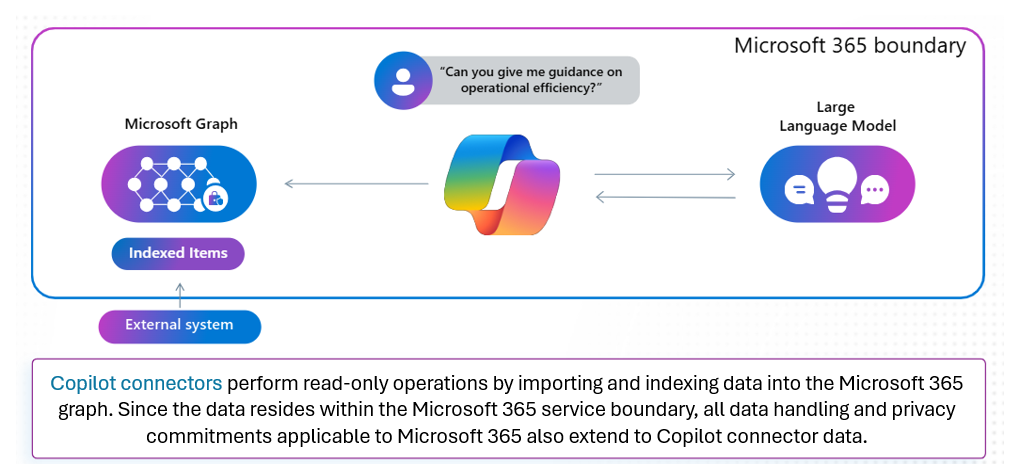
Beyond core Microsoft 365 data, the orchestration service supports plugins and connectors to external systems like CRM, ERP, or HR platforms. This feature allows organizations to extend Copilot’s reach to line-of-business applications. For example, a Sales team could integrate Copilot with a CRM to automatically generate a sales forecast presentation. Admins can control which connectors are enabled, ensuring governance policies are always maintained.
Key capabilities and use cases
Copilot is designed to address common productivity needs across Microsoft 365 by applying its AI capabilities to real-world tasks. These capabilities span content creation, data analysis, collaboration, and information discovery. Because Copilot can automate or enhance routine tasks, it helps users save time and focus on higher-value work.
Content Generation. Copilot excels at generating content across Microsoft 365 apps. In Word, it can draft documents based on meeting notes or emails. In PowerPoint, it can create slides from a Word file or summarize a report. This capability is powered by its ability to understand context and structure, making it ideal for users who need to produce high-quality content quickly.
Data analysis. In Excel, Copilot can analyze datasets, suggest formulas, and generate visualizations. It understands the relationships between data points and can provide insights such as trends, anomalies, or forecasts. This feature makes it a powerful tool for business analysts and decision-makers who must interpret data efficiently.
Meeting summaries. Copilot in Teams can summarize meetings, extract action items, and highlight key decisions. It uses transcript data and chat history to generate concise summaries that help users stay informed and aligned. This feature is particularly useful for distributed teams and asynchronous collaboration.
Universal search. Copilot Search allows users to search across emails, documents, chats, and more using natural language. It uses orchestration to understand the meaning behind queries, not just keywords. This feature enables users to find relevant information even if they don’t know the exact file name or location.
Introduction to the Copilot prompt lifecycle
Every Copilot interaction follows a lifecycle designed to produce secure and relevant responses. The process begins with the user’s prompt, which is then enriched with data from Microsoft Graph and enhanced indexing before being sent to the large language model. Doing so ensures the LLM has the necessary context to deliver useful results.
The lifecycle also embeds enterprise-grade safeguards. Data is encrypted in transit, outputs are filtered through compliance checks, and only information the user is authorized to access is included. By following this structured process, Copilot maintains trust while still providing high-quality assistance.
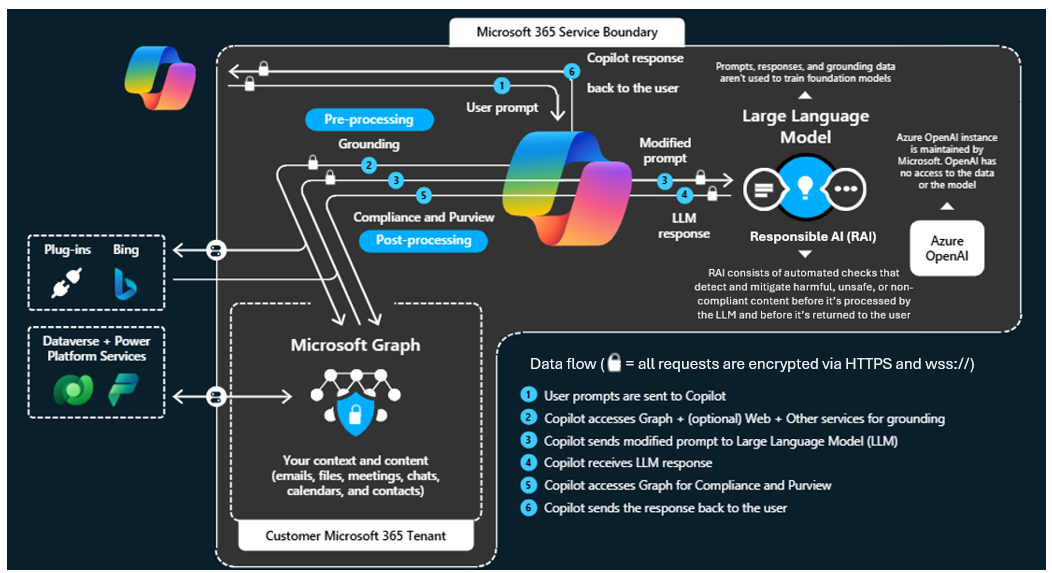
The lifecycle of a Copilot prompt involves the following stages, each designed to ensure relevance, security, and performance:
User prompt. It begins when a user enters a prompt in a Microsoft 365 app. This initial prompt could be a request to summarize a document, analyze a dataset, or draft an email.
Grounding. Copilot enriches the prompt with contextual data pulled from both Microsoft Graph and advanced indexing. Indexing helps Copilot understand the meaning of words and not just keywords, ensuring more relevant results. Grounded data might include meeting transcripts, related documents, or recent emails. For instance, if the request is “Summarize last week’s meeting,” grounding ensures the LLM knows which meeting, who attended, and what topics were covered. This step prevents vague answers and aligns the response with organizational reality.
During this grounding process, Work IQ plays a key role by interpreting work patterns and context signals from across Microsoft 365. It helps Copilot understand not just what data is relevant, but why it matters—resulting in responses that align with the user’s ongoing projects, collaborations, and goals.
Response generation. The grounded prompt is then sent to the LLM, which processes it and generates a natural language response. The orchestration service ensures the response is polished and ready to be presented within the relevant app. This response is returned to the app and displayed to the user.
Important
Throughout this process, data is encrypted in transit, and only information the user is authorized to access is used. Copilot doesn’t store or use data for training the LLM.