Compare Microsoft 365 Copilot and agents
Microsoft 365 Copilot and agents are two powerful AI-driven tools designed to enhance productivity, automate tasks, and support decision-making across the Microsoft 365 ecosystem. While they share common goals, they differ significantly in how they operate, the scope of their capabilities, and how users interact with them. Understanding these differences is essential for IT professionals and administrators who want to deploy these tools effectively within their organizations.
At a high level, think of the relationship between Copilot and agents like this:
Microsoft 365 Copilot. Copilot is a generative AI assistant embedded across Microsoft 365 apps like Word, Excel, Outlook, and Teams. It helps users by generating content, summarizing information, drafting communications, and analyzing data—all based on natural language prompts. Copilot is context-aware, meaning it can pull from the user’s current document, email thread, or meeting notes to provide relevant suggestions. It's also reactive and assistive and responds to user input in real time.
Agents. Agents are intelligent software entities that can be customized to perform specific tasks or workflows. They can be prebuilt by Microsoft, created by developers using Copilot Studio, or built by everyday business users with no programming experience using simplified tools in SharePoint or Copilot Chat. Unlike Copilot, which is embedded and general-purpose, agents can be tailored to specific business needs, grounded in particular datasets, and even act autonomously on behalf of users.
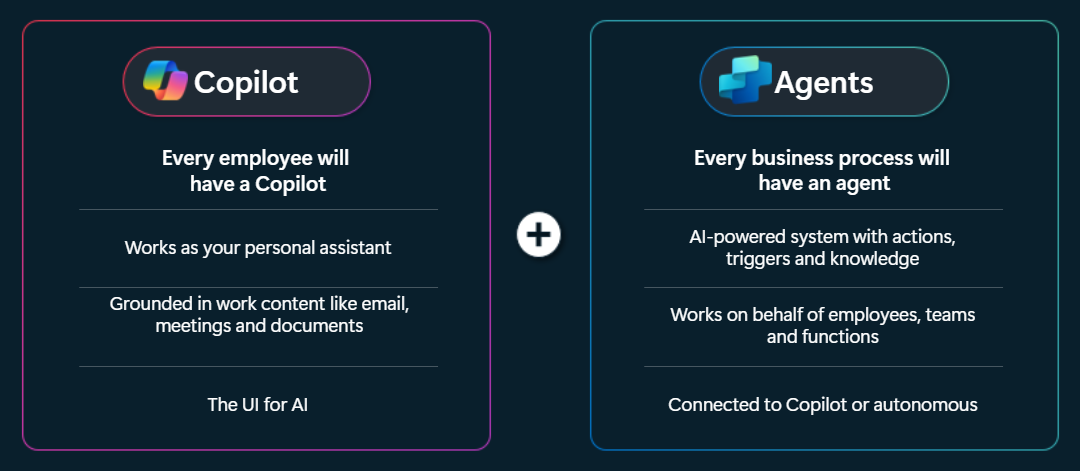
This training unit explores how Copilot and agents compare in terms of capabilities and benefits, and their roles in productivity and automation.
Compare core capabilities and key benefits
To make informed decisions about deploying Microsoft 365 Copilot and agents, it’s important to understand both their core capabilities and the benefits they offer. While both utilize artificial intelligence, they’re built for different use cases and user experiences. Copilot is built to work alongside users, offering help directly within apps. Agents, on the other hand, are designed to be flexible building blocks that can be customized for specific tasks and workflows.
Understanding these distinctions can help IT professionals determine when to use Copilot versus when to deploy agents. For example, Copilot might be ideal for helping users write better emails or summarize documents, while agents might be better suited for automating a multi-step business process or providing specialized support in a SharePoint site.
Before designing solutions, you should evaluate Copilot and agents against the following criteria:
- How users interact with the tool.
- What data and permissions the tool requires.
- How it takes actions.
- How you can customize it.
- How you monitor and control it in production.
These criteria are used in the following sections to create a point-by-point comparison. These factors are critical for ensuring secure, efficient, and scalable deployment across an organization.
How users interact
Copilot. Copilot is designed for direct, real-time interaction with users. It lives inside Microsoft 365 apps like Word, Excel, Outlook, and Teams, where users can type questions or requests and get instant responses. The experience is conversational: users ask for help, Copilot responds with suggestions or summaries, and users can refine or act on those results. This design makes Copilot ideal for tasks like writing emails, summarizing meetings, or analyzing documents. It’s fast, intuitive, and works within the context of the app the user is already using.
Agents. Agents are built to run automatically, either on a schedule or when something specific happens, such as receiving a new email or reaching a deadline. They don’t require constant user input and can work behind the scenes to complete tasks. Agents are created in Copilot Studio and can include steps for human review if needed. They’re great for automating multi-step processes, like updating records or sending reports, and they often include dashboards or logs so users can track what’s happening.
How they work behind the scenes
Copilot. Copilot uses Microsoft’s AI models along with data from Microsoft 365 and the Microsoft Graph to generate helpful responses. When a user makes a request, Copilot pulls in relevant context—like the document they’re working on or their calendar—and sends it to Microsoft’s AI services to process. The result is returned directly in the app. Admins don’t need to build anything; they just manage access and settings. Copilot is tightly integrated with Microsoft’s systems, which makes it easy to use but less customizable.
Agents. Agents are more like mini applications that you build and manage. In Copilot Studio, you define what the agent should do, what data it should use, and how it should respond to different triggers. Agents can connect to Microsoft services like SharePoint or Dynamics, and even to external systems. Advanced agents can perform multiple steps, call APIs, and handle complex workflows. Because they’re customizable, agents require more setup and testing, but they offer great flexibility for solving business problems.
Data access and permissions
Copilot. Copilot only uses data that the individual user has permission to access. It works within the user’s Microsoft 365 account and respects all existing security settings. For example, if a user asks Copilot to summarize emails, it only looks at messages that person is allowed to read. This design makes Copilot safe and secure for everyday use, since it doesn’t overstep data boundaries.
Agents. Agents often need access to broader data across teams or systems. Instead of using a single user’s permissions, they’re set up with service accounts or managed identities that define what they can access. This design means agents can work on behalf of a department or organization, but it also means admins must be careful about what permissions they grant. It’s important to follow best practices like limiting access, rotating credentials, and monitoring activity to keep agents secure.
Customization and management
Copilot. Copilot can be customized at the organization level. Admins can adjust how it behaves, what data it uses, and which features are available to different groups. Microsoft provides tuning tools that allow organizations to influence how Copilot responds to specific types of requests. These Copilot Tuning tools in Microsoft 365 go further by enabling organizations to fine-tune AI models using their own data. Doing so empowers the creation of task-specific agents that reflect internal terminology, tone, and workflows, all within a secure, low-code environment. These settings help ensure Copilot fits the company’s style and needs, but the customization is mostly about configuration, not building new features.
Agents. Agents are fully customizable and follow a lifecycle similar to software development. You design them in Copilot Studio, test them in a safe environment, and then deploy them to production. You can update them, roll back changes, and monitor their performance. Because agents can take actions, such as updating records or sending messages, it’s important to treat them like code. In other words, use version control, test thoroughly, and follow change management processes.
Security and compliance
Copilot. Copilot is built with Microsoft’s security protections and follows user-level permissions. It only shows data the user is allowed to see and includes features like audit logs and data retention settings. Organizations can use these tools to track Copilot activity and ensure it fits within their compliance policies. For example, admins can review Copilot chat transcripts or set rules for how long data is kept.
Agents. Agents require more attention when it comes to security. Because they often use service accounts and access large datasets, it’s important to secure their credentials and limit what they can do. You should set up approval steps for sensitive actions, restrict network access, and monitor for unusual behavior. Copilot Studio and Microsoft 365 admin tools provide ways to manage agents, review their permissions, and ensure they’re operating safely.
Explore how Copilot and agents support productivity and automation
Microsoft 365 Copilot and Copilot agents both exist to reduce friction in everyday work, but they do so in different ways. Copilot is embedded directly inside familiar apps like Word, Excel, Outlook, and Teams, where it helps people produce content faster, analyze data, and turn unstructured information into actionable outputs. Because Copilot works in the user’s context and stays within their permissions, it supports productivity by cutting down on manual effort while still keeping the person in control of the result.
Agents, on the other hand, are designed for repeatable or multi-step processes that benefit from automation. Rather than waiting for a user to type a prompt, an agent can be triggered by an event, a schedule, or a system change. Because agents can connect across applications and external services, they’re effective for handling workflows like invoice processing, system monitoring, or lead enrichment that would otherwise require repetitive human effort.
The importance of both lies in balance: Copilot boosts individual productivity by speeding up creative or analytical work, while agents drive organizational efficiency by automating structured tasks at scale. Together they provide IT pros and admins with flexible options. For example, IT pros and admins can decide whether a task is best handled interactively by Copilot assisting a user in real time or automatically by an agent that runs in the background.
Knowledge work acceleration (summaries, drafting, data insight)
How Copilot helps. Copilot excels at short-cycle, user-driven tasks, such as drafting content, summarizing meetings, extracting action items, converting free-form notes into structured lists, and generating starter code or formulas. Because Copilot runs in the user’s session and respects Graph permissions, it’s ideal when the user should own the final decision and contextual judgment.
Example implementation. Enable Copilot in Teams and Outlook; enforce training for users on prompt best practices; capture Copilot Chat transcripts to a secure audit log for compliance review. For Excel analysis use-cases, pair Copilot suggestions with “show me the formula” behavior so users can inspect and accept changes.When to use an agent. Agents excel at performing repeatable, rule-based tasks. Agents can run on a schedule and notify humans for review, reducing manual copy/paste work.
Example. An agent that nightly aggregates all Teams meeting transcripts and builds a prioritized backlog sorted by unresolved action items and stakeholders. It then creates Planner tasks through Microsoft Graph and posts a digest to a manager’s Teams channel.
Repeatable process automation (invoicing, approvals, onboarding)
Copilot hybrid usage. You might pair Copilot with an agent by letting Copilot handle the interactive exception review. When an agent raises an approval task, Copilot can present the reviewer with a succinct summary and suggested decision rationale based on the same context the agent used, significantly speeding up the human step.
When agents are the right fit. Agents are designed to encapsulate multi-step processes and integrate with enterprise systems. For example, Accounts Payable processing requires parsing unstructured invoices, cross-checking purchase orders, writing entries into an Enterprise Resource Planning (ERP) system, and triggering approvals for exceptions. Use service principals with least-privilege Graph or custom API scopes for the connectors.
IT operations and monitoring triage
- Use case. Agents can monitor alerts (for example, Azure Monitor or non-Microsoft monitoring webhook), correlate incidents using knowledge sources and runbooks, and either resolve trivial issues automatically or create a well-scoped incident for human engineers. Doing so reduces noisy pages and improves mean time to repair for common, automatable failures.
Example. An agent consumes a PagerDuty webhook for failed backup and runs a diagnostic playbook (check disk space through agent actions or API). If it finds a known safe remediation (clear temp folder), it performs it and logs the action; otherwise it creates an incident with prepopulated diagnostic information.
Best practices for managing governance, identity, and runbooks
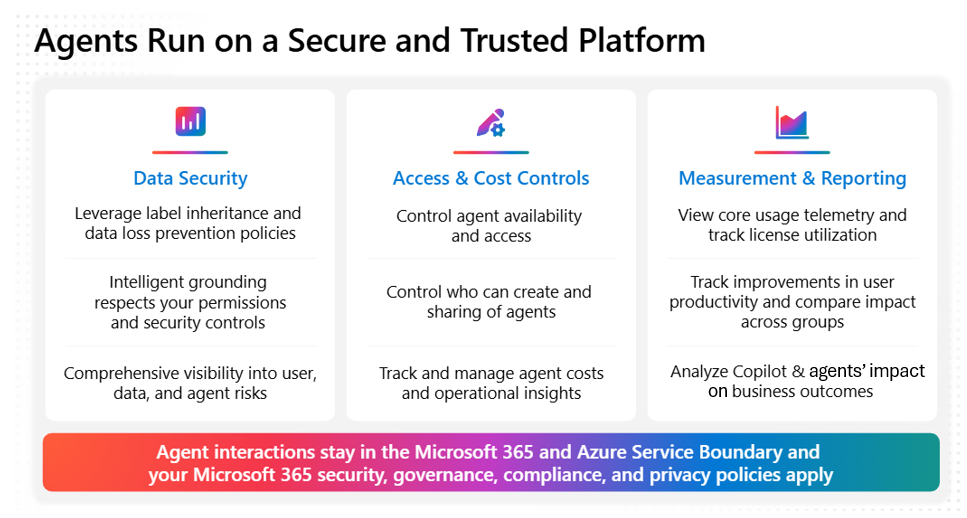
As organizations start using Microsoft 365 Copilot and custom agents to automate tasks and boost productivity, it’s important for administrators to set up strong guardrails. These best practices help ensure everything runs securely, reliably, and in line with company policies. From managing access and testing safely, to tracking what agents do, these tips can help IT pros stay in control and reduce risk.
Keep access limited and secure. When setting up agents that run without user input, use managed identities or service accounts that only have access to what’s necessary. Avoid giving broad, tenant-wide permissions unless there’s a clear need. Store credentials securely (like in Azure Key Vault), rotate them regularly, and keep track of which users have permission to create or update agents. Use pull requests or reviews to approve changes.
Test safely before going live. Build and test agents in a separate environment, such as a sandbox or nonproduction tenant, and use fake or synthetic data. Before allowing agents to make real changes, run them in “dry-run” or “simulation” mode to preview their behavior. For Copilot, test both prompt templates and tuning settings with a small group first to make sure everything works as expected and avoids surprises.
Monitor activity and set up alerts. Send agent activity, such as errors, actions, and run history, to a central logging system such as Azure Monitor, Log Analytics, or your organization’s Security Information and Event Management (SIEM) system. Set up alerts for unusual behavior, like a sudden spike in errors or failed actions. Make sure Copilot chat transcripts and agent logs are stored in a way that supports your company’s eDiscovery and retention policies.
Operational limitations and common failure modes
Despite their powerful capabilities, Microsoft 365 Copilot and agents come with operational caveats that admins must proactively address. This section highlights common failure modes such as incorrect outputs, fragile UI automations, and credential sprawl—issues that can compromise system integrity or introduce security risks. Admins who understand these limitations and apply mitigation strategies like verification steps, API-first designs, and scoped permissions can build more resilient and trustworthy automation workflows.
Incorrect outputs and hallucinations. Both Copilot and agents can sometimes generate inaccurate or misleading results. If an agent is set up to take action, such as updating a system or sending data, make sure to include safety checks. For example, include human approval steps or automated verification. For complex or high-volume tasks, use test environments to simulate edge cases and catch potential issues early.
Fragile UI automation. Agents that interact with software by mimicking user selections or keystrokes (UI automation) can break easily when the app’s interface changes. Whenever possible, use API-based connections instead as they’re more stable and reliable. If UI automation is necessary, protect it with smart selectors, health checks, and fallback strategies. Microsoft provides guidance on these techniques, but they require extra care in real-world deployments.
Over-permissioned credentials. While agents often use service accounts or connectors to access systems, giving them too many permissions can create security risks. Limit what each agent can do by scoping its access narrowly and set expiration dates for credentials. Always require approval before granting new permissions to an agent.