Plan and deploy Microsoft 365 Copilot and agents
Microsoft 365 Copilot represents a significant shift in how organizations utilize AI in daily work. Unlike standalone AI tools, Copilot is tightly integrated into Microsoft 365 applications and the Microsoft Graph, which means it operates directly within the context of documents, emails, chats, and workflows.
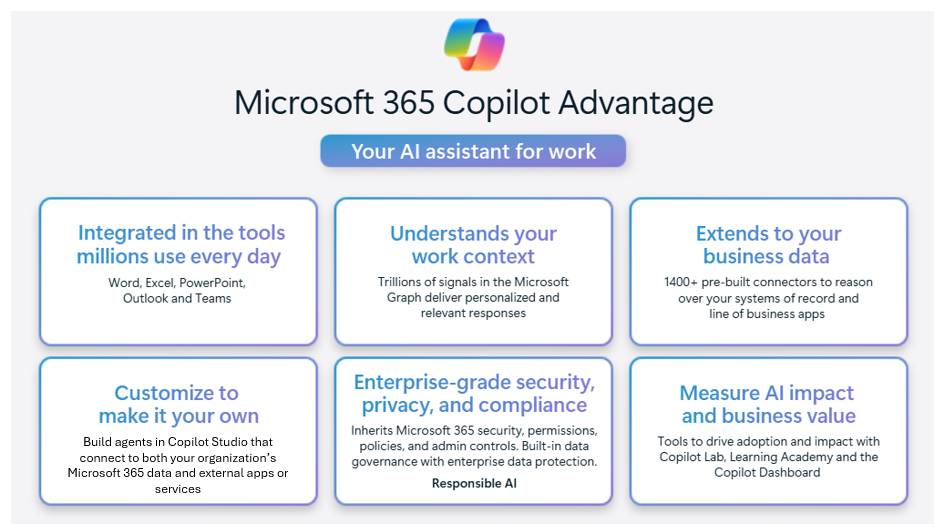
This integration brings tremendous power but also introduces the need for thoughtful planning and governance. Admins must balance user productivity with organizational security and compliance, ensuring that features are enabled in ways that align with business needs and risk tolerance.
At the same time, Copilot capabilities aren’t delivered as a single “all-or-nothing” service. Instead, organizations can enable or disable specific features across different apps and use cases. For example, some organizations might want to allow document summarization in Word but restrict access to meeting recap generation in Teams until appropriate privacy controls are in place. This modular approach requires admins to understand the available features, evaluate their implications, and make informed decisions about rollout sequencing.
Finally, with the introduction of agents—customized, task-focused AI assistants—administrators face new responsibilities. Agents can range from simple task automations to complex, developer-extended solutions that integrate with non-Microsoft systems. Deciding which agents to build or allow, how they're governed, and who has permission to create or manage them requires careful consideration. This unit explores these decisions in detail, providing a roadmap for planning, configuring, and governing Copilot and agents within Microsoft 365.
Copilot features that can be enabled or disabled
One of the most important responsibilities for administrators is understanding which Copilot features can be controlled and how those controls work. Microsoft 365 Copilot doesn’t operate as a single on/off switch. Instead, controls exist at two levels:
Tenant-wide controls (global enable/disable). At this level, an organization can enable or disable entire categories of Copilot functionality across all apps. For example, some companies temporarily disable Copilot across the tenant during the planning phase to prevent early adoption before data governance rules are in place. Tenant-wide controls are simple and fast, but lack flexibility when different departments have different readiness levels.
Granular controls (per app, per feature, or per group). More commonly, organizations want finer control. Granular settings allow Copilot features to be turned on or off in specific apps, or only for designated users or groups. For example, Finance might be allowed to use Copilot in Excel to generate formulas, while Legal keeps Copilot disabled in Word until they have compliance guidance. This approach supports phased rollouts, pilots, and department-specific adoption.
The following list provides examples of features that can be controlled:
Document summarization and content generation. In Word, PowerPoint, and Excel, Copilot can draft or summarize content. Admins can choose whether to enable these features for all users or restrict them to certain teams. For example, an organization might roll out drafting features broadly but keep summarization limited until employees are trained on handling sensitive information.
Meeting recaps and transcripts. Copilot in Teams can generate meeting recaps, but recaps depend on whether meeting transcription is allowed. If transcription is disabled, recaps aren't generated. An organization might allow recaps in Operations, where transparency is valued, but disable them in HR, where discussions often contain sensitive employee data.
Email drafting and summarization. In Outlook, Copilot can help draft new emails or summarize long email threads. Drafting is often seen as lower risk and might be enabled widely. Summarization, however, might be restricted to executives or managers until data governance policies are established.
Case Study: Departmental rollout using available controls
A mid-sized healthcare provider needed to adopt Copilot cautiously due to strict privacy regulations. During the initial rollout, the organization disabled Copilot tenant-wide while compliance teams completed their review. Once ready, they re-enabled Copilot and used group-based licensing and policies to control access. For example, Finance and Operations teams were included in the initial rollout group, giving those users access to Copilot across Microsoft 365 apps.
Other controls were applied where available. For instance, because meeting recaps in Teams are governed by transcription settings, transcription can be restricted to approved teams. In Outlook, Copilot drafting features were broadly enabled, while usage of summarization was guided through training and internal policy rather than enforced technical controls.
This phased rollout allowed the organization to manage risk while gradually expanding access. Instead of relying solely on limited, per-feature technical controls, administrators combined licensing, policies, and governance practices to align Copilot usage with compliance requirements.
Administrative control over feature availability
Admins are responsible for deciding not only which features to enable but also how to scope their rollout. Microsoft 365 provides several methods of controlling availability, from tenant-wide settings to targeted rollouts using group-based licensing and policy assignment. This flexibility allows organizations to pilot new features with select departments before committing to enterprise-wide deployment.
Practical methods for controlling feature availability include:
Tenant-wide controls. Admins can enable or disable features across the entire organization. While doing so is often the simplest option, organizations should be careful since it’s also the least flexible. For example, if you disable Copilot meeting recaps tenant-wide, no one can use them, even if some teams are ready. Doing so can delay adoption unnecessarily.
Group-based licensing and policies. Microsoft 365 allows admins to target features to specific users or departments by applying policies to Microsoft Entra groups. For instance, you might assign Excel Copilot only to Finance analysts during an initial rollout. Doing so allows you to test adoption and security impact in one area before scaling out.
Pilot programs and staged deployment. Organizations often run structured pilots, such as enabling Copilot in Outlook only for the Executive team. Doing so not only tests technical stability but also provides leadership with first-hand experience. Their feedback can guide broader deployment decisions.
Case Study: Phased deployment with groups
A healthcare organization planned its rollout carefully. Tenant-wide controls were initially used to block Copilot features across the board until governance policies were reviewed. Next, group-based policies were applied to Finance and Operations staff, who received access to Copilot in Excel for reporting tasks. Finally, a staged deployment pilot enabled Copilot in Outlook for a select group of executives, whose feedback revealed that summarization needed more oversight. By layering these methods, the organization balanced caution with progress.
Feature planning and governance considerations
Planning Copilot features requires more than simply deciding which buttons to toggle. Organizations must assess their data landscape, compliance requirements, and business priorities to ensure that Copilot operates safely and effectively. A strong governance framework begins with an inventory of what data Copilot could potentially access, followed by policies that dictate how sensitive information should be handled.
Organizations should keep in mind the following key governance considerations:
Data access and sensitivity classification. Copilot relies heavily on Microsoft Graph signals to provide contextual responses. If sensitive data isn’t properly classified, Copilot might inadvertently summarize or generate content from it. For example, a project manager might request “summarize the latest financial forecasts,” and Copilot could surface drafts from Finance that were never meant to be shared. Strong data classification policies are a prerequisite.
Monitoring and auditing usage. Once Copilot is deployed, admins must actively track how features are used. Monitoring logs can reveal patterns such as frequent summarization of HR documents, which might signal a need for extra restrictions. Without ongoing auditing, risky behaviors might go undetected until a compliance issue arises.
Cross-departmental governance committees. Many organizations establish governance committees that include IT, Legal, Compliance, and business unit leaders. These groups review which Copilot features should be enabled and under what conditions. Organizations that use committees in this manner ensure that decisions aren’t made in isolation by IT, but instead reflect a balance of security, compliance, and productivity goals.
Case Study: Governance committee in action
A global manufacturing company formed a governance committee before enabling Copilot. The committee reviewed data classification rules to ensure confidential R&D documents weren’t inadvertently summarized. They also set up auditing dashboards to monitor Copilot usage in Teams, ensuring that sensitive project discussions weren’t widely shared. By combining classification, monitoring, and cross-departmental oversight, the company avoided compliance risks while still unlocking productivity gains.
Permissions and roles required to manage these features
Microsoft 365 Copilot administration depends on the correct assignment of permissions and roles. At a minimum, global admins and Copilot service admins need the ability to manage tenant-wide settings, but most organizations prefer to delegate responsibilities to workload-specific roles.
Admins should consider the following items when planning permissions:
Role-based delegation. Assigning features to workload-specific admins ensures that subject matter experts, not generalists, manage controls. For example, Exchange admins should manage Outlook Copilot drafting and summarization features. Doing so prevents global admins from becoming a bottleneck while ensuring knowledgeable oversight.
Privileged Identity Management (PIM). Using Microsoft Entra PIM ensures that high-privilege roles are only activated when needed. For example, a Copilot Studio Maker role might require just-in-time elevation so that users don’t have standing privileges. Doing so reduces both the risk of mistakes and the attack surface for malicious activity.
Separation of duties. Critical roles shouldn’t be concentrated in a single individual. For example, the same person who manages Copilot tenant-wide settings shouldn’t also approve agent publishing in Copilot Studio. Splitting responsibilities enforces checks and balances and reduces the risk of accidental or intentional misuse.
Case Study: Role delegation in a global enterprise
A multinational law firm had concerns about Copilot Studio agents being created without proper oversight. They delegated Copilot feature management in Outlook to Exchange admins and meeting recap controls in Teams to collaboration admins. At the same time, they required just-in-time elevation through PIM for any role involving agent publishing. Finally, separation of duties ensured that no single admin could both approve and publish new agents. This role model minimized risk while ensuring feature management was efficient.
Best practices for feature rollout
Rolling out Copilot features isn’t a one-time event; rather, it’s an iterative process that requires piloting, feedback, and adjustment. Training and user education are equally important. Users must know when and how to rely on Copilot, and when human judgment is still required.
To structure rollout effectively, admins should:
Run pilot deployments. Select small, representative groups for initial feature testing. For example, enabling Copilot in Excel for a Finance team during budget season provides strong feedback on real-world workloads.
Create training and adoption plans. Training should focus not just on “how” but also on “when and why.” For example, show Outlook users how to review and correct Copilot-generated drafts rather than sending them unedited.
Establish feedback and escalation loops. Encourage departments to report issues or concerns quickly. For example, if Legal identifies that Copilot is surfacing privileged documents, admins can adjust data access policies before a compliance breach occurs.
Case Study: Structured rollout at a university
A large university piloted Copilot in phases. They began with Finance staff in Excel, who provided feedback during budget planning. Based on success there, they developed training sessions for faculty on Copilot use in Word and Outlook. A feedback loop with Legal flagged concerns about summarization of sensitive disciplinary emails, leading to restrictions in Outlook for that department. This staged, feedback-driven rollout ensured adoption while addressing risks as they emerged.
The Microsoft 365 Copilot Adoption site
When organizations prepare to roll out Microsoft 365 Copilot, they should plan not only for user training and change management, but also for the technical steps that ensure a smooth launch. To support this endeavor, Microsoft provides the Copilot Adoption site, a central hub of resources designed to guide organizations from initial planning through ongoing adoption.
The Copilot Adoption site helps organizations:
Choose the right license. Guidance is provided on which Microsoft 365 Copilot licenses are available, how they align with existing Microsoft 365 or Office 365 plans, and how to assign them to the right users or departments.
Prepare their environment. Step-by-step instructions walk IT admins through preparing Microsoft 365 apps, SharePoint, and OneDrive content, as well as ensuring their network and data governance settings meet Copilot’s requirements.
Set up Copilot and assign licenses. The site provides clear enablement instructions to activate Copilot in the organization’s tenant, assign licenses, and confirm that users have access in their apps.
Engage and support users. Practical templates and tools are included to help organizations send out a Copilot “welcome email,” explain what users can expect, and provide early training scenarios. There are also built-in methods to gather user feedback, so organizations can monitor adoption and continuously improve the rollout experience.
In addition, the Adoption site offers Success Kits with ready-made guides and templates, Scenario Libraries showing how different roles can use Copilot, and Change Management resources to help you build an adoption strategy. By following these structured resources, organizations can move confidently from technical readiness to user enablement, ensuring employees are both equipped and excited to use Microsoft 365 Copilot.
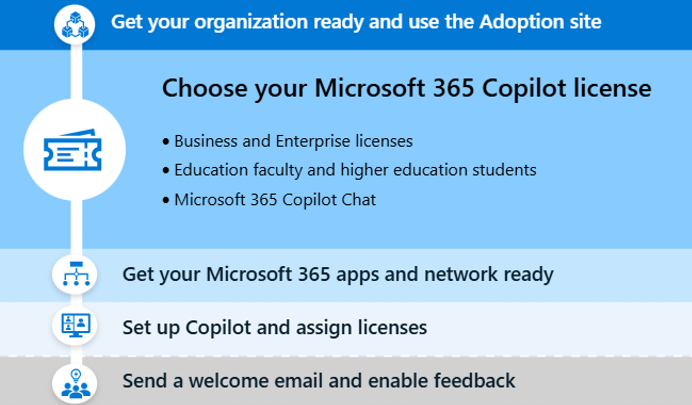
Organizations that use the Copilot Adoption site can take a structured approach to deployment. They can start with technical setup, pilot with early adopters, and scale to the broader workforce. Doing so not only reduces risk but also helps ensure employees are trained, engaged, and confident in using Copilot effectively.
Manage your AI agents with Agent 365
Agent 365 gives IT teams a single place to manage and monitor all their AI agents across Microsoft 365. Instead of treating each agent like a separate, hard‑to‑track tool, Agent 365:
- Assigns every agent a trusted identity
- Applies the right access controls
- Shows administrators exactly what each agent can do and what data it can reach
This information helps teams understand how agents are behaving and ensures they’re contributing safely to the organization.
Because Agent 365 is built into the Microsoft 365 admin center and works seamlessly with Microsoft Entra, Microsoft Defender, and Microsoft Purview, it keeps agents aligned with your organization’s security and compliance standards. For administrators, this visibility turns AI agents into accountable, well‑governed digital coworkers—making lifecycle management easier, reducing risk, and enabling confident adoption of automated workflows at scale.
For example, an admin can open the Agent 365 dashboard to see which agents are accessing SharePoint sites, which ones generated unusual spikes in activity, or which agents need updated permissions because their underlying business process changed. In practice, this insight means no more guesswork about “shadow agents” someone created in Copilot or another tool; everything is visible, cataloged, and governed.
Where Agent 365 becomes indispensable is in the day‑to‑day operational tasks admins already perform. For example:
- If a Purchasing department builds an agent to process purchase requests, the administrator can use Agent 365 to enforce least‑privilege access so it can only read the specific SharePoint library where purchase orders live.
- If an HR department creates an onboarding agent, the administrator can use Agent 365 to track run history, confirm the agent is using approved templates, and ensure it isn’t touching sensitive employee data.
- When Security flags a potential incident, administrators can use Agent 365’s audit trail to see exactly what the agent did, what tools it called, and what data it touched.
- When departments experiment with new agents, the admin can use Agent 365 to assign owners, require approval workflows, and use built‑in policy templates to ensure those agents start secure and stay compliant throughout their lifecycle.
In short, Agent 365 gives administrators the visibility and control they need to support rapid agent adoption without compromising security, compliance, or operational stability.
Additional viewing. For more information, watch the following short video that introduces how Agent 365 can help organizations manage their AI agents.
Note
Agent 365 is currently in Preview, so you might notice features or menu options evolve as Microsoft continues refining the experience ahead of general availability.