Translate text
Tip
See the Text and images tab for more details!
Azure Translator in Foundry Tools provides an API for translating text between over 90 supported languages. With Azure Translator you can:
- Translate or transliterate text using the default translation model or a large language model (LLM).
- Translate documents, synchronously or asynchronously, while maintaining document structure.
- Use custom translation models to translate domain-specific terms.
We'll focus on the text translation API in this module. You can find out more about the full range of Azure Translator capabilities in the Azure Translator in Foundry Tools documentation.
Use Azure Translator in the Microsoft Foundry portal
You can explore Azure Translator in the Microsoft Foundry portal, where there are playgrounds for text translation and document translation.
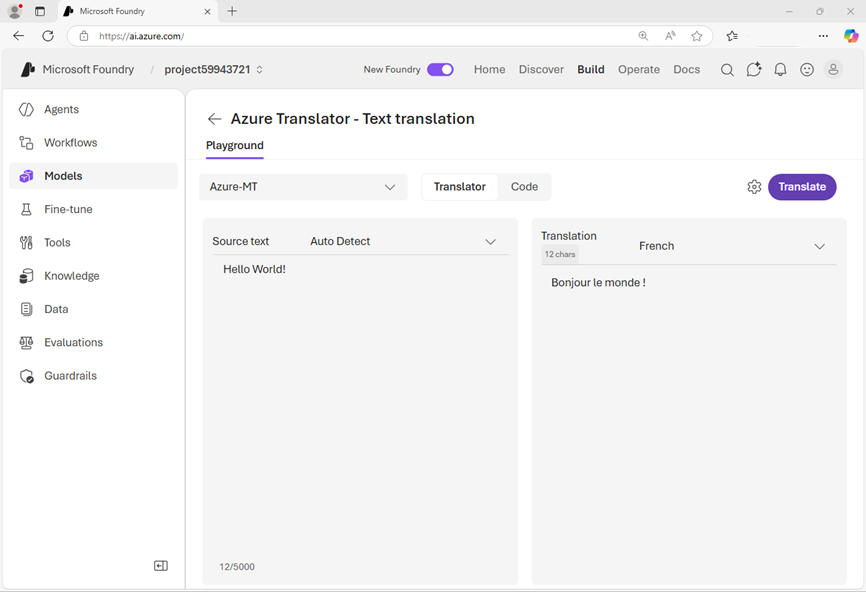
The Foundry portal is a great way to experiment with Azure translator, comparing results from the default model with those from LLMs, and viewing sample code to use the translator from your own client applications.
Use Azure Translator in application code
You can use the REST API to call Azure Translator functions, or you can write code in your preferred language by using one of the supported SDKs; which include:
- Azure Translator Text Translation Client for Python
- Azure Translator Text Translation Client for Microsoft .NET
- Azure Translator Text Translation Client for Java
- Azure Translator Text Translation Client for JavaScript
Connect to an Azure Translator resource
Azure Translator APIs are served through REST endpoints, to which your client must make an authenticated connection. The endpoint can be:
- The Azure Translator global endpoint:
api.cognitive.microsofttranslator.com - Azure Translator regional endpoints: These endpoints include
api-nam.cognitive.microsofttranslator.com,api-apc.cognitive.microsofttranslator.com, andapi-eur.cognitive.microsofttranslator.com - Foundry resource endpoints:
{foundry-resource-name}.cognitiveservices.azure.com/
You can connect a client to a specific endpoint, or you can connect by specifying the region in which your resource is provisioned. For example, you could use either of the techniques shown in the following code sample to connect to Azure Translator using your Foundry API key for authentication:
from azure.core.credentials import AzureKeyCredential
from azure.ai.translation.text import *

key_credential = AzureKeyCredential("FOUNDRY_KEY")

# Connect to a Foundry resource endpoint
client = TextTranslationClient(credential=key_credential, endpoint="FOUNDRY_ENDPOINT")

# Or connect using a region
client = TextTranslationClient(credential=key_credential, region="FOUNDRY_REGION")
Tip
For more information about the TextTranslationClient constructor, see the Azure Translator Python SDK documentation.
Determine available languages
Azure Translator supports over 90 languages. In some cases, you may want to provide users with a list of available languages for translation; as shown in the following example code:
languages = client.get_supported_languages(scope="translation")
print("{} languages supported:".format(len(languages.translation)))
for language in languages.translation.keys():
    print(languages.translation[language].name + " (" + language + ")")
The results include the name and ISO code for each language:
137 languages supported:
Afrikaans (af)
Amharic (am)
Arabic (ar)
Assamese (as)
Azerbaijani (az)
Bashkir (ba)
Belarusian (be)
Bulgarian (bg)
...
Tip
For more information about the get_supported_language method, see the Azure Translator Python SDK documentation.
Translate text
To translate text from a source language to one or more target languages, use the translate method.
- Source text is passed into the method as a list of InputTextItem objects, each containing a text string to be translated.
- You can optionally specify a from_language parameter with the ISO code for the source language (for example, "en"); or you can omit this parameter to have Azure Translator automatically detect the source language.
- Target languages as specified as a list of language codes in the to_language parameter - Azure Translator will return a translation for each valid language code.
The following example translates two text inputs in different unspecified languages into French (fr) and English (en):
input_text_elements = [InputTextItem(text="Hola"), InputTextItem(text="こんにちは")]
translation_results = client.translate(body=input_text_elements, to_language=["fr", "en"])
idx = 0
for translation in translation_results:
    input_text = input_text_elements[idx].text
    idx += 1
    sourceLanguage = translation.detected_language
    for translated_text in translation.translations:
        print(f"'{input_text}' was translated from {sourceLanguage.language} to {translated_text.to} as '{translated_text.text}'.")
The output from this code shows the detected source languages as Spanish (es) and Japanese (ja):
'Hola' was translated from es to fr as 'Bonjour'.
'Hola' was translated from es to en as 'Hello'.
'こんにちは' was translated from ja to fr as 'Bonjour'.
'こんにちは' was translated from ja to en as 'Hello'.
Tip
For more information about the translate method, see the Azure Translator Python SDK documentation.
Transliterate text
The Japanese text in the previous example is written using Hiragana script, so rather than translate it to a different language, you may want to transliterate it to a different script - for example to render the Japanese words in Latin script (as used by English language text).
To accomplish this, we can submit the Japanese text to the transliterate method with a from_script parameter of Jpan and a to_script parameter of Latn, like this:
source_text = "こんにちは"
input_text_elements = [InputTextItem(text=source_text)]
transliteration_results = client.transliterate(body=input_text_elements, language="ja",
                                               from_script="Jpan", to_script="Latn")
for transliteration in transliteration_results:
    sourceScript = transliteration.script
    targetScript = transliteration.text
    print(f"'{source_text}' was transliterated into {sourceScript} as {targetScript}.")
This code example produces the following result:
'こんにちは' was transliterated into Latn as Kon'nichiwa.
Tip
For more information about the transliterate method, see the Azure Translator Python SDK documentation.