Note
Access to this page requires authorization. You can try signing in or changing directories.
Access to this page requires authorization. You can try changing directories.
This article covers day-to-day management tasks for your Elastic Azure Native Integration resource, including configuring log forwarding, deploying agents, connecting Azure OpenAI, and managing network access.
Resource overview
Begin by signing in to the Azure portal.
In the Azure portal search bar, enter All resources and select All resources from the results.
From the Resources list, select your resource.
The Azure portal shows the resource with the Overview page open, by default.
Elastic resources are available as Serverless and Cloud Hosted. For more information, see Compare Elastic Cloud Hosted and Serverless.
The overview pane shows your resource details. Cloud Hosted and Serverless resources show slightly different information.
Cloud Hosted resource:
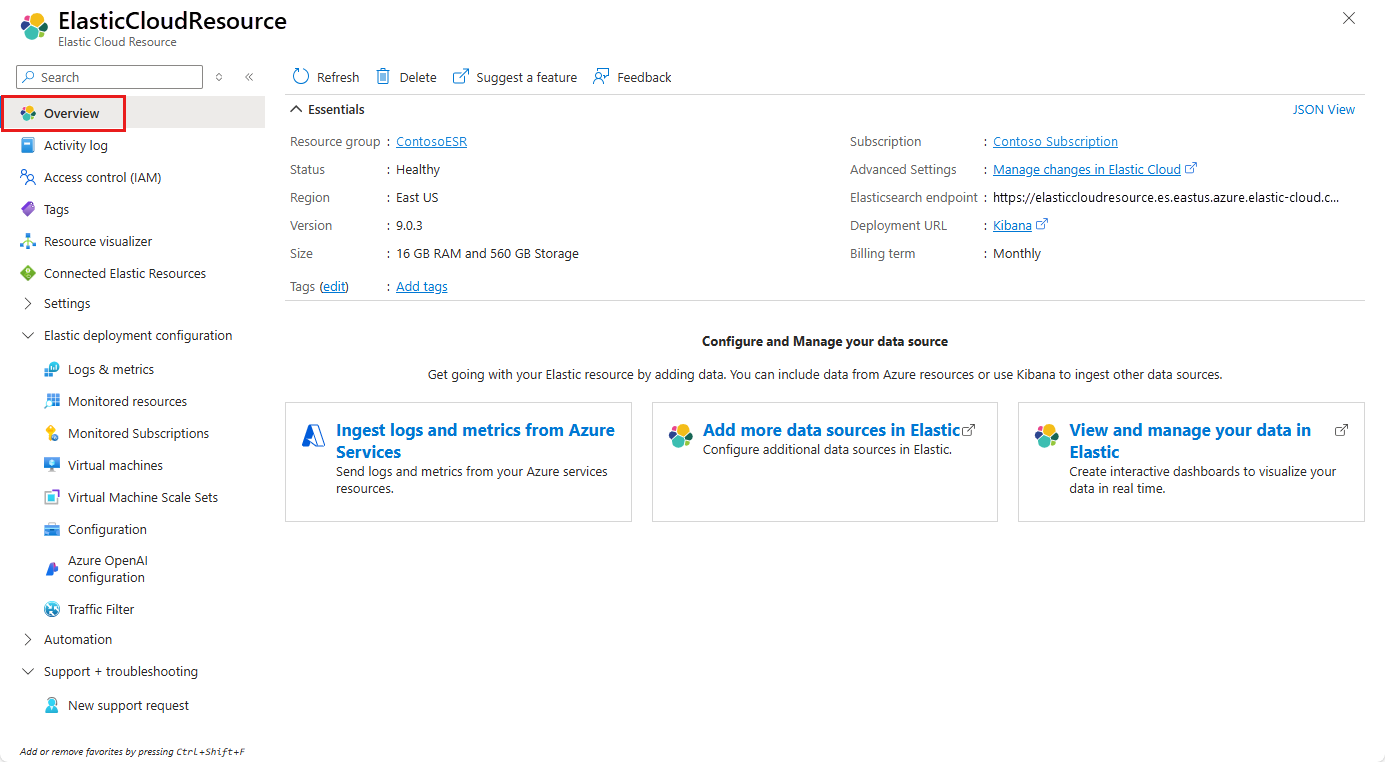
| Detail | Description |
|---|---|
| Resource group | The resource group containing this Elastic resource |
| Status | Active, Creating, or Failed |
| Region | The Azure region where the resource is deployed |
| Version | The Elasticsearch version (Cloud Hosted only) |
| Size | The cluster size and configuration (Cloud Hosted only) |
| Tags | Azure resource tags applied to this resource |
| Subscription | The Azure subscription linked to this resource |
| Advanced Settings | Link to advanced deployment configuration in Elastic Cloud |
| Elasticsearch endpoint | The URL for the Elasticsearch API |
| Deployment URL | The link to manage the deployment in Elastic Cloud |
| Billing term | Monthly or annual billing term |
Serverless resource:
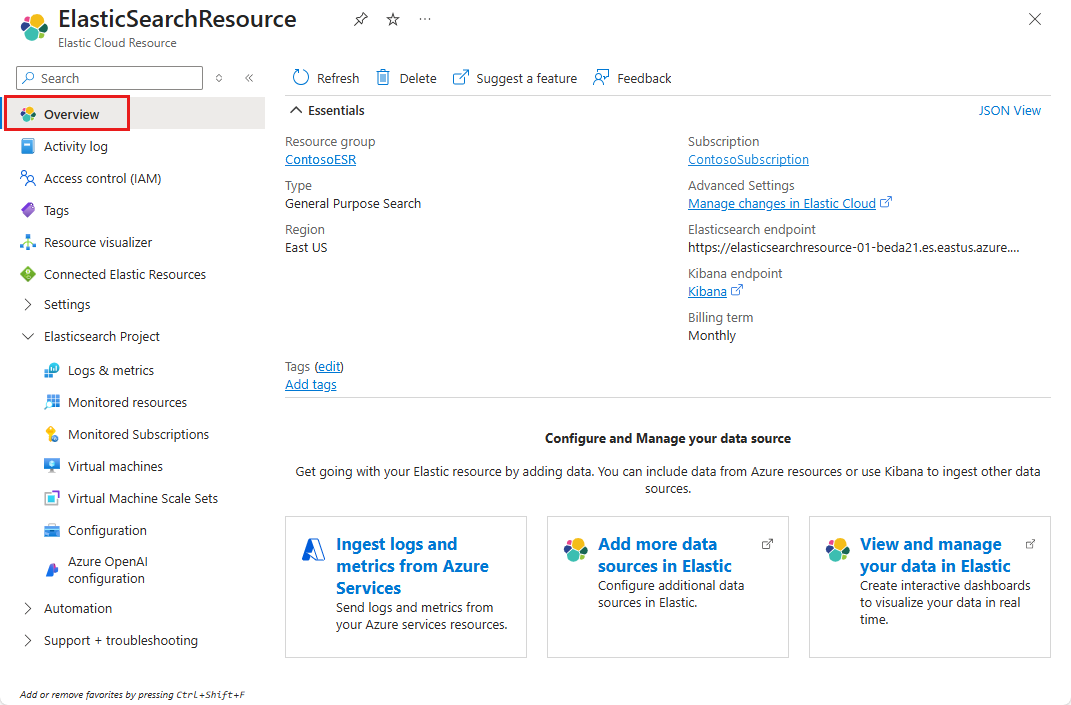
Serverless resources show Type instead of Version/Size, and include both Elasticsearch and Kibana endpoints.
Below the essentials, you can navigate to:
- Ingest logs and metrics from Azure Services — Configure Azure diagnostic log and metric forwarding
- Add more data sources in Elastic — Configure additional data sources beyond Azure
- View and manage your data in Elastic — Open Kibana to create dashboards and visualize your data
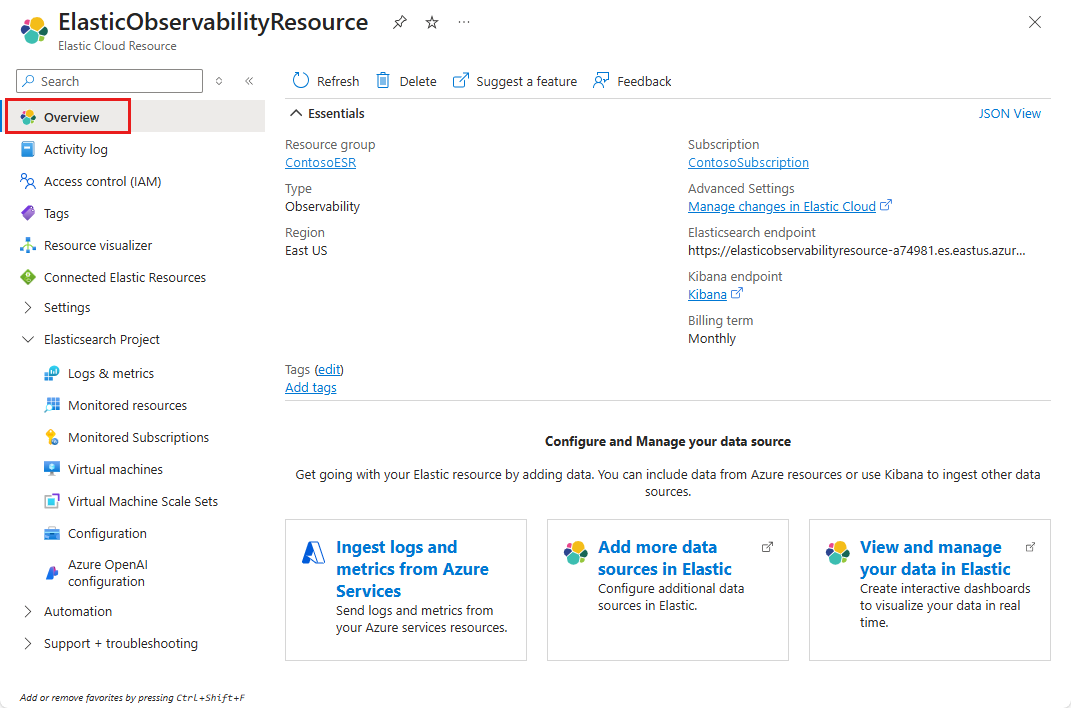
The overview pane shows:
| Detail | Description |
|---|---|
| Resource group | The resource group containing this Elastic resource |
| Type | Serverless or Cloud Hosted |
| Region | The Azure region where the resource is deployed |
| Subscription | The Azure subscription linked to this resource |
| Advanced Settings | Link to advanced deployment configuration in Elastic Cloud |
| Elasticsearch endpoint | The URL for the Elasticsearch API |
| Kibana endpoint | The URL for the Kibana UI |
| Billing term | Monthly or annual billing term |
Below the essentials, you can navigate to:
- Ingest logs and metrics from Azure Services — Configure Azure diagnostic log and metric forwarding
- Add more data sources in Elastic — Add application performance monitoring, infrastructure agents, and other integrations
- View and manage your data in Elastic — Open Kibana to create observability dashboards and alerts
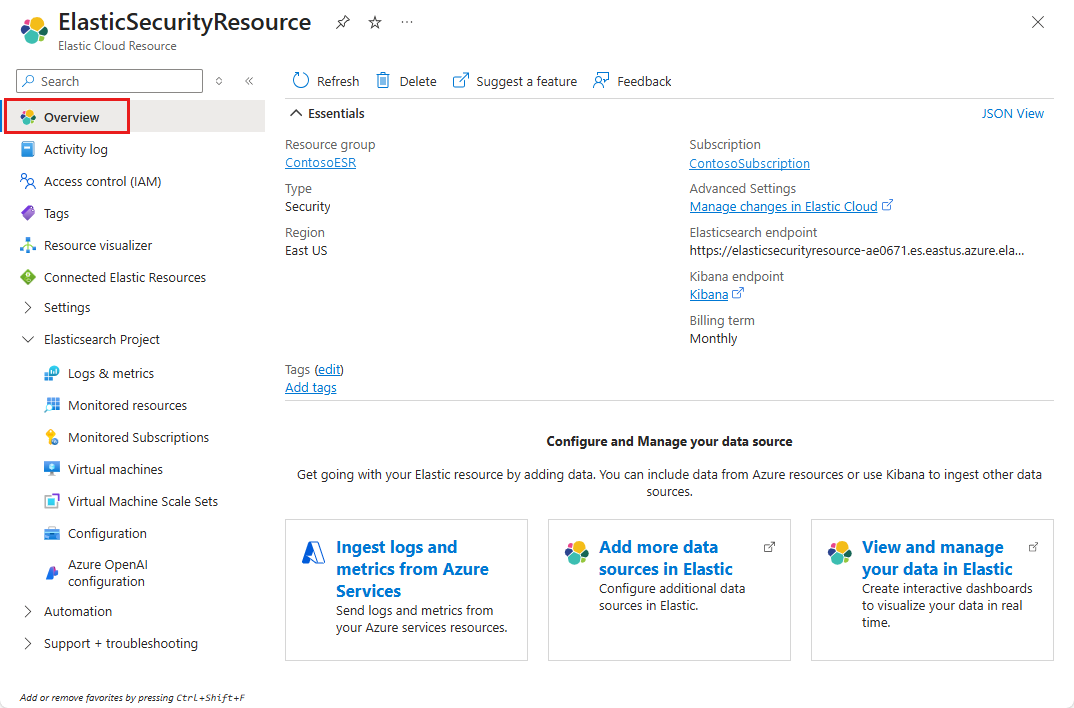
The overview pane shows:
| Detail | Description |
|---|---|
| Resource group | The resource group containing this Elastic resource |
| Type | Serverless or Cloud Hosted |
| Region | The Azure region where the resource is deployed |
| Subscription | The Azure subscription linked to this resource |
| Advanced Settings | Link to advanced deployment configuration in Elastic Cloud |
| Elasticsearch endpoint | The URL for the Elasticsearch API |
| Kibana endpoint | The URL for the Kibana UI |
| Billing term | Monthly or annual billing term |
Below the essentials, you can navigate to:
- Ingest logs and metrics from Azure Services — Configure Azure diagnostic log and metric forwarding for security analysis
- Add more data sources in Elastic — Add endpoint agents, cloud posture integrations, and threat intelligence feeds
- View and manage your data in Elastic — Open Kibana for security dashboards, SIEM, and threat detection
Reconfigure rules for logs and metrics
To change which Azure resources send logs to Elastic:
- Select Elastic deployment configuration > Logs & metrics in the service menu.
- Update the tag-based include/exclude rules or toggle individual settings. See tag rules for sending metrics and tag rules for sending logs for worked examples.
- Changes take effect within a few minutes as diagnostic settings are updated on matching resources.
For a full reference on what data is forwarded and how tag rules behave, see Monitor & Observe Azure resources with Azure Native Integrations.
View monitored resources
To view the list of resources emitting logs to Elastic, select Elastic deployment configuration > Monitored resources in the service menu.
Tip
You can filter the list of resources by type, subscription, resource group, region, and whether the resource is sending logs to Elastic.
If a resource you expect to see isn't sending data, check:
- The resource type supports Azure Monitor diagnostic logs. See supported categories.
- Your tag rules include (not exclude) the resource.
- The resource hasn't reached the limit of five diagnostic settings.
Monitor multiple subscriptions
A single Elastic resource can monitor Azure resources across multiple subscriptions. This is useful when you have separate subscriptions for dev, staging, and production but want unified monitoring in Elastic.
Prerequisites
You must have both of the following Azure permissions:
Microsoft.Authorization/roleAssignments/writeMicrosoft.Authorization/roleAssignments/delete
The resource provider for Elastic (
Microsoft.Elastic) must be registered in the target subscription.
Add subscriptions
Important
When you link a subscription to an Elastic resource, ensure that the subscription isn't scope locked (read-only or delete locks). Scope locks can prevent the addition and removal of diagnostic settings. For more information, see Lock your Azure resources.
To monitor multiple subscriptions:
Select Elastic deployment configuration > Monitored Subscriptions.
Select Add subscriptions from the Command bar.
The Add Subscriptions experience shows subscriptions you have Owner role assigned to and any Elastic resource created in those subscriptions that is already linked to the same Elastic organization as the current resource.
Select the subscriptions you want to monitor and select Add.
Important
Setting separate tag rules for different subscriptions isn't supported. The tag rules from the primary resource apply to all monitored subscriptions.
Diagnostic settings are automatically added to the subscription's resources that match the defined tag rules.
Select Refresh to view the subscriptions and their monitoring status.
Once the subscription is added, the status changes to Active.
Remove subscriptions
Important
When you unlink a subscription from an Elastic resource, ensure that the subscription isn't scope locked (read-only or delete locks). Scope locks can prevent the addition and removal of diagnostic settings. For more information, see Lock your Azure resources.
To unlink subscriptions from an Elastic resource:
Select Elastic deployment configuration > Monitored Subscriptions from the service menu.
Select the subscription you want to remove.
Choose Remove subscriptions.
To view the updated list of monitored subscriptions, select Refresh from the Command bar.
Elastic Agent deployment
You can install Elastic Agents on Azure virtual machines to collect host-level metrics, logs, and security events that aren't available through Azure diagnostic logs alone.
- Select Elastic deployment configuration > Virtual machines in the service menu.
Install an agent
To install an agent:
Choose the resource you would like to monitor.
Select Install Extension.
Select OK.
After the agent is installed, the status changes to Installed. The service restarts once installation is complete.
Uninstall an agent
To uninstall an agent:
Choose a resource.
Select Uninstall Extension.
Select OK.
Tip
Elastic Agents collect detailed process-level metrics, file integrity monitoring data, and custom application logs. This data complements the Azure platform logs configured in the Logs & metrics section.
Azure OpenAI integration
Connect your Elastic deployment with Azure OpenAI to enable AI-powered capabilities such as semantic search, the Elastic AI Assistant, and retrieval-augmented generation (RAG).
To configure Azure OpenAI:
Select Elastic deployment configuration > Azure OpenAI configuration.
From the working pane's command bar, select Add.
In the Add OpenAI Configuration panel, select your preferred Azure OpenAI Resource and Azure OpenAI Deployment.
Select the Create button.
After the connector is created, navigate to Kibana to use it.
Note
Kibana is a user interface that lets you visualize your Elasticsearch data and navigate the Elastic Stack. Your connector can be used in Elastic's AI Assistant, which provides contextual responses to your natural language prompts by invoking the Azure OpenAI deployment.
The deployment details (URL and API keys) are passed to Elastic to prepare the connector for use with Elastic's AI Assistant.
Currently, Elastic resources support only deployments of text or chat completion models, like GPT-4. For more information, see OpenAI connector and action.
Traffic filters
Restrict network access to your Elastic deployment using IP address filtering or Azure Private Link. Traffic filters are defined as rulesets that you create once and then associate with one or more deployments. Each ruleset is region-scoped and must be in the same region as the deployments it protects; a deployment can have multiple rulesets attached, and once any ruleset is associated, all unmatched traffic is denied.
- IP filtering uses an allow list of individual IPv4 addresses or CIDR blocks. It's the simplest option for restricting public endpoint access from known networks (corporate egress, NAT gateways, jump boxes). Rules are evaluated against the source IP of incoming requests to the Elasticsearch and Kibana endpoints.
- Azure Private Link routes traffic to your deployment over the Microsoft backbone without traversing the public internet. You create an Azure Private Endpoint in your virtual network that targets the regional Elastic Cloud Private Link service alias, then register the endpoint's resource GUID and name as a Private Link ruleset and associate it with the deployment. The deployment becomes reachable only through that endpoint.
To create a ruleset from the Azure-integrated Elastic experience: in the left menu select Elastic deployment configuration > Traffic Filter, enter a name, pick IP Address and CIDR Blocks or Private Link, fill in the rules or endpoint details, and select Create. If a traffic filter is no longer needed, unlink it from the deployment first, then delete the ruleset.
Important
The traffic filter must be in the same region as the deployment.
Learn more
- Configure IP traffic filters (Elastic Cloud)
- Private connectivity to Elastic Cloud on Azure
- What is Azure Private Link?
Connected Elastic resources
To view all Elastic resources and deployments you created (from both Azure and Elastic portals), go to the Connected Elastic Resources tab in any of your Azure Elastic resources.
You can manage the corresponding Elastic deployments or Azure resources using the links, provided you have Owner or Contributor rights to those deployments and resources.
Delete Elastic resource
To delete a resource:
On the command bar, select Delete.
On the Delete Resource pane, optionally select a reason for deleting the resource.
In the Enter resource name to confirm deletion box, enter the name of the resource.
Select Delete.
Select Delete again to confirm deletion.
After the resource is deleted, all billing for that resource through Azure Marketplace stops.
Important
- A single Azure Marketplace SaaS subscription unifies billing for multiple Elastic deployments.
- If you wish to completely stop billing for the Marketplace SaaS, delete all linked Elastic deployments created from the Azure portal or Elastic portal.
Get support
Contact Elastic for customer support. If your Elastic Cloud resource is not fully set up and you're not able to access the Support page, send an email to support@elastic.co.
You can also request support in the Azure portal from the resource overview. Select Support + Troubleshooting > New support request from the service menu.