Note
Access to this page requires authorization. You can try signing in or changing directories.
Access to this page requires authorization. You can try changing directories.
The Azure API Center MCP server exposes your organization's API catalog as a native tool surface for AI agents and agentic workflows. When you enable the API Center MCP server, you make your APIs and AI assets discoverable by the growing ecosystem of MCP-compatible AI clients, including Visual Studio Code Copilot, Claude Code, and custom agents.
The Azure API Center MCP server exposes the following tools that agents use to discover and retrieve assets from your API center's inventory (registry).
| Tool | Description |
|---|---|
| mcp_registry_search | Searches the API Center registry to discover APIs and AI assets by name, type, or metadata. Returns matching results including asset type (REST, MCP, plugin, skill), lifecycle state, and descriptions. |
| mcp_registry_fetch | Fetches detailed information about a specific API or AI asset from the registry, including deployment endpoints, versions, definitions, and associated specifications. |
Prerequisites
An API center in your Azure subscription. If you don't have one, see Quickstart: Create your API center.
One or more APIs or AI assets registered in your API center inventory, such as MCP servers or skills.
The API center portal enabled and set up for your API center. For details, see Set up and customize your API Center portal. The access method you choose for the portal (anonymous or Microsoft Entra ID authentication) determines how developers authenticate when they access the MCP server.
An MCP-compatible client such as Visual Studio Code with Copilot, Claude Code, or a custom agent.
For CLI usage, ensure the MCP CLI tool is installed.
Enable the Azure API Center MCP server
To enable the MCP server by using the Azure portal:
- In the Azure portal, go to your API center.
- In the sidebar menu, under Consumption, select Data API settings.
- Under MCP endpoint, select Enable API Center MCP endpoint.
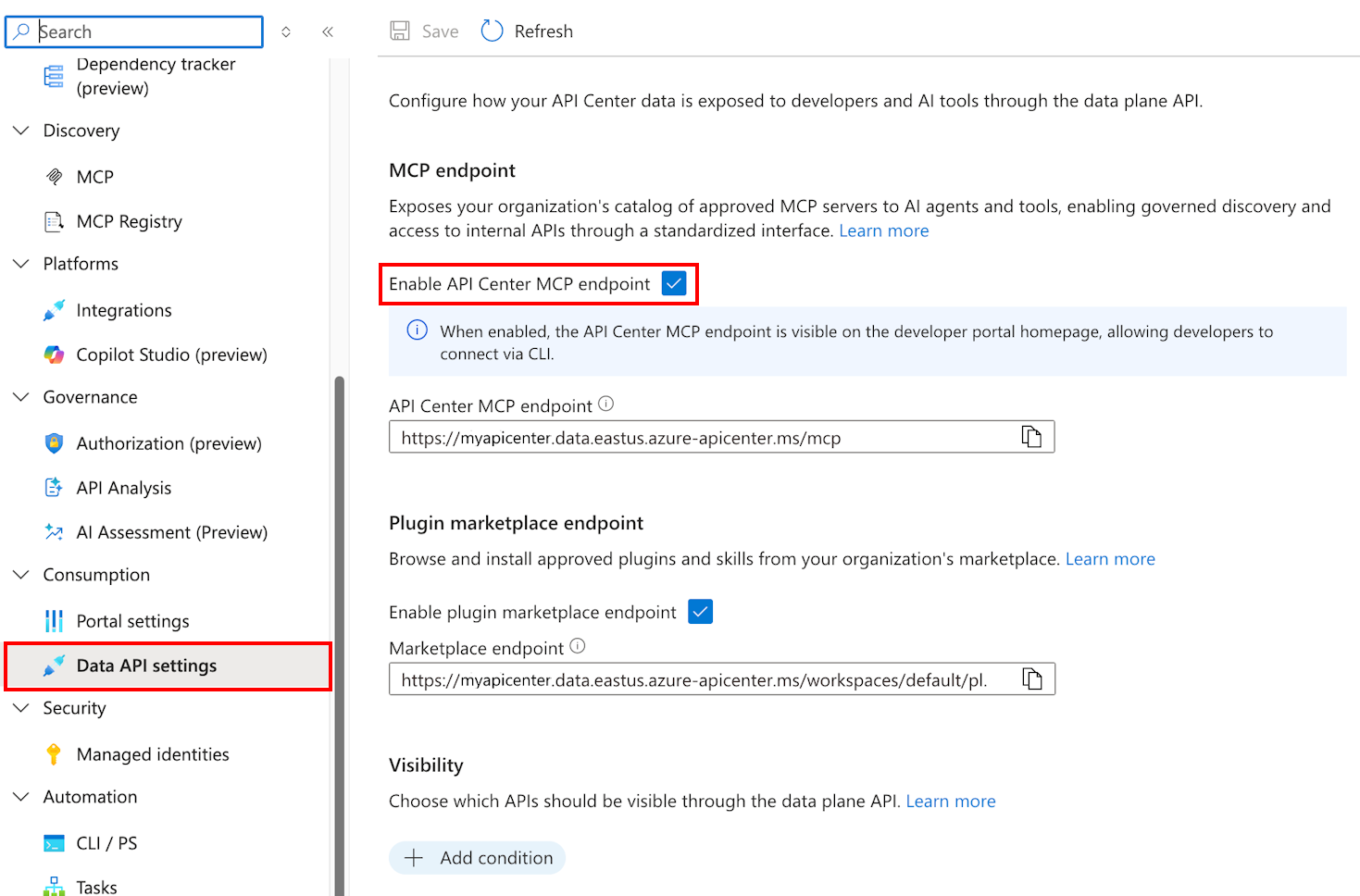
The MCP server endpoint follows this form:
https://<service name>.data.<region>.azure-apicenter.ms/mcp
Example: https://myapicenter.data.eastus.azure-apicenter.ms/mcp
Connect to the MCP server
After you enable the API Center MCP server, developers can discover the MCP server endpoint when they sign in to the API Center portal. Developers can connect to the MCP server by using an MCP client such as Visual Studio Code or the MCP CLI. The connection requires the MCP server endpoint and the appropriate authentication credentials, if configured.
To connect to the MCP server using Claude Code, see Add an MCP server to Claude Code.
Connect via VS Code
Developers can add the MCP Server configuration to their Visual Studio Code settings.json file under the mcp key.
Open Visual Studio Code and press
Ctrl+Shift+P(orCmd+Shift+Pon Mac).Search for Open User Settings (JSON).
Paste the following snippet under the
mcpkey and save the file. Substitute theurlvalue with your API Center MCP server endpoint.{ "servers": { "api-center": { "url": "https://myapicenter.data.eastus.azure-apicenter.ms/mcp", "type": "http" } }, "inputs": [] }VS Code Copilot automatically detects and connects to the MCP server.
Connect via CLI
Developers can use the MCP CLI to connect directly to the server and invoke the registry tools.
Connect to the MCP Server by using a command like the following example. Substitute the URL with your API Center MCP server endpoint.
mcp connect http https://myapicenter.data.eastus.azure-apicenter.ms/mcpSearch the registry for assets:
mcp run mcp_registry_search --query "customer-support"Fetch details for a specific asset:
mcp run mcp_registry_fetch --id "my-agent-skill"