Note
Access to this page requires authorization. You can try signing in or changing directories.
Access to this page requires authorization. You can try changing directories.
Data in a Redis server is stored in memory by default. This data isn't encrypted. You can implement your own encryption on the data before writing it to the cache. In some cases, data can reside on disk, either due to the operations of the operating system, or because of deliberate actions to persist data by using export or data persistence.
Azure Managed Redis offers platform-managed keys (PMKs), also known as Microsoft-managed keys (MMKs), by default to encrypt data on disk in all tiers. Azure Managed Redis additionally offers the ability to encrypt the OS and data persistence disks by using a customer-managed key (CMK). Use customer managed keys to wrap the MMKs and control access to these keys. This key makes the CMK a key encryption key or KEK. For more information, see key management in Azure.
Scope of availability for CMK disk encryption
| Tier | Memory Optimized, Balanced, Compute Optimized | Flash Optimized |
|---|---|---|
| Microsoft managed keys (MMK) | Yes | Yes |
| Customer managed keys (CMK) | Yes | Yes |
Disk encryption coverage in Azure Managed Redis
In Azure Managed Redis, disk encryption protects the persistence disk, temporary files, and the OS disk:
- Persistence disk: Holds persisted RDB or AOF files as part of data persistence.
- Temporary files used in export: Encrypts temporary data used during export. When you export data, the storage account settings control the encryption of the final exported data.
- OS disk
MMK is always used to encrypt these disks by default, and CMK can be added on top to control access to the data encryption key.
In the Flash Optimized tier, keys and values are also partially stored on-disk using nonvolatile memory express (NVMe) flash storage. However, this disk isn't the same as the one used for persisted data. Instead, it's ephemeral, meaning the data isn't persisted after the cache is stopped, deallocated, or rebooted. Only MMK is supported on this disk because this data is ephemeral.
| Data stored | Disk | Encryption Options |
|---|---|---|
| Persistence files | Persistence disk | MMK or CMK |
| RDB files waiting to be exported | OS disk and Persistence disk | MMK or CMK |
| Keys and values (Flash Optimized tier only) | Transient NVMe disk | MMK |
Prerequisites and limitations
General prerequisites and limitations
- To connect to Azure Key Vault, use only user assigned managed identity. System assigned managed identity isn't supported.
- Changing between MMK and CMK on an existing cache instance triggers a long-running maintenance operation. Don't use this operation in production because it causes a service disruption.
Azure Key Vault prerequisites and limitations
- The Azure Key Vault resource containing the customer managed key must be in the same region as the cache resource.
- Purge protection and soft-delete must be enabled in the Azure Key Vault instance. Purge protection isn't enabled by default.
- When you use firewall rules in the Azure Key Vault, you must configure the Key Vault instance to allow trusted services.
- Only RSA keys are supported.
- You must grant the user assigned managed identity the permissions Get, Unwrap Key, and Wrap Key in the Key Vault access policies, or the equivalent permissions within Azure Role Based Access Control. A recommended built-in role definition with the least privileges needed for this scenario is called KeyVault Crypto Service Encryption User.
How to configure CMK encryption in Azure Managed Redis
Use the portal to create a new cache with CMK enabled
Sign in to the Azure portal and start the Create an Azure Managed Redis instance quickstart guide.
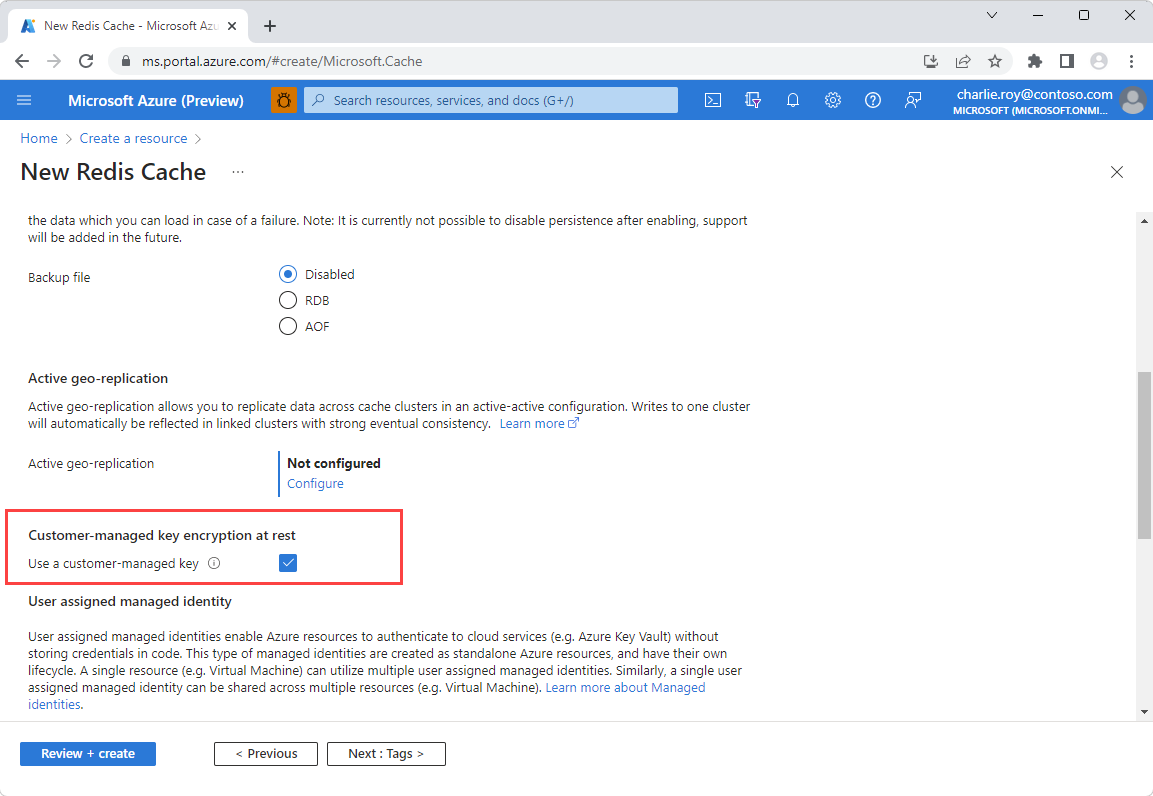
On the Advanced page, go to the section titled Customer-managed key encryption at rest and enable the Use a customer-managed key option.
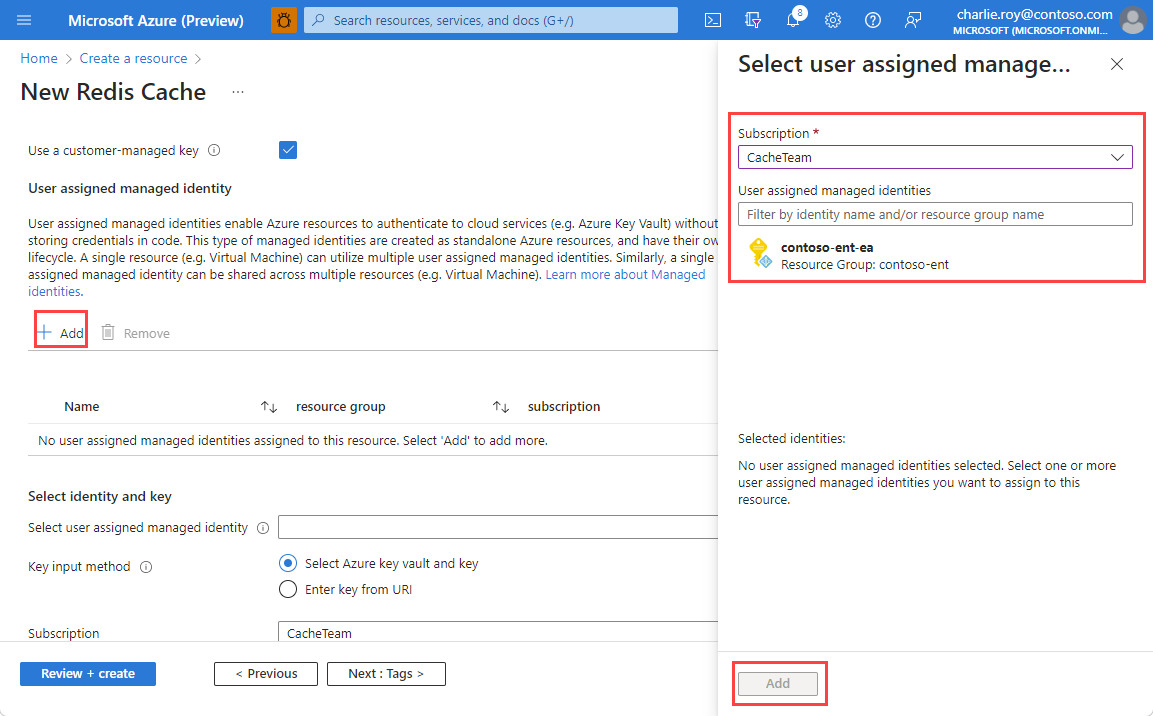
Select Add to assign a user assigned managed identity to the resource. This managed identity is used to connect to the Azure Key Vault instance that holds the customer managed key.
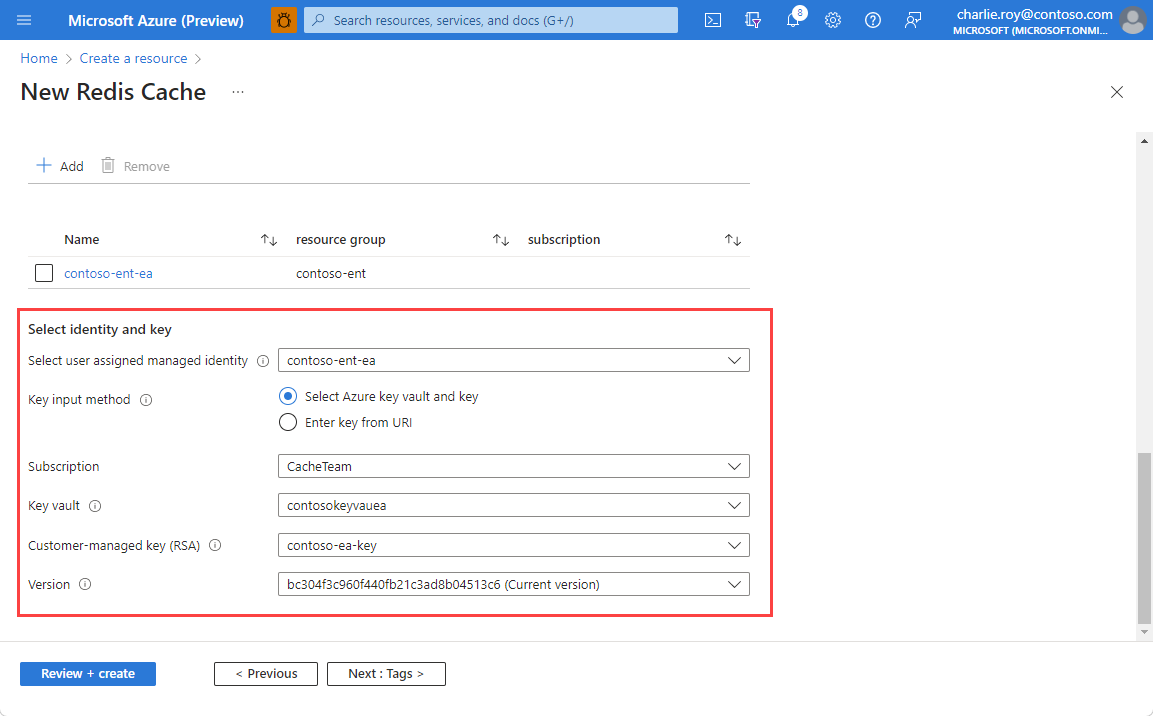
Select your chosen user assigned managed identity, and then choose the key input method to use.
If you select the Select Azure Key Vault and key input method, choose the Key Vault instance that holds your customer managed key. This instance must be in the same region as your cache.
Note
For instructions on how to set up an Azure Key Vault instance, see the Azure Key Vault quickstart guide. You can also select the Create a key vault link beneath the Key Vault selection to create a new Key Vault instance. Remember that both purge protection and soft delete must be enabled in your Key Vault instance.
Choose the specific key and version by using the Customer-managed key (RSA) and Version drop-downs.
If you select the URI input method, enter the Key Identifier URI for your chosen key from Azure Key Vault.
When you enter all the information for your cache, select Review + create.
Add CMK encryption to an existing Azure Managed Redis instance
Go to the Encryption section in the Resource menu of your cache instance. If CMK is already set up, you see the key information.
If you didn't set up CMK or if you want to change CMK settings, select Change encryption settings.
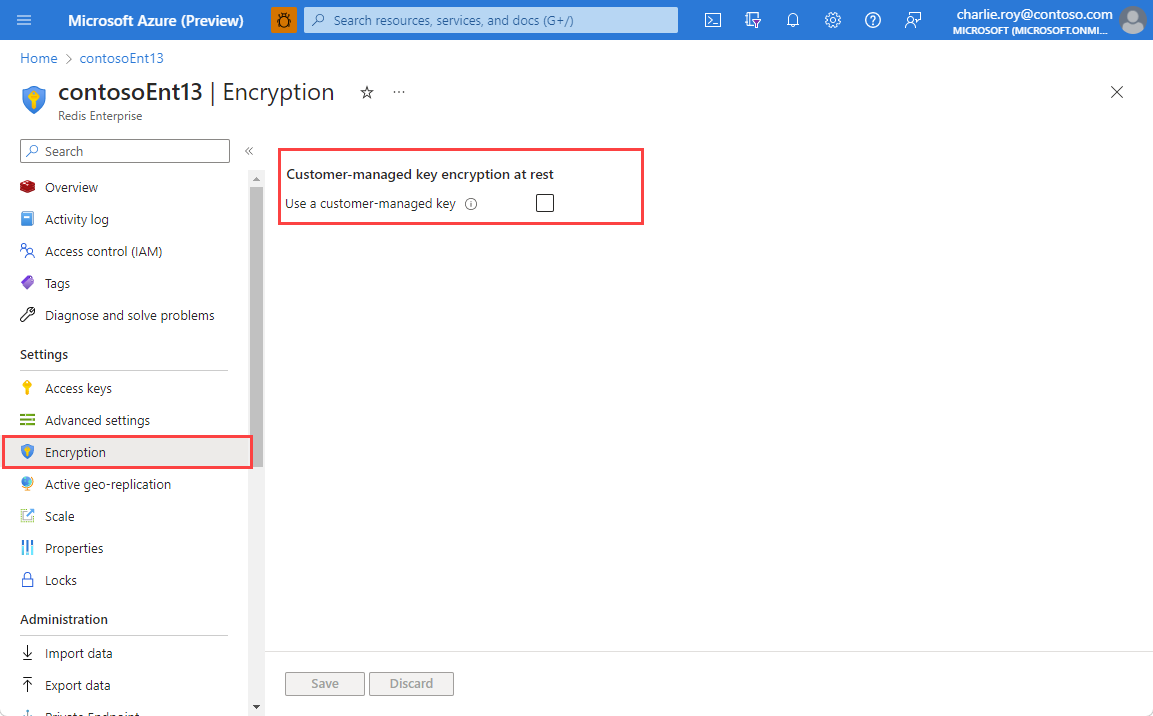
Select Use a customer-managed key to see your configuration options.
Select Add to assign a user assigned managed identity to the resource. This managed identity is used to connect to the Azure Key Vault instance that holds the customer managed key.
Select your chosen user assigned managed identity, and then choose which key input method to use.
If you select the Select Azure Key Vault and key input method, choose the Key Vault instance that holds your customer managed key. This instance must be in the same region as your cache.
Note
For instructions on how to set up an Azure Key Vault instance, see the Azure Key Vault quickstart guide. You can also select the Create a key vault link beneath the Key Vault selection to create a new Key Vault instance.
Choose the specific key by using the Customer-managed key (RSA) drop-down. If there are multiple versions of the key to choose from, use the Version drop-down.
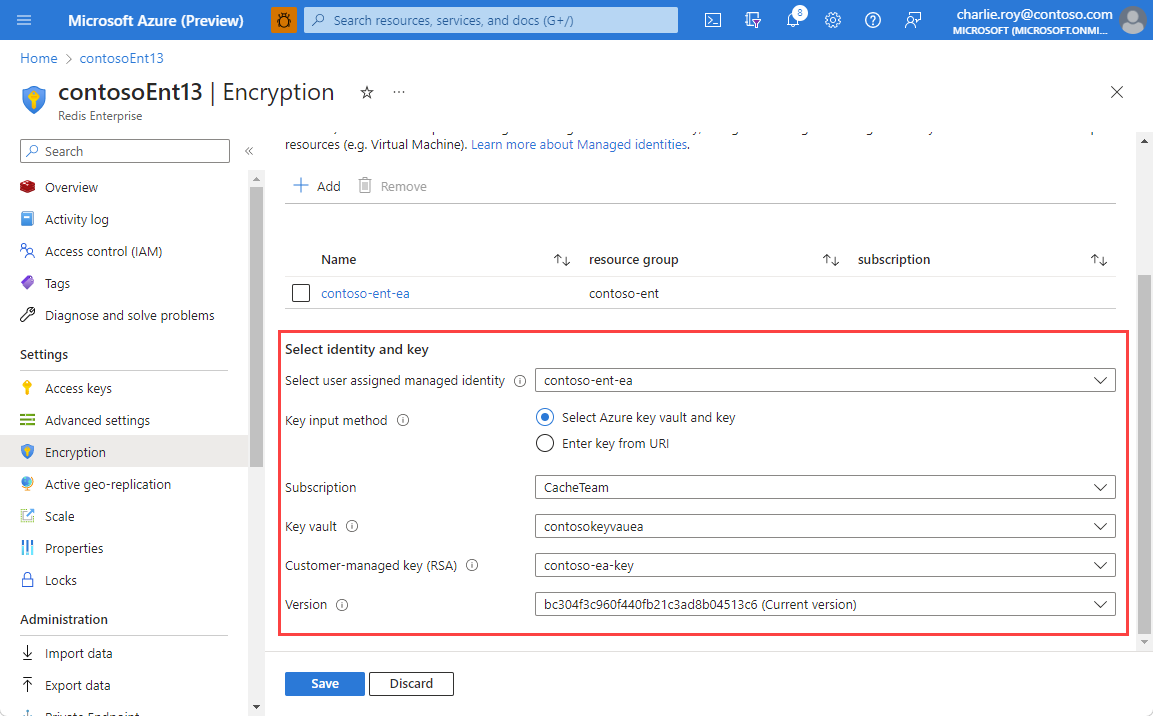
If you select the URI input method, enter the Key Identifier URI for your chosen key from Azure Key Vault.
Select Save.
Key rotation for customer-managed keys
Schedule key rotation and expiry for cryptographic keys as a security best practice. Azure Managed Redis automatically detects and uses the latest version of the configured key in Azure Key Vault.
It detects and uses a new key version within two hours of rotation being triggered. Disable or expire the key only after this two-hour window. Otherwise, you risk the cache going offline because of lost access to the key. Key rotation rewraps the underlying data encryption key and doesn't cause any disruptions.
Note
The two-hour rotation guarantee applies only to Azure Managed Redis. Other services might have different guarantees for key rotation.
To check that key rotation completed, view the key version used in the Azure portal when viewing Encryption in the Resource menu.