Note
Access to this page requires authorization. You can try signing in or changing directories.
Access to this page requires authorization. You can try changing directories.
Azure Stream Analytics supports custom blob output partitioning with custom fields or attributes and custom DateTime path patterns.
Custom field or attributes
Custom field or input attributes improve downstream data-processing and reporting workflows by allowing more control over the output.
Partition key options
The partition key, or column name, used to partition input data might contain any character that's accepted for blob names. You can't use nested fields as a partition key unless you use them along with aliases. However, you can use certain characters to create a hierarchy of files. For example, to create a column that combines data from two other columns to make a unique partition key, you can use the following query:
SELECT name, id, CONCAT(name, "/", id) AS nameid
The partition key must be NVARCHAR(MAX), BIGINT, FLOAT, or BIT (1.2 compatibility level or higher). The DateTime, Array, and Records types aren't supported, but they could be used as partition keys if they're converted to strings. For more information, see Azure Stream Analytics data types.
Partition blob output by a custom field
Suppose a job takes input data from live user sessions connected to an external video game service where ingested data contains a column client_id to identify the sessions. To partition the data by client_id, set the blob Path pattern field to include a partition token {client_id} in blob output properties when you create a job. As data with various client_id values flow through the Stream Analytics job, the output data is saved into separate folders based on a single client_id value per folder.

Similarly, if the job input was sensor data from millions of sensors where each sensor had a sensor_id, the path pattern would be {sensor_id} to partition each sensor data to different folders.
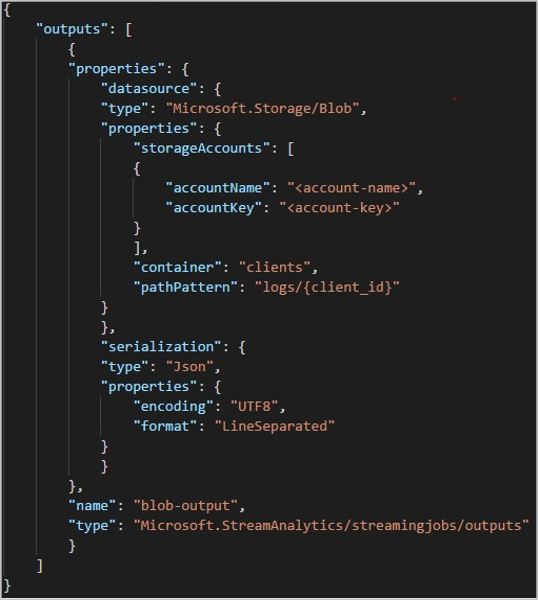
When you use the REST API, the output section of a JSON file used for that request might look like the following image:
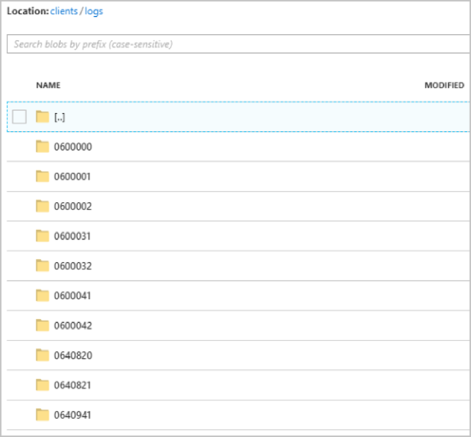
After the job starts running, the clients container might look like the following image:
Each folder might contain multiple blobs where each blob contains one or more records. In the preceding example, there's a single blob in a folder labeled "06000000" with the following contents:
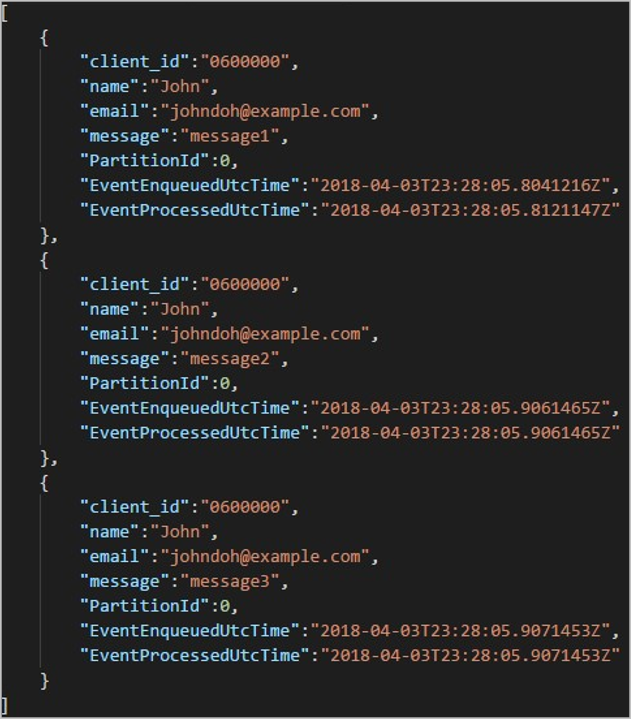
Notice that each record in the blob has a client_id column matching the folder name because the column used to partition the output in the output path was client_id.
Custom partition key limitations
Only one custom partition key is permitted in the path pattern blob output property. All of the following path patterns are valid:
cluster1/{date}/{aFieldInMyData}cluster1/{time}/{aFieldInMyData}cluster1/{aFieldInMyData}cluster1/{date}/{time}/{aFieldInMyData}
If you want to use more than one input field, you can create a composite key in a query for custom path partition in blob output by using
CONCAT. An example isselect concat (col1, col2) as compositeColumn into blobOutput from input. Then you can specifycompositeColumnas the custom path in Azure Blob Storage.Partition keys are case insensitive, so partition keys like
Johnandjohnare equivalent. Also, you can't use expressions as partition keys. For example,{columnA + columnB}doesn't work.When an input stream consists of records with a partition key cardinality under 8,000, Stream Analytics appends the records to existing blobs and only creates new blobs when necessary. If the cardinality is over 8,000, there's no guarantee that Stream Analytics writes to existing blobs. Stream Analytics doesn't create new blobs for an arbitrary number of records with the same partition key.
If the blob output is configured as immutable, Stream Analytics creates a new blob each time data is sent.
Custom DateTime path patterns
Custom DateTime path patterns allow you to specify an output format that aligns with Hive Streaming conventions, giving Stream Analytics the ability to send data to Azure HDInsight and Azure Databricks for downstream processing. Custom DateTime path patterns are easily implemented by using the datetime keyword in the Path Prefix field of your blob output, along with the format specifier. An example is {datetime:yyyy}.
Supported tokens
The following format specifier tokens can be used alone or in combination to achieve custom DateTime formats.
| Format specifier | Description | Results on example time 2018-01-02T10:06:08 |
|---|---|---|
| {datetime:yyyy} | The year as a four-digit number | 2018 |
| {datetime:MM} | Month from 01 to 12 | 01 |
| {datetime:M} | Month from 1 to 12 | 1 |
| {datetime:dd} | Day from 01 to 31 | 02 |
| {datetime:d} | Day from 1 to 31 | 2 |
| {datetime:HH} | Hour using the 24-hour format, from 00 to 23 | 10 |
| {datetime:mm} | Minutes from 00 to 60 | 06 |
| {datetime:m} | Minutes from 0 to 60 | 6 |
| {datetime:ss} | Seconds from 00 to 60 | 08 |
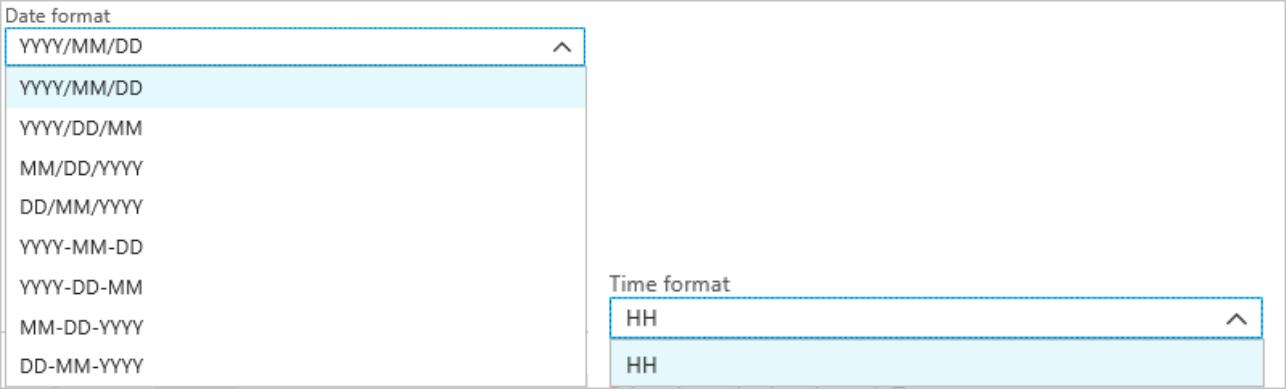
If you don't want to use custom DateTime patterns, you can add the {date} and/or {time} token to the Path Prefix field to generate a dropdown with built-in DateTime formats.
DateTime token extensibility and restrictions
You can use as many tokens ({datetime:<specifier>}) as you like in the path pattern until you reach the path prefix character limit. Format specifiers can't be combined within a single token beyond the combinations already listed by the date and time dropdowns.
For a path partition of logs/MM/dd:
| Valid expression | Invalid expression |
|---|---|
logs/{datetime:MM}/{datetime:dd} |
logs/{datetime:MM/dd} |
You might use the same format specifier multiple times in the path prefix. The token must be repeated each time.
Hive Streaming conventions
You can use custom path patterns for Blob Storage with the Hive Streaming convention, which expects folders to be labeled with column= in the folder name.
An example is year={datetime:yyyy}/month={datetime:MM}/day={datetime:dd}/hour={datetime:HH}.
Custom output eliminates the hassle of altering tables and manually adding partitions to port data between Stream Analytics and Hive. Instead, many folders can be added automatically by using:
MSCK REPAIR TABLE while hive.exec.dynamic.partition true
Create a Hive-compatible DateTime folder structure
Create a storage account, a resource group, a Stream Analytics job, and an input source according to the Stream Analytics Azure portal quickstart. Use the same sample data used in the quickstart. Sample data is also available in GitHub.
Create a blob output sink with the following configuration:
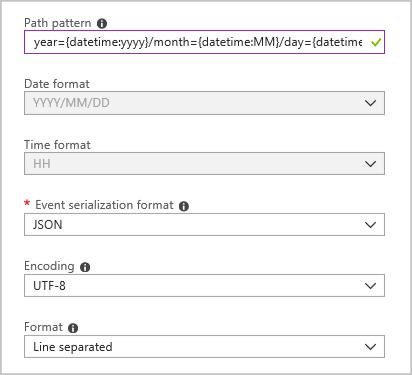
The full path pattern is:
year={datetime:yyyy}/month={datetime:MM}/day={datetime:dd}
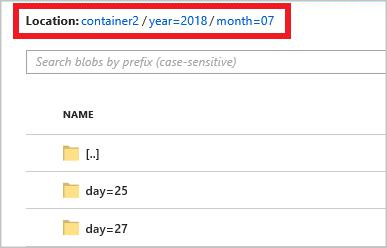
When you start the job, a folder structure based on the path pattern is created in your blob container. You can drill down to the day level.