Note
Access to this page requires authorization. You can try signing in or changing directories.
Access to this page requires authorization. You can try changing directories.
Microsoft Entra Internet Access provides web content filtering to control access to websites based on their fully qualified domain names (FQDNs) or web categories such as gambling, social media, or malware. Policies are assigned to security profiles, which can then be applied to all users via the baseline profile or to specific users via Conditional Access. This layered approach allows organizations to enforce broad protections while still enabling granular exceptions for specific groups.
In this tutorial, you learn how to:
- Create a web content filtering policy that blocks gambling websites and a specific domain.
- Link the filtering policy to the baseline security profile.
- Validate that blocked websites can't be accessed.
- View blocked traffic in the traffic log.
Key concepts
Security profiles are containers that hold one or more filtering policies. They're delivered through user-aware Microsoft Entra Conditional Access policies. For example, to block all AI websites except m365.cloud.microsoft (Enterprise Copilot) for a specific group of users:
"Security Profile for Sales Department"   <---- the security profile
    Allow m365.cloud.microsoft at priority 100      <---- higher priority filtering policy (evaluated first)
    Block Artificial Intelligence at priority 200   <---- lower priority filtering policy
Policy priority: Determines the order of evaluation:
- 100 = highest priority: Evaluated first.
- 65,000 = lowest priority: Evaluated last.
- Traditional firewall logic: Lower numbers = higher precedence.
- Best practice: Add spacing of about 100 between priorities for future flexibility.
Multi-profile processing: When multiple Conditional Access policies match a user's traffic, all matching security profiles are processed in priority order of the security profiles themselves.
Baseline security profile: This profile has special behavior:
- It applies to all Internet Access traffic routed through the service.
- It doesn't require linking to a Conditional Access policy.
- It acts as a catch-all policy at the lowest priority (65,000).
- It always executes, even when a Conditional Access policy matches another security profile.
Example scenario
User "Angie" matches a Conditional Access policy → Custom Security Profile (priority 100)
   ↓
All policies in Custom Security Profile are evaluated
   ↓
Baseline Profile (priority 65,000) ALSO executes ← Always runs as catch-all
You can create organization-wide protections in the baseline profile while still allowing higher-priority custom profiles to create exceptions for specific groups. Higher-priority security profiles still take precedence over the baseline security profile if there are conflicting rules between the two profiles.
Objective
In this tutorial, you create a web content filtering policy that blocks access to gambling websites and the Bing search engine. You assign the policy to the baseline security profile and verify that the websites are blocked as expected.
Step 1: Create a web filtering policy
Configure a web content filtering policy that blocks gambling websites and Bing.
- In the Microsoft Entra admin center, go to Global Secure Access > Secure > Web content filtering policies > Create policy.
- Provide the following details:
- Name: Enter Baseline Blocked Websites.
- Description: Add a description.
- Action: Select Block.
- Select Next.
- On Policy Rules, select Add Rule.
- In the Add Rule dialog, provide the following details:
- Name: Enter Block Gambling.
- Destination type: Select webCategory.
- Search: Search for and select Gambling.
- Select Add.
- Select Add Rule again.
- In the Add Rule dialog, provide the following details:
- Name: Enter Block Bing.
- Destination type: Select fqdn.
- Destination: Select www.bing.com,bing.com.
- Select Add.
- Select Next.
- Select Create policy.
This tutorial configures only FQDN and webCategory web content filtering. URL filtering requires TLS inspection. Both TLS inspection and URL filtering are covered in later tutorials.
Step 2: Link the web content filtering policy to the baseline security profile
Note
The baseline security profile applies to any internet traffic tunneled through GSA. It has the lowest priority (65000), which means any other security profile that targets a specific set of users or groups takes precedence over the baseline profile.
- In the Microsoft Entra admin center, go to Global Secure Access > Secure > Security profiles.
- Select the Baseline profile tab.
- Select the Link policies page.
- Select Link a policy, and then select Existing web filtering policy.
- In the Link a policy dialog, under Policy name, select Baseline Blocked Websites.
- Priority: Select 100.
- State: Select Enabled.
- Select Add.
- On Link policies, confirm that Baseline Blocked Websites is listed.
Step 3: Validate that Bing and gambling websites are blocked
Sign in to the device with the Global Secure Access (GSA) client.
Open a browser and attempt to go to
www.bing.comandwww.gambling.com.It can take up to 20 minutes for the policy to apply to your client device.
Verify that the webpages don't load.
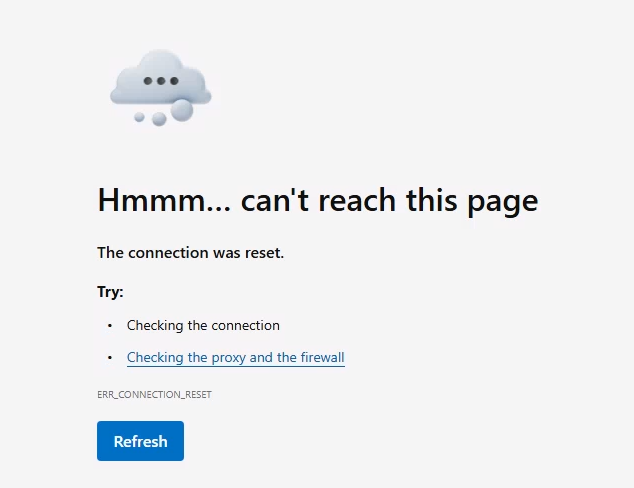
You received this error message because you didn't enable Transport Layer Security (TLS) inspection, which provides a customizable block message and unlocks more security capabilities. You see a more user-friendly error message in the TLS inspection tutorial.
Step 4: View activity in the traffic log
- In the Microsoft Entra admin center, select Global Secure Access > Monitor > Traffic logs. If needed, select Add filter. Filter on User principal name, which contains testuser, and set Action to Block.
- Review the entries for your target websites that show traffic as blocked. There might be a delay of up to 20 minutes for entries to appear in the log.
What you learned
In this exercise, you accomplished the following tasks:
- Created a web content filtering policy: You defined rules by using both FQDN-based blocking (specific domains) and category-based blocking (gambling as a web category).
- Understood the baseline profile: You learned that the baseline profile applies to all internet traffic tunneled through GSA, which makes it ideal for organization-wide protections.
- Linked policies to security profiles: You learned that policies must be linked to a security profile. Security profiles must be linked to Conditional Access policies to be assigned to users and take effect. The baseline security profile (used in this tutorial) doesn't require Conditional Access and applies to all internet traffic.
- Observed the "connection reset" error: You learned that without TLS inspection, GSA can only drop the connection, which results in a generic browser error rather than a helpful message.
Deep dive: Why did the "connection reset" error appear?
When TLS inspection isn't enabled, security service edge (SSE) can see:
- The destination IP address.
- The server name indication in the TLS handshake, which reveals the FQDN, like
www.bing.com.
But it can't see:
- The full URL path, like
www.google.com/imagesorwww.google.com/maps. - The HTTP request/response content.
Because the SSE can't inject content into an encrypted stream, it can only terminate the connection. The result is a "connection reset" error. In the next tutorial, you enable TLS inspection to unlock richer capabilities, including custom block pages.