Note
Access to this page requires authorization. You can try signing in or changing directories.
Access to this page requires authorization. You can try changing directories.
Bicep parameter files let you define parameter values in a separate file and pass them to your main.bicep. They're perfect for values that vary by subscription, environment, or region.
Key benefits include:
- Maintain consistency across Infrastructure as Code (IaC) deployments while enabling flexibility.
- Support cost optimization, such as right-sizing non-production environments without changing core infrastructure.
- Enable streamlined CI/CD pipelines by keeping parameter files in source control and passing the appropriate file to each deployment stage.
Note
Bicep parameters files are supported only in Bicep CLI version 0.18.4 or later, Azure CLI version 2.47.0 or later, and Azure PowerShell version 9.7.1 or later.
You can use either:
- A native Bicep parameters file (.bicepparam extension), or
- A standard JSON parameters file.
The file extension for a Bicep parameters file is .bicepparam.
To deploy to multiple environments, create more than one parameters file. When you use multiple parameters files, label them according to their use. For example, to deploy resources, use the label main.dev.bicepparam for development and the label main.prod.bicepparam for production.
You can compile Bicep parameter files into JSON parameter files that you can deploy by using a Bicep file. For more information, see build-params. You can also decompile a JSON parameter file into a Bicep parameter file. For more information, see decompile-params.
Warning
A parameters file saves parameter values as plain text. For security reasons, don't use this approach with sensitive values such as passwords. If you need to pass a parameter with a sensitive value, keep the value in a key vault. Instead of adding a sensitive value to your parameters file, use the getSecret function to retrieve it. For more information, see Use Azure Key Vault to pass a secret as a parameter during Bicep deployment.
Define parameters file
A parameters file uses the following format:
using '<path>/<file-name>.bicep' | using none

type <user-defined-data-type-name> = <type-expression>

var <variable-name> <data-type> = <variable-value>

param <first-parameter-name> = <first-value>
param <second-parameter-name> = <second-value>
param <third-parameter-name> = <variable-name>
To determine how to define parameter names and values, open your Bicep file. Look at the parameters section of the Bicep file. The following examples show the parameters from a Bicep file named main.bicep:
@maxLength(11)
param storagePrefix string

@allowed([
  'Standard_LRS'
  'Standard_GRS'
  'Standard_ZRS'
  'Premium_LRS'
])
param storageAccountType string = 'Standard_LRS'
In the parameters file, use the name of each parameter. The parameter names in your parameters file must match the parameter names in your Bicep file.
using 'main.bicep'

param storagePrefix
param storageAccountType
The using statement links the Bicep parameters file to a Bicep file. You can associate multiple parameter files with a single Bicep file. Each parameter file typically links to a specific Bicep file by using the using statement.
Use using none if you don't want to link the parameter file to a particular Bicep file. Bicep CLI version 0.31.0 or later supports the using none feature.
For more information, see Using statement.
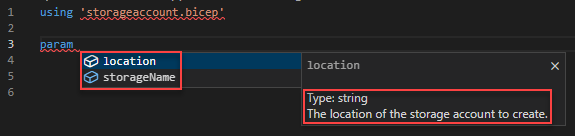
When you type the keyword param in Visual Studio Code, it prompts you with the available parameters and their descriptions from the linked Bicep file.
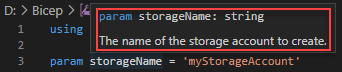
When you hover over a param name, you can see the parameter data type and description.
Review the parameter type, because the parameter types in your parameters file must use the same types as your Bicep file. In this example, both parameter types are strings:
using 'main.bicep'

param storagePrefix = ''
param storageAccountType = ''
Check the Bicep file for parameters that include a default value. If a parameter has a default value, you can provide a value in the parameters file, but you don't need to. The parameters file value overrides the Bicep file's default value.
using 'main.bicep'

param storagePrefix = '' // This value must be provided.
param storageAccountType = '' // This value is optional. Bicep uses default value if not provided.
To see if there are any restrictions like maximum length, check the Bicep file's allowed values. The allowed values specify the range of values you can provide for a parameter. In this example, storagePrefix can have a maximum of 11 characters, and storageAccountType must specify an allowed value.
using 'main.bicep'

param storagePrefix = 'storage'
param storageAccountType = 'Standard_ZRS'
The following example shows the formats of various parameter types: string, integer, Boolean, array, and object.
using './main.bicep'

param exampleString = 'test string'
param exampleInt = 2 + 2
param exampleBool = true
param exampleArray = [
  'value 1'
  'value 2'
]
param exampleObject = {
  property1: 'value 1'
  property2: 'value 2'
}
Use Bicep syntax to declare objects and arrays.
You can use expressions as parameter values. For example:
using './main.bicep'

param storageName = toLower('MyStorageAccount')
param intValue = 2 + 2
You can reference environment variables as parameter values. For example:
using './main.bicep'

param intFromEnvironmentVariables = int(readEnvironmentVariable('intEnvVariableName'))
You can define and use variables. You must use Bicep CLI version 0.21.X or later to use variables in .bicepparam files. See the following examples:
using './main.bicep'

var storagePrefix = 'myStorage'
param primaryStorageName = '${storagePrefix}Primary'
param secondaryStorageName = '${storagePrefix}Secondary'
using './main.bicep'

var testSettings = {
  instanceSize: 'Small'
  instanceCount: 1
}

var prodSettings = {
  instanceSize: 'Large'
  instanceCount: 4
}

param environmentSettings = {
  test: testSettings
  prod: prodSettings
}
You can define user-defined data types. For example:
using './main.bicep'

// Define a reusable type for tags with optional properties
type TagValues = {
  environment: 'dev' | 'test' | 'production'
  project: string
}

var tagsExample TagValues = {
  environment: 'dev'
  project: 'bicep-sample'
}

param tags = tagsExample
Generate and build parameters file
You can create a parameters file by using either Visual Studio Code or the Bicep CLI. Both tools allow you to use a Bicep file to generate a parameters file. See Generate parameters file for the Visual Studio Code method and Generate parameters file for the Bicep CLI method.
From the Bicep CLI, you can build a Bicep parameters file into a JSON parameters file. For more information, see Build parameters file.
Deploy Bicep file with parameters file
You can use inline parameters and a local parameters file in the same deployment operation. For example, you can specify some values in the local parameters file and add other values inline during deployment. If you provide values for a parameter in both the local parameters file and inline, the inline value takes precedence.
Although external Bicep parameters files aren't currently supported, you can use an external JSON parameters file by providing the URI to the file. When you use an external parameters file, provide all parameter values in the external file. When you use an external file, you can't pass other values inline or from a local file, and all inline parameters are ignored.
The following example shows an Azure CLI example for using an external JSON parameters file:
az deployment group create \
  --resource-group my-rg \
  --template-file main.bicep \
  --parameters https://storageaccount.blob.core.windows.net/templates/main.parameters.json
Azure CLI
From the Azure CLI, you can pass a parameters file with your Bicep file deployment.
You can deploy a Bicep file by using a Bicep parameters file with Azure CLI version 2.53.0 or later and Bicep CLI version 0.22.X or later. By using the using statement within the Bicep parameters file, you don't need to provide the --template-file switch when specifying a Bicep parameters file for the --parameters switch.
az deployment group create \
  --name ExampleDeployment \
  --resource-group ExampleGroup \
  --parameters storage.bicepparam
You can use inline parameters and a location parameters file in the same deployment operation. For example:
az deployment group create \
  --name ExampleDeployment \
  --resource-group ExampleGroup \
  --parameters storage.bicepparam \
  --parameters storageAccountType=Standard_LRS
For more information, see Deploy Bicep files by using the Azure CLI.
Azure PowerShell
From Azure PowerShell, pass a local parameters file by using the TemplateParameterFile parameter.
New-AzResourceGroupDeployment `
  -Name ExampleDeployment `
  -ResourceGroupName ExampleResourceGroup `
  -TemplateFile C:\MyTemplates\storage.bicep `
  -TemplateParameterFile C:\MyTemplates\storage.bicepparam
You can use inline parameters and a location parameters file in the same deployment operation. For example:
New-AzResourceGroupDeployment `
  -Name ExampleDeployment `
  -ResourceGroupName ExampleResourceGroup `
  -TemplateFile C:\MyTemplates\storage.bicep `
  -TemplateParameterFile C:\MyTemplates\storage.bicepparam `
  -storageAccountType Standard_LRS
For more information, see Deploy Bicep files with Azure PowerShell. To deploy .bicep files, you need Azure PowerShell version 5.6.0 or later.
If your Bicep file includes a parameter with the same name as one of the parameters in the Azure PowerShell command, Azure PowerShell presents the parameter from your Bicep file with the FromTemplate postfix. For example, if a parameter named ResourceGroupName in your Bicep file conflicts with the ResourceGroupName parameter in the New-AzResourceGroupDeployment cmdlet, you're prompted to provide a value for ResourceGroupNameFromTemplate. To avoid this confusion, use parameter names that aren't used for deployment commands.
Related content
- For more information about how to define parameters in a Bicep file, see Parameters in Bicep.
- To get sensitive values, see Use Azure Key Vault to pass secure parameter value during deployment.