Note
Access to this page requires authorization. You can try signing in or changing directories.
Access to this page requires authorization. You can try changing directories.
This article explains how to use the Recovery Services vault Overview dashboard to monitor and manage your Recovery Services vaults. When you open a Recovery Services vault from the list, the Overview dashboard for the selected vault opens. The dashboard provides details about the vault. The tiles show:
- The status of Critical and Warning alerts.
- In-progress and failed backup jobs.
- The amount of locally redundant storage (LRS) and geo-redundant storage (GRS) used.
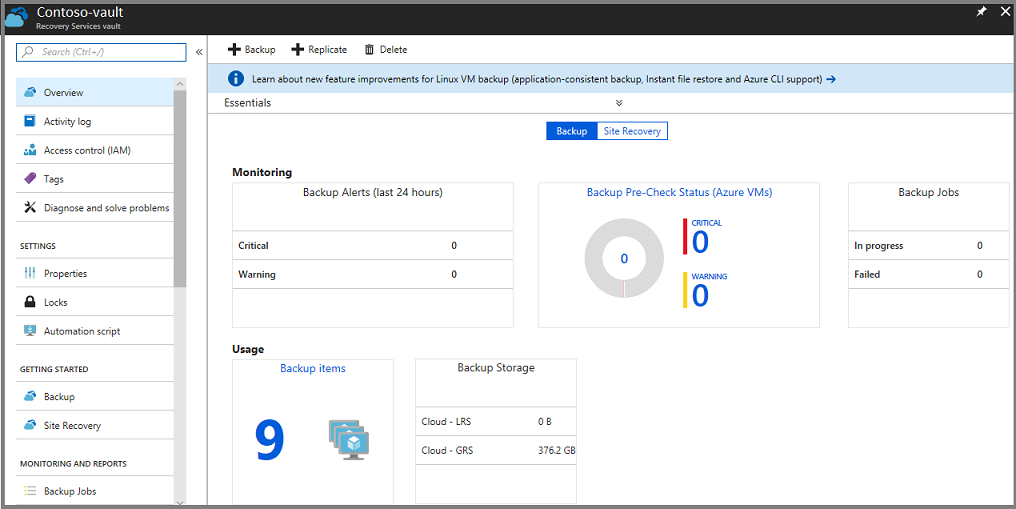
If you back up Azure virtual machines (VMs) to the vault, the Backup Pre-Check Status tile displays any Critical or Warning alerts. The following image shows the Overview dashboard for Contoso-vault. The Backup items tile shows nine items registered to the vault.
Prerequisites
- An Azure subscription
- A Recovery Services vault
- At least one Azure Backup item configured for the vault
Note
Azure has two different deployment models you can use to create and work with resources: Azure Resource Manager and classic. This article covers the use of the Resource Manager deployment model. We recommend the Resource Manager deployment model for new deployments instead of the classic deployment model.
Learn how to create a Recovery Services vault by using the Azure portal and a REST API.
Open a Recovery Services vault
To monitor alerts or view management data about a Recovery Services vault, open the vault.
Sign in to the Azure portal with your Azure subscription.
In the portal, select All services.
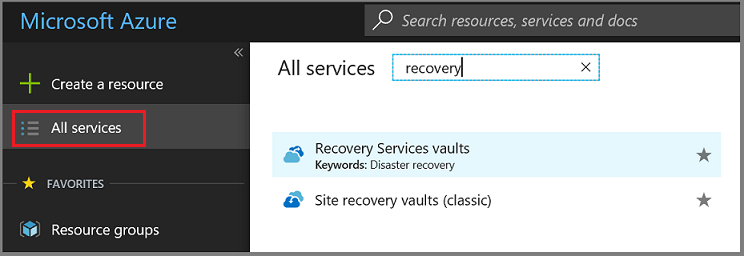
In the All services dialog, enter Recovery Services. As you begin typing, the list filters based on your input. When the Recovery Services vaults option appears, select it to open the list of Recovery Services vaults in your subscription.
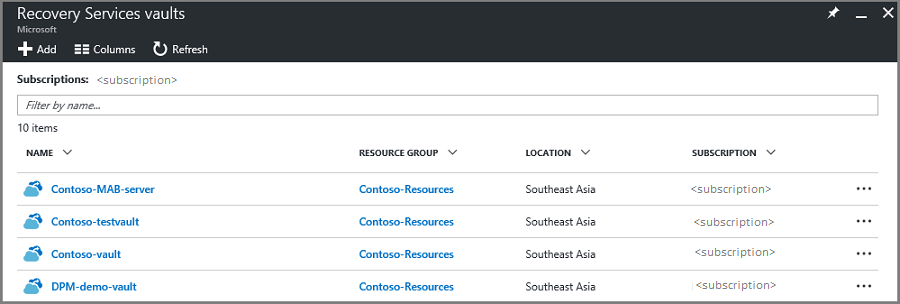
From the list of vaults, select a vault to open its Overview dashboard.
The Overview dashboard uses tiles to provide alerts and backup job data.
Monitor backup jobs and alerts
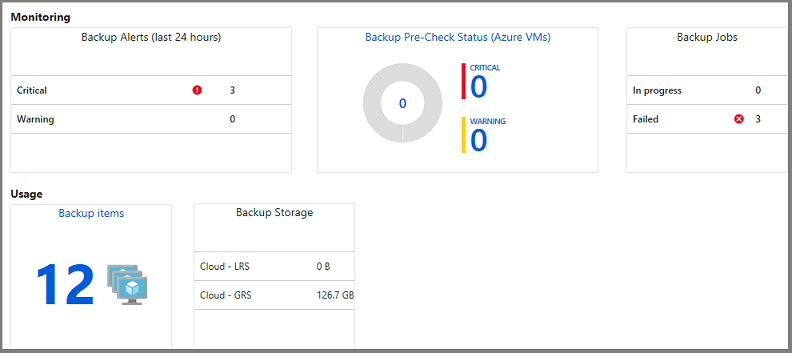
The Recovery Services vault Overview dashboard provides tiles for monitoring and use information. The tiles in the Monitoring section show Critical and Warning alerts and In progress and Failed jobs. Select a particular alert or job to open the Backup Alerts or Backup Jobs menu filtered for that job or alert.
Important
On March 31, 2026, classic alerts for Recovery Services vaults in Azure Backup will be retired and no longer supported. We recommend that you use the built-in Azure Monitor alerts because they include the same capabilities as classic alerts and other capabilities. Learn more.
The Monitoring section shows the results of predefined Backup alerts and backup jobs queries. The Monitoring tiles provide up-to-date information about:
- Critical and Warning alerts for backup jobs in the last 24 hours.
- Precheck status for Azure VMs. For complete information on the precheck status, see Backup Pre-Check Status.
- The backup jobs in progress, and the jobs that failed in the last 24 hours.
The Usage tiles provide information about:
- The number of backup items configured for the vault.
- The Azure storage (separated by LRS and GRS) consumed by the vault.
Select the tiles (except Backup Storage) to open the associated menu. In the preceding image, the Backup Alerts tile shows three Critical alerts. Select the Critical alerts row on the Backup Alerts tile to open the Backup alerts filtered for Critical alerts.
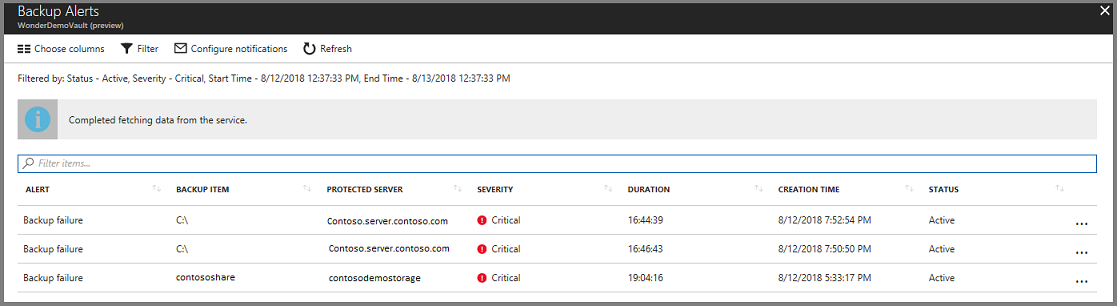
To see the details of classic alerts, select the Backup Alerts tile.
Important
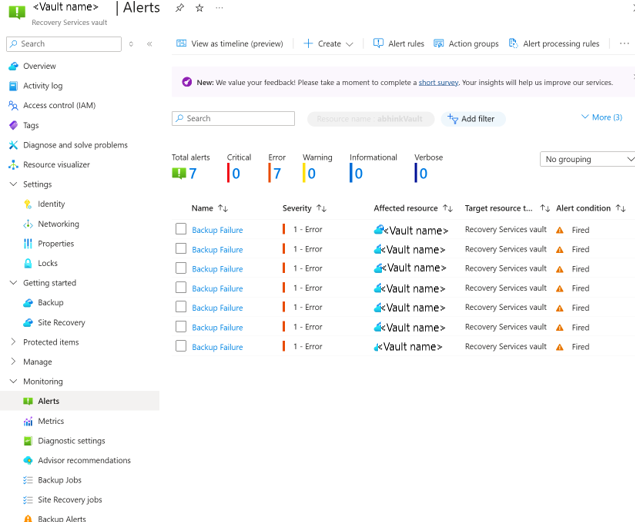
Classic alerts for Azure Backup will be deprecated on March 31, 2026. We recommend that you migrate to Azure Monitor alerts for a seamless experience. View Azure Monitor alerts on the Alerts pane in the Recovery Services vault.
Backup Pre-Check Status
Backup prechecks assess your VM configuration for issues that can adversely affect backups. They aggregate this information so that you can view it directly from the Recovery Services vault dashboard and provide recommendations for corrective measures to ensure successful file-consistent or application-consistent backups. They require no infrastructure and have no other cost.
Backup prechecks run as part of the scheduled backup operations for your Azure VMs. They conclude with one of the following states:
- Passed: This state indicates that your VM's configuration should lead to successful backups and no corrective action needs to be taken.
- Warning: This state indicates one or more issues in the VM's configuration that might lead to backup failures. It provides recommended steps to ensure successful backups. For example, not having the latest VM Agent installed can cause backups to fail intermittently. This situation provides a Warning state.
- Critical: This state indicates one or more critical issues in the VM's configuration that will lead to backup failures and provides required steps to ensure successful backups. For example, a network issue caused by an update to the network security group rules of a VM causes backups to fail. It prevents the VM from communicating with Azure Backup. This situation provides a Critical state.
Follow these steps to start resolving any issues reported by backup prechecks for VM backups on your Recovery Services vault:
- Select the Backup Pre-Check Status (Azure VMs) tile on the Recovery Services vault dashboard.
- Select any VM with a backup precheck status of either Critical or Warning to open the VM details pane.
- Select the pane notification at the top of the pane to reveal the configuration issue description and remedial steps.
Manage Backup alerts
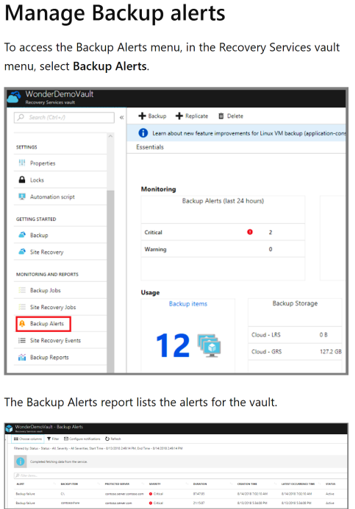
To access the Backup Alerts menu, on the Recovery Services vault menu, select Backup Alerts.
The Backup alerts report lists the alerts for the vault.
Important
Backup alerts (classic) will be deprecated by March 31, 2026. Migrate to Azure Monitor alerts for a seamless experience. See Azure Monitor Alerts on the Alerts tab.
Manage backup items
A Recovery Services vault holds many types of backup data. To learn about what you can back up, see What is the Azure Backup service?. To manage your various servers, computers, databases, and workloads, select the Backup items tile to view the contents of the vault.
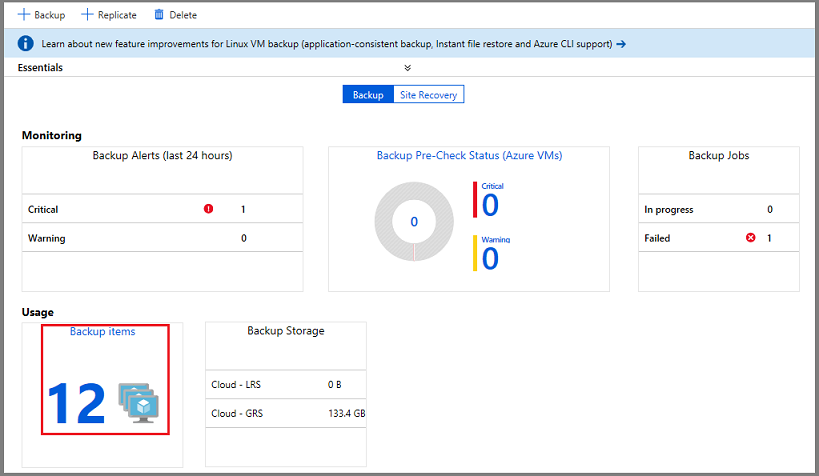
The list of backup items is organized by backup management type.
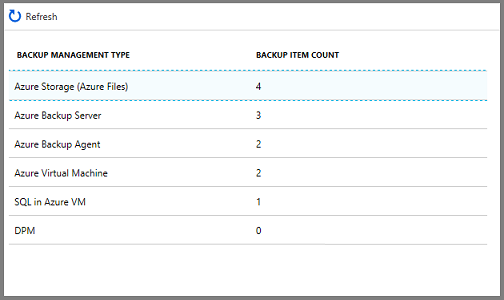
To explore a specific type of protected instance, select the item in the Backup Management Type column. For example, in the preceding image, two Azure VMs are protected in this vault. To open the list of protected VMs in this vault, select Azure Virtual Machine.
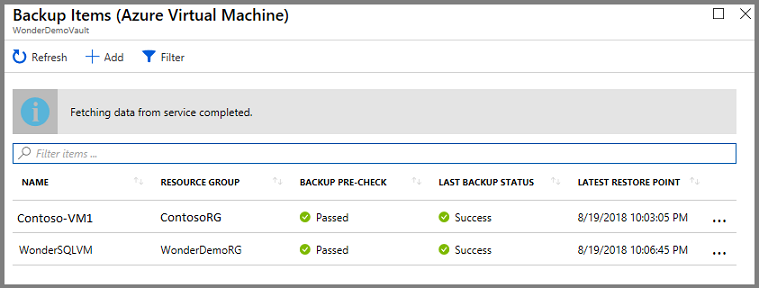
The list of VMs has data like:
- The associated resource group.
- Previous backup precheck.
- Last backup status.
- Date of the most recent restore point.
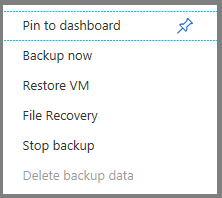
In the last column, the ellipsis opens the menu to trigger common tasks. The data provided in columns is different for each backup type.
Manage backup jobs
The Backup Jobs tile in the vault dashboard shows the number of jobs that are in progress or that failed in the last 24 hours. The tile provides a glimpse into the Backup Jobs menu.
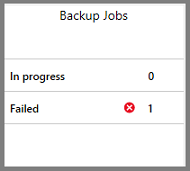
To see more information about the jobs, select In Progress or Failed to open the Backup Jobs menu filtered for that state.
Backup Jobs menu
The Backup Jobs menu shows information about the item type, operation, status, start time, and duration.
To open the Backup Jobs menu, on the vault's main menu, select Backup Jobs.
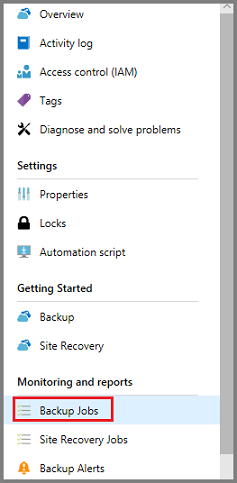
The list of backup jobs opens.
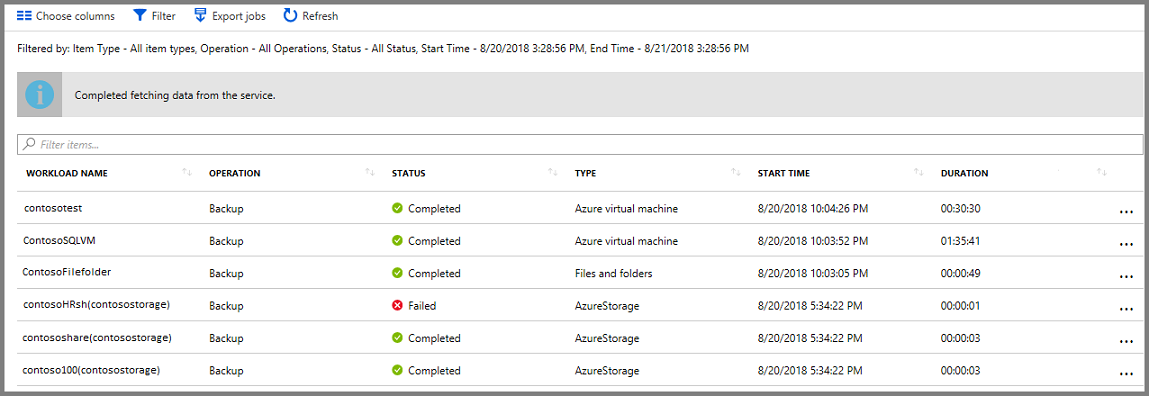
The Backup Jobs menu shows the status for all operations, on all backup types, for the last 24 hours. Use Filter to change the filters. The filters are explained in the following sections.
To change the filters:
On the vault Backup Jobs menu, select Filter.

The Filter menu opens.
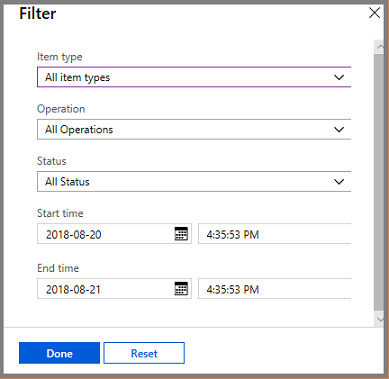
Choose the filter settings and select Done. The filtered list refreshes based on the new settings.
Item type
The item type is the backup management type of the protected instance. You can view all item types or one item type. You can't select two or three item types. The available item types in the dropdown list are:
- All item types
- Azure virtual machine
- Files and folders
- Azure Storage
- Azure workload
Operation
You can view one operation or all operations. You can't select two or three operations. The available operations in the dropdown list are:
- All Operations
- Register
- Configure backup
- Backup
- Restore
- Disable backup
- Delete backup data
Status
You can view all statuses or one. You can't select two or three statuses. The available statuses in the dropdown list are:
- All Status
- Completed
- In progress
- Failed
- Canceled
- Completed with warnings
Start time
The day and time when the query begins. The default is a 24-hour period.
End time
The day and time when the query ends.
Export jobs
Use Export jobs to create a spreadsheet that contains all the menu information for jobs. The spreadsheet has one sheet that holds a summary of all jobs and individual sheets for each job.
To export the jobs information to a spreadsheet, select Export jobs. The service creates a spreadsheet by using the name of the vault and date, but you can change the name.
Note
Azure Backup currently doesn't support exporting jobs with a filter applied. Triggering this operation fails for SQL and SAP HANA workload types. Alternatively, enable a Log Analytics workspace and export workload-specific jobs.
Monitor Backup use
The Backup Storage tile on the dashboard shows the storage consumed in Azure. Storage use information is provided for:
- Cloud LRS storage use associated with the vault.
- Cloud GRS storage use associated with the vault.
Optimize backup and recovery with Resiliency Copilot
Resiliency Copilot introduces new capabilities in the pane for Recovery Services vaults. You can use it to configure or manage a secure, resilient backup and recovery environment. You can:
- Increase security levels to strengthen protection for backup data and disaster recovery operations.
- Analyze job failures to gain insights into failures for precise analysis and faster resolution.
- Configure protection for unprotected resources.
- Reconfigure backup for data sources in an alternate vault.
- Delete a vault.
- Troubleshoot common errors efficiently.
- Manage the business continuity and disaster recovery estate by using Copilot (preview).