Note
Access to this page requires authorization. You can try signing in or changing directories.
Access to this page requires authorization. You can try changing directories.
Controlling outbound network access is an important part of an overall network security plan. For example, you may want to limit access to web sites. Or, you may want to limit the outbound IP addresses and ports that can be accessed.
One way you can control outbound network access from an Azure subnet is with Azure Firewall and Firewall Policy. With Azure Firewall and Firewall Policy, you can configure:
- Application rules that define fully qualified domain names (FQDNs) that can be accessed from a subnet.
- Network rules that define source address, protocol, destination port, and destination address.
Network traffic is subjected to the configured firewall rules when you route your network traffic to the firewall as the subnet default gateway.
For this tutorial, you create a simplified single VNet with two subnets for easy deployment.
- AzureFirewallSubnet - the firewall is in this subnet.
- Workload-SN - the workload server is in this subnet. This subnet's network traffic goes through the firewall.
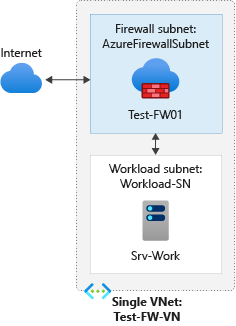
For production deployments, a hub and spoke model is recommended, where the firewall is in its own VNet. The workload servers are in peered VNets in the same region with one or more subnets.
In this tutorial, you learn how to:
- Set up a test network environment
- Deploy a firewall and firewall policy
- Create a default route
- Configure an application rule to allow access to www.google.com
- Configure a network rule to allow access to external DNS servers
- Configure a NAT rule to allow inbound HTTP access to the test server
- Test the firewall
If you prefer, you can complete this procedure using Azure PowerShell.
Prerequisites
If you don't have an Azure subscription, create a free account before you begin.
Set up the network
First, create a resource group to contain the resources needed to deploy the firewall. Then create a VNet, subnets, and a test server.
Create a resource group
The resource group contains all the resources for the tutorial.
Sign in to the Azure portal.
On the Azure portal menu, select Resource groups or search for and select Resource groups from any page, then select Create. Enter or select the following values:
Setting Value Subscription Select your Azure subscription. Resource group Enter Test-FW-RG. Region Select a region. All other resources that you create must be in the same region. Select Review + create.
Select Create.
Create a VNet
This VNet has two subnets.
Note
The size of the AzureFirewallSubnet subnet is /26. For more information about the subnet size, see Azure Firewall FAQ.
On the Azure portal menu or from the Home page, select Create a resource.
Select Networking.
Search for Virtual network and select Create.
Enter or select the following values:
Setting Value Subscription Select your Azure subscription. Resource group Select Test-FW-RG. Name Enter Test-FW-VN. Region Select the same location that you used previously. Select Next.
On the Security tab, select Next.
For IPv4 Address space, accept the default 10.0.0.0/16.
Under Subnets, select default.
On the Edit subnet page, for Subnet purpose, select Azure Firewall.
The firewall is in this subnet, and the subnet name must be AzureFirewallSubnet.
For Starting address, type 10.0.1.0.
Select Save.
Next, create a subnet for the workload server.
- Select Add subnet.
- For Subnet name, type Workload-SN.
- For Starting address, type 10.0.2.0/24.
- Select Add.
- Select Review + create.
- Select Create.
Deploy Azure Bastion
Deploy Azure Bastion Developer edition to securely connect to the Srv-Work virtual machine for testing.
In the search box at the top of the portal, enter Bastion. Select Bastions from the search results.
Select Create.
On the Create a Bastion page, enter or select the following values:
Setting Value Project details Subscription Select your Azure subscription. Resource group Select Test-FW-RG. Instance details Name Enter Test-Bastion. Region Select the same location that you used previously. Tier Select Developer. Virtual network Select Test-FW-VN. Subnet The AzureBastionSubnet is created automatically with address space 10.0.0.0/26. Select Review + create.
Review the settings and select Create.
The deployment takes a few minutes to complete.
Create a virtual machine
Now create the workload virtual machine, and place it in the Workload-SN subnet.
In the search box at the top of the portal enter Virtual machine, select Virtual machines in the search results.
Select Create > Virtual machine.
Enter or select these values for the virtual machine:
Setting Value Project details Subscription Select your Azure subscription. Resource group Select Test-FW-RG. Instance details Virtual machine name Enter Srv-Work. Region Select the same location that you used previously. Availability options Select No infrastructure redundancy required. Security type Select Standard. Image Select Ubuntu Server 24.04 LTS -x64 Gen2 Size Select a size for the virtual machine. Administrator account Username Enter azureuser. SSH public key source Select Generate new key pair. Key pair name Enter Srv-Work_key. Under Inbound port rules, Public inbound ports, select None.
Accept the other defaults and select Next: Disks.
Accept the disk defaults and select Next: Networking.
Make sure that Test-FW-VN is selected for the virtual network and the subnet is Workload-SN.
For Public IP, select None.
Select Review + create.
Review the settings on the summary page, and then select Create.
When prompted, select Download private key and create resource. Save the private key file to your computer.
After the deployment completes, select the Srv-Work resource and note the private IP address for later use.
Install a web server
Connect to the virtual machine and install a web server for testing.
On the Azure portal menu, select Resource groups or search for and select Resource groups from any page. Select the Test-FW-RG resource group.
Select the Srv-Work virtual machine.
Select Operations > Run command > RunShellScript.
In the script box, enter the following commands:
sudo apt-get update
sudo apt-get install -y nginx
echo "<html><body><h1>Azure Firewall DNAT Test</h1><p>If you can see this page, the DNAT rule is working correctly!</p></body></html>" | sudo tee /var/www/html/index.html
Select Run.
Wait for the script to complete successfully.
Deploy the firewall and policy
Deploy the firewall into the VNet.
On the Azure portal menu or from the Home page, select Create a resource.
Type firewall in the search box and press Enter.
Select Firewall and then select Create.
On the Create a Firewall page, use the following table to configure the firewall:
Setting Value Project details Subscription Select your Azure subscription. Resource group Select Test-FW-RG. Instance details Name Enter Test-FW01. Region Select the same location that you used previously. Firewall SKU Select Standard. Firewall management Select Use a Firewall Policy to manage this firewall. Firewall policy Select Add new, and enter fw-test-pol.
Select the same region that you used previously. Select OK.Choose a virtual network Select Use existing, and then select Test-FW-VN. Ignore the warning about the Force Tunneling. The warning is resolved in a later step. Public IP address Select Add new, and enter fw-pip for the Name. Select OK. Clear the Enable Firewall Management NIC check box.
Accept the other default values, then select Next: Tags.
Select Next : Review + create.
Review the summary, and then select Create to create the firewall.
This takes a few minutes to deploy.
After deployment completes, go to the Test-FW-RG resource group, and select the Test-FW01 firewall.
Note the firewall private and public IP addresses. You use these addresses later.
Create a default route
For the Workload-SN subnet, configure the outbound default route to go through the firewall.
On the Azure portal menu, select All services or search for and select All services from any page.
Under Networking, select Route tables.
Select Create, then enter or select the following values:
Setting Value Project details Subscription Select your Azure subscription. Resource group Select Test-FW-RG. Instance details Name Enter Firewall-route. Region Select the same location that you used previously. Select Review + create.
Select Create.
After deployment completes, select Go to resource.
On the Firewall-route page, under Settings, select Subnets and then select Associate.
For Virtual network select Test-FW-VN.
For Subnet, select Workload-SN.
Select OK.
Select Routes and then select Add.
For Route name, enter fw-dg.
For Destination type select IP Addresses.
For Destination IP addresses/CIDR ranges prefix, enter 0.0.0.0/0.
For Next hop type, select Virtual appliance.
Azure Firewall is actually a managed service, but virtual appliance works in this situation.
For Next hop address, enter the private IP address for the firewall that you noted previously.
Select Add.
Configure an application rule
This is the application rule that allows outbound access to www.google.com.
- Open the Test-FW-RG resource group, and select the fw-test-pol firewall policy.
- Under Settings > Rules, Select Application rules.
- Select Add a rule collection.
- For Name, enter App-Coll01.
- For Priority, enter 200.
- For Rule collection action, select Allow.
- Under Rules, for Name, enter Allow-Google.
- For Source type, select IP address.
- For Source, enter 10.0.2.0/24.
- For Protocol:port, enter http, https.
- For Destination Type, select FQDN.
- For Destination, enter
www.google.com - Select Add.
Azure Firewall includes a built-in rule collection for infrastructure FQDNs that are allowed by default. These FQDNs are specific for the platform and can't be used for other purposes. For more information, see Infrastructure FQDNs.
Wait for the application rule deployment to complete before creating the network rule in the next steps.
Configure a network rule
This is the network rule that allows outbound access to two IP addresses at port 53 (DNS).
- Select Network rules.
- Select Add a rule collection.
- For Name, enter Net-Coll01.
- For Priority, enter 200.
- For Rule collection action, select Allow.
- For Rule collection group, select DefaultNetworkRuleCollectionGroup.
- Under Rules, for Name, enter Allow-DNS.
- For Source type, select IP Address.
- For Source, enter 10.0.2.0/24.
- For Protocol, select UDP.
- For Destination Ports, enter 53.
- For Destination type select IP address.
- For Destination, enter 209.244.0.3,209.244.0.4.
These are public DNS servers operated by CenturyLink. - Select Add.
Wait for the network rule deployment to complete before creating the DNAT rule in the next steps.
Configure a DNAT rule
This rule allows you to connect to the web server on the Srv-Work virtual machine through the firewall.
- Select the DNAT rules.
- Select Add a rule collection.
- For Name, enter HTTP.
- For Priority, enter 200.
- For Rule collection group, select DefaultDnatRuleCollectionGroup.
- Under Rules, for Name, enter http-nat.
- For Source type, select IP address.
- For Source, enter *.
- For Protocol, select TCP.
- For Destination Ports, enter 80.
- For Destination, enter the firewall public IP address.
- For Translated type, select IP Address.
- For Translated address, enter the Srv-work private IP address.
- For Translated port, enter 80.
- Select Add.
Change the primary and secondary DNS address for the Srv-Work network interface
For testing purposes in this tutorial, configure the server's primary and secondary DNS addresses. This isn't a general Azure Firewall requirement.
- On the Azure portal menu, select Resource groups or search for and select Resource groups from any page. Select the Test-FW-RG resource group.
- Select the network interface for the Srv-Work virtual machine.
- Under Settings, select DNS servers.
- Under DNS servers, select Custom.
- Enter 209.244.0.3 in the Add DNS server text box, and 209.244.0.4 in the next text box.
- Select Save.
- Restart the Srv-Work virtual machine.
Test the firewall
Now, test the firewall to confirm that it works as expected.
Test the DNAT rule
- Open a web browser on your local computer.
- In the address bar, enter
http://<firewall-public-ip-address>, where<firewall-public-ip-address>is the public IP address of the firewall you noted earlier. - You should see the custom web page: Azure Firewall DNAT Test. This confirms that the DNAT rule is working and traffic is being forwarded to the Srv-Work virtual machine.
Test the application and network rules
Use Azure Bastion to securely connect to the Srv-Work virtual machine and test the firewall rules.
On the Azure portal menu, select Resource groups or search for and select Resource groups from any page. Select the Test-FW-RG resource group.
Select the Srv-Work virtual machine.
Select Connect > Connect via Bastion.
On the Bastion page, enter or select the following values:
Setting Value Authentication Type Select SSH Private Key from Local File. Username Enter azureuser. Local File Select Browse and select the Srv-Work_key.pem file that you downloaded during VM creation. Select Connect.
A new browser tab opens with an SSH session to the Srv-Work virtual machine.
In the SSH session, enter the following command to test access to Google:
curl -I https://www.google.comYou should see a successful HTTP response (200 OK), indicating that the application rule is allowing access to Google.
Now test access to Microsoft, which should be blocked. Enter:
curl -I https://www.microsoft.comThe command should time out or fail after approximately 60 seconds, indicating that the firewall is blocking access.
So now you've verified that the firewall rules are working:
- You can access the web server through the DNAT rule.
- You can browse to the one allowed FQDN, but not to any others.
- You can resolve DNS names using the configured external DNS server.
Clean up resources
You can keep your firewall resources for the next tutorial, or if no longer needed, delete the Test-FW-RG resource group to delete all firewall-related resources.