Note
Access to this page requires authorization. You can try signing in or changing directories.
Access to this page requires authorization. You can try changing directories.
Facilitator brings AI-powered experiences to Teams Rooms during scheduled, hybrid, and in-person meetings.
The Facilitator agent can be used in:
Facilitator in Teams: Used for Teams meetings that are scheduled on a calendar. This can include a Teams Rooms device, where Facilitator chat interactions and AI notes can be viewed by in-room participants.
Facilitator in Teams Rooms: Used for unscheduled in-person discussions with a Teams Room device available in the meeting room. Facilitator can serve as the note taker by capturing discussion points and action items for these meetings.
Facilitator in Teams for scheduled meetings
Facilitator is an AI-powered agent in Teams that can automatically take notes of the conversations that happen during a meeting, provide key highlights, and answer prompts in the meeting chat. If Teams Rooms is added to the scheduled meeting, in-room participants can view Facilitator interactions in the Chat panel, navigate notes taken during the meeting in the Notes panel, and track timer for allocated agenda topics. This is a consumption-only experience for in-room participants.
Only the meeting organizer requires a Copilot license. For more information and the requirements, see Set up Facilitator in Microsoft Teams for collaborative AI-generated notes.
Experience
In a scheduled meeting with Teams Rooms devices invited, you can view notes generated by Facilitator by tapping the Notes button.
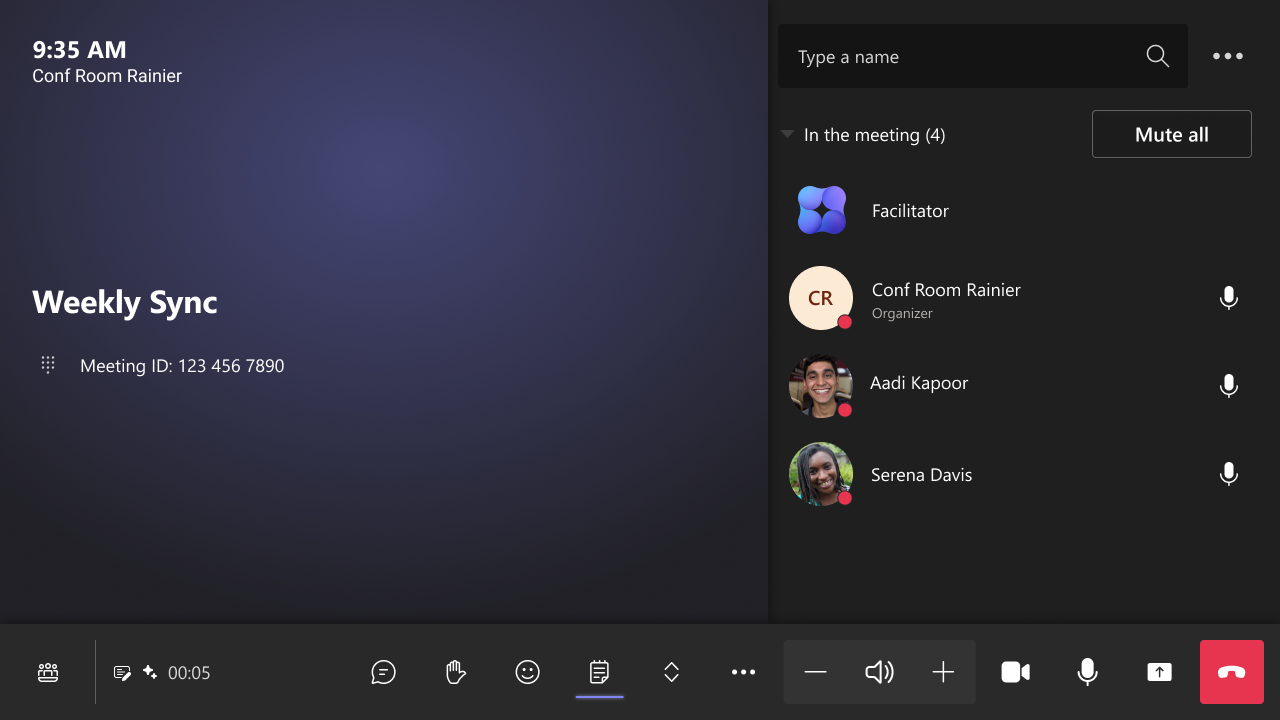 Notes button on the console to open and close the Notes panel.
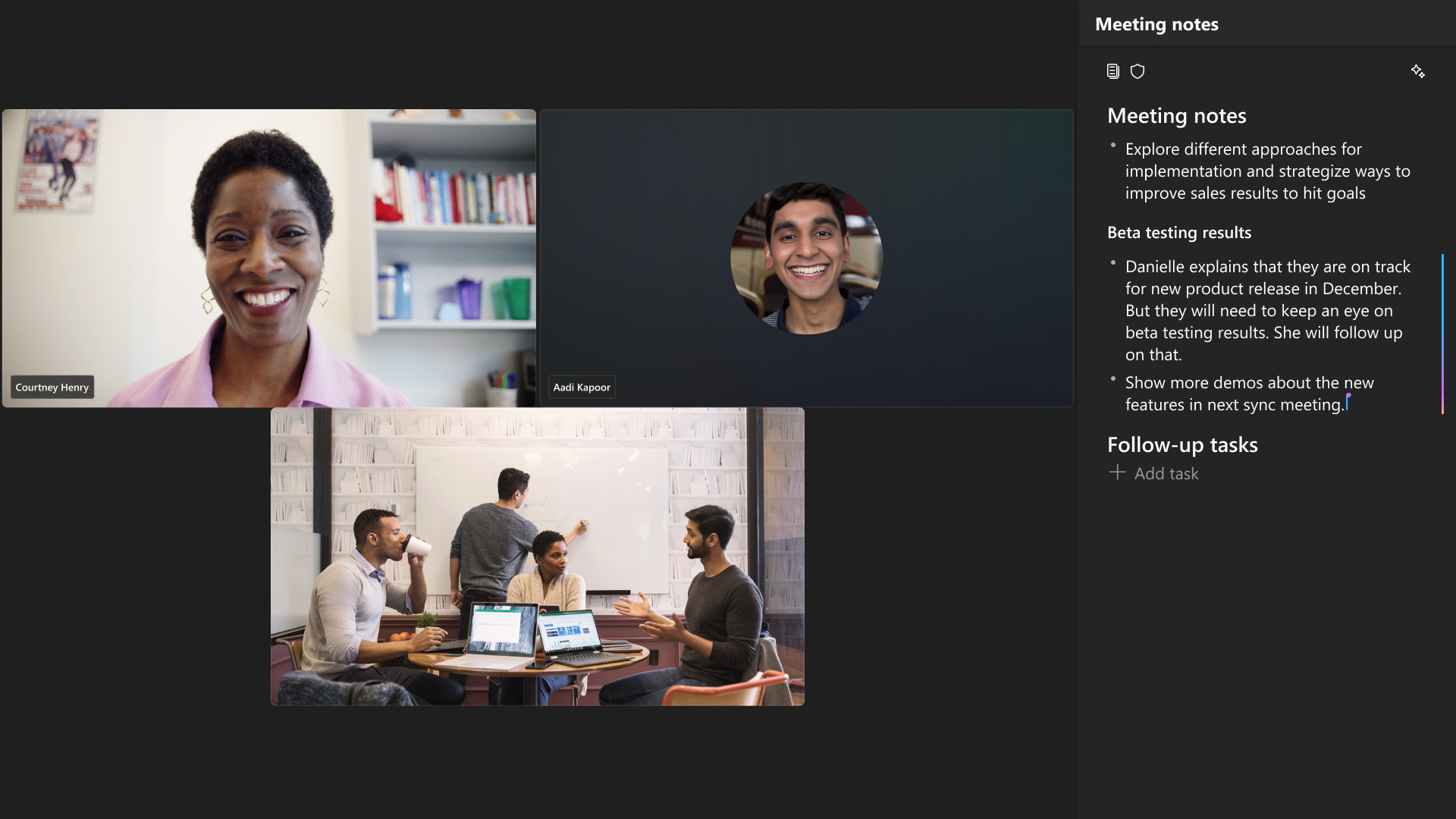 Notes panel on the front-of-room display
Facilitator can proactively share insights, reminders and time left in a meeting, as well as respond to participant questions or commands in the Chat panel.
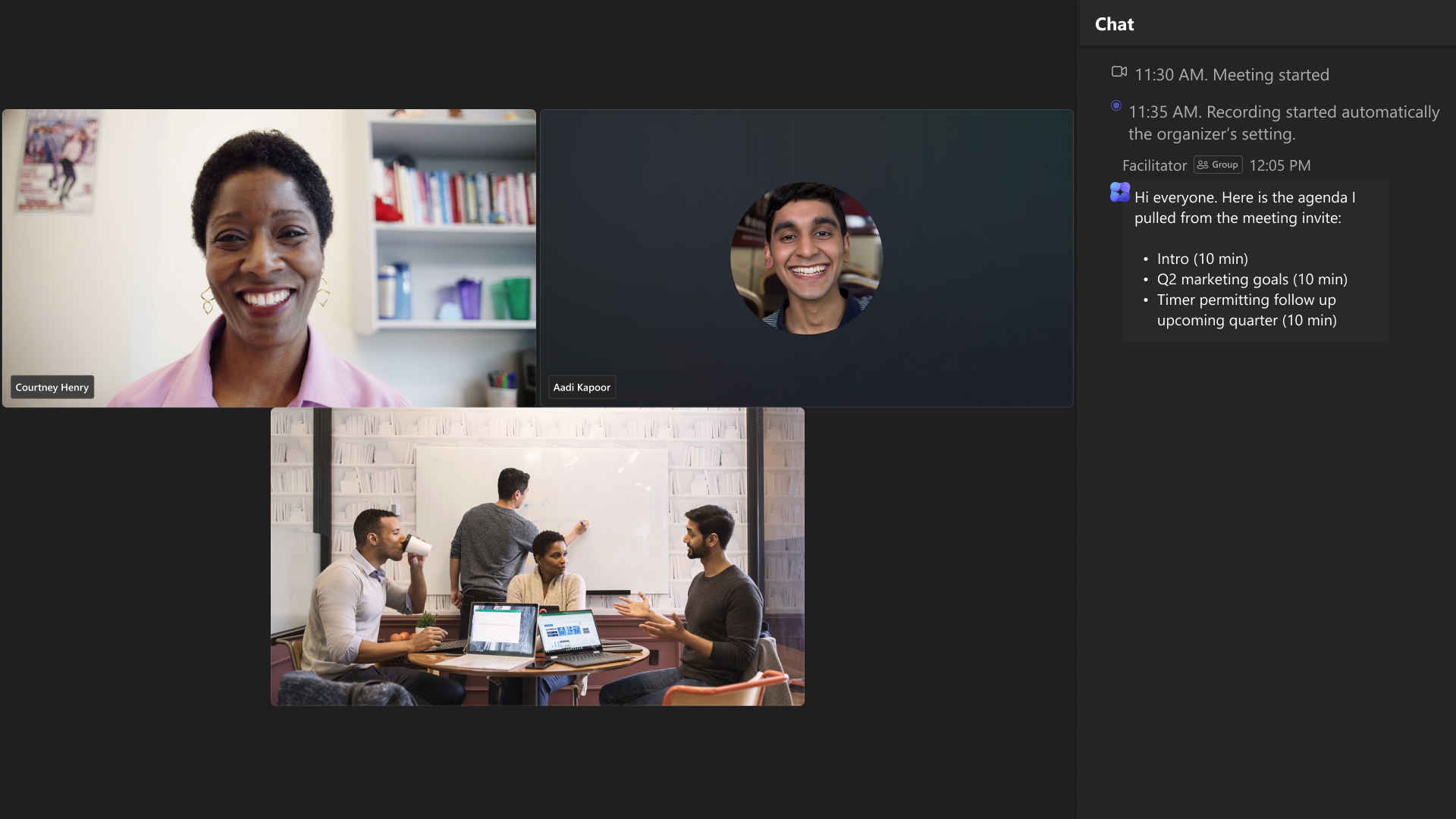 Messages from Facilitator in the Chat panel on the front-of-room display
If there is an agenda in the meeting invite or agenda added to the Loop meeting notes before the meeting, agenda timer will appear at the front-of-room display to show allocation of time for each topic.
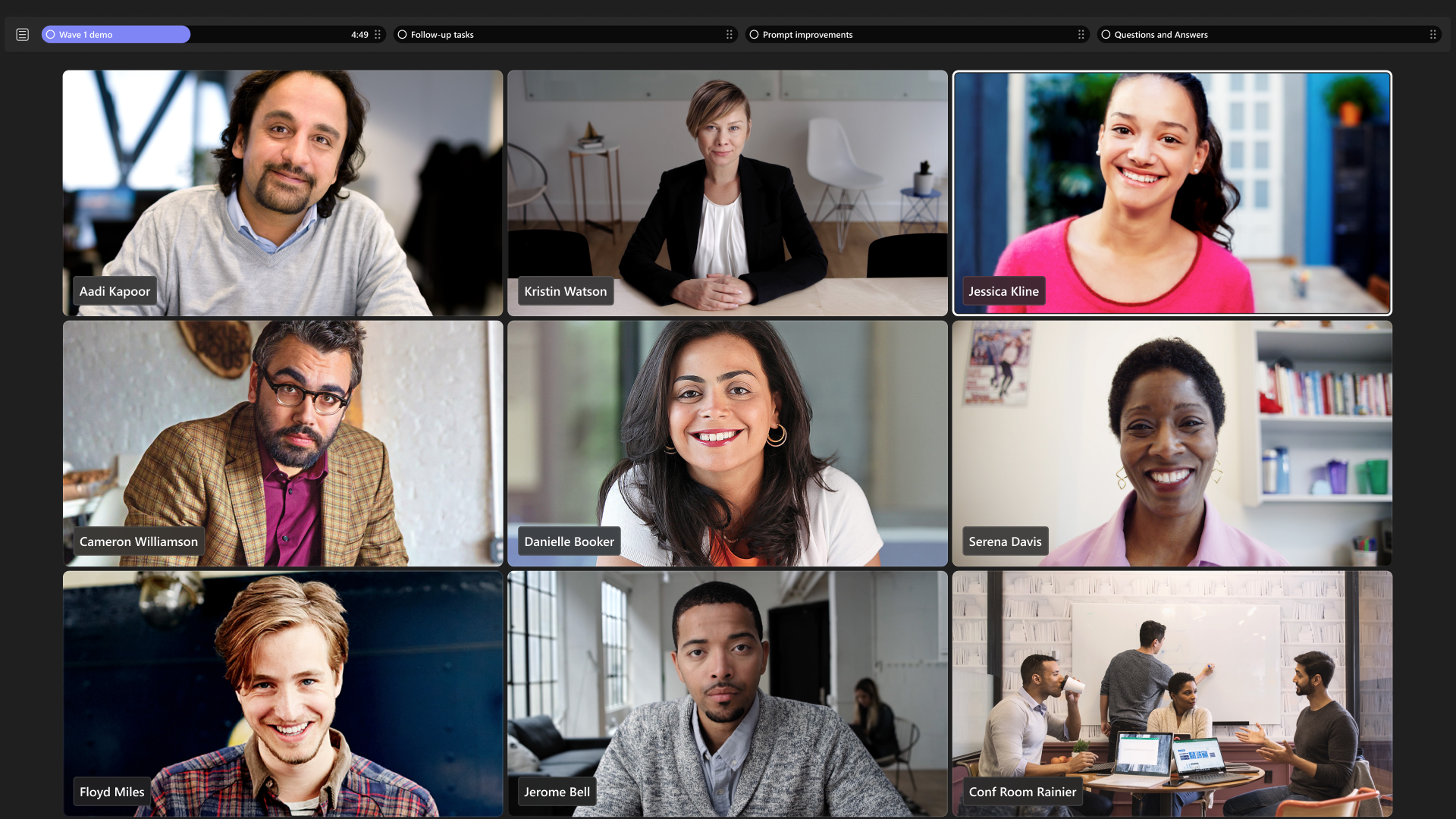
Facilitator in Teams Rooms
Facilitator in Teams Rooms can create rich AI notes with summaries and action items that include speaker attribution for unscheduled meetings on a Teams Rooms device, similar to the in-meeting experience. Facilitator in Teams Rooms can be initiated by tapping on the “Take notes” button on the home screen of the console or touch board.
Set up Facilitator for AI-generated notes
Note
Facilitator in Teams Rooms for in-person note-taking is in preview and is currently included with Teams Rooms Pro. Preview features might not be complete, and the experience and licensing model may change before public release.
To enable AI-generated notes using Facilitator in Teams Rooms:
Pre-requisite: Assign a Teams Rooms Pro license to each resource account you have for your Teams Rooms devices
For more information, see Microsoft Teams Rooms licenses.
Step 1: Turn on Facilitator in Teams admin center
Enable Facilitator app for the room resource account in the Teams admin center. If app availability is set to Everyone, the room account is included. If availability is scoped to People and Groups, include the Teams Rooms resource account.
Step 2: Turn on transcription for meetings
For more information, see Manage transcription for meetings.
Step 3: Turn on Loop experiences
To enable Loop for the room account, see Manage Loop components in your organization. Facilitator stores AI-generated notes as a Loop file in SharePoint Embedded storage that belongs to the tenant and users who saved the notes can access it later. The data is treated as meeting transcript data.
Step 4: Turn on note-taking for Teams Rooms
In Pro Management portal, select Rooms from the left navigation > select your desired room > Settings > Device > Show Take notes button on the home screen. The default setting is enabled.
Experience
After you complete the required steps and meet the prerequisites, in-room participants will see a Facilitator icon on the front-of-room display and a “Tap to take notes” entry point on the console.
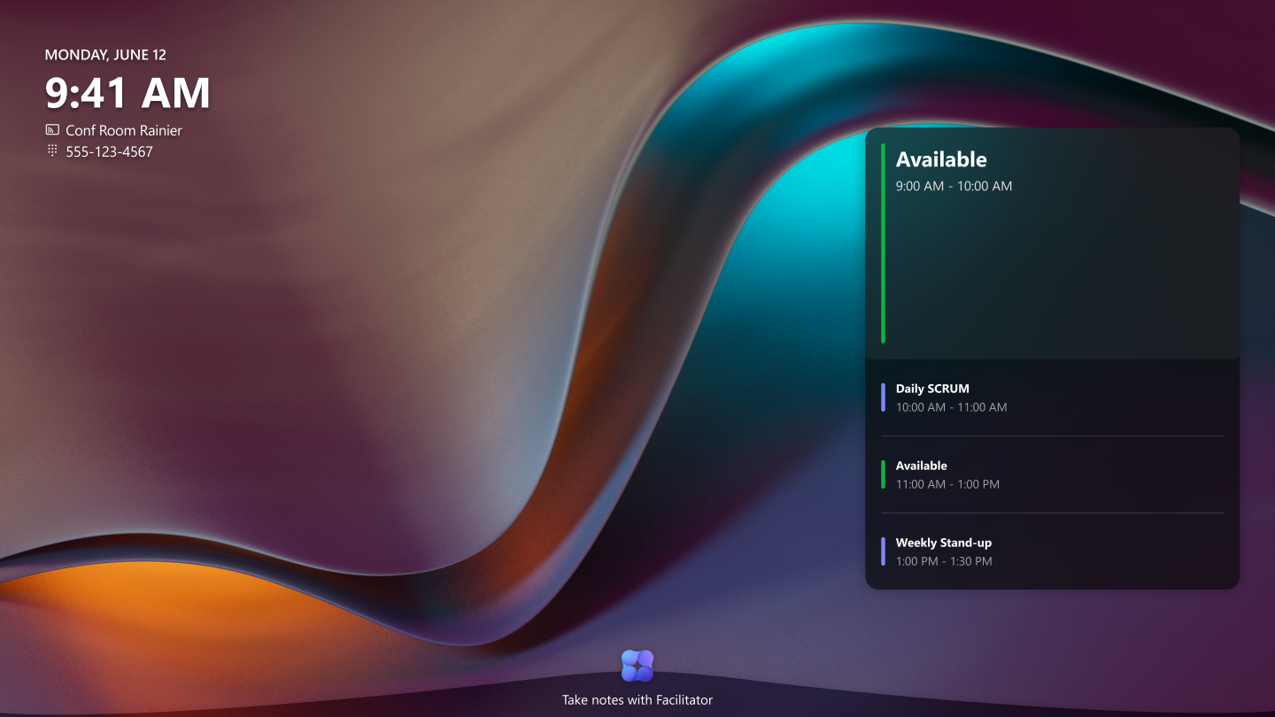 "Takes notes with Facilitator" on the front-of-room display
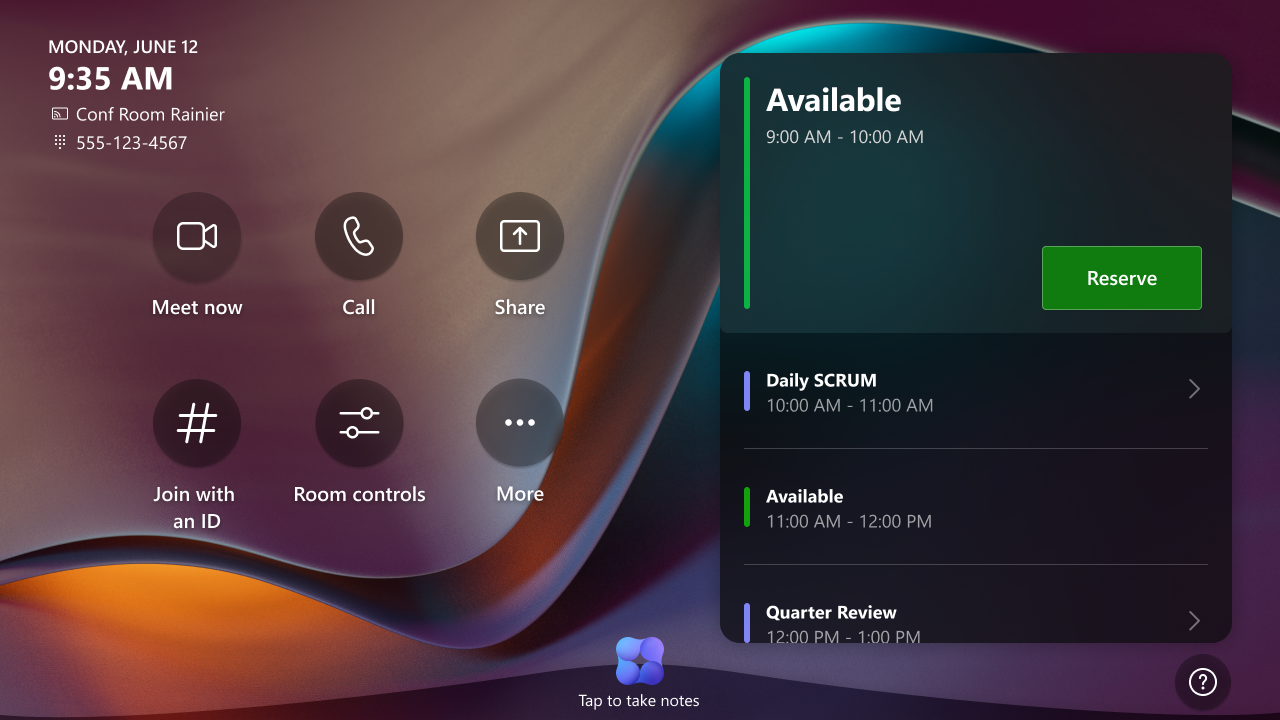 “Tap to take notes“ entry point on console
At the start of the note-taking session, enter participants’ names in the dialog to support speaker attribution. Notes can take a few minutes to generate and appear on the front-of-room display as participants speak. At the end of the session, select Save notes and ensure participants’ names are added in the dialog pop-up so they can access the notes and transcript later on their personal devices. Unsaved notes are deleted after the session ends.
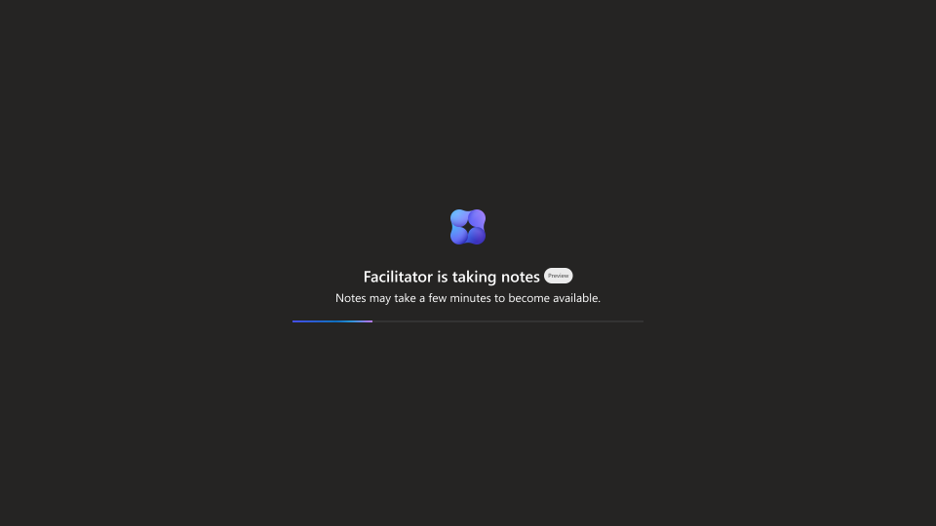
Facilitator loading screen on the front-of-room display
Facilitator generating notes on the front-of-room display
Current limitation: Enrolled users can be attributed in notes and transcript. Users who add their name in the dialog at the beginning of the note-taking session are identified by name. Other users who are not enrolled appear as distinguished speakers, such as ‘Speaker 1’ and ‘Speaker 2’. Facilitator in Teams Rooms isn't available for federated or external users.
Accessing notes
To access notes after the meeting, navigate to the Teams meeting chat titled “Meeting with [conference room name].” At the top of the meeting chat, select the Recap tab, and then select Notes to find the AI-generated notes and transcript.
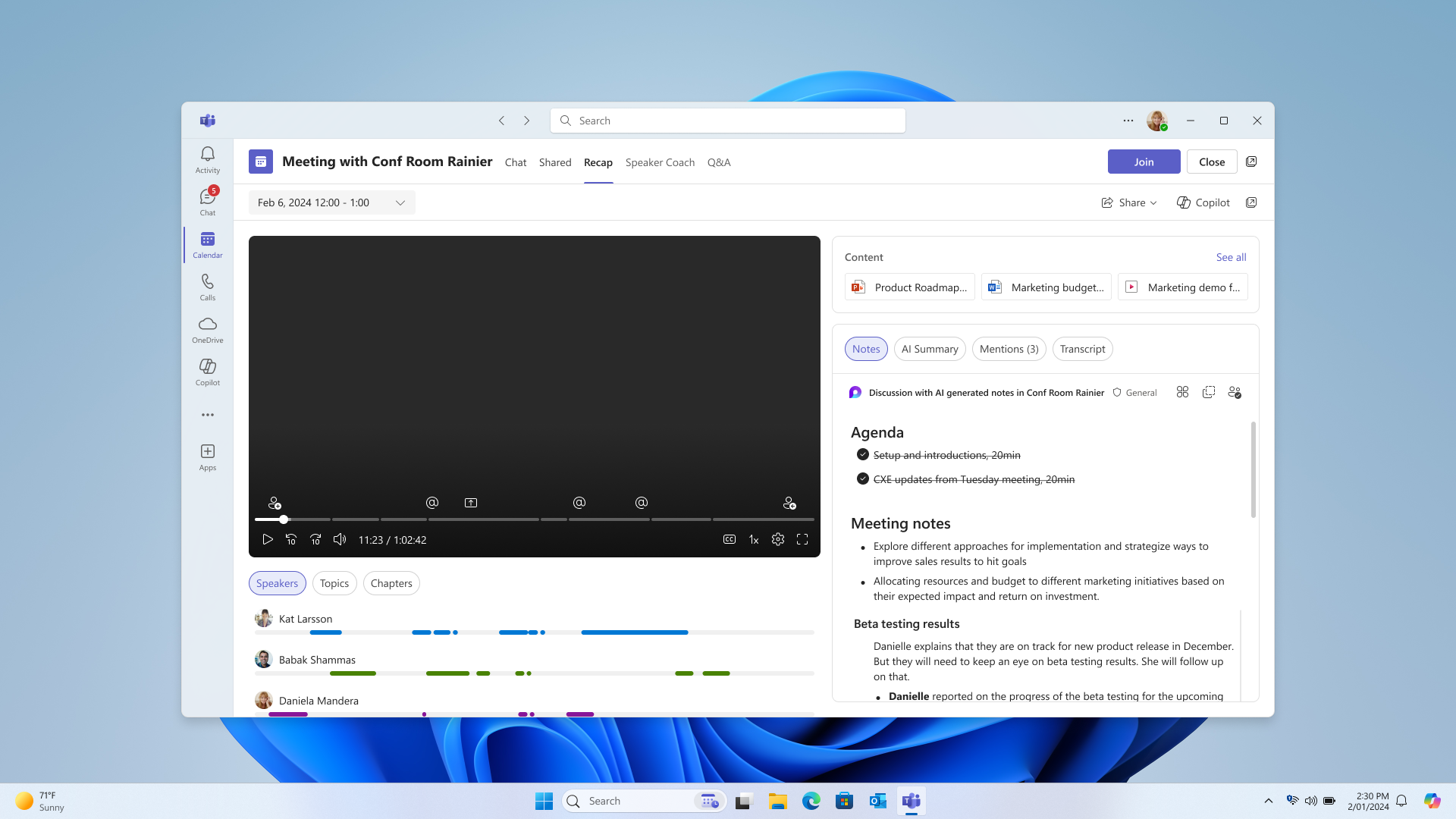 Teams desktop view of notes in Recap tab
Frequently Asked Questions
Is this feature available in both Teams Rooms on Windows and Android?
Currently Facilitator is available only as Public Preview on Teams Rooms on Windows and it's projected to release to Teams Rooms on Android at a later date.
Where do I access the notes after the meeting?
On your Teams calendar, navigate to the meeting > Recap > Notes.
Can I turn off Facilitator during the discussion?
You can mute the microphone in the room to ensure Facilitator or transcription doesn't capture any content. You can also remove Facilitator from the console by tapping it on the roster.
Is Facilitator agent recording the meeting?
The Facilitator agent only turns on transcription during the meeting. The meeting won't be recorded.
How are the meeting room participants identified and attributed in AI notes and transcription?
Currently, only the person who scans the QR code to invite Facilitator is identified and attributed if they've enrolled their profile. Identity and attribution support for other room participants is coming at a later date.