Note
Access to this page requires authorization. You can try signing in or changing directories.
Access to this page requires authorization. You can try changing directories.
Use endpoint data loss prevention (DLP) just-in-time (JIT) protection to detect and block egress activities on monitored files while policy evaluation completes.
Applies to
JIT protection for Endpoint DLP supports these devices:
- Windows 10
- Windows 11
- macOS (the three most recent versions)
Best practice for deploying Just-in-time protection
Note
Allow at least an hour for JIT setting updates, including disabling JIT, to be pushed to client devices.
Step 1: Prepare your environment
Before you can deploy just-in-time protection, you must first deploy antimalware Client version 4.18.23080 or later. The just-in-time protection end user experience is improved in version 4.18.25080 or later.
Tip
To maximize user productivity, configure and deploy your Endpoint DLP policies to your devices before enabling just-in-time protection. This approach prevents unnecessary blocking of user activity during policy evaluation.
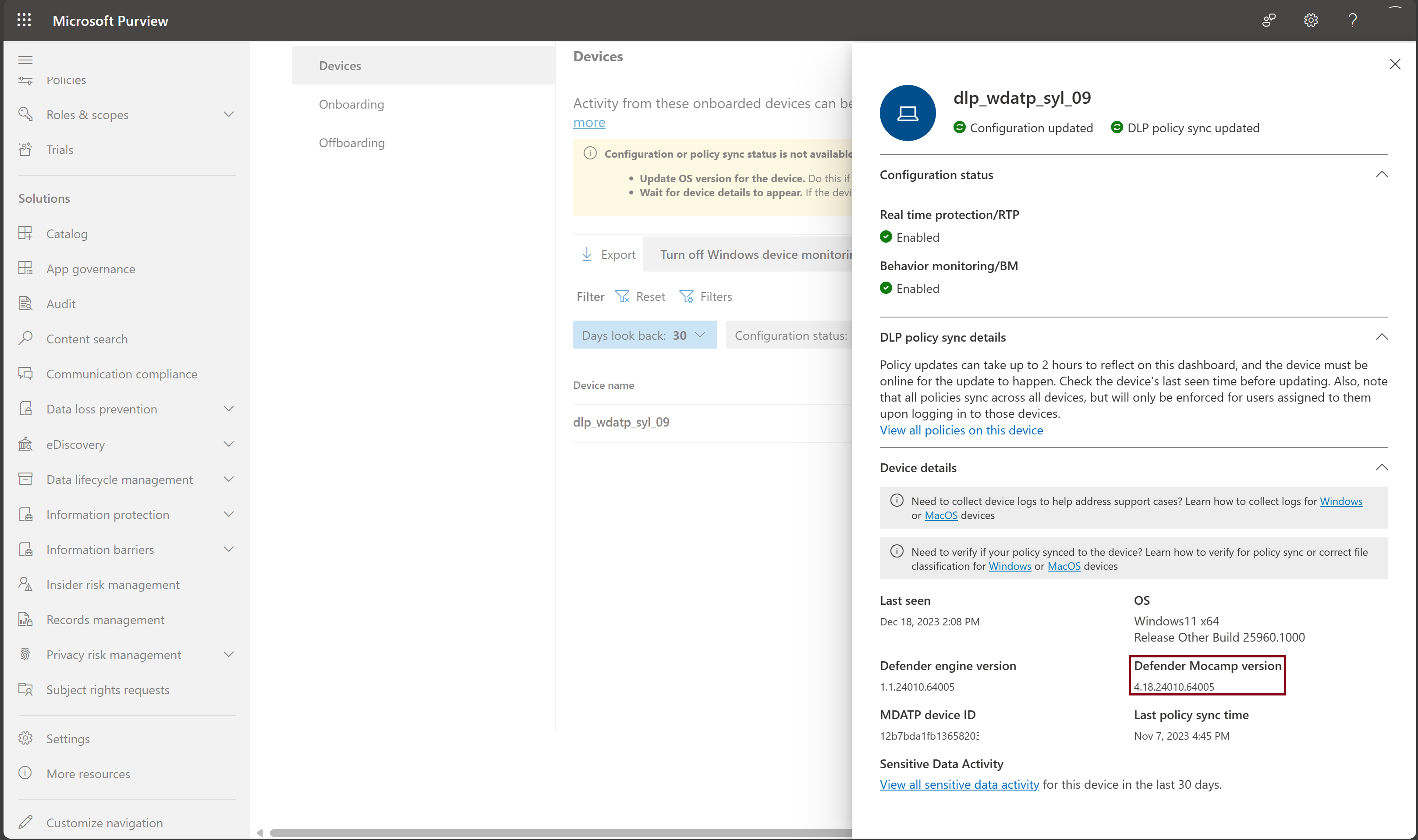
Note
For machines with an outdated version of the antimalware client, disable just-in-time protection by installing one of the following KBs:
- To find out which devices have the necessary antimalware client, go to Security portal > Investigation & response > Advanced hunting, and run this query.
`DeviceRegistryEvents`
| where InitiatingProcessVersionInfoInternalFileName == "MsMpEng.exe" and Timestamp >= ago(60d)
| summarize arg_max(Timestamp, *) by DeviceId
| distinct DeviceName, DeviceId, vTimeStamp = Timestamp, AntiMalwareClientVersion = InitiatingProcessVersionInfoProductVersion
| extend Meet_Minimum_JIT_Version = strcmp(AntiMalwareClientVersion, "4.18.23080") // whether the device has required minimum JIT version
| extend Meet_Latest_JIT_Version = strcmp(AntiMalwareClientVersion, "4.18.25080") // whether the device has latest JIT improvement
| project DeviceId, Meet_Latest_JIT_Version, Meet_Minimum_JIT_Version, AntiMalwareClientVersion
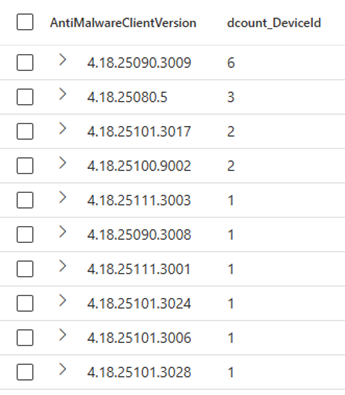
| summarize dcount(DeviceId) by AntiMalwareClientVersion // distribution of AntiMalwareClientVersion
// | summarize dcount(DeviceId) by Meet_Minimum_JIT_Version //how many devices meet minimum JIT version
// | summarize dcount(DeviceId) by Meet_Latest_JIT_Version //how many devices meet latst JIT improvements
| order by dcount_DeviceId desc
Here's an example of the output of the query.
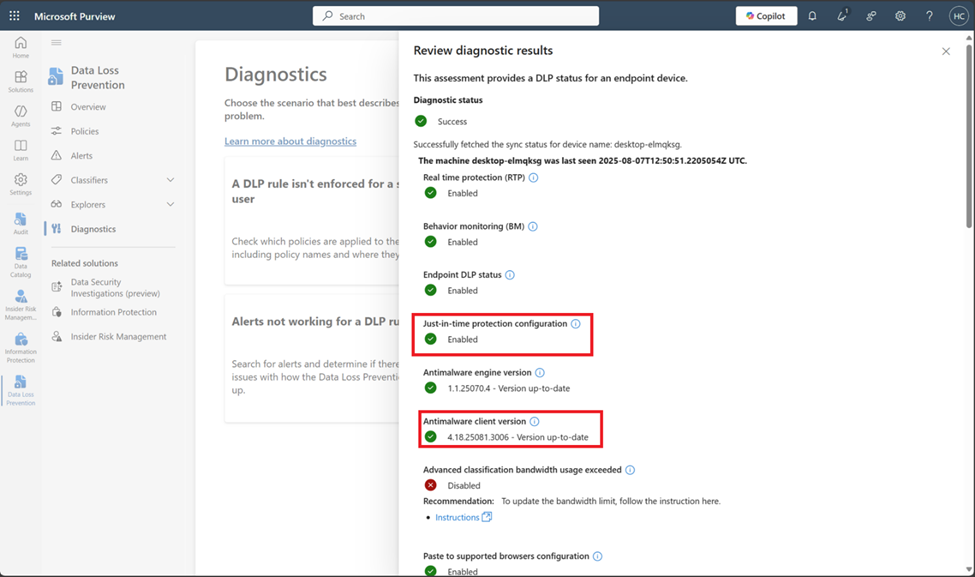
You can also go to Data Loss Prevention > Diagnostics page, and select Endpoint DLP not working card to check whether a specific device meets JIT prerequisite.
Step 2: Deploy JIT protection
Sign in to the Microsoft Purview portal.
Select Settings > Data Loss Prevention > Just-in-time protection.
Under Choose which locations to monitor, select the checkbox next to Devices.
Under Fallback action in case of failure, select Allow users to complete actions. This option lets the user action complete if the classification fails.
Caution
Don't choose the Block users from completing actions option until you fully understand the impact of this feature.
Selecting Allow users to complete actions or Block users from completing actions doesn't change whether JIT Block is triggered. Blocking by JIT is applied if the user is in scope. The Allow users to complete actions or Block users from completing actions setting controls Endpoint DLP enforcement when classification fails.
If you select Allow users to complete actions, Endpoint DLP allows the egress activity when classification fails. If you select Block users to complete actions, Endpoint DLP blocks the egress activity when classification fails.
Step 3: Estimate the number of JIT protection events for your deployment
Validate your settings at each stage until the number of events is stable. Make sure you understand the possible size of the user group you want to enforce the policy on, based on the following telemetry calculations.
Estimate the impact of deploying JIT protection by performing the following calculation based on the events in activity explorer:
N = The number of unique machines firing JIT events.
S = The total number of machines within the scope of your deployment.
N/S yields the percentage of machines that might experience a JIT protection block event.
With this information, you should know how many machines will be affected by implementing the JIT Block mode when you expand the scope, and how many possible support tickets you may see. Then, you can decide whether or not to expand the scope.
Step 4: Fine-tune JIT protection through other Additional settings
In addition to Fall back in case of failure, as described in step 1, you can also use following settings to fine-tune JIT protection:
- Control copying to clipboard: Turn on this setting to prevent users from copying content to the clipboard while JIT protection is evaluating the file.
Note
Turning on Control copying to clipboard might impact user's productivity. Be sure to test the impact on productivity before turning on this setting.
- App exclusions for Windows: Apps you include here aren't evaluated by JIT protection on Windows devices.
- App exclusions for Mac: Apps you include here aren't evaluated by JIT protection on macOS devices.
- File extensions exclusions: Files with extensions you add here aren't evaluated by JIT protection.
- File path exclusions for Windows: Files in these locations aren't evaluated by JIT protection.
- File path exclusions for Mac: Files in these locations aren't evaluated by JIT protection.
If you want to change the scope of JIT protection after tuning all these settings, go back to step 2.
More details about exclusions
File path exclusion settings in JIT are different from File path exclusions for Windows setting found via Data loss prevention > Settings > Endpoint settings > File path exclusions for Windows.
File path exclusions in JIT only excludes specific file paths from JIT protection. In all other cases, Microsoft Purview still applies Endpoint DLP classification and protection for files in those folders.
File path exclusions for Windows setting prevents Purview from applying Endpoint DLP classification and protection for files under the specified folders.
File extension exclusions: Files with these extensions aren't evaluated by JIT protection.
Step 5: Deploy JIT protection in 'Block users from completing actions' for the 'Fallback action in case of failure' setting
This configuration controls the enforcement mode that DLP applies when classification fails. It doesn't control JIT Block or JIT Audit for JIT candidate files. JIT Block or JIT Audit is controlled by how the policy is scoped. No matter which value you select here, the relevant telemetry displays in activity explorer.
Unsaved file protection
Unsaved file protection (preview) extends JIT protection (audit or block) on egress activities on files that aren't saved yet. An unsaved file is either:
- A brand-new file that has never been saved to disk.
- An existing file that has been modified but not yet saved, including the window before autosave completes.
When you save a file - manually or through autosave - it leaves the unsaved state and the standard JIT protection workflow evaluates it.
Note
Unsaved file protection and unclassified file protection are two separate features. You don't need to turn on unclassified file protection to use unsaved file protection.
Configure unsaved file protection
Prerequisites
- Antimalware client version 4.18.26040 or later is required for unsaved file protection. Use the same query in Step 1 of this article to check which devices have the required antimalware client version for unsaved file protection.
To configure unsaved file protection:
- Sign in to the Microsoft Purview portal.
- Select Settings > Data Loss Prevention > Just-in-time protection.
- To audit egress activities on unsaved files, turn on Audit print and transfer activities for unsaved files and select the users to include in the scope.
- To block egress activities on unsaved files, turn on Block print and transfer activities for unsaved files and select the users to include in the scope.
Note
For Copy to a removable media and Copy to a network share scenarios, enable auto-quarantine to intercept sensitive content and move it to a protected location instead of writing it to the external destination. For more information, see Configure auto-quarantine settings.
Tip
Start by turning on Audit and scoping it to a few users. This approach helps you understand the volume of unsaved file protection events in your organization before enabling Block. You can continuously expand the scope as you gain confidence. When you're comfortable with the volume, turn on Block scoped to the same or expanded set of users.
For information on the concepts behind unsaved file protection, see Learn about unsaved file protection.