Developer technologies | Universal Windows Platform (UWP)
A Microsoft platform for building and publishing apps for Windows devices.
This browser is no longer supported.
Upgrade to Microsoft Edge to take advantage of the latest features, security updates, and technical support.
' cx='32' cy='32' r='32' /%3E%3Ctext x='50%25' y='55%25' dominant-baseline='middle' text-anchor='middle' fill='%23FFF' %3EMZ%3C/text%3E%3C/svg%3E)
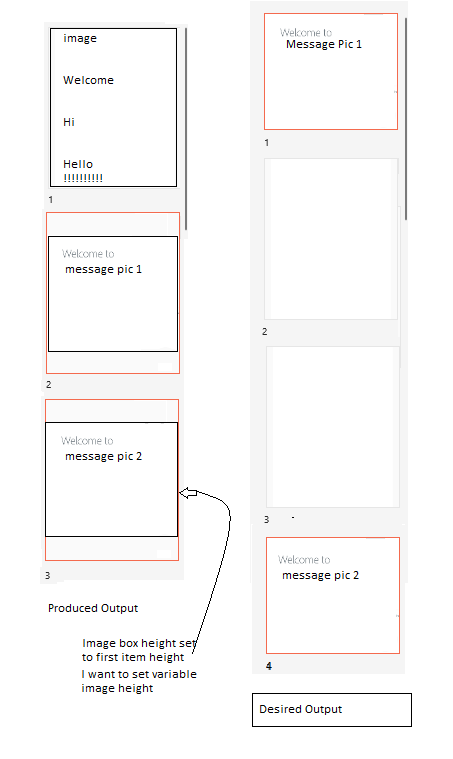
I want to show multiple images one after one vertically. That's why I've implemented Nested grid. It works fine for same height images. but different height images it looks odd because in nested grid height set according to first item height. Here is my code:
 <DataTemplate x:Key="ImageTemplate">
                <Grid x:Name="ImageGridViewItem"
                      HorizontalAlignment="Center"
                      Padding="0,0,0,0"
                      Background="#FAFAFA"
                      BorderBrush="#E6E6E6"
                      BorderThickness="0,0,0,0">
                    <Grid.RowDefinitions>
                        <RowDefinition Height="*" />
                        <RowDefinition Height="Auto" />
                    </Grid.RowDefinitions>
                    <Grid Background="#FAFAFA"
                          VerticalAlignment="Center"
                          HorizontalAlignment="Center"
                          BorderThickness="1">
                        <Image Source="{Binding ImageSource, Mode=OneWay}"
                               Stretch="Uniform"
                               Width="{Binding ImageSource.PixelWidth, Mode=OneWay}"
                               Height="{Binding ImageSource.PixelHeight, Mode=OneWay}"/>
                    </Grid>

                    <Grid Grid.Row="1"
                          Background="#F5F5F5"
                          Padding="0,0,0,0">
                        <TextBlock x:Name="ImageNoTxtBox"
                                   HorizontalAlignment="Left"
                                   VerticalAlignment="Bottom"
                                   Margin="0,4,0,0"
                                   Padding="0"
                                   FontFamily="Segoe UI"
                                   FontSize="10"
                                   FontWeight="Normal"
                                   Foreground="#252525"
                                   Text="{Binding ImageNo,Mode=TwoWay}">
                        </TextBlock>
                    </Grid>
                </Grid>

    <GridView x:Name="ImagesGridView"
          Grid.Row="5"
          Margin="12,0,2,0"
          Padding="10,10,0,0"
          Width="{Binding MainGridViewWidth}"
          ItemsSource="{Binding ImageList, Mode=OneWay}"
          ItemTemplate="{StaticResource ImageTemplate}">
    </GridView>
A Microsoft platform for building and publishing apps for Windows devices.
' cx='32' cy='32' r='32' /%3E%3Ctext x='50%25' y='55%25' dominant-baseline='middle' text-anchor='middle' fill='%23FFF' %3EFW%3C/text%3E%3C/svg%3E)
Hi, can the following method help? Have you solved your issue?
Hi, haven't heard from you for a long time, have you solved your issue?
' cx='32' cy='32' r='32' /%3E%3Ctext x='50%25' y='55%25' dominant-baseline='middle' text-anchor='middle' fill='%23FFF' %3EA%3C/text%3E%3C/svg%3E)
Does Fay's reply solve your issue? Please feel free to ask if you still have questions.
Hello,
Welcome to Microsoft Q&A!
As you mentioned, the row height of GridView depends on the first item, if you want to show the Variable height in GridView, you can try to use WrapPanel from Windows Community Toolkit. Before using it, you need to add Microsoft.Toolkit.Uwp.UI.Controls nuget package and then override the ItemsPanel of GridView, for example:
.xaml:
<GridView x:Name="ImagesGridView"
           Grid.Row="5"
           Margin="12,0,2,0"
           Padding="10,10,0,0"
           Width="{Binding MainGridViewWidth}"
           ItemsSource="{Binding ImageList, Mode=OneWay}"
           ItemTemplate="{StaticResource ImageTemplate}">

    <GridView.ItemsPanel>
        <ItemsPanelTemplate>
            <controls:WrapPanel Name="VerticalWrapPanel" Orientation="Vertical" />
        </ItemsPanelTemplate>
    </GridView.ItemsPanel>

</GridView>