Dear Derek Norris1,
Good day and thank you for posting this in the forum.
As per your description, you not receiving the "Use Destination theme & link data" option when copying the chart from excel to PowerPoint.
I would like to suggest some steps for you to try:
- Please be sure that the chart types you're trying to link is supported. Some complex or custom chart types might not support linking.
- Instead of using the regular paste options, try using Paste Special:
- Copy the chart from Excel.
- In PowerPoint, go to the slide where you want to paste the chart.
- Click on the arrow under the Paste button in the Home tab.
- Select "Paste Special" and then choose "Microsoft Excel Chart Object" and "Paste Link".
- You can also try to copy the chart from your existing excel file to NEW excel file then try to copy paste the chart from the new excel file to your PowerPoint.
To pinpoint the issue, I would like to initiate a private message where you can share the files that you are facing issue with so that I can try to debug the issue from my side too. Please also provide the Excel and PowerPoint version that you have currently installed in your device.
Note: To protect sensitive information, please share the information requested above in "View private messages".
Here are the steps to open "View Private Messages" and find my private messages that you sent:
To view your private messaging options, sign in to Microsoft Community> use the email account you used to post this thread information to Microsoft Community, >click your profile picture in the upper-right corner> select My Profile options, > click View private message.
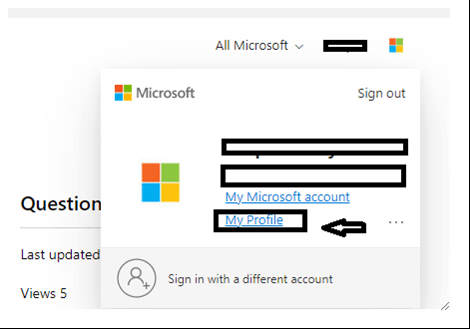

Note: Don't forget to remove confidential and sensitive information before providing the file via private message (PM).
I appreciate your cooperation, understanding and valuable time.
' cx='32' cy='32' r='32' /%3E%3Ctext x='50%25' y='55%25' dominant-baseline='middle' text-anchor='middle' fill='%23FFF' %3EA%3C/text%3E%3C/svg%3E)
