Share via

Secure Boot Update freezes my computer while Secure Boot complains about older boot trust configuration that needs update.

Branko Krstulovic 10 Reputation points
2026-05-23T19:42:16.4166667+00:00

Couple days ago my Dell XPS 8700 running Windows 10 Home (extended support through OneDrive backup) started freezing couple minutes after the startup. It boots up fine, starts working OK, but then couple minutes later (maybe 5 minutes or so), it completely freezes, including keyboard and mouse interaction.
I ran Dell diagnostics, all was fine.
I explored further and found out that the Secure Boot Update task that starts about that time may be the issue.
I disabled this task - and now there is no freezing whatsoever.

However, that also concerns me because this Secure Boot Update task is supposed to update Microsoft's UEFI certificates that are expiring in June 2026.
So, I ran check as follows in PowerShell (as Administrator):
[System.Text.Encoding]::ASCII.GetString((Get-SecureBootUEFI db).bytes) -match 'Windows UEFI CA 2023'
This returned "True" - which should mean that certificates were already installed successfully. At least that is what I understood from various support and related articles (and from Bing/Copilot AI).

However, on check of Windows Security (within Device Security), and while I see green checkmark on Secure Boot, the Secure Boot is giving the following message:
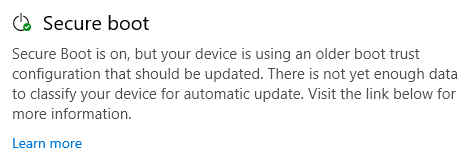
User's image

"Learn more" goes to explore all possible information about certificates, and does not offer any real practical advice.

There are some suggestions/instructions (not Microsoft) to either wait for automatic updates, or to try and toggle Secure Boot to force updates.

So, the question is: Considering that I had to disable Secure Boot Update task because it was making my computer inoperable, what should I do now?

  • I cannot wait for automatic updates because task (Secure Boot Update task) is not running.
  • **I cannot force updates because I have to enable the task (Secure Boot Update task) which then promptly freezes the computer. **

Is there a problem with the Secure Boot Update task? - I see that it tries to reach some URLs - but if the network (internet) is not accessible, the task does not freeze the computer, so maybe there is something there?
Is Microsoft aware of any related issue and is there guidance on how to overcome this, make the task run, do automatic or forced updates without freezing the computer?

For further/repeated information:

PC is Dell XPS 8700, and it does not have TPM2.0 so it cannot be upgraded to Windows 11

Security Updates are enabled by enabling backups via OneDrive (as per Microsoft advice).

Edition  Windows 10 Home

Version 22H2

OS Build             19045.7291

The only current potential issue is that the free space on boot drive is around 165GB - but that should not have anything to do with the certificates installation or system resources (i7, 16GB RAM, etc.)

Thank you.

Branko

Windows for home | Windows 10 | Windows update

2 answers

Sort by: Most helpful
  1. Sumit D - IA 169.2K Reputation points Independent Advisor
    2026-05-23T21:24:40.02+00:00

    Hi Branko,

    Please supply the following Information.

    Right-click the Start button and Choose the Run option

    Type in msinfo32

    Press enter.

    Take a screenshot of the System Summary window and post it in the next reply.

    I look forward to your response and am eager to collaborate until we find a solution.

    Was this answer helpful?


  2. AI answer

    2026-05-23T19:42:58.3466667+00:00

    The Secure Boot status message indicates that the device is still using an older boot trust configuration, even though the Windows UEFI CA 2023 certificate is present in the DB. The freeze occurs when the \Microsoft\Windows\PI\Secure-Boot-Update scheduled task runs, which is responsible for applying Secure Boot certificate and boot manager updates.

    From the provided information:

    1. The Secure-Boot-Update task is required for Windows to apply Secure Boot certificate updates. If it is disabled or deleted, Secure Boot certificate updates won't progress and device status can remain outdated or incomplete.
    2. The Secure Boot update flow uses the AvailableUpdates registry key and the Secure-Boot-Update scheduled task to apply, in sequence, the new certificates and the PCA2023‑signed boot manager. The expected progression of AvailableUpdates is:
      • Start: 0x5944
      • 0x0040 → 0x5904 (Windows UEFI CA 2023)
      • 0x0800 → 0x5104 (Microsoft Option ROM UEFI CA 2023, if needed)
      • 0x1000 → 0x4104 (Microsoft UEFI CA 2023, if needed)
      • 0x0004 → 0x4100 (Microsoft Corporation KEK 2K CA 2023)
      • 0x0100 → 0x4000 (Windows UEFI CA 2023 signed boot manager) After all operations complete, AvailableUpdates remains 0x4000.
    3. For IT‑managed or test scenarios, Microsoft documents using the registry and the Secure-Boot-Update task to validate that devices can process the updates correctly. The process is:
      • Set AvailableUpdates to 0x5944.
      • Run the Secure-Boot-Update task.
      • Reboot when AvailableUpdates becomes 0x4100.
      • Run the task again so that the boot manager is updated and AvailableUpdates becomes 0x4000.
      • Review UEFICA2023Status, UEFICA2023Error, and related event logs (as described in KB5016061) to confirm success or identify failures.
    4. If the Secure-Boot-Update task is disabled, certificate updates and reporting can remain incomplete, which aligns with the message that there is not yet enough data to classify the device for automatic update.

    Given this behavior, the practical path to resolve the mismatch between the status message and the actual certificate state is:

    1. Re‑enable the \Microsoft\Windows\PI\Secure-Boot-Update scheduled task so that Windows can complete the Secure Boot certificate and boot manager update sequence.
    2. Use the registry‑based approach to monitor progress:
      • Check HKEY_LOCAL_MACHINE\SYSTEM\CurrentControlSet\Control\Secureboot\AvailableUpdates and confirm that it progresses through the documented values toward 0x4000.
      • After each change to AvailableUpdates that indicates pending work (for example 0x4100), restart the device and allow the Secure-Boot-Update task to run again.
    3. If the task encounters errors instead of progressing, review:
      • UEFICA2023Status and UEFICA2023Error registry keys.
      • Event logs documented in KB5016061 (for example, Event IDs 1036, 1799, 1037) to confirm whether the DB, DBX, and PCA2023‑signed boot manager were successfully applied.
    4. If the Secure-Boot-Update task remains disabled to avoid freezes, the device will likely continue to report an older boot trust configuration and may not be fully updated for the 2026 certificate changes.

    There is no additional guidance in the provided material about freezes specifically, but Microsoft’s documented mechanism for completing and troubleshooting these updates is through the Secure-Boot-Update scheduled task, the AvailableUpdates registry key, and the associated event logs and status keys.


    References:

    AI-generated content may be incorrect. Read our transparency notes for more information.

    Was this answer helpful?

Your answer

Answers can be marked as 'Accepted' by the question author and 'Recommended' by moderators, which helps users know the answer solved the author's problem.
