' cx='32' cy='32' r='32' /%3E%3Ctext x='50%25' y='55%25' dominant-baseline='middle' text-anchor='middle' fill='%23FFF' %3EEG%3C/text%3E%3C/svg%3E)

' cx='32' cy='32' r='32' /%3E%3Ctext x='50%25' y='55%25' dominant-baseline='middle' text-anchor='middle' fill='%23FFF' %3EMP%3C/text%3E%3C/svg%3E)
To open the Windows Security app  , search for it in the Start menu.
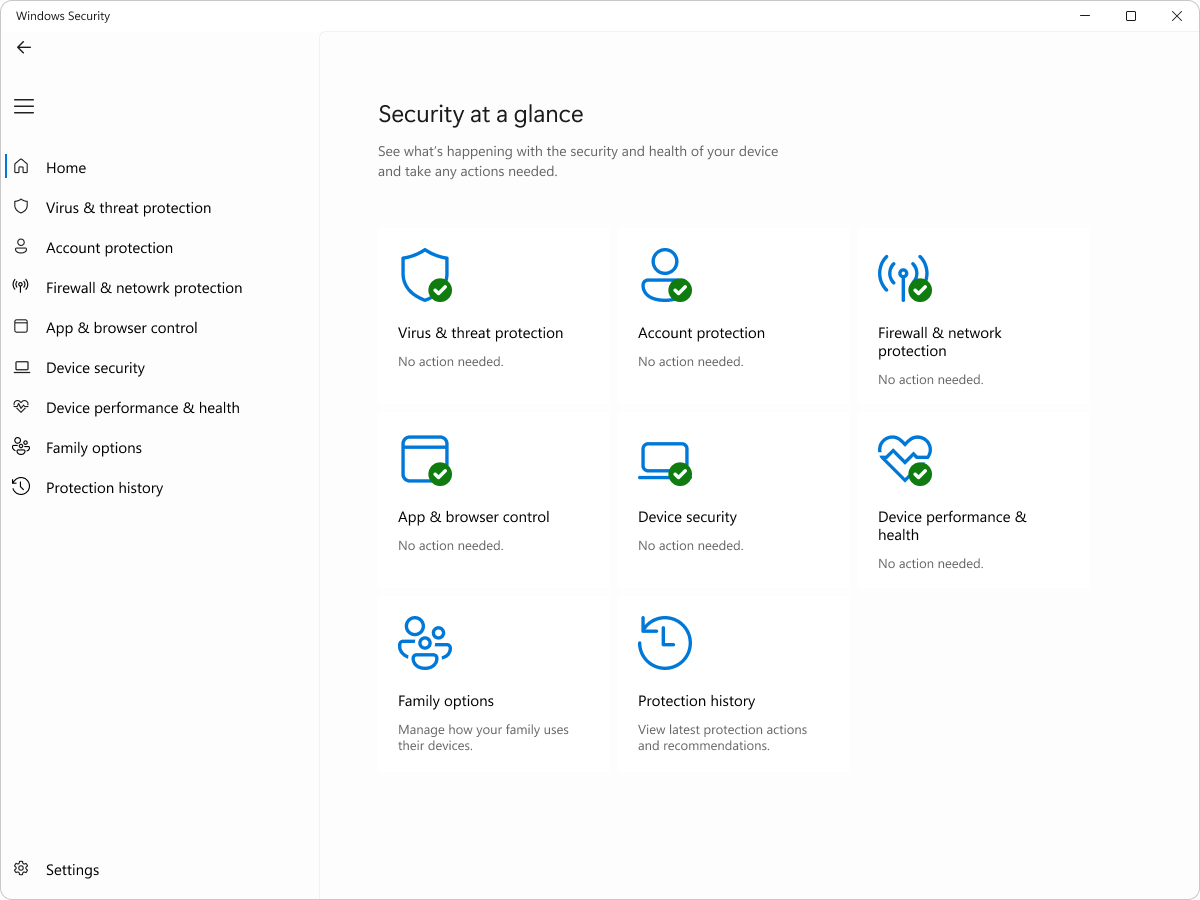
Common tasks
Here's a brief list of common tasks that you can carry out from the Windows Security app. Expand each section to learn more:
Run a malware scan manually
If you're worried about a specific file or folder on your local device, you can right-click the file or folder in File Explorer, then select Scan with Microsoft Defender.
Tip
On Windows 11 you may have to select Show more options after you right-click to see the option to scan the file or folder.
Run a quick scan
If you suspect there's malware or a virus on your device, you should immediately run a quick scan.
In the Windows Security app on your PC, select Virus & threat protection > Quick scan or use the following shortcut:
If the scan doesn't find any issues, but you're still concerned, you may want to check your device more thoroughly.
Turn Defender Antivirus real-time protection on or off
Sometimes you might need to briefly stop running real-time protection. While real-time protection is off, files you open or download won't be scanned for threats. However, real-time protection will soon turn on automatically again to protect your device.
In the Windows Security app on your PC, select Virus & threat protection > Manage settings or use the following shortcut:
Virus & threat protection settings
You can turn Real-time protection On or Off using the toggle button.
For firewall setup instructions, refer to https://support.microsoft.com/en-us/windows/security/windows-security/firewall-and-network-protection-in-the-windows-security-app
Configure Windows Firewall with Windows Security
- In the Windows Security app on your PC, select Firewall & network protection or use the following shortcut: Firewall & network protection
- Windows Security shows you which type of network you're currently connected to. Usually, your device will only be connected to one network at a time. Select a network profile: Domain network, Private network, or Public network.
- Under Microsoft Defender Firewall, switch the setting to On to enable Windows Firewall. To turn it off, switch the setting to Off. Turning off Windows Firewall could make your device more vulnerable to unauthorized access. If there's an app you need to use that's being blocked, you can allow it through the firewall, instead of turning the firewall off.
- Under the Incoming connections section, there's a checkbox for Blocks all incoming connections, including those in the list of allowed apps. Checking this box tells the Windows Firewall to ignore the allowed apps list and block everything. Turning this on increases your security but might cause some apps to stop working.
If the above response helps answer your question, remember to "Accept Answer" so that others in the community facing similar issues can easily find the solution. Your contribution is highly appreciated.
hth
Marcin