Note
Access to this page requires authorization. You can try signing in or changing directories.
Access to this page requires authorization. You can try changing directories.
Azure Databricks provides a suite of tools to discover, run, and track Python unit tests directly in the workspace. Use the testing sidebar pane, inline execution glyphs, and a dedicated results pane to manage your tests without leaving the workspace.
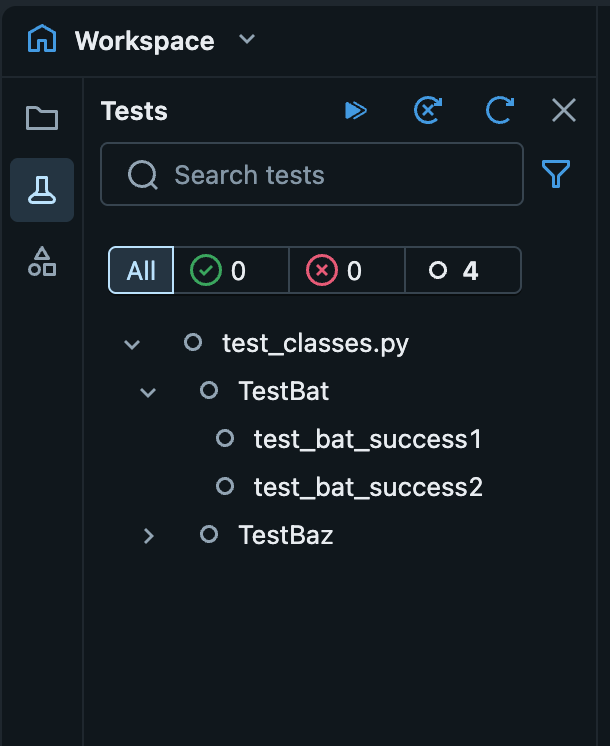
When you open a valid Python test file, a  Tests icon appears in the left sidebar. Click it to open the testing sidebar pane and access run controls, status indicators, and results.
Valid Python test files
Azure Databricks follows pytest naming conventions to detect test files, classes and cases.
The following file naming patterns are recognized as valid test files:
test_*.py*_test.py
The following naming conventions detect test classes and cases:
test-prefixed functions or methods outside of a classtest-prefixed functions or methods insideTest-prefixed classes (without an__init__method)- Methods decorated with
@staticmethodor@classmethodinsideTest-prefixed classes
For example:
Note
If the Tests icon does not appear after opening a file that matches these patterns, confirm that the file is active in the editor tab and that you are not in read-only view.
class TestClass():
    def test_1(self):
        assert True

    def test_3(self):
        assert 4 == 3

def test_foo():
    assert "foo" == "bar"
Tests sidebar panel
To open the Tests pane, click the Tests icon in the left sidebar. This icon only appears when you have a valid Python test file active in the editor.
The pane automatically discovers tests in the current file. In a pipeline, Declarative Automation Bundles, or Git folder space with an attached cluster, test discovery covers all files in the space's folder. In other spaces, discovery is limited to the current file.
From the tests sidebar pane, you can:
- Trigger test actions:
 Run all tests
 Run all failed tests
 Refresh tests
- Monitor test status: View the
 pass or
  fail status of each discovered test.
 - Filter tests: Filter the test list by name or status. Use the search bar to filter by text or click
 to filter by status.
 - Run individual tests: Execute specific tests directly from the pane. Hover over a test and click
 .
.
Run tests with inline glyphs
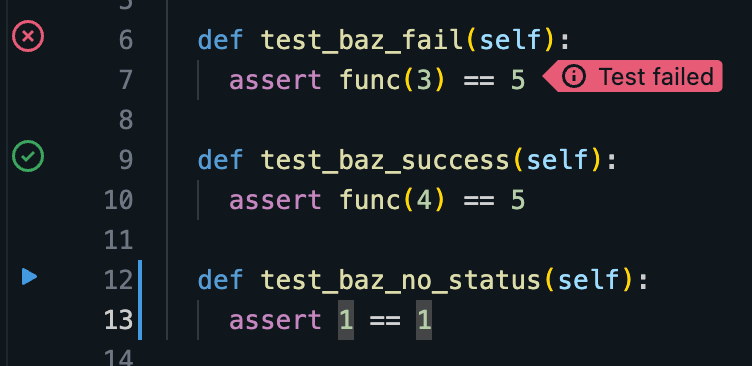
When you view a Python test file, run buttons appear inline next to each discovered test case. Click to run that test. After each run, the icon updates to indicate whether the test passed or failed.
View inline failure indicators
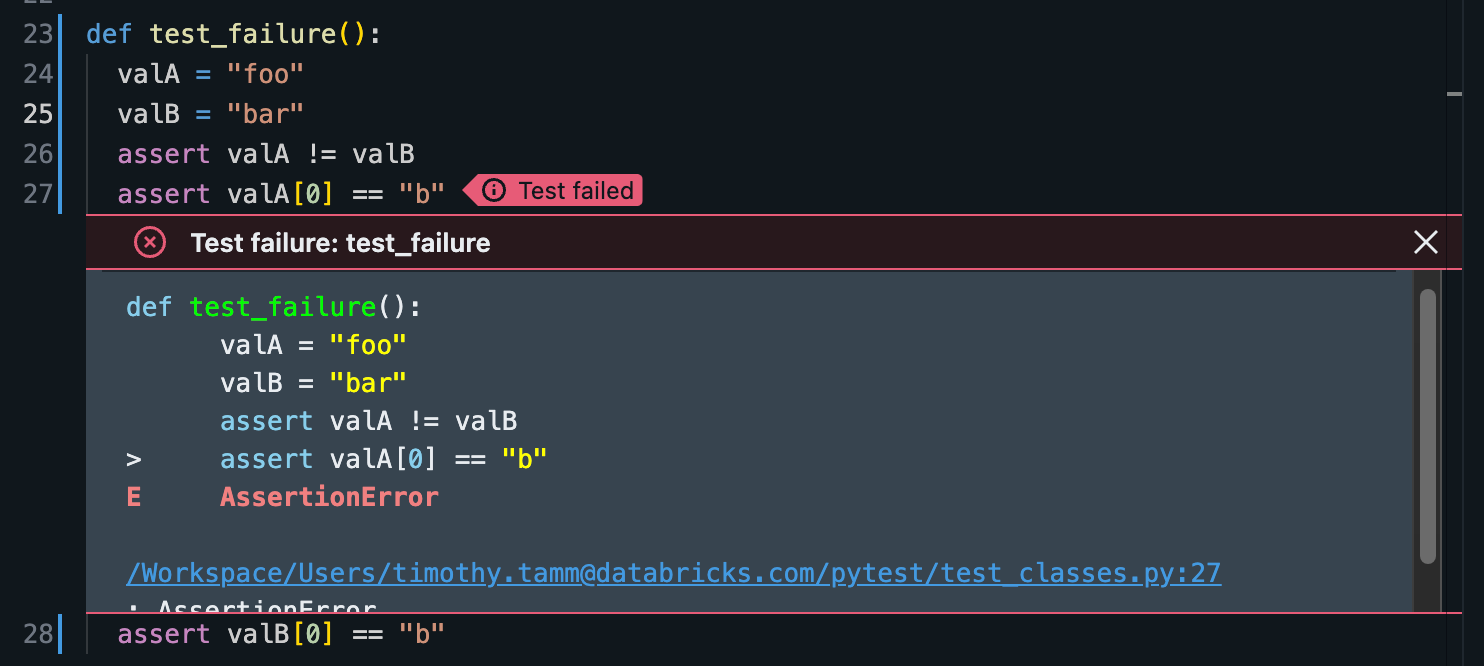
If a unit test fails, an inline failure indicator appears on the line that caused the failure. Click the indicator to open a modal that displays the full error message.
View test results
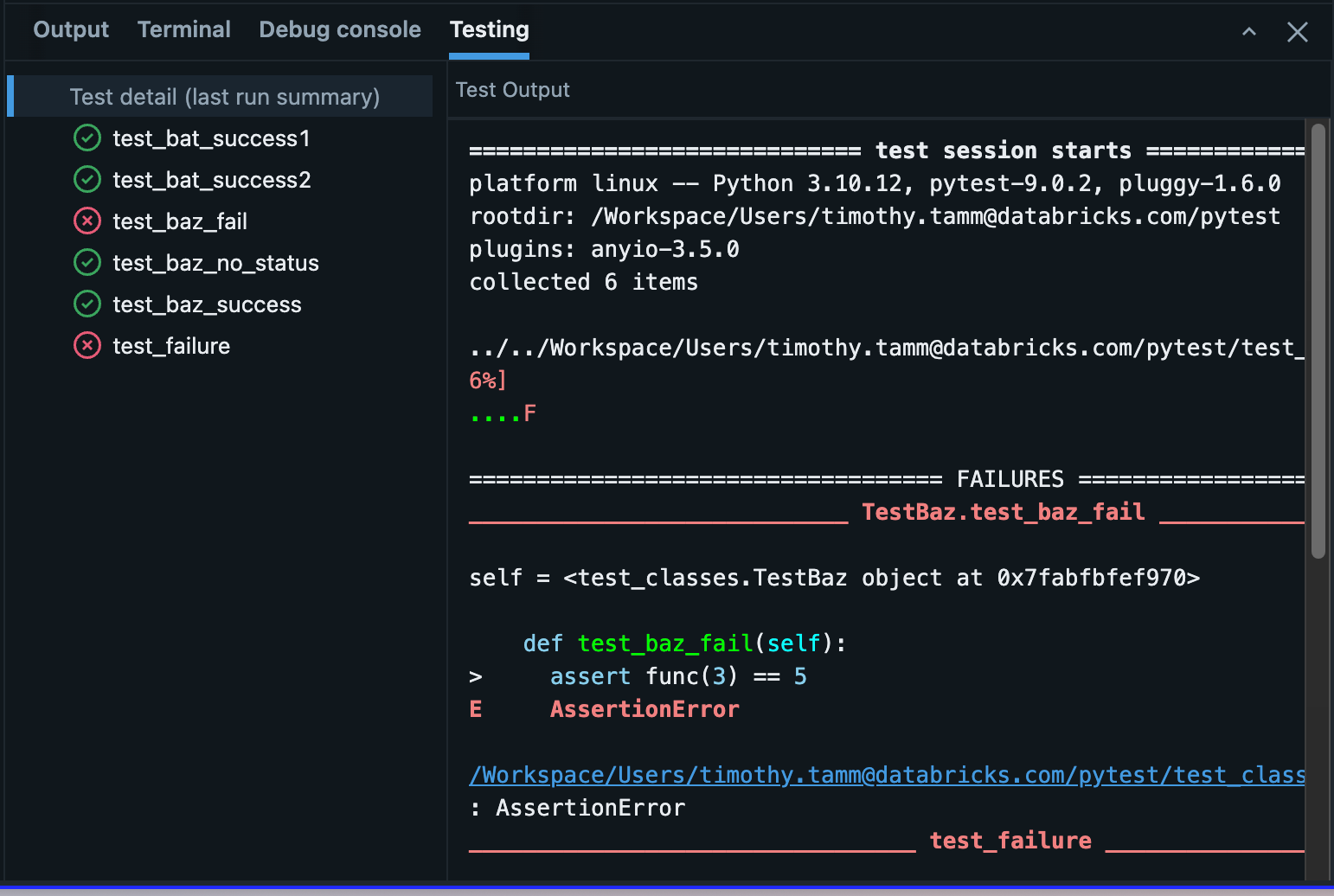
When you are on a valid Python test file, a Testing tab is available in the bottom pane. The tab displays the results of the most recent test run, including a full summary and individual test case results.
Hover over a test case to access two options:
 Navigate to test
- Run test