Note
Access to this page requires authorization. You can try signing in or changing directories.
Access to this page requires authorization. You can try changing directories.
Important
This feature is in Public Preview.
AI Runtime provides two managed Python environments for serverless GPU compute. The Standard environment includes cuda. As of environment version 5, torch and torchvision are no longer pre-installed. The Databricks AI environment is pre-loaded with PyTorch, Transformers, and other ML and deep learning frameworks. Choose the Standard environment for full control over your dependency stack, or the AI environment for a ready-to-use training setup. You can start from either environment and install more packages yourself.
Key points on this page:
- Choose the Standard environment for full control over dependencies, or the Databricks AI environment for a ready-to-use ML stack.
- Standard includes
cuda. As of environment version 5,torchandtorchvisionare not pre-installed. The AI environment adds PyTorch, Transformers, and more. - Install more packages with
%uv pip install(environment version 5 and above) or%pip installin a notebook, or withenvironment.dependenciesin the CLI.
What environment to use
AI Runtime offers two managed Python environments, the Standard environment and the Databricks AI environment.
| Environment | Key characteristics | When to use |
|---|---|---|
| Standard environment | Minimal; includes cuda. As of environment version 5, torch and torchvision are no longer pre-installed. |
You want full control over your dependency stack and prefer to install only what you need |
| Databricks AI environment | Pre-loaded with popular ML frameworks (PyTorch, Transformers, and more) | You want a complete environment for training, fine-tuning, and experimentation without manual dependency management |
You can also use a workspace base environment that a workspace admin has built for AI Runtime. See Build for serverless GPU compute (AI Runtime).
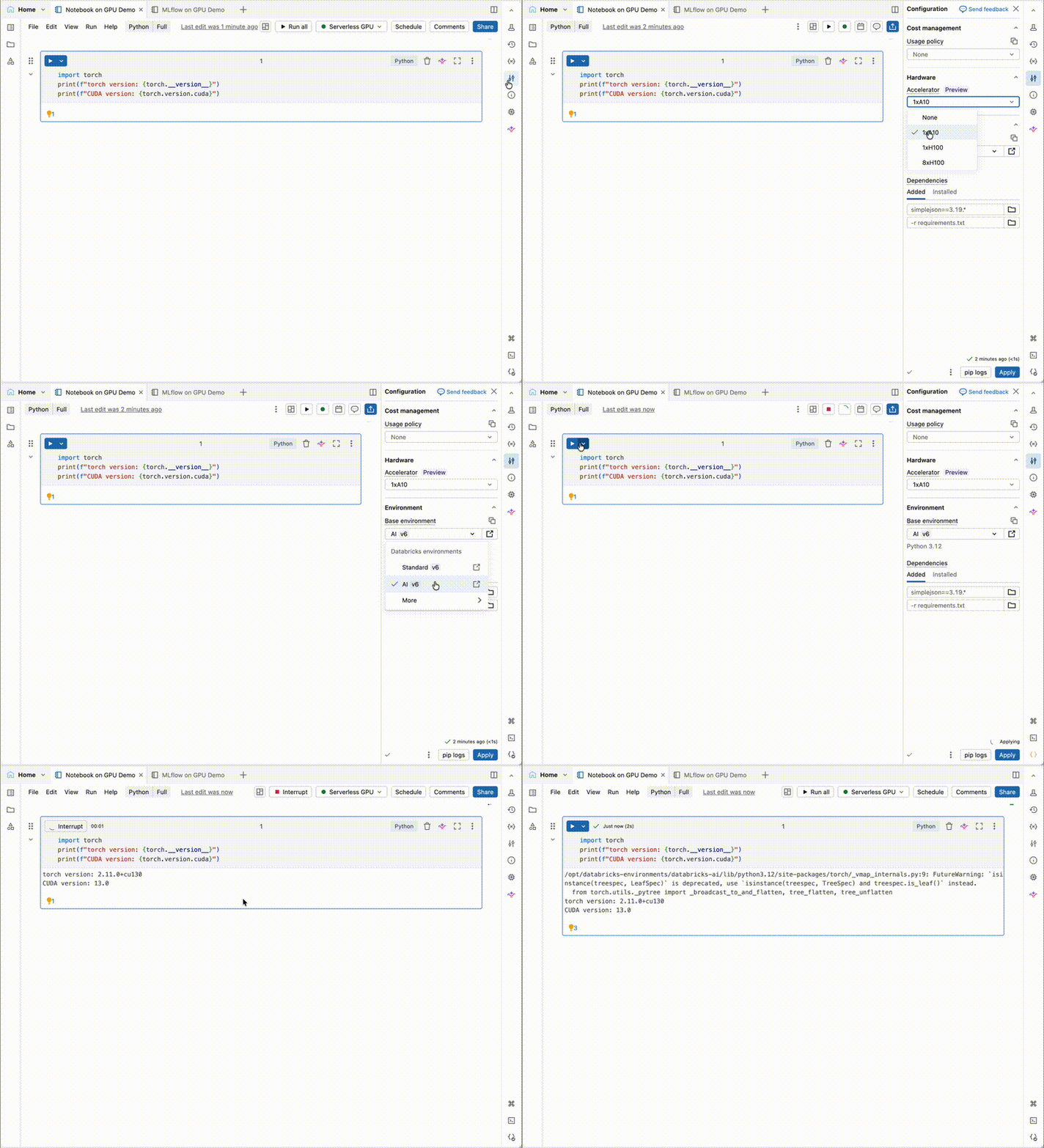
To choose an environment in a notebook, open the Environment side panel and select a base environment:
Standard environment (minimal environment)
A minimal, stable environment containing only the required packages for AI Runtime operation. The environment includes cuda for GPU support. As of environment version 5, torch and torchvision are no longer pre-installed. Install the versions your workload needs with %uv pip install or %pip install. For the packages installed in each environment version, see the release notes below.
Best for: Users who want full control over their dependency stack and prefer to install only what they need.
To select: In the Environment side panel, choose Standard v6 as your base environment.
For more details about package versions installed in different versions, see the release notes:
Databricks AI environment
Available in environment 4 and later. The AI environment is built on top of the Standard environment with common runtime packages and packages specific to machine learning on GPUs. Pre-installed packages include:
- PyTorch (with CUDA support)
- Transformers (Hugging Face)
- And additional ML/DL dependencies
Best for: ML practitioners who want a complete environment for training workloads, fine-tuning, and experimentation without manual dependency management.
To select: In the Environment side panel, choose AI v6 as your base environment.
For more details about package versions installed in different versions, see the release notes:
Install additional packages
You can start from either a managed environment or a workspace base environment and install your own Python packages on top of it. How you install them depends on how you connect to AI Runtime.
In a notebook
Install packages at the top of your notebook or training script with %uv pip, which installs with uv and is faster than %pip. Pin versions so runs stay reproducible:
%uv pip install "trl==1.1.0"
%uv pip install "transformers==5.5.4"
For the full %pip and %uv pip reference, including which environment versions support each, see Manage libraries with %uv commands.
When you use the @distributed decorator for multi-GPU workloads, packages you install before you call .distributed() are automatically snapshotted and propagated to all distributed processes. The total size of installed packages must not exceed 15 GB. For more details, see Add dependencies to the notebook.
With the CLI
The air CLI uses the same managed environments. Select one with environment.version, then list the packages to install on top of it under environment.dependencies in your workload YAML. The CLI installs them into the selected environment with uv, so you don't manage a separate virtual environment yourself:
environment:
  version: '6'
  dependencies:
    - trl==1.1.0
    - transformers==5.5.4
To start from the Databricks AI environment instead, set version to an AI environment identifier such as databricks_ai_v5. For the full dependency format, supported install flags, and custom Docker image support, see environment.
Workspace base environments
A workspace admin can build a workspace base environment for serverless GPU compute, which makes it available to all users in the workspace through the Base environment drop-down menu. For details, see Build for serverless GPU compute (AI Runtime).
To use a base environment in a scheduled workload, reference it by its identifier in the environments block of a job or bundle. For example, this Declarative Automation Bundles task selects the Databricks AI environment:
resources:
  jobs:
    train:
      tasks:
        - task_key: train
          environment_key: default
      environments:
        - environment_key: default
          spec:
            base_environment: databricks_ai_v6
For a complete job example, see Schedule with the Jobs API and Declarative Automation Bundles.
Environment caching and custom modules
When are environments cached?
AI Runtime caches your notebook's environment, so when you reopen the notebook you don't need to reinstall packages. For details, see Reset the environment dependencies.
Caching applies to interactive notebooks. Workloads run through the air CLI or scheduled as jobs don't use this cache; each run installs its dependencies fresh.
As a best practice, pin packages to a specific version so your cached environment stays valid and your runs stay reproducible.
How do I import custom modules?
The following steps show how to use your own Python modules.
- Sync your code to the workspace. Clone a Git repository into the workspace with a Git folder, or upload the files directly as workspace files. Store shared code under
/Workspace/Sharedfor team projects, or in a user folder for personal development. Keeping the code in a Git folder keeps it version controlled. - Add the folder to
sys.pathand import it at the top of your notebook or training script:
import sys
sys.path.append("/Workspace/Shared/my-project/src")
from my_module import my_function
Limitations
The following capabilities are not available on AI Runtime:
- Spark functions: You cannot import or use PySpark functions directly. AI Runtime is a Python-only environment; Spark is not available as a local runtime. However, Spark Connect is available for data loading. See Load data on AI Runtime.
- Databricks Runtime ML libraries: Pre-installed packages are not a replacement for Databricks Runtime ML. Some ML libraries available in Databricks Runtime ML may not be pre-installed on AI Runtime.
- Private artifacts: AI Runtime does support private artifacts in certain cases. Contact your account team for more details.