Note
Access to this page requires authorization. You can try signing in or changing directories.
Access to this page requires authorization. You can try changing directories.
Parameters let you pass values into a metric view when you query it. Use parameters to reuse a single metric view definition across different inputs, such as a discount rate or a date window. Reference a parameter anywhere a constant SQL expression is valid, such as in filters, field and measure expressions, the source, and joins. Pass a value as an argument when you query the view.
Parameters reduce duplication. Instead of maintaining a separate metric view for each variant, you define the logic once and let each caller supply its own values. A parameter can include a default value, so callers that don't pass an argument fall back to the default.
You can pass parameter values from a SQL query or from an AI/BI dashboard. In a dashboard, connect a parameter to a filter widget to let viewers choose the value at runtime. See Use a parameterized query in a dashboard.
Requirements
- To create a metric view that defines parameters, you need
CREATE TABLEandUSE SCHEMAprivileges on the schema and theUSE CATALOGprivilege on the parent catalog. For the complete list of privileges required to create a metric view, see Create a metric view. - To query a metric view that defines parameters, you need a SQL warehouse or other compute resource running Databricks Runtime 18.2 or above. For more version requirements, see Metric view feature availability.
Limitations
The following limitations apply to metric views that define parameters:
- You can't materialize a metric view that defines parameters.
- Default values have restrictions. A default value must be castable to the parameter's declared data type, and it can't reference another parameter or contain a subquery. If you set a default for one parameter, every parameter that follows it must also have a default. See Parameters.
Define parameters
You can define parameters in the Catalog Explorer low-code editor or directly in YAML. After you create a parameter, reference it by name anywhere a constant SQL expression is valid, such as in filters, field and measure expressions, the source, and joins.
To define parameters in YAML, add a top-level parameters block to the metric view definition. For the complete field reference and a YAML example, see Parameters.
The following steps use the Catalog Explorer low-code editor and the samples.tpch.orders table, available in every workspace, to build a metric view with a discount parameter and two measures. One measure applies the parameter, and the other calculates the undiscounted total so that you can compare the two.
Step 1: Create a metric view
Create a metric view to hold the parameter and measures.
- Click
 Catalog in the workspace sidebar, then use the search bar to find
 samples.tpch.ordersand click the table name. - Click Create > Metric view.
- In the Create metric view dialog, enter a name, then select a catalog and schema to create the metric view in. Click Create.
The editor opens on the UI tab. For a full walkthrough of the metric view editor, see Create a metric view.
Step 2: Add a parameter
Add a discount parameter with a numeric type and a default value.
In the editor heading, click Add parameter.
In the Parameter details dialog:
- Enter
discountfor the Name. - Choose Numeric from the Type drop-down.
- Choose Double from the Numeric type drop-down that appears.
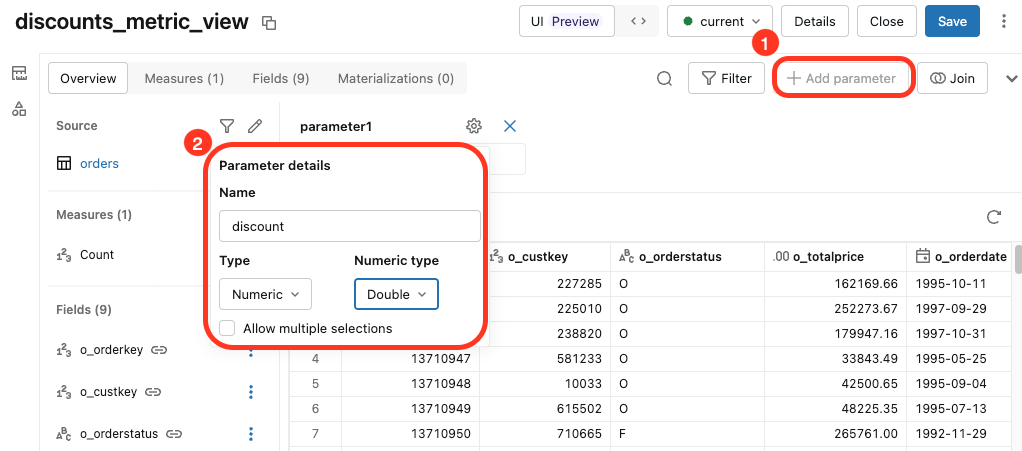
- Enter
Click away from the dialog to close it, then enter
0.15as the default value for discount.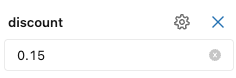
The parameter appears in the editor heading after you create it. The value you set here is the default that applies when a query omits the argument.
Step 3: Add a measure that uses the parameter
Reference the parameter by name in a measure expression. This measure applies the discount to each order total.
Click the Measures tab near the top of the editor.
Click + Add.
Enter
Discounted Salesas the Measure name.Click Custom, then enter the following expression:
SUM((1 - discount) * source.o_totalprice)
Step 4: Add another measure
Add a second measure for the undiscounted total.
- Click + Add.
- Enter
Total Salesas the Measure name. - In Builder, select
source.o_totalpriceand the Sum aggregation to produceSUM(source.o_totalprice).
Step 5: Save the metric view
Click Save. To query the metric view and pass a value for the discount parameter, see Query a metric view with parameters.
Query a metric view with parameters
To query a metric view that defines parameters, call the metric view as a table-valued function and pass parameters as arguments. You can pass arguments by name or by position, or omit them to use the default values.
Pass arguments by name
To pass an argument by name, use the => operator. The following example passes a discount value of 0.15:
SELECT product, MEASURE(discountedSales)
FROM catalog.schema.metric_view(discount => 0.15)
GROUP BY product;
Pass arguments by position
To pass arguments by position, list the values in the order the parameters are defined. The following example passes the same discount value of 0.15:
SELECT product, MEASURE(discountedSales)
FROM catalog.schema.metric_view(0.15)
GROUP BY product;
Use default parameter values
To use the default parameter values when you call the metric view, omit arguments. The following queries are equivalent and use all default values:
SELECT product, MEASURE(discountedSales) FROM catalog.schema.metric_view() GROUP BY product;
SELECT product, MEASURE(discountedSales) FROM catalog.schema.metric_view GROUP BY product;
View the parameters a metric view defines
To see the parameters that a metric view defines, view its YAML definition, which includes the parameters block. See View metric view definition and metadata.
Use a parameterized query in a dashboard
You can use any of these queries to define a dataset in an AI/BI dashboard. Reference the metric view in a SQL dataset and pass the parameter as an argument in the table-valued function call. To let dashboard viewers choose the value at runtime, pass a dashboard parameter into the argument and connect it to a filter widget. See Pass parameters to a metric view.