Note
Access to this page requires authorization. You can try signing in or changing directories.
Access to this page requires authorization. You can try changing directories.
After you run Oracle to Azure Database for PostgreSQL schema conversion in the PostgreSQL extension for Visual Studio Code, use the HTML report to review the recorded results. The report brings together discovery, extraction, conversion outcomes, environment details, and links to object-level reports for a conversion session.
Use it to confirm scope, investigate objects that need attention, and share the results with your migration team. For the conversion workflow, see Tutorial: Convert Oracle schemas to Azure Database for PostgreSQL.
Open the report
The HTML report opens automatically when schema conversion completes. You can also open it in either of the following ways:
- On the Conversion summary page, select Conversion report.
- In your migration output, go to
convert\sessions\<session-id>\reportsand openreport.htmlin a web browser.
Check the session ID in the report's Conversion heading to confirm that you're reviewing the intended run. Start with Overall summary, and select the summary links or expand the section headings to see more detail.
Read the overall summary
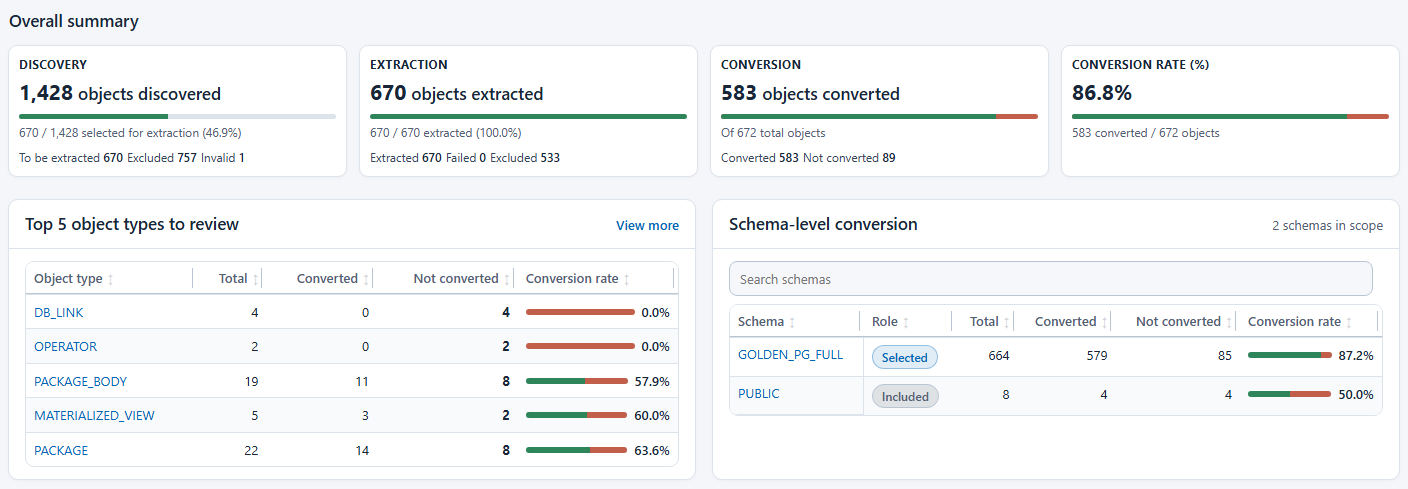
The summary separates the results of each phase:
| Summary | What to review |
|---|---|
| Discovery | Objects discovered on the source, including counts for To be extracted, Excluded, and Invalid. |
| Extraction | Definitions retrieved from the source, along with Failed and Excluded counts. An extracted definition isn't a converted object. |
| Conversion | Converted and Not converted counts for the conversion session. |
| Conversion rate (%) | Converted objects divided by the conversion total, expressed as a percentage. |
Discovery, extraction, and conversion don't necessarily count the same objects. For example, conversion can include generated schema objects. Use the conversion total shown in the report, not the discovery or extraction total, when interpreting the conversion rate. Expand Glossary for the counting rules and definitions used by the report.
Under Schema-level conversion, review each schema's counts and conversion rate. The Role column distinguishes Selected schemas from other Included schemas. Use Search schemas to find a schema, or select its name to open its object-type results.
Find objects that need attention
Start with Top 5 object types to review to see the five lowest conversion rates among types with not-converted objects. This list doesn't rank business criticality. Select an object type to investigate it, or select View more to open the full Object type conversion section.
From the main report, investigate conversion results:
- Expand Conversion, and then expand Object type conversion.
- To narrow the table, select All object types, choose one or more types, and select Done. The table shows a Filtered total for the selected types. To restore all types, reopen the control, select Clear filter, and then select Done.
- Select an object-type name to open its object-level report.
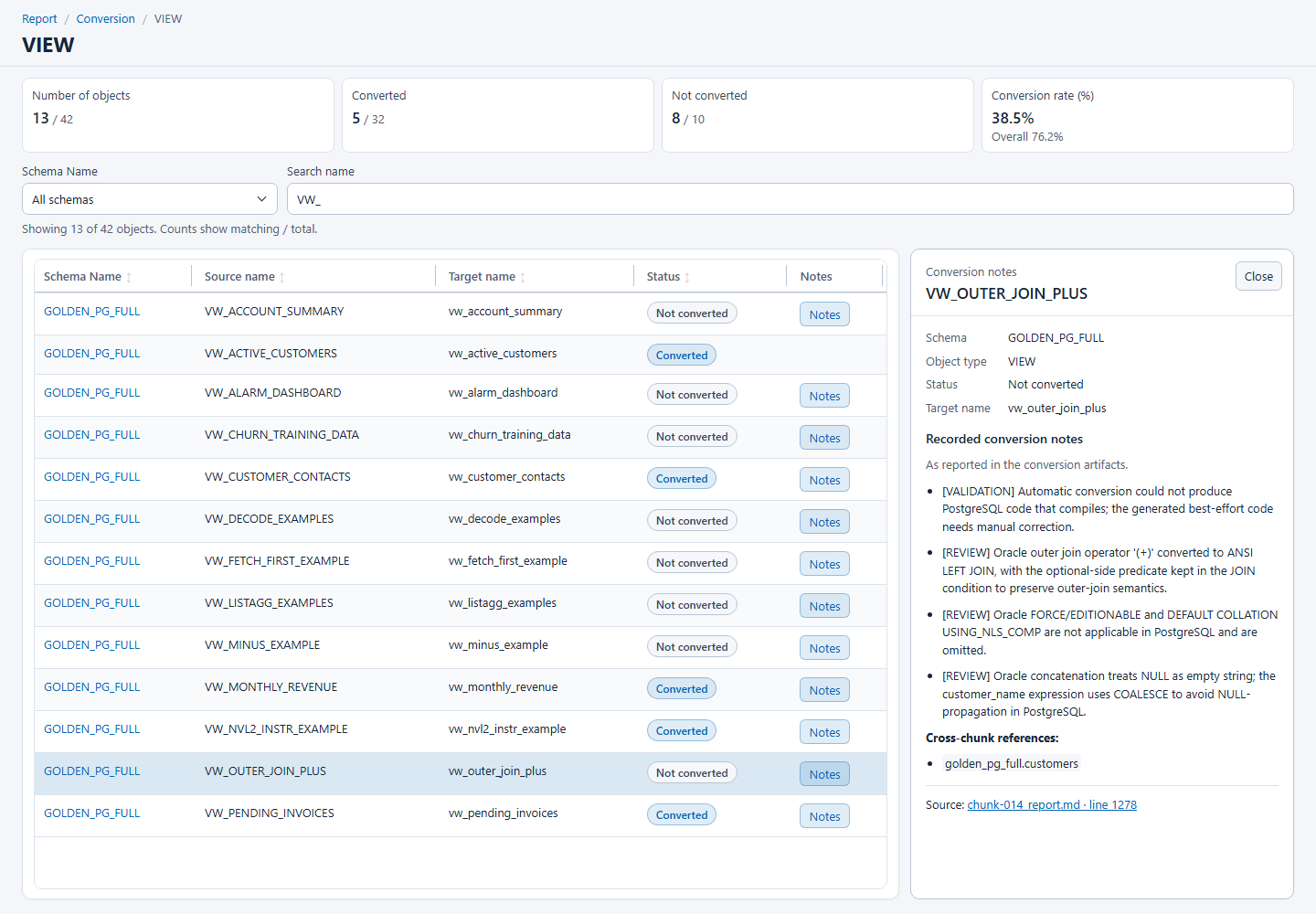
- Use Schema Name to narrow the results by schema, when that filter is available. Use Search name to find an Oracle source name or a PostgreSQL target name.
- Select a sortable column heading, such as Source name or Status, to sort the rows. Select it again to reverse the order.
- Review the Status column, which shows Converted or Not converted. Select Notes, when available, to read the object's recorded conversion notes.
The notes panel identifies the object and provides the recorded explanation, such as a conversion change, a validation failure, or a difference that requires review. Review notes for converted objects as well as objects that weren't converted.
Important
A Converted result doesn't by itself establish compilation success, deployment inclusion, or equivalent runtime behavior. Compile validation checks syntax and structure, not data or application behavior. Complete separate runtime testing before production use.
Review package members
Return to the main report, and expand Conversion and Package conversion to review package-level and member-level results. Use Schema Name and Filter packages to find a package. The table shows its Package status, member count, converted and not-converted member counts, and member conversion rate.
Select a package name to open its member report. Review Source name, Source type, Target name, Target type, Change, Status, and Notes to understand how individual members map to PostgreSQL.
A package can be Not converted even when some of its members are Converted. Package counts, package-body counts, and member counts describe different populations. Don't add member totals to the object-type totals. A rate of n/a means there are no objects or members for that calculation, not a 0% conversion rate.
Investigate discovery and extraction
If an expected object is missing from conversion results, return to the main report and review the earlier phases:
- Expand Discovery. Review Supported object types and Not supported object types, and select an object-type name to open its discovery details.
- Review the applicable To be extracted, Excluded, and Invalid groups. Use the schema and text filters to find an object and read its exclusion or invalidity reason when provided.
- Review Source permissions and Dependent schemas for the recorded source access and schema dependencies. Dependency-reference counts aren't object counts.
- Expand Extraction to review the Extracted, Failed, Excluded, and Invalid counts. Expand Extracted objects by type to review the definitions retrieved from Oracle by object type.
An Excluded object was omitted from extraction; that status doesn't establish that a replacement exists in PostgreSQL. An extraction Failed count represents definitions that couldn't be retrieved, not the conversion phase's Not converted count.
Review environment and supporting information
Use the remaining sections to understand the run's context and plan follow-up work:
| Section | What to review |
|---|---|
| Environment | Source details, the Target conversion database, Extensions used by Schema Conversion, and LLM settings. |
| Next Steps - Setup | Guidance on target connectivity, permissions, schemas, and extension prerequisites before setup. |
| References | Links to public documentation, the object mapping CSV, and the report location. |
| Glossary | Definitions of statuses, conversion rates, package and member counts, and other report terms. |
In References, open object_mapping_summary.csv for source and target object names and types, recorded statuses, and required actions. Mapping entries can differ from report object totals, so don't use the CSV row count as the conversion-rate denominator.
Use Next Steps - Setup as preparation guidance. The report itself isn't a deployment script.
Share the report
Provide the entire report directory when you move or share the conversion results.
The report directory can contain database and schema names, object names, environment details, and conversion notes. Review the contents before sharing, follow your organization's data-handling requirements, and remove credentials or secrets from anything you share.